DIY QR Code: How to Make Your Own QR Code in 2026 (Step by Step)

In a nutshell (TL;DR): You can make a DIY QR Code in under five minutes. Pick a free online QR Code generator, choose what the code links to, customize the look, test the scan, and download a high-resolution file. For a one-time use like a Wi-Fi password or a personal contact card, a free static code works. For anything you will print or update later, use a dynamic QR Code so you can edit the link and track scans without reprinting. This guide walks you through the whole process, the mistakes to avoid, and how to pick the right tool.
A. Why did I write this guide?
More than 100 million people in the United States are expected to scan a QR Code in 2026, which is roughly one in three Americans. Scanning is no longer a novelty. It is a habit.
So here is the problem. Making your own QR Code looks simple, but a surprising number of them never work. Many are made wrong, printed too small, or point to a dead link. A code that fails in the field wastes your time and your print budget.
I have made hundreds of QR Codes for real campaigns. In this guide, I will show you the exact steps I use, the choice that trips up most beginners, and a short checklist that keeps your code working long after you hit print.
By the end, you will be able to make a DIY QR Code that scans on the first try, every time.
B. What is a DIY QR Code?
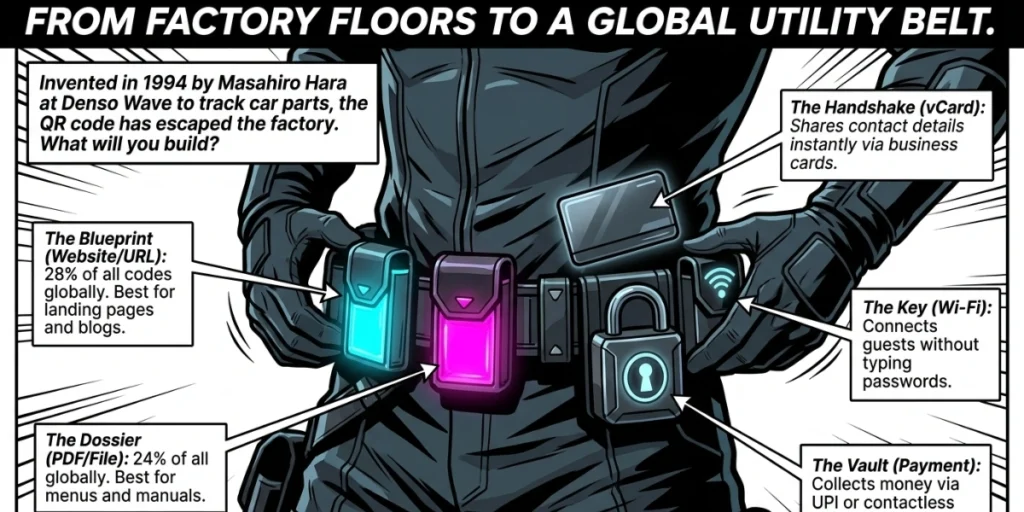
A DIY QR Code is a QR Code you create yourself with a free or paid online tool, rather than hiring a designer or developer. “DIY” just means do it yourself.
You enter the content you want to share, the tool encodes it into the square black-and-white pattern, and you download the image.
A QR Code stores data in a grid of dots that a phone camera can read instantly. The first one was built in 1994 by engineer Masahiro Hara at the Japanese firm Denso Wave, who designed it to track car parts on the factory floor.
Hara has since watched his invention spread far beyond that. As he put it, reflecting on its modern uses, “I would never have thought that my system would be used for this kind of application.”
Today, you can make one for a website, a menu, a Wi-Fi network, a contact card, a payment, a video, and much more. You do not need design skills. You do not need to write code. You just need the right tool and a few good habits, which I cover below.
C. What can you make a QR Code for?
Before you open a generator, decide what the code should do. The content type shapes every choice after it. Here are the most common DIY QR Code types and when each one fits:
|
QR Code Type |
Best For |
Example Use |
|
Website / URL |
Sending people to any web page |
A blog post, product page, or landing page |
|
vCard / Contact |
Sharing your details in one scan |
Business cards and email signatures |
|
Wi-Fi |
Letting guests connect without typing |
Cafes, offices, and home guest rooms |
|
PDF / File |
Sharing a document or menu |
Restaurant menus and product manuals |
|
Social media |
Growing your following |
Instagram, LinkedIn, or YouTube links |
|
Plain text |
Showing a short message |
Event details or instructions |
|
Payment |
Collecting money |
UPI, contactless checkout, or donations |
D. How do I make my own QR Code?
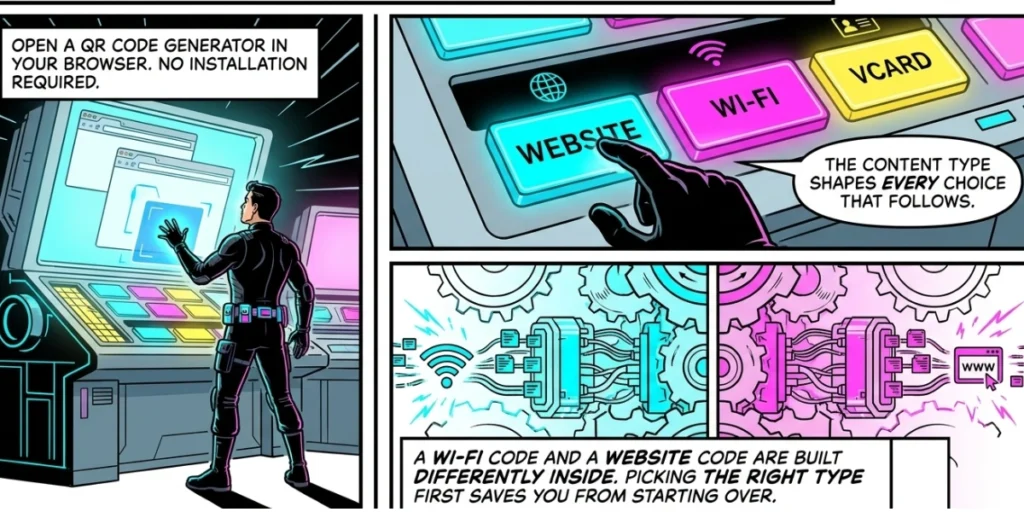
You can make a Website URL QR Code in five steps. The whole process takes a few minutes once you know where the link should point. Here is the method I use for every code I create.
Step 1: Log In to Scanova
Open Scanova in your browser and log in to your account. There is nothing to install. From the sidebar navigation panel, click Create QR Code. The whole tool runs in the browser, so you can create the code, customize it, and download it at a high enough quality to print.
Step 2: Select the Website URL Category
Pick Website URL from the list of QR Code categories. This step matters more than it looks. Each category is built differently under the hood, so choosing Website URL first means the code is set up to open a webpage, saving you from having to redo the work.
Step 3: Enter Your Link
Paste the website URL into the field. Double-check it here. A single typo in a static code means a full reprint later, so I always paste links rather than type them. Copy the destination, paste it in, and confirm it opens the right page in a fresh tab. You can also choose static or dynamic at this stage. A dynamic code lets you edit the link later and track scans, while a static one is fixed once created. Then click Create QR Code.
Step 4: Customize the Design
Now make it yours. In the Design Studio, you can change the colors, add a logo in the center, and place a frame with a short “Scan Me” call to action. Design is not just decoration. A clear call to action and a recognizable logo signal to people that the code is safe and worth scanning, boosting your scan rate.
Keep one rule in mind. The foreground must stay darker than the background, and you need strong contrast. A light code on a dark background often fails to scan.
Step 5: Test, Then Download
Scan the code with your own phone before you download it. Open your camera, point it at the screen, and confirm it goes where it should. Only then download the file. For print, choose a vector format like SVG or a high-resolution PNG so the code stays sharp at any size.
That is the full process. Five steps, a few minutes, and one working code. Test every single time, because static code you cannot edit later is only as good as the link inside it.
E. Static vs Dynamic QR Code: Which should you use?
This is the choice that trips up most beginners, so it deserves its own section. A static QR Code stores the data directly inside the pattern, and it cannot be changed once created.
A dynamic QR Code stores a short redirect link, so you can update the destination any time without making a new code.
Here is how they compare:
|
Feature |
Static QR Code |
Dynamic QR Code |
|
Edit after printing |
No |
Yes |
|
Track scans |
No |
Yes |
|
Cost |
Usually free |
Usually paid |
|
Best for |
One-time, fixed info |
Marketing and anything printed |
|
Expires |
Never (link can still die) |
Stays editable |
Think of it this way. A static code is permanent ink. A dynamic code is a signpost you can repaint. If you print 500 flyers with a static code and the link changes, you reprint all 500. With a dynamic code, you log in and update the destination in seconds.
The market has clearly picked a side. Dynamic QR Codes now hold around 65% of the market and are growing faster than static ones, according to data compiled by Bitly. For quick personal use, like sharing a Wi-Fi password at home, static is fine.
For any business, campaign, or printed material, I recommend dynamic every time. The ability to fix a broken link without a reprint pays for itself the first time you need it.
F. How do I make sure my QR Code actually works?
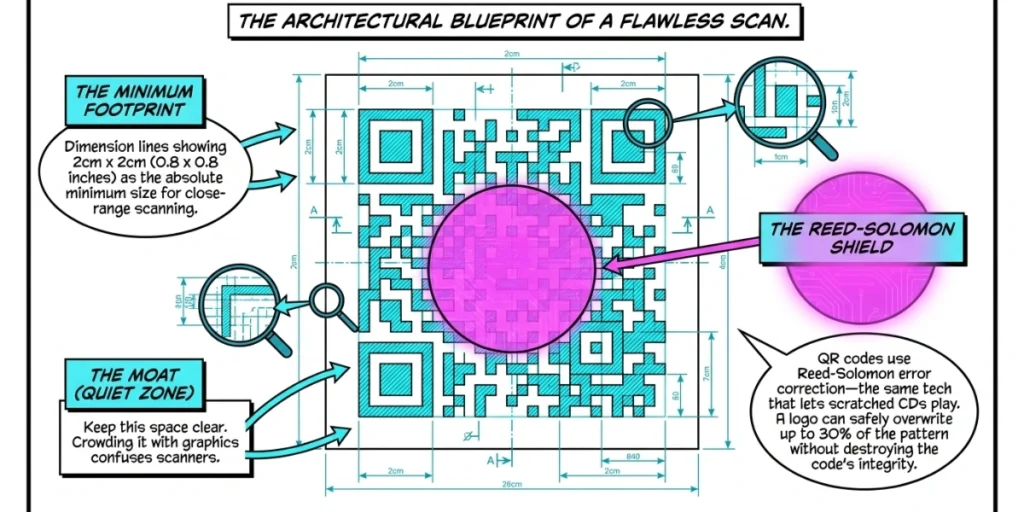
Most failed QR Codes fail for the same handful of reasons. I learned these the slow way, so here is the checklist I run before any code goes live.
- Test before you print. Scan with both an iPhone and an Android phone if you can. Over 98% of scans happen on smartphones, per IMQRScan’s 2026 analysis, so your code has to work on the device in someone’s pocket.
- Keep it big enough. The minimum reliable size is about 2 by 2 centimeters, or 0.8 by 0.8 inches, for close-range scanning. Print it larger if people will scan from a distance.
- Mind the contrast. Dark code, light background. Low contrast is the single most common reason a code will not scan.
- Leave the quiet zone. Keep clear white space around the code. Crowding it with text or graphics confuses scanners.
- Do not shrink a logo too far. A logo can safely cover up to about 30% of the code thanks to built-in error correction, but go past that and scans start to fail.
- Use high resolution. A blurry or pixelated code is a dead code. Always download print quality.
That error correction trick is worth a moment. QR Codes use a system called Reed-Solomon error correction, the same method that lets a scratched CD still play.
It means a portion of the code can be damaged or covered, and the code still reads. That is why you can safely drop a logo in the middle. It is a feature, not a risk, as long as you stay within the limit.
G. Which Free QR Code Generator Should I Use?
The best QR Code generator is the one that matches your use case. For a quick static code, almost any free tool will do. For anything you will print, market, or update later, you want a platform that offers dynamic codes, scan tracking, and design control in one place.
Here is what I look for when choosing a tool:
- Dynamic code and analytics so you can edit links and view scan data.
- Design control, including logo upload, colors, frames, and shapes.
- High-resolution and vector downloads, such as SVG and EPS, for clean printing.
- Data security and compliance, which matter the moment you handle anything beyond a personal link.
- No surprise expiry on the codes you create.
Most free tools cover the basics well. Adobe Express, Canva, and similar design platforms are great if you only need simple static code within a design you are already creating. They are convenient, though they often limit you to static codes or basic editing.
When my code needs to do more, I reach for a dedicated QR Code platform. Scanova is the one I use most for work that has to look professional and stay flexible.
It supports dynamic codes you can edit and track, a Design Studio for custom logos and colors, mobile landing pages, and scan analytics, all in one dashboard.
It is also ISO 27001:2022 certified and GDPR compliant, which gives me peace of mind when a campaign touches customer data. A 14-day free trial lets you test the full feature set before paying, and no card is required to start.
To be fair and clear, you do not need a paid tool for a one-off personal code. A free static generator is perfectly fine for a Wi-Fi share or a single business card.
The value of a platform like Scanova shows up when you scale, when you print, and when you need to prove a code is working. Match the tool to the job, and you will not overpay or under-build.
H. Common DIY QR Code Mistakes to Avoid
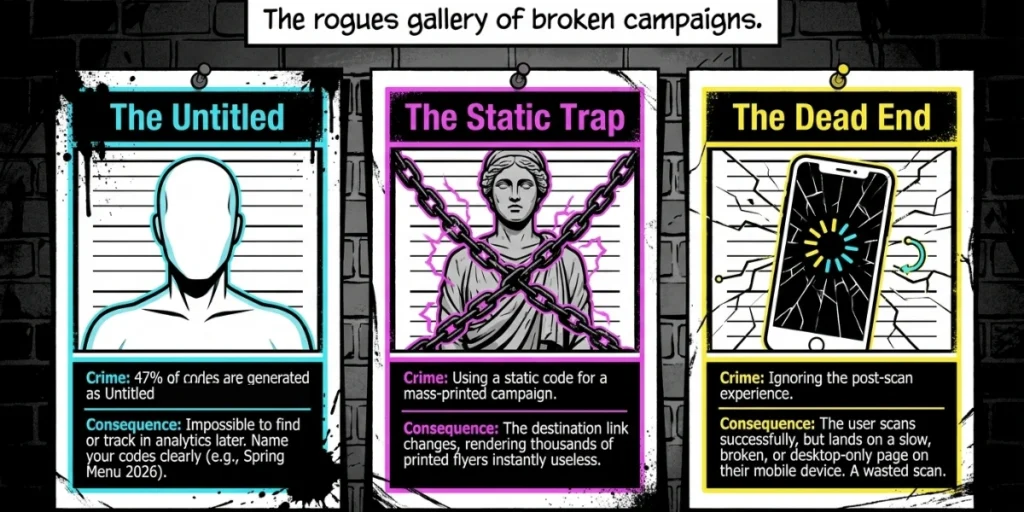
Even a good tool cannot prevent a few avoidable errors. These are the ones I see most often.
First, using static code for a printed campaign. If the link ever changes, you are stuck. Dynamic codes solve this entirely.
Second, skipping the test scan. It takes ten seconds and saves hours. A code that looks perfect on screen can still fail in print.
Third, naming nothing and tracking nothing. QRLynx found that 47% of codes are left as “Untitled,” which makes them impossible to find in analytics later. Name your code something clear, like “Spring Menu 2026,” so you can measure it.
Fourth, ignoring what happens after the scan. A scan that lands on a slow or broken mobile page is wasted. Make sure the destination loads fast and works on a phone first.
Fifth, treating a scan as the finish line. The scan is the start of the journey. Plan where you want people to go next, whether that is a signup, a purchase, or a follow.
I. Frequently Asked Questions
1. Are DIY QR Codes free?
Yes, you can make a QR Code for free. Static QR Codes, which point to fixed content, are free to create on most generators and never expire. Dynamic QR Codes, which you can edit and track, usually require a paid plan or a free trial. For a one-time personal use, free is enough. For business use, a dynamic code is worth the cost.
2. Do QR Codes expire?
Static QR Codes do not expire on their own, but the link inside one can break if the page is moved or deleted. Dynamic QR Codes stay editable, so you can point them to a new link any time. The code image itself does not have a built-in clock.
3. Can I make a QR Code without signing up?
Yes. Many free tools let you create and download a static QR Code with no account at all. You will usually need to sign up only when you want dynamic codes, scan tracking, or advanced design features. Most platforms offer a free trial so you can test these before paying.
4. What size should a QR Code be?
The recommended minimum is about 2 by 2 centimeters, or 0.8 by 0.8 inches, for close-range scanning. Scale it up for posters, banners, and anything scanned from a distance. A larger code is easier to scan, so when in doubt, go bigger.
5. Can I add my logo to a QR Code?
Yes. Most generators let you place a logo in the center. Thanks to built-in error correction, a logo can cover up to about 30% of the code without breaking it. Keep it within that limit, test the scan, and your branded code will still work.
6. Is it safe to scan QR Codes?
The technology itself is safe. The risk lives in the destination, not the code. Before you scan a code from an unknown source, look for clear branding and a recognizable link. When you make your own codes, a branded design helps others trust that yours is legitimate.
Final Thoughts
Making a DIY QR Code is genuinely simple. Pick a tool, choose your content, customize it, test the scan, and download. The five minutes you spend testing and choosing between static and dynamic analysis is what separates code that works from the 34% that never get scanned.
My honest advice: use a free static code for quick personal jobs, and reach for a dynamic platform like Scanova the moment you print something or run a campaign. The editing and tracking will save you a reprint and show you whether your code is actually doing its job. Start small, test everything, and your first QR Code will scan on the first try.