Product Review QR Code: How to Get 3x More Reviews

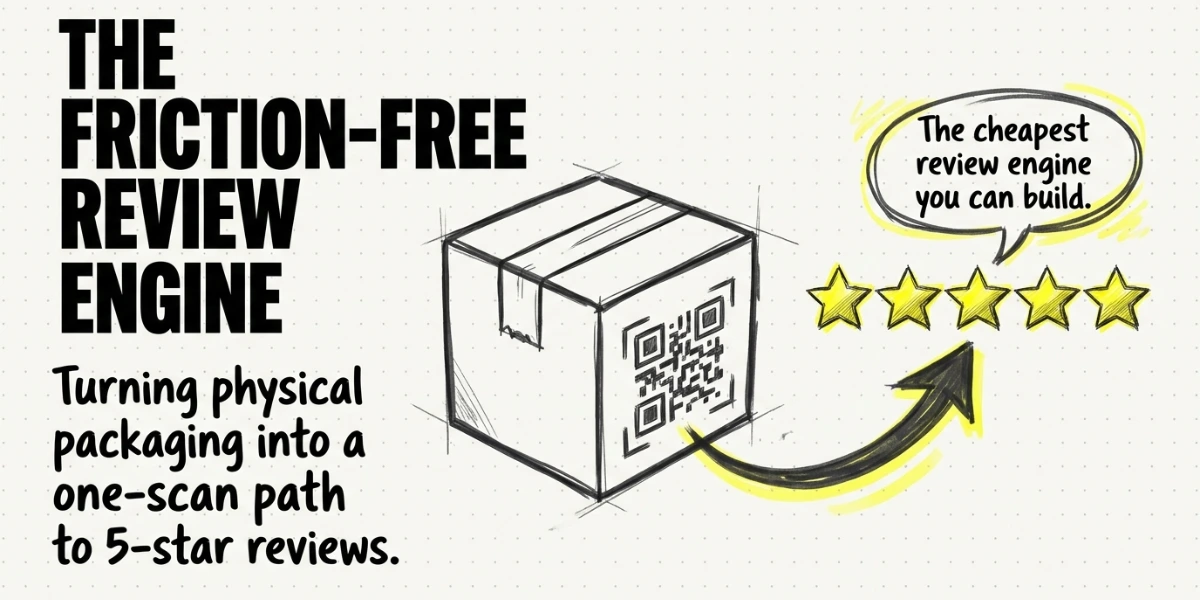
In a nutshell (TL;DR): A product review QR Code is a scannable code printed on packaging, inserts, or in-store displays. One scan takes the customer straight to a review form on Google, Amazon, Trustpilot, or your own site. Brands using them see up to 3x more review submissions than verbal asks. Dynamic versions let you update the destination and track scans without reprinting a single label.
Here is a stat I find hard to ignore. According to Capital One Shopping research, 93% of consumers read online reviews before making a purchase. Reviews now shape almost every online buying decision.
But there is a quieter problem hiding behind that number. Most happy customers never leave a review. They love your product. They want to help. They forget the moment they put their phone down.
I have spent a lot of time looking at this gap. Brands ship great products. Customers feel great about them. And then nothing happens.
A product review QR Code fixes that gap. It turns a moment of satisfaction into a review before the feeling fades. One scan opens the right form. No searching. No logging in. No copy-pasting a link from an email.
In this guide, I will walk through what a product review QR Code is, how it works, and where to place it for the most scans. I will also share what I have learned about design, dynamic links, and tracking.
By the end, you will have a clear playbook for turning your packaging into a review engine.
A. What is a product review QR Code?
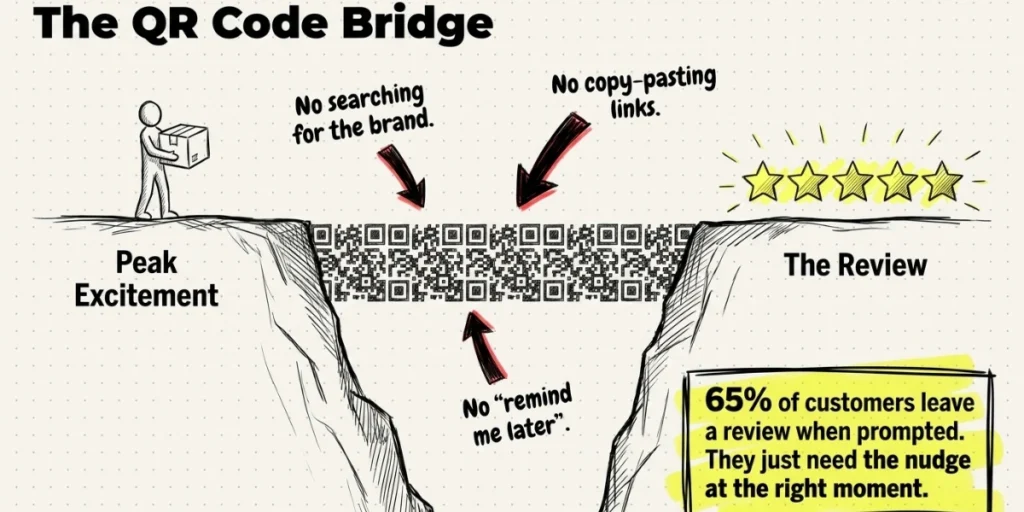
A product review QR Code is a scannable code printed on a product, its packaging, or a leaflet inside the box. When a customer scans it with their phone camera, it opens a review page.
That page can be your Google Business Profile, your Amazon product listing, your Trustpilot page, or a custom feedback form.
The point is to remove every step between a happy customer and a written review. No searching for the right page. No typing the brand name. No remembering to do it later.
Some brands link the code to a simple star rating form. Others send the scanner to a longer feedback survey with sections for design, quality, and support. The best choice depends on what you plan to do with the data.
A few things to know. The QR Code itself is just a small black-and-white square. The destination behind it is what matters. You can change that destination at any time if you use a dynamic version. More on that below.
According to Bitly’s 2025 QR Code Report, 43% of consumers have scanned a QR Code on product packaging to access product information. That makes packaging the second-most-common QR interaction after restaurant menus. The behavior already exists. A review QR Code just gives it a new purpose.
Brands in retail, beauty, electronics, food, and consumer goods use these codes every day. The setup takes minutes. The payoff lasts as long as the product is in circulation.
“Most brands focus on asking for reviews more often. We encourage them to focus on asking at the right moment. When a customer has the product in hand and can reach the review page with a single scan, completion rates improve dramatically because there’s no searching, typing, or delay involved.” — Siddharth Pangtey, Product Manager, Scanova
B. How does a product review QR Code actually work?
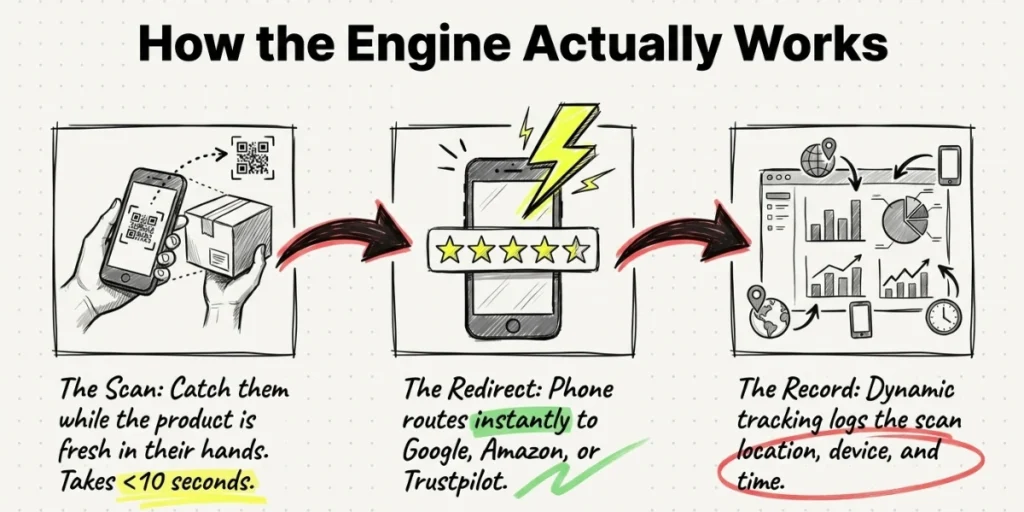
The flow is simple from the customer’s side. They open the camera, point at the code, and tap the link that appears. The phone takes them to the review page. Most reviews now take less than a minute to leave.
From the brand’s side, three parts matter:
The QR Code itself. This is the visual square printed on your packaging or insert card. Black on white reads best. You can match it to your brand colors as long as you maintain high contrast.
The destination link. This is where the scan sends people. Most brands point it at their Google Business Profile or an Amazon listing. Others build a branded landing page that asks for a rating first and then collects a longer review.
The tracking layer. If you use a dynamic QR Code, you can see how many people scanned it, where they scanned from, and what device they used. Static code does not provide this data.
That is the full system. A scan, a redirect, and (with the right setup) a record.
C. Why use a QR Code to collect product reviews?
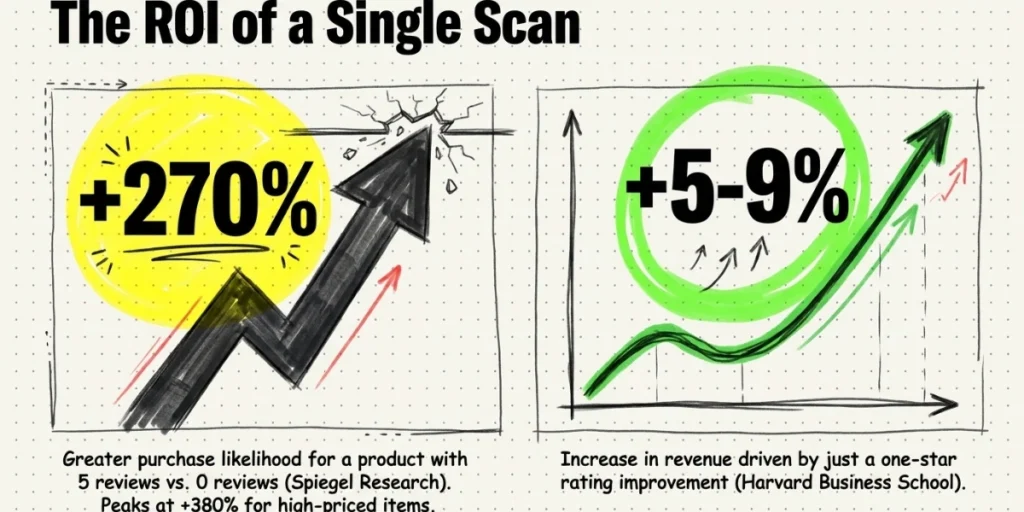
The case for review QR Codes comes down to three numbers I keep returning to.
First, reviews drive sales in a way nothing else does. Northwestern University’s Spiegel Research Center found that the purchase likelihood for a product with five reviews is 270% greater than for a product with no reviews. Higher-priced products see an even bigger lift, up to 380%.
Second, the gap between satisfaction and action is huge. Around 1 to 2% of Amazon buyers leave a review, even though far more were happy with their purchase. The intent is there. The follow-through is missing.
Third, prompted reviews work. According to BrightLocal’s Local Consumer Review Survey, 65% of customers leave a review when prompted by a business. Most people are willing. They just need a nudge at the right moment.
A QR Code on packaging is that nudge. It catches the customer when the product is in their hands, and the experience is fresh. That timing matters. Reviews collected within 24 hours of a positive experience tend to be more specific and more useful.
Compare that with the alternative. An email a week later. A pop-up on the website. A text message that gets ignored. Each adds friction. A QR Code on the box adds nothing.
There is also a cost angle. Once you print the code, you pay nothing for each scan. You are not bidding for ad space or paying per review request. Unit economics improve with every shipment.
One more point worth flagging. Even small rating bumps move real money. A Harvard Business School study by Michael Luca found that a one-star increase in ratings led to a 5-9% increase in revenue for restaurants on Yelp. The same logic applies to physical products.
A review code is one of several post-purchase jobs a pack can do. Registration, warranty, and support codes all work the same way. Our guide to QR Codes on product packaging sets out the full set.
D. Where should you place a product review QR Code?
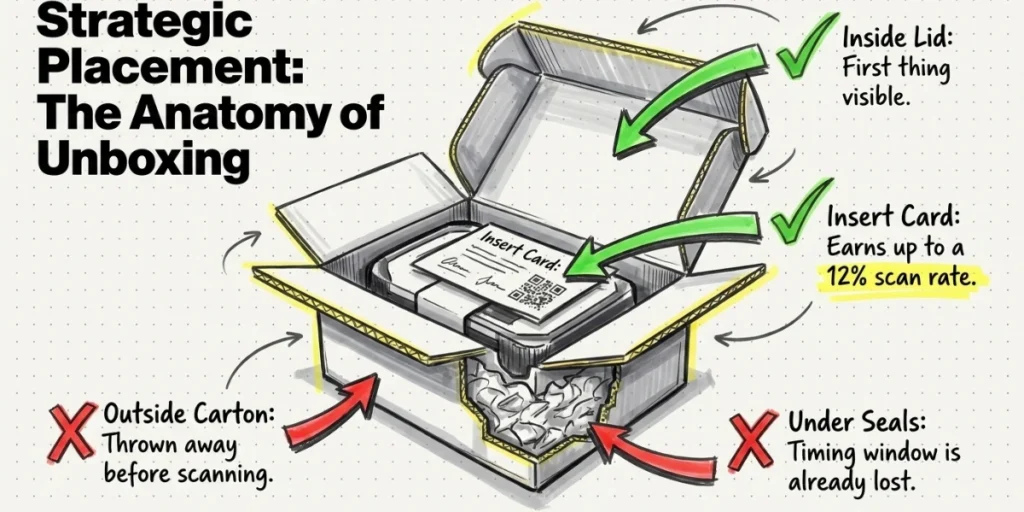
Placement decides whether a scan ever happens. Even a great QR Code on the wrong spot gets ignored.
Here are the placements I have seen work best:
On the inside of the lid or the first thing visible on unboxing. This catches the customer at peak excitement. The product is new, the feeling is positive, and the phone is usually already in hand for a photo.
On a thank-you insert card. A small card placed on top of the product works well. A short line like “30 seconds to tell us how we did” sets the expectation. One brand tracked by Review Collect saw 12% of buyers scan a card like this in their shipments.
On the back or side of the main packaging. This is the steady-state option. It keeps the code visible after the first scan window. People often want to leave a review days after the event. They need to know where to look.
On warranty cards or product manuals. A code here catches customers in a moment of friction. They are already opening the manual. Many will appreciate a faster way to share feedback than filling out a paper form.
On in-store signage near the product. Retail brands use this for buyers who already own the product and are back in-store. Tent cards, shelf talkers, and checkout displays all work.
On follow-up packaging, like refill bags or delivery notes. A code here keeps the prompt going past the first purchase. Subscription brands and consumables benefit the most.
A few placements to avoid:
Do not put the code on the outside of shipping cartons. Most customers throw those away before scanning. Do not place it next to other QR Codes for tutorials, coupons, or warranty registration.
Mixing purposes confuses scanners. And do not hide it under a seal or fold. If the customer cannot see it without unwrapping the product first, the timing window has already passed.
The rule I follow: place the code where a happy customer will see it within 60 seconds of using the product.
Outer cartons and inserts reach the buyer at unboxing, which is the moment a review is most likely. See QR Codes on boxes and warranty QR Codes for the two placements that pair best with a review ask.
For Google reviews, there is now a faster route. Scanova’s free Google Review QR Code Generator converts your review link into a branded review card. Paste the link, add your business name and logo, and pick a template. You get a print-ready card with a “Scan QR Code to review us on Google” prompt in under a minute. For Yelp and other platforms, the steps below still apply.
E. How do you create a product review QR Code?
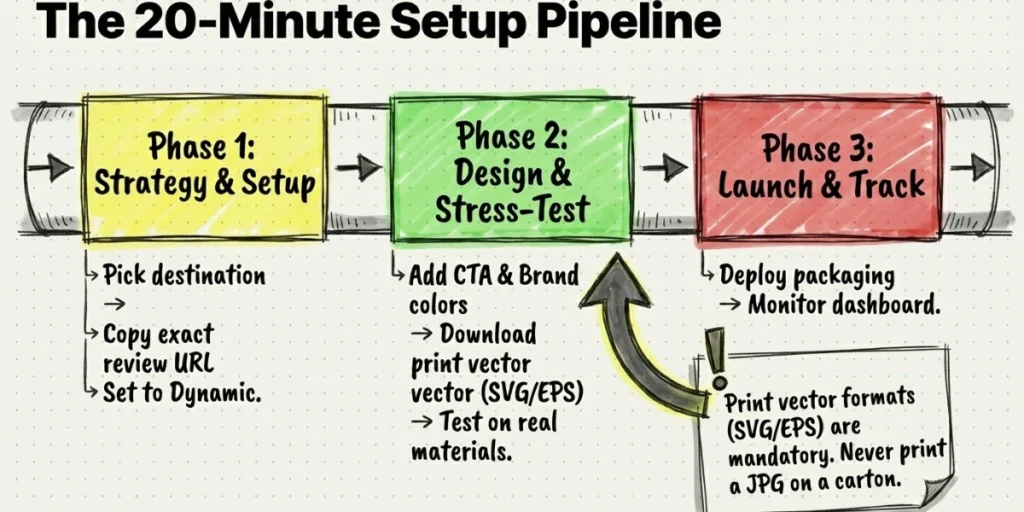
Creating a product review QR Code is not technical work, but doing it well takes more than a five-minute click-through.
Skipping the small steps is what causes the broken codes, wrong landing pages, and low scan rates you see in the wild.
Here is the full workflow we recommend, broken into 10 steps you can finish in about 20 minutes.
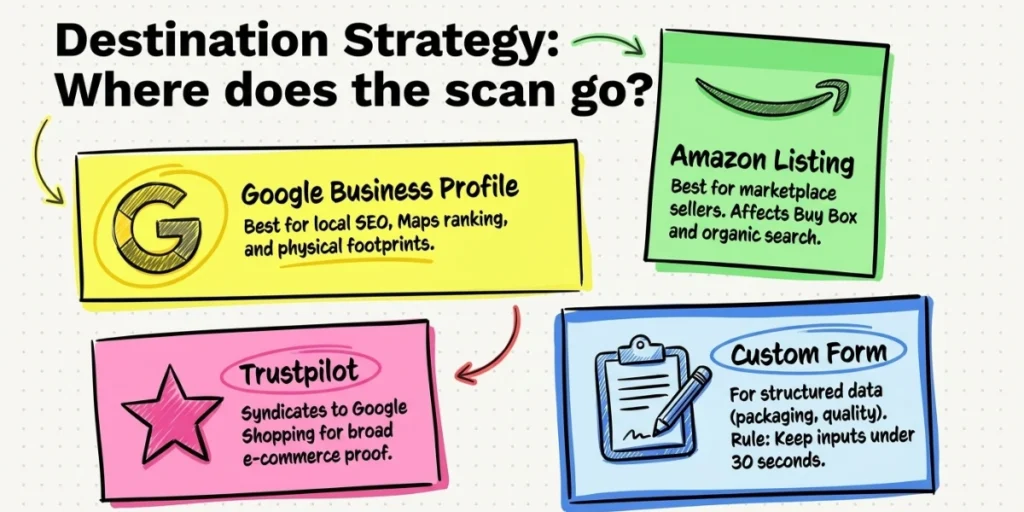
Step 1: Pick your review destination
Decide where you want scanners to land before you touch a generator. The destination shapes everything else.
- Google Business Profile builds local SEO, shows on Maps, and feeds the star ratings shoppers see when they search your brand. Best if you have a physical footprint or serve a local market.
- Amazon affects Buy Box eligibility, ad performance, and organic ranking inside Amazon search. Best if the marketplace is your primary sales channel.
- Trustpilot syndicates to Google Shopping and works for e-commerce brands that need social proof outside platform-locked ecosystems.
- A custom feedback form (Typeform, Google Forms, your own CRM) makes sense when you want structured data on specific things like packaging, setup time, or individual features.
Step 2: Copy the exact review URL
This is the step most brands fumble. The “review your product” URL is rarely the same as the homepage or the product listing page.
- Google: open Google Maps, find your business, click Reviews, then “Get more reviews,” and copy the short g.page link.
- Amazon: open Seller Central, go to the product, and grab your customer-facing review page (not the listing URL).
- Trustpilot: go to your business page, click “Get more reviews,” and copy the invitation link.
- Custom form: publish the form first, copy the live URL, then open it in an incognito tab to confirm it loads without a login wall.
Paste the URL into a notes file. You will use it in Step 4.
Step 3: Sign in to Scanova and pick the right category
Open scanova.io and sign in. On the dashboard, click “Create QR Code” and select the Website URL category. We have a separate Google Review category, but Website URL is the one to use here because it handles every review destination you might pick in Step 1, not just Google.
Step 4: Paste the URL and name your QR Code
Paste the review URL into the URL field. Then give the QR Code an internal name, such as “SKU-1042 Amazon Review” or “Lavender Candle Google Review.” This name is only for your dashboard, but it matters once you have 50 codes live and need to find one fast.
Step 5: Set the QR Code to dynamic
Choose Dynamic, not Static. A static code locks the URL into the printed image forever, so if your review link ever changes (and Google’s, Amazon’s, and Trustpilot’s all do), every package you shipped becomes dead code. Dynamic codes let you edit the destination at any time and unlock the scan analytics you need in Step 10.
Step 6: Customize the design
A plain black-on-white QR Code works, but a branded one earns more scans.
- Set the foreground color to match your packaging. Keep contrast strong against the background you will print on.
- Upload your logo in the center. QR Code error correction can handle a logo covering up to 30% of the area without breaking the scan.
- Add a frame with a clear call to action. “Scan to review” or “Tell us what you think” works better than the code sitting on its own.
- Pick a data pattern and eye style that fit your brand, but stop short of anything that hurts contrast.
Step 7: Preview and scan-test before downloading
The live preview shows the QR Code in real time. Before you download, scan it directly off your screen with your phone’s camera app. Confirm the right page opens, loads fast, and looks correct on mobile. If anything fails here, fix it now. Once it is printed, you cannot.
Step 8: Download in the right format
- PNG and JPG: digital use only (email, social, web).
- SVG, EPS, PDF: print. These are vector formats and stay sharp at any size, which matters when the same code prints on a small bottle label and a large shipping carton.
Set the size based on the smallest print application. For packaging, a minimum of 2 x 2 cm (about 0.8 inches) is safe for most distances. For shelf-talkers or posters, go bigger.
Step 9: Test on real packaging
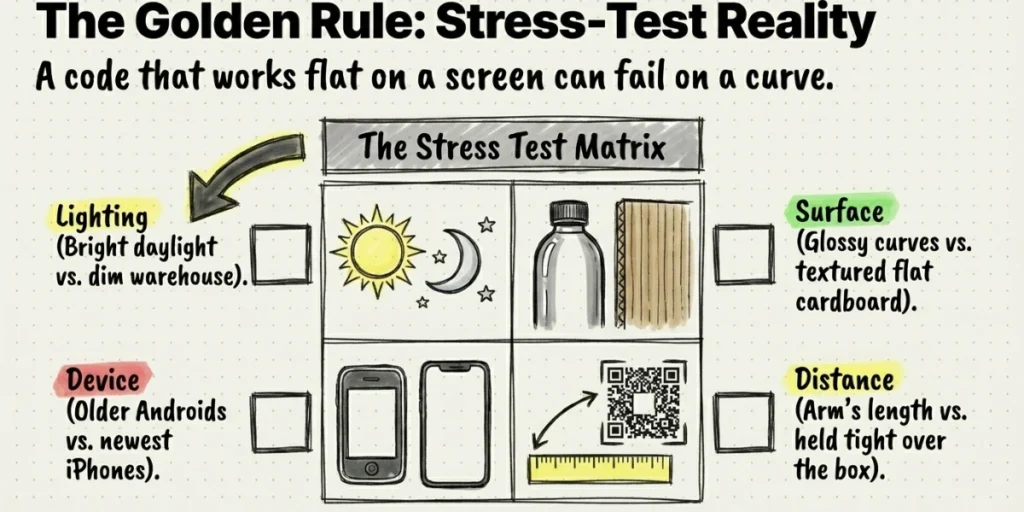
This is the step that separates the brands that get reviews from the ones that get returns. Print 10 to 20 samples on the actual material (label stock, carton board, shrink wrap) you plan to use in production. Then:
- Scan from different phones (iOS and Android, old and new).
- Scan in different lighting (bright daylight, indoor store, dim warehouse).
- Scan from different distances (arm’s length, across a shelf, hand-held over the box).
- Scan on the actual surface (curved bottle, glossy label, textured carton). A code that works flat on a screen can fail on a curve.
If any of these fail, go back to Step 6 and adjust size, color, or contrast.
Step 10: Print, deploy, and track scans
Approve the full print run and ship. From here, the dynamic QR Code you set up in Step 5 starts collecting data. Log in to your dashboard to see total scans per code, scans by city and country, device type, and time-of-day patterns.
Use this to figure out which SKUs drive the most reviews, which regions are quiet, and where to invest next. If a campaign underperforms, edit the destination (e.g., swap a Google review link for a custom form that asks better questions) without reprinting a single label.
A note on cost. A static QR Code is free with most generators, but it cannot be edited or tracked once printed. A dynamic one with analytics runs from a few dollars a month.
For most product brands, the analytics alone make the upgrade worth it, because knowing which SKUs drive the most reviews changes how you allocate packaging and promotion budgets.
F. Static vs dynamic QR Codes: Which one should you use?
This is the most common question I get on this topic. The short answer: dynamic, almost always.
A static QR Code has the destination URL baked into it. Once you print it, the URL is fixed. If you ever change your review platform, your link structure, or your Google Business Profile, every existing code becomes a dead end.
A dynamic QR Code holds a short redirect link. The redirect points to whatever destination you set in your dashboard. You can change that destination any time without reprinting.
For product reviews, this difference matters a lot. Product life cycles run from months to years. Your review strategy will probably change in that window. You might move from Google Reviews to a custom form. You might run a campaign with a special landing page. You might rebrand. A dynamic code adapts. A static one does not.
Dynamic codes also unlock analytics. You can see how many people scanned, when they scanned, what city they scanned from, and what phone they used. That data tells you which packaging spots actually drive reviews and which ones are wasted real estate.
For most brands, the dynamic version pays for itself within the first campaign.
Scanova customer data shows that review-focused QR Codes placed on product packaging inserts generate up to 3.1× more scans than QR Codes printed only on the outer packaging, highlighting the importance of placement in review collection campaigns. – Scanova Research Team
G. What design choices make a review QR Code get scanned?
A QR Code is only useful if people scan it. Design choices change scan rates more than most marketers expect.
Here are the rules I follow:
Keep it at least 2 cm by 2 cm. Smaller codes fail to scan from arm’s length. For bottles and curved surfaces, go up to 3 cm.
Use dark on light. Black on white is the safest combination. If you want brand colors, keep the contrast high. Light blue on white will fail half the time.
Add a clear call to action. “Scan to leave a review” works. “Tell us what you think” works. A code snippet on its own, with no context, gets ignored. Even one line of text can double scan rates.
Include a small incentive if it suits the platform. A loyalty point, a discount on the next order, or entry into a draw can lift scan rates without making reviews feel paid. Be careful here. Amazon and some platforms ban incentivized reviews, so check the rules before you offer anything in exchange for a rating.
Test before bulk printing. I have said this twice for a reason. The number of brands that print a million labels with a broken QR Code is higher than you would think.
Keep the destination page short. If the form takes more than 30 seconds, most scanners drop off. Aim for one screen of inputs and a star rating.
H. How do you measure if your review QR Code is working?
A review QR Code only earns its place if you can measure it. Here are the metrics I track:
Total scans. The headline number. How many people pointed a camera at your code over a given period?
Unique scans. A better number for real engagement. It strips out repeat scans by the same device.
Scan-to-review conversion rate. Of the people who scanned, how many left a review? A healthy rate sits between 8 and 15%, depending on the product and the placement.
Scan location and time. Useful for figuring out where your scanners are. Are they at home (post-purchase) or in store (pre-purchase)? Are they scanning the day they receive the package or weeks later?
Device type. Most scans come from mobile. If you see desktop scans, something has gone wrong, like a screenshot being passed around.
A dynamic QR Code dashboard gives you all of these by default. Scanova’s analytics view, for example, breaks scans down by city, day, and device with no extra setup. That data lets you compare placements (lid vs insert vs outside packaging) and double down on what works.
The goal is simple: more scans, more reviews, better signal for the next campaign.
For context on what good looks like, the median CPG packaging code earns 21 scans and 81.2% of live codes record at least one. Our CPG benchmarks give you a number to measure against.
I. Frequently asked questions
1. Is a product review QR Code free?
You can generate a static review QR Code for free on most platforms. A dynamic version with analytics and editable destinations usually costs a few dollars a month. For a brand selling products at scale, the analytics make the dynamic version worth it.
2. Can I link a QR Code directly to my Google Reviews page?
Yes. You can paste your Google Business Profile review link into a QR Code generator. Some platforms offer a dedicated Google Review QR Code option that generates the correct link for you.
3. Do customers actually scan QR Codes on packaging?
Yes. According to Bitly’s 2025 report, 43% of consumers have scanned a QR Code on product packaging to access more information. The behavior is well established and growing.
4. Is it allowed to offer incentives for reviews?
This depends on the platform. Amazon and Google both ban paid or compensated reviews. You can offer a thank-you (like a loyalty point) for leaving a review on your own site, but be careful when the destination is a third-party platform.
5. How long does a QR Code last?
A static QR Code lasts forever as long as the destination URL works. A dynamic one lasts as long as your subscription is active. Both can be designed to outlast the product’s shelf life.
6. Can the same QR Code work for different products?
You can use a single code across the whole brand, but you lose the ability to track which product drove the review. For most brands, unique codes per product line give a better signal and clearer data.
Final thoughts
Reviews are the cheapest form of social proof a brand can build. The hard part has never been quality. It has been the gap between a happy customer and a written review. A product review QR Code closes that gap.
The setup is fast. The placement decides the outcome. The dynamic version pays for itself in flexibility and data.
If you are ready to put one on your packaging, Scanova’s Google Review QR Code gives you a dynamic code, design customization, and scan analytics in a few minutes. Print, ship, and let the reviews come in.