QR Code on Social Media Post: The Full Guide

In a nutshell (TL;DR): A QR Code on a social media post sits inside the visual, image, carousel, Story, or thumbnail, and sends viewers to any destination instantly, no link in bio needed. Dynamic codes let you update the destination after publishing, track every scan, and measure real ROI. I tested use cases across Instagram, Facebook, LinkedIn, TikTok, and YouTube using Scanova, the most complete tool for multi-platform campaigns. With 88% of marketers increasing QR Code usage in 2025, the gap between a scroll and a sale has never been smaller.
Most social media posts disappear in 48 hours.
But what if one post could keep working, days, weeks, even months after you hit publish?
That is the quiet power of adding a QR Code on social media post.
In 2025, 88% of marketers believe consumer sentiment toward QR Codes has grown more positive in the past 12 months. And 86% of marketers plan to increase their use of QR Codes in the next 12 months.
The shift makes sense. Social media users scroll on their phones, the same devices used to scan QR Codes. That creates a rare, frictionless bridge between a post and any action you want someone to take: visiting a page, downloading an app, registering for an event, or following another profile.
But here is the part most marketers miss: a QR Code on a social media post is not just a shortcut. It is a tracking tool, a lead-capture tool, and a campaign-optimization tool, all in one small square.
Let us get into it.
A. What is a QR Code on a social media post?
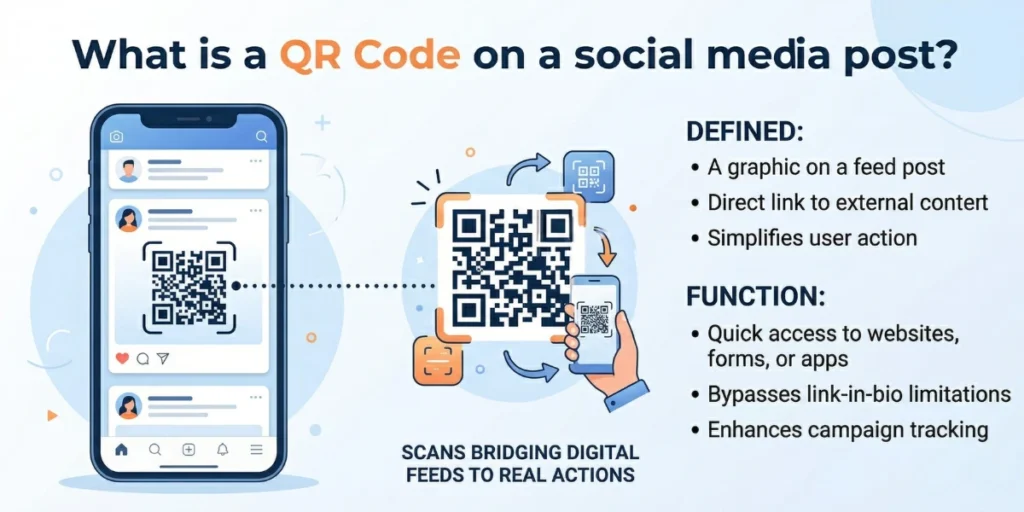
A QR Code on a social media post is exactly what it sounds like: a scannable square code placed inside or alongside a social media image, graphic, reel thumbnail, or story frame.
When someone sees your post on their phone and scans the code, they get taken somewhere. A product page. A sign-up form. A YouTube video. A landing page. You decide the destination.
But here is what makes it more interesting than just a link.
Social media already lives on the phone. So does a QR Code scanner. That means the gap between “someone sees your post” and “someone takes action” becomes almost zero. No typing. No searching. Just scan and go.
Where exactly does the QR Code go in a social media post?
This trips people up. So let me be direct.
You are not embedding a QR Code in the caption. You are placing it inside the visual: the image, the graphic, the carousel slide, the reel thumbnail, or the story frame.
Here are the most common placements that work:
- Static image posts: Add the QR Code as an element in the graphic, usually bottom-right or bottom-center, with a short CTA above it like “Scan to shop.”
- Carousel posts: Use the last slide as a dedicated QR Code CTA slide. By the time someone reaches it, they are already engaged
- Story frames: Place the QR Code prominently in the center or lower half. Stories are full-screen and high-attention — great scan territory
- Reel thumbnails: Add a QR Code to the cover image so it shows up in the feed even before someone plays the video
- LinkedIn banners and event graphics: A natural fit for B2B use cases like webinar sign-ups or product demos
One important note: QR Codes in social media posts work best when the post is viewed on a desktop or tablet, where someone can hold up their phone to scan.
On a mobile phone, a QR Code inside a post requires the user to screenshot the post and scan it from their camera roll, which is still doable but adds friction.
That said, many people do view social media feeds on laptops and desktops, especially LinkedIn and Facebook. For those audiences, a QR Code in a post is genuinely frictionless.
Is a Social Media QR Code the Same as a Social Media Profile QR Code?
Not quite, and the difference matters.
A social media profile QR Code links directly to one of your social media profiles. Scan it, land on your Instagram page. It is great for business cards, flyers, or in-store displays where you want people to follow you.
A QR Code on a social media post is something different. It is a code placed in a post that directs readers to a specific destination outside social media, such as a website, form, product page, video, or landing page.
Both are valuable. But in this guide, I am focused on the latter, using QR Codes as action triggers on your social content.
B: How to create a QR Code for a social media post using Scanova?
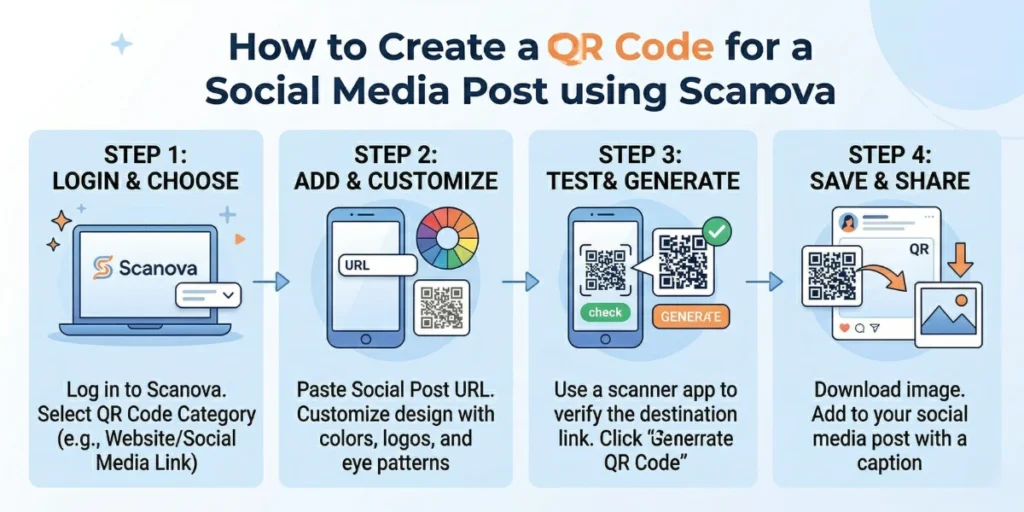
Creating a QR code for your social media post does not require a designer or a developer. With Scanova, the whole process takes a few minutes. Here is exactly how to do it, step by step.
Step 1: Go to Scanova and click on Create QR Code.
Open your browser and head to Scanova’s website. On the homepage, you will see a prominent Create QR Code button. Click it to get started. This will take you to the QR code creation page, where you can choose what type of QR code you want to generate.
Step 2: Select the Website URL category.
Scanova supports a wide range of QR code types, including Documents, Images, Business Cards, Landing Pages, Coupons, and more. Each category is designed for a specific use case.
For a social media post that links to an external destination, such as a product page, campaign URL, or sign-up form, select the Website URL category. This tells Scanova that you want to create a QR code that redirects anyone who scans it to a specific web link.
Step 3: Enter the link you want to encode.
A text field will appear asking you to enter your target URL. Paste the exact link you want your audience to land on when they scan the QR code. This could be:
- A product or collection page on your website
- A campaign-specific landing page
- A sign-up or registration form
- A social media profile page
- A YouTube video or any other content URL
You will also notice an Advanced Settings option on the same screen. I strongly recommend clicking into it, especially if you are running a multi-platform or multi-region campaign. More on that in the next step.
Step 4: Set up Conditional Redirection (optional but powerful).
Inside Advanced Settings, you will find the Conditional Redirection feature. Tick the checkbox to activate it.
Once enabled, you can choose your redirection method from three options:
- Country: Redirect users to different URLs based on which country they are scanning from
- Device: Show different pages to mobile users vs. desktop users
- Operating System: Redirect iOS and Android users to separate destinations, which is great for app download campaigns
This is one of the most underused features in QR code marketing. One QR code can deliver a fully tailored experience to different audiences without any extra effort on the viewer’s end.
Step 5: Click Add Condition, select the required field, and enter the corresponding URL.
After choosing your redirection method, click the Add Condition button. A dropdown will appear. Select the specific condition you want to set, for example, a specific country or operating system, and then enter the URL you want that audience to land on.
You can add multiple conditions if needed. For example:
- iOS users to Apple App Store link
- Android users to Google Play Store link
- Everyone else to your website homepage
Set up as many conditions as your campaign requires.
Step 6: Click Continue.
Once you have entered your URL and configured any advanced settings, click the Continue button at the bottom of the page. This moves you to the next stage of the QR code creation process.
Step 7: Name your QR code and click Create QR Code.
On the next page, you will be prompted to name your QR code. This is for your internal reference only, and your audience will never see it. Choose a name that is clear and specific, such as “Instagram Post March Campaign” or “LinkedIn Post Webinar Sign-up.”
This becomes especially useful as you build a library of QR codes across multiple social media campaigns. A clear naming convention reduces confusion later. Once named, click Create QR Code.
Step 8: Preview your QR code.
Scanova will now generate your QR code and show you a live preview on the screen. At this stage, it will appear in its default black-and-white design. You will also see an Edit Design button alongside the preview. Do not skip this step. Designing your QR code is one of the most important steps for social media use.
Step 9: Design your QR code to attract more scans.
Click Edit Design, and you will see two customization options:
- Custom Logo Design: This option lets you add your brand logo to the center of the QR code and apply your brand colors to the patterns and corner elements. The result is a QR code that looks unmistakably yours and stays consistent with your social media visual identity.
- Custom Background Design: This option lets you place the QR code over any background image. You can upload a branded graphic, a campaign visual, or even a product photo. The QR code is embedded in the image, creating a seamless design asset.
Here is why this step matters specifically for social media. A plain black-and-white QR code blends into the background of a busy post and is easy to scroll past. A well-designed, branded QR code catches the eye, signals credibility, and tells the viewer there is something worth scanning. Customized QR codes consistently attract more scans than their default counterparts, and on social media, every scan counts.
Take the time to design it properly. It is worth it.
Step 10: Preview your final QR code.
Once you are done designing, take a moment to review the final version carefully. Check that the design looks clean, the logo is centered, the colors are on-brand, and the overall visual fits the social media graphic you are planning to use it in. If anything feels off, go back and adjust. When everything looks right, you are ready to download.
Step 11: Sign up to unlock your download.
To download your QR code, you will need a Scanova account. Click Sign Up to create one and get started with a 14-day free trial, no credit card required. The free trial gives you full access to Scanova’s features, including dynamic QR codes, analytics, and design tools, so you can explore everything before committing to a plan.
Step 12: Download your QR code in the right format.
Once signed in, click the download icon next to your QR code. A pop-up will appear asking you to specify two things:
- Image size: Choose a size appropriate for your social media platform and post format
- File format: Scanova supports both raster formats (PNG, JPEG) for digital use and vector formats (SVG, PDF, EPS, PS) for print-ready files
For a standard social media post, PNG works well. If you plan to repurpose the same graphic for print, such as flyers, posters, or event banners, download the SVG or PDF version as well. It will scale to any size without losing quality.
Once you have made your selections, click Export. Your QR code image will download to your device instantly.
That is it. Your QR code is ready to be placed into your social media graphic.
One final step before you publish. Scan the QR code yourself on both iOS and Android if possible. Confirm that it loads the correct page, that conditional redirects are working as expected, and that the page loads quickly. A broken or misdirected QR code in a live post is difficult to fix after the fact, and a quick test takes 30 seconds and saves a lot of headaches.
|
Feature |
Static QR Code |
Dynamic QR Code |
|
Destination link |
Fixed. The link cannot be changed after the QR Code is created. |
Flexible. The destination link can be updated at any time. |
|
Best use for floating QR Codes |
Suitable when the QR Code always points to the same permanent page (for example, a homepage or contact page). |
Ideal when the QR Code is used for campaigns, promotions, or changing links. |
|
Updating the link |
Not possible. You must generate a new QR Code image and replace it on the website. |
Possible without changing the QR Code image or website code. |
|
Website maintenance |
Requires updating the page’s QR Code whenever the link changes. |
No website update needed when the destination changes. |
|
Scan analytics |
Not available. You cannot track how many visitors scanned the QR Code. |
Available. You can track scans, devices, locations, and scan times. |
|
Campaign flexibility |
Low. Once placed on the website, the QR Code is locked to one destination. |
High. The same QR Code can support multiple campaigns over time. |
What Happens After the Post Goes Live?
This is where Scanova keeps working for you, long after you hit publish.
The flexibility to edit linked profiles at any time lets you change your social media strategy without re-creating or creating a new code. Your campaign shifts. A platform becomes more important. You add a new channel. Just update the links inside Scanova. The same QR Code, still live in your post, now points to a new location.
And every scan is tracked. You can see which day drove the most engagement, which city your audience came from, and which device they used. That data feeds directly into your next post, your next campaign, your next decision.
Most tools stop when you click download. Scanova keeps going.
C: Why use QR Codes on social media?
Social media is already one of the most competitive spaces in marketing. Every brand is fighting for the same attention, the same scroll-stop moment, the same click.
A QR Code does not just help you compete. It changes the rules.
Here are seven reasons I think every serious social media marketer should be using QR Codes in their content strategy.
1. They Turn a Passive Post Into an Action
Most social media posts ask people to “click the link in bio.” That is one extra step. One extra decision. One more chance to lose them.
A QR Code inside the post itself removes that friction entirely. The viewer sees your post, scans the code, and lands exactly where you want them, in the same moment of interest.
That moment matters. Interest fades fast on social media. A QR Code captures it before it does.
2. They Bridge Your Offline and Online Worlds
This is the benefit most people underestimate.
Your social media posts do not just live on screens. They show up on printed flyers, event backdrops, packaging inserts, and storefront displays, especially when you repurpose content across channels.
A QR Code placed in a social graphic can serve double duty. It works on the digital post and on any printed version of that asset. One code. Two channels. More reach.
QR Codes are at the forefront of O2O (online-to-offline) marketing, enabling businesses to seamlessly bridge the gap between online and offline channels. That is a powerful thing to build into a single social post.
3. They Give You Real, Trackable Data
This is my favorite benefit, and the most underused.
Most social media analytics tell you how many people liked, shared, or commented on a post. That is engagement data. But it does not tell you what happened after the click.
A dynamic QR Code in your post fills that gap. You can see how many people scanned it, when, from which city, on which device, and on which operating system. You can connect that data to conversions on the destination page. You can calculate actual ROI — not estimated reach.
Marketers say the most valuable QR Code performance metric is unique users (54%), followed by post-scan conversion rate (52%), total scans (50%), and scan time or date patterns (50%).
That level of insight is rare in social media marketing. QR Codes make it possible.
4. They Help You Grow Followers Across Platforms
If you are active on multiple social media platforms, you already know the problem. Your Instagram audience does not know about your LinkedIn. Your Facebook followers have never seen your YouTube channel.
A QR Code in a post can point to a single landing page that hosts all your social profiles. One scan. Every platform. Instant cross-promotion.
If you have a presence across several social media platforms, a QR Code will help your customers connect with you with only one scan.
Tools like Scanova let you build this kind of multi-link landing page directly — no developer or third-party tool needed. You design the page, link the QR Code, and update it whenever your strategy changes.
5. They Work Especially Well on Desktop and Tablet Feeds
Here is something most guides skip over.
As of Q1 2025, 5.17 billion people are active on social media globally, and 91% of all social commerce transactions happen on mobile devices. But a significant portion of social media browsing, especially on LinkedIn and Facebook, still happens on laptops and desktops.
When someone views your post on a desktop, they cannot tap a link inside the image. But they can hold up their phone and scan a QR Code. That makes your post interactive in a context where most posts are completely static.
For B2B brands especially, this is an overlooked opportunity.
6. They Strengthen Campaign ROI — With Numbers to Back It Up
It is one thing to run a campaign. It is another to prove it worked.
QR Codes on print ads increase engagement rates by 30% compared to ads without codes. And the marketing and advertising industry registered a 323% rise in QR Code scans in 2023 alone.
When you add a trackable QR Code to a social post, every scan becomes a data point. You can tie scans to sign-ups, sales, or downloads. You can show your team or your client exactly what the campaign delivered. That is the kind of reporting that builds trust and budget.
7. Consumer Sentiment Is Strongly in Your Favor
There was a time when QR Codes felt awkward. Not anymore.
In 2025, 88% of marketers believe consumer sentiment toward QR Codes has become more positive in the past 12 months, including 40% who said it has become significantly more positive. And 86% of marketers plan to increase their use of QR codes over the next 12 months.
Consumers are comfortable scanning. They expect it. Adding a QR Code to your social content is no longer a novelty; it is a natural part of how modern audiences interact with brands.
If your competitors are not using QR Codes in their social posts yet, this is your window. If they already are, this is your catch-up call.
“When Scanova analysed the lifespan of QR Codes embedded in social media posts, dynamic codes in posts older than 90 days still received an average of 23% of their peak weekly scan volume, meaning older posts kept driving meaningful traffic long after the initial publish spike. Static codes in equivalent posts showed zero ongoing scan activity after the destination URL changed or expired.”
D: How to use a QR Code on a social media post?
A QR Code in a social media post can do a lot more than just link somewhere. The way you use it depends on what you want your audience to do next.
Here are ten smart use cases, each built around a clear campaign objective.
1. Grow Followers Across All Your Platforms at Once
If you are active on Instagram, LinkedIn, YouTube, and TikTok, you already know the problem. Your audience on one platform rarely finds you on the others.
A single QR Code in a social post can link to a landing page that shows all your profiles in one place. One scan. Every platform. The viewer picks where they want to follow you.
Scanova’s Social Media QR Code supports up to 35 social media handles and links in a single code, including Instagram, Facebook, LinkedIn, YouTube, TikTok, Threads, Pinterest, WhatsApp, Discord, Telegram, and more.
This is one of the highest-value uses of a social media QR Code. Instead of asking followers to “find us on LinkedIn” in your caption, you give them a one-scan shortcut that does the work for them.
2. Drive Traffic to a Campaign Landing Page
Running a product launch? A limited-time offer? A seasonal campaign?
Add a QR code to your social post and link it directly to the campaign page. No “link in bio” workarounds. No extra steps. The viewer sees the offer in the post, scans, and lands right on it.
QR Codes function as a digital gateway, providing instant access to various online content, eliminating the need to type long URLs or search for the desired content manually. This ease of access can significantly increase engagement and drive conversions.
And because you are using a dynamic QR Code, when the campaign ends, you simply update the destination. The same code in your old post now points to your next campaign, still working, still driving traffic.
3. Run a Giveaway or Contest
Giveaways have long been a staple of social media strategies. Brands often boost engagement by offering prizes to users who follow, post, or tag content with a specific campaign hashtag. QR Codes make participation even easier by removing extra steps.
Instead of burying entry instructions in a caption, put a QR Code in the post graphic itself. Scan to enter. Scan to register. Scan to spin a wheel.
The simpler the entry process, the higher the participation rate. A QR Code is the simplest entry process there is.
Pepsi’s Gift it Forward campaign is a strong example; the QR Code, shared via a Facebook post, took users to a digital scratch card to earn holiday rewards. The mechanic was simple. The engagement was high. The QR Code was the bridge.
4. Collect Leads Directly From a Scan
Most social media campaigns focus on reach and engagement. Very few focus on capture.
A QR Code with lead generation enabled changes that. When someone scans the code, they see a short form before reaching the destination, name, email, and phone number. They fill it in, and you get a lead. The destination could be a product page, a free download, an event registration, or anything else of value.
Incorporating QR Codes in user-generated content campaigns can help generate authentic content for your brand while also building a list of targeted leads for future re-marketing campaigns.
With Scanova, you can enable lead generation on any dynamic QR Code and export the data or push it directly to your CRM via webhooks.
5. Promote a Product Launch or Teaser Campaign
Building anticipation before a launch? A QR Code can be the mystery element that makes your audience lean in.
Post a teaser graphic with a QR Code and no explanation. Just a CTA: “Scan to see what’s coming.” Link it to a countdown page, a behind-the-scenes video, or a waitlist sign-up.
Teaser QR Code campaigns can help build anticipation for upcoming product launches, events, or brand announcements by directing consumers to sneak peeks, trailers, and teasers via a URL, building hype and curiosity around the new content.
When the launch goes live, update the QR Code destination to the actual product page. Same post. Same code. New destination. This is the operational flexibility that only dynamic QR Codes offer.
6. Drive App Downloads
If your brand has a mobile app, social media posts are one of your best channels to promote it. But asking someone to “search for us in the App Store” is unnecessary friction.
A QR Code in a post can link directly to your app download page, or detect the user’s device and automatically redirect them to the App Store or Google Play using conditional redirection.
One scan. Right store. Instant download.
7. Encourage User-Generated Content
Want customers to post about your brand? Make it easy for them.
A great way to encourage customers to post reviews of your products or services online is with a social media QR Code. You can place them at various points, the billing counter, near product aisles, or on storefront windows.
Apply the same logic to social media posts. A graphic with a QR Code that links to a branded hashtag page or a review submission form does two things: it tells your audience exactly what to do, and it reduces the steps between intent and action.
Research from Animoto confirms that 1 in 4 consumers have made a purchase after viewing a story on Instagram, underscoring the power of UGC. A QR Code that feeds that pipeline is worth adding to your content strategy.
8. Cross-Promote Across Platforms
You have an Instagram audience that has never seen your YouTube channel. You have a LinkedIn following that does not know about your newsletter. A QR Code in a post is the fastest way to fix that.
QR Codes serve as an instant connector between marketing channels and social media platforms; for instance, embedding a QR Code in a Facebook post that directs customers to your Instagram profile helps businesses boost brand awareness and reach a wider audience.
For B2B brands on LinkedIn, this is especially powerful. A post about a recent webinar, with a QR Code linking to a YouTube recording, extends the life of your content and pulls viewers deeper into your ecosystem.
9. Add Interactivity to Event and Webinar Promotion
Promoting an event on social media? Do not just list the details. Give people a direct path to register.
A QR Code in your event graphic links straight to the registration page. Scan. Fill out the form. Done. No copy-pasting links. No extra searching.
Event planners can place QR Codes on event graphics, allowing attendees to quickly access event-specific social media pages for live updates, photos, and networking opportunities.
After the event, update the same QR Code destination to a post-event page, a recording, a slide deck, a photo album, or a follow-up offer. The post stays relevant. The code keeps working.
10. Run a Gamified or Scavenger Hunt Campaign
This is the use case that makes campaigns truly memorable.
Build a multi-post scavenger hunt where each post includes a QR Code. Each scan reveals a clue, a discount code, or a piece of a puzzle. The audience follows the trail across posts or even across platforms to reach a final reward.
QR Codes can be used creatively for storytelling or scavenger hunts that unfold across various social media platforms, creating a sense of excitement and gamification, and boosting engagement through memorable, interactive experiences.
This kind of campaign drives repeat engagement, increases time spent with your content, and gives people a reason to share your posts organically. It is also the type of campaign that gets talked about long after it ends.
“The difference between a QR Code on social media that just ‘exists’ and one that actually drives engagement comes down to strategy and measurability. If you can update the destination in real time, tailor it to campaigns, and track scans across platforms, you turn a simple post into a performance channel. Most marketers stop at adding a link, but brands that use dynamic QR Codes with analytics and design optimization are the ones that convert attention into action.” — Siddharth Pangtey, Product Manager at Scanova
E: How can you use QR Codes on each platform?
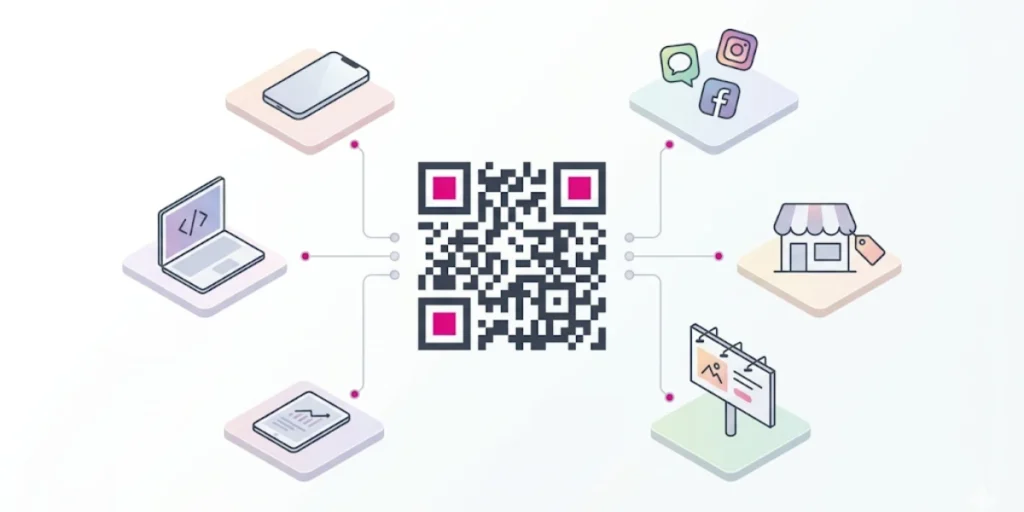
Every social media platform has a different audience, content format, and culture. A QR Code strategy that works brilliantly on LinkedIn might fall flat on TikTok. Here is how to approach each platform with intention.
Instagram is a visual platform. Everything competes on aesthetics. Your QR Code needs to earn its place in the frame.
The best formats for QR Codes on Instagram are carousel posts and Stories. On a carousel, dedicate the last slide to a clean QR Code with a single CTA, by the time someone reaches it, they are already invested. On Stories, the full-screen format gives your QR Code maximum visibility with no competing elements.
You can post your Instagram QR Code, add it as a story, and even place it on a physical surface, it helps businesses increase community engagement and run geo-targeted campaigns.
Use cases that work well on Instagram:
- Linking to a product page or a shop
- Growing followers on a second platform like YouTube or TikTok
- Running a giveaway with a scan-to-enter mechanic
- Sharing an exclusive discount or promo code via a mobile landing page
One design tip specific to Instagram: match your QR Code colors to your feed aesthetic. A branded QR Code that blends with your visual identity performs far better than a default black-and-white one.
Facebook’s audience skews older, and a significant portion browses on desktops and laptops. That makes it one of the strongest platforms for QR Code engagement — because desktop users need their phone to interact with the visual content. A QR Code gives them an immediate action they can take.
You can embed a QR code in a Facebook post that, when scanned, directs customers to your Instagram profile, website, or campaign landing page, helping businesses boost brand awareness and reach a wider audience.
Use cases that work well on Facebook:
- Event promotion with a scan-to-register QR Code on the event graphic
- Local business offers — scan for a coupon or a menu
- Driving traffic to a YouTube channel or a longer-form piece of content
- Community group sign-ups
Facebook Groups are an underused placement. A post inside a group with a QR Code linking to a free resource or a sign-up form can drive strong, qualified engagement from a warm audience.
LinkedIn is the digital boardroom. The tone is professional. The audience is decision-makers, practitioners, and career-focused individuals. Your QR Code strategy here should reflect that.
LinkedIn lets you link to specific posts, event pages, or lead-generation forms, and creating QR Codes for these use cases makes it easier to drive meaningful engagement. For example, if you are hosting a webinar for a B2B audience, you might include a QR Code on the final slide so attendees can scan and join a follow-up group, connect with your team, or access bonus resources.
Use cases that work well on LinkedIn:
- Webinar and event registrations on post graphics
- Linking to a whitepaper, case study, or gated resource
- Driving app downloads for a SaaS product
- Personal branding — a QR Code on your banner image linking to your portfolio or newsletter
LinkedIn QR Codes are also an excellent tool for promoting your hiring strategy. If you are hosting a hiring event, you can place a QR Code on your event post so candidates can follow your company page or apply directly.
One thing to remember: LinkedIn users are primarily on desktop. That makes QR Codes in post images here more effective than on almost any other platform. The viewer is already on a big screen, scanning with their phone is natural and frictionless.
TikTok
TikTok is pure energy. Fast content, trend-driven, and built for participation. Your QR Code strategy here needs to match that spirit.
TikTok is one of the most successful social commerce platforms. You can tap into TikTok’s sales power by adding QR Codes to TikTok videos that link directly to product pages, limited-time offers, or branded AR effects. Influencer campaign managers can go a step further by assigning unique codes to each creator, making it easier to track conversions and attribute sales.
The most effective placement on TikTok is the video thumbnail, the cover image that appears in the feed before someone taps to watch. A QR Code with a bold CTA on the thumbnail makes it visible even to users who scroll past without watching.
You can display a custom QR Code on physical merchandise that links to a specific TikTok video with a fun challenge. The code turns the merchandise into an invitation to participate and share, amplifying your message organically.
Use cases that work well on TikTok:
- Driving viewers to a product page or TikTok Shop
- Launching a UGC challenge with a scan-to-participate mechanic
- Linking to an exclusive discount for viewers
- Cross-promoting to Instagram or YouTube for longer content
Over 60% of Gen Z adults use TikTok every day. If your audience skews younger, a well-placed QR Code in a video graphic or thumbnail can deliver some of your highest scan volumes.
YouTube
YouTube is a search engine as much as a social platform. People come with intent; they are looking for something specific. A QR Code here works best on video thumbnails, channel art, and end screen graphics.
Adding a dynamic QR Code to your videos and linking it to a Patreon sign-up page or an exclusive content hub gives viewers an immediate, effortless path to action. The key is to use a dynamic QR Code so you can change the destination URL as needed, updating the link for your latest product, a new challenge, or a fresh piece of exclusive content without ever having to re-edit your video.
Use cases that work well on YouTube:
- Thumbnail QR Code linking to a product, free resource, or course sign-up
- Channel art QR Code linking to a newsletter or all-social-profiles landing page
- Video description card graphic with a QR Code for a time-sensitive offer
One underrated tactic: create a YouTube Community post, the text-and-image posts YouTube lets you publish to subscribers, with a graphic containing a QR Code. Community posts are low-competition and highly visible to engaged subscribers. A QR Code can drive strong traffic to a campaign landing page with very little noise.
“The real power of Social Media QR Codes lies in their ability to convert offline attention into measurable digital growth. Our 2026 analysis shows that nearly one in three marketing QR Codes now leads to a social destination, with multi-link social pages driving up to 43% higher cross-platform follows and 2.4× more repeat engagement than standard website links. Brands are no longer using QR Codes just to share information, they’re using them to build owned audiences.” — Scanova Research Team
F: What design tips help a QR Code get more scans?
Creating a QR Code takes minutes. Creating one that people actually stop and scan takes a little more thought.
Most QR Codes fail not because of a technical error, but because of a design one. Wrong colors. No CTA. Too small. Placed in a corner nobody looks at.
Here is how to avoid every one of those mistakes.
1. Always Lead With a CTA
A QR Code without a call to action is a missed opportunity.
When someone sees a QR Code with no context, their first thought is not “let me scan that.” It is “What is this for?” That moment of uncertainty is enough to lose them.
A QR Code without a CTA relies solely on user curiosity. Adding text like “Scan for menu,” “Scan to save 20%,” or “Scan to connect” consistently lifts scan rates by 20–40%.
Keep the CTA short. Keep it benefit-driven. The best CTAs do three things at once: tell people what to do, tell them what they will get, and make it feel worth the effort. For example:
- “Scan to get 20% off” — action + benefit
- “Scan to follow us on Instagram” — action + destination
- “Scan to register for free” — action + value
Place the CTA directly above or below the QR Code. A well-crafted frame answers the question “what happens if I scan this?” immediately, before the viewer even has a chance to hesitate.
2. Use Dark on Light — Never the Reverse
Color is one of the most common QR Code design mistakes I see.
Dark codes on light backgrounds have the best scan rates. Do not use light gray, white, or neon colors, scanners will not reliably read them.
The rule is simple: your QR Code modules should always be darker than the background. Dark colors absorb more light, resulting in clearer edges, which lets devices detect the code’s pattern accurately regardless of lighting conditions.
Keep the QR Code dark on a light background and use brand colors around it, in the CTA text, the border, and the accents, rather than within the code itself.
And avoid pure red or orange as foreground colors. Infrared camera sensors deprioritize those wavelengths, which can cause scan failures in certain lighting conditions.
With Scanova’s custom design tool, you can preview exactly how your color choices will look — and the editor keeps you within safe contrast ranges automatically.
3. Add Your Logo — But Do It Carefully
A branded QR Code with your logo inside it builds trust. A Scanova study found that QR Codes with design elements are scanned 80% more often than standard ones.
But there is a right way and a wrong way to add a logo.
The logo must sit in the center of the QR Code — never over the corner position markers (the three square anchors at the corners). Those anchors are how scanners orient themselves. Cover them, and the code will not scan.
Logos should not cover any of the fundamental parts of the QR Code — and you should always run scanning tests after adding one.
Scanova handles this automatically. When you upload a logo, it centers it with appropriate error correction applied — so the code stays fully scannable while still looking completely on-brand.
4. Respect the Quiet Zone
The quiet zone is the blank white margin that surrounds a QR Code. It is not decorative. It is functional.
The quiet zone is essential for scanners to detect the pattern’s start and end. Leave at least four modules of empty space on all four sides. No text, logos, icons, patterns, or color bleeds should appear in this space — even subtle background textures can interfere with scanning.
On social media graphics, especially, it is tempting to push other design elements right up against the QR Code to save space. Do not do it. Give the code room to breathe, and it will scan reliably every time.
5. Get the Size Right
The minimum recommended size for a QR Code is 2 cm x 2 cm (0.8 inches x 0.8 inches) for reliable scanning. As a general rule, follow a 10:1 distance-to-size ratio: for every 10 inches of distance between the viewer and the code, the code should be at least 1 inch wide.
For social media graphics specifically:
- On a 1080 x 1080 px Instagram post, your QR Code should be at least 200–250 px wide
- On a 1080 x 1920 px Story, go larger — at least 300–350 px — since Stories are full-screen and the viewer may be holding their phone further from their face
- On a LinkedIn banner image, size the QR Code so it is clearly readable even on a small laptop screen
On digital screens, the QR Code should be at least 150–200 pixels wide for a 1080p display, more for 4K screens. And if you are printing the same graphic, use SVG or PDF formats, or at least 300 DPI PNG, so the modules stay sharp at any size.
6. Place It Where the Eye Lands Naturally
A technically perfect QR Code fails if nobody notices it.
The QR Code should be clearly visible and logically placed. For print materials, the bottom-right is a natural position, but make sure it isn’t too small there. Surround the code with a hint, such as an arrow or CTA text, to draw attention to it.
For social media graphics, here is what works:
- Bottom-center or bottom-right on a static image post — visible without dominating the hero visual
- Full-center on a dedicated carousel slide — when the whole slide exists just to drive a scan
- Lower half of a Story frame — within easy thumb reach and naturally in the viewer’s eyeline
- Top-right corner of a LinkedIn banner — visible in feed and profile without interfering with the main message. Effective banner design can also help ensure that the QR Code stands out while keeping the overall visual clean and easy to understand.
Place the QR Code inside a solid color panel or badge on busy backgrounds, and avoid glossy finishes when printing, as surface glare directly impacts scan performance.
7. Optimize What Comes After the Scan
The QR Code gets scanned. The landing page earns the conversion. Both matter equally.
Optimize the post-scan experience with mobile-first design: use thumb-friendly CTAs, 14px or larger fonts, and single-column layouts. Compress images to under 100 KB, eliminate redirects, and target a load time under 3 seconds.
Link directly to the exact action, a menu, an RSVP form, a product page, a coupon, not to your homepage. A QR Code on a homepage prompts people to hunt for the next step, and most will not bother.
With Scanova’s mobile landing pages, you can build and host the destination page directly inside the platform, no developer needed. The pages are mobile-optimized by default, load quickly, and can be updated at any time without touching the QR Code itself.
Quick Design Checklist
Before any QR Code goes into a post, run through this:
- ☑ CTA is short, specific, and benefit-driven
- ☑ Dark modules on a light background
- ☑ Logo is centered, not covering corner markers
- ☑ Quiet zone is clear on all four sides
- ☑ Size is at least 200px wide on digital, 2cm on print
- ☑ Placement is visible and not cluttered
- ☑ Tested on both iOS and Android
- ☑ Destination page is mobile-optimized and loads in under 3 seconds
G: What are the most frequently asked questions about QR Code on social media post?

Q1. Can I put a QR Code directly inside a social media post?
Yes. You place the QR Code inside the visual, the image, graphic, carousel slide, Story frame, or video thumbnail. It does not go in the caption. When someone sees the post on a desktop, tablet, or a second screen, they scan it with their phone. On mobile, they can screenshot the post and scan from their camera roll.
Q2. Will a QR Code work if someone views my post on a mobile phone?
It depends on the situation. If the viewer is on their phone and wants to scan the QR Code in the same post they are viewing, they need to take a screenshot first and then scan it from their photo library, which most modern camera apps and QR scanners support.
That said, QR Codes in social posts work best for desktop, laptop, and tablet audiences, especially on platforms like LinkedIn and Facebook, where desktop usage is high. For mobile-first platforms like TikTok and Instagram Stories, pair the QR Code with a swipe-up link or link in bio for the smoothest experience.
Q3. Should I use a static or dynamic QR Code for social media posts?
Always dynamic, especially for social media campaigns.
A dynamic QR Code lets you change the linked content even after the code has been distributed — meaning you can update campaigns without generating new codes. Your post stays live. Your QR Code stays active. Only the destination changes.
Static codes lock you in. If your campaign changes, your URL changes, or your landing page moves, a static QR Code goes dead. For a post that lives on your feed indefinitely, that is a risk not worth taking.
Q4. How many social media platforms can I link to one QR Code?
With Scanova, you can add up to 35 social media handles and links in a single QR Code — including Instagram, Facebook, LinkedIn, YouTube, TikTok, Threads, Pinterest, WhatsApp, Telegram, Discord, Snapchat, and more. All of them appear on a single mobile-friendly landing page that the viewer lands on after scanning.
Q5. Do I need to create a new QR Code for every post or campaign?
No — and this is one of the biggest advantages of using dynamic QR Codes.
You can reuse the same QR Code across multiple posts and simply update the destination inside Scanova whenever your campaign changes. One code, updated in real time, always pointing to whatever matters most right now.
Q6. Can I track who scans my QR Code on social media?
Yes. With a dynamic QR Code, every scan is logged. You can see total scans, unique scans, scan date and time, city and country, device type, browser, and operating system. You can also track the exact GPS location of a scan with end-user permission, which is more granular than city-level data.
You can also connect this data to Google Analytics or push it to your CRM via webhooks for deeper campaign attribution.
Q7. Is a QR Code for social media free to create?
You can create a basic static QR Code for free using many online tools. But for social media campaigns, where you need editability, scan tracking, lead generation, and custom design, you need a dynamic QR Code, which typically requires a paid subscription.
Scanova offers a free trial so you can create and test your first social media QR Code in minutes before committing to a plan. Paid plans start at an affordable entry point and scale with your usage, with no limits on the number of scans you can receive.
Q8. How long does a QR Code for social media last?
A dynamic QR Code from Scanova stays active as long as your subscription is active. There is no built-in expiry, but you can set one manually if you want the code to deactivate after a campaign end date.
Static QR Codes last forever since the data is encoded directly into the pattern. But as covered above, static codes cannot be updated or tracked, making them far less useful for active campaigns.
Q9. Can I use the same QR Code across different platforms?
Absolutely. One of the smartest ways to use a social media QR Code is to drop the same code into posts across Instagram, Facebook, LinkedIn, and YouTube simultaneously. The scan data will show you which platform drove the most engagement, giving you real cross-platform performance insight without any extra setup.
Q10. What size should my QR Code be in a social media graphic?
For a standard 1080 x 1080 px post, keep your QR Code at least 200–250 px wide. For a 1080 x 1920 px Story, go larger, at least 300–350 px. Always leave a clear white margin (quiet zone) around the code on all four sides.
If you are also using the same graphic in print, download the SVG or EPS version from Scanova and keep the print size at a minimum of 2 cm x 2 cm at 300 DPI.
Q11. Are QR Codes still relevant in 2025?
Very much so. QR Codes are still going strong in 2025; brands, creators, and event organizers use them on posts, ads, and business cards to drive traffic to their social channels. And over 50% of internet users worldwide scan a QR Code at least once a month, so your audience already knows exactly what to do when they see one.
The question is not whether QR Codes are relevant. It is whether you are using them well.
Summing Up
A QR Code on a social media post is one of the simplest upgrades you can make to your content strategy. No extra budget. No technical skills. Just a small square that turns a passive viewer into an active participant.
Done right, it does not just drive a single click. It builds a bridge between your post and your product, between one platform and all your others, between a scroll and a sale.
Here is what I want you to take away from this guide:
The QR Code itself is not the strategy. What you link it to, how you design it, where you place it, and how you track it, that is the strategy. A well-placed dynamic QR Code with a clear CTA, a branded design, and a mobile-optimized destination will consistently outperform a plain link on every platform, for every campaign type.
And the data backs it up. 88% of marketers say consumer sentiment toward QR Codes has become more positive, and 86% plan to increase their use over the next 12 months. Bitly. The window to stand out with this tactic is still wide open, but it will not stay that way forever.
If you are ready to get started, Scanova is the tool I recommend. It is the platform used by brands like Amazon, Nestlé, Walmart, and Diageo, and it is built for exactly this kind of work. You can create a fully custom, dynamic social media QR Code in under five minutes, track every scan in real time, update the destination whenever your campaign changes, and build the landing page it points to all in one place.