Floating QR Code: What It Is and How to Add One to Your Website

In a nutshell- TL;DR: A floating QR Code is a QR Code widget that stays visible on a webpage as users scroll. It appears as a small, floating element that visitors can scan with their phone. This lets users move from desktop browsing to mobile actions. To use one, generate a QR Code and embed it as a floating widget on your website.
Ever opened a website on your laptop but needed to finish the action on your phone? Downloading an app, opening WhatsApp, completing a payment, or opening a map location often requires switching devices.
A floating QR Code removes that friction. Businesses can simply create a QR Code for mobile actions and let visitors continue tasks instantly on their phone
This matters because cross-device behavior is now common. According to Statista (2022), over 100 million smartphone users in the U.S. scan QR Codes regularly, and Google Consumer Insights (2024) finds that 90% of consumers switch between devices while completing a task online.
In this guide, you’ll learn what a floating QR Code is, how to create one, and when to use it.
A. What is a floating QR Code?

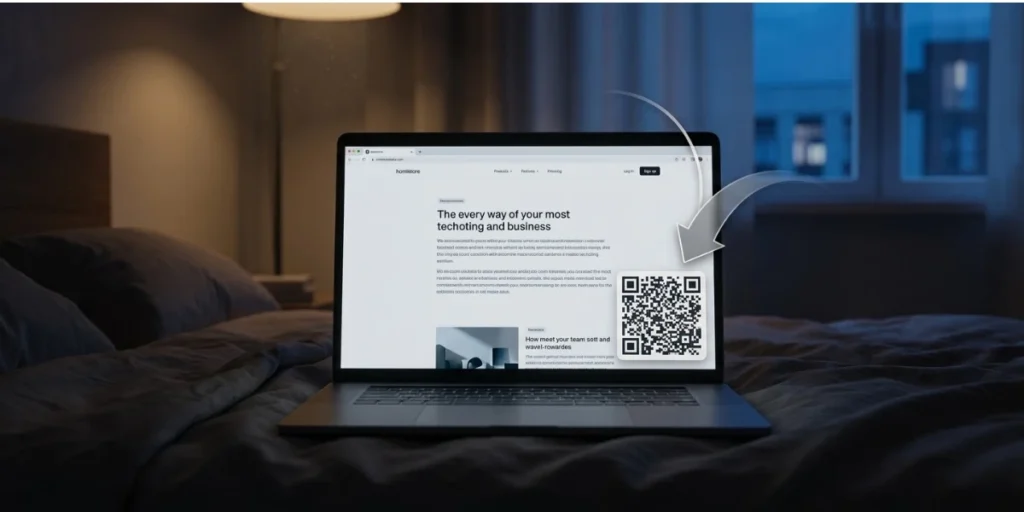
A floating QR Code remains visible on a webpage as a visitor scrolls.
Instead of being placed inside the page content like a normal image, the QR Code appears as a floating widget or overlay on the screen. It usually sits in a corner of the page, most often the bottom-right or bottom-left.
Should you use a static or dynamic QR Code for a floating QR Code?
When adding a floating QR Code to a website, the main question is not just how to place it on the screen; it is also how flexible you want the QR Code to be after it is published.
There are two types of QR Codes you can use: static and dynamic.
A static QR Code sends visitors to a fixed destination. Once the QR Code is created and added to your website, the link cannot be changed. If you ever want the QR Code to open a different page, you would have to generate a new QR Code and update the image on your site.
A dynamic QR Code works differently. The QR Code stays the same, but the destination it points to can be updated at any time. This is particularly useful for floating QR Codes, which are often used for campaigns that change over time.
Why does Dynamic matter specifically for floating QR Codes? A floating QR Code is often used for campaigns, app launches, seasonal promotions, and event registrations that change over time. With a Dynamic QR Code on Scanova, you can swap the destination without touching your website code. You also get scan analytics: how many desktop visitors used the floating widget, what device they scanned from, and when. This turns a passive design element into a measurable engagement tool.
43% of floating QR Code users updated their destination link at least once within 90 days. Source: Scanova platform data, 2025
With a dynamic QR Code, you can update the destination without touching the website code.
In short:
- Static QR Codes are fine for simple, permanent links.
- Dynamic QR Codes are better if your floating QR Code is part of a campaign or if you want to measure how people interact with it.
|
Feature |
Static QR Code |
Dynamic QR Code |
|
Destination link |
Fixed. The link cannot be changed after the QR Code is created. |
Flexible. The destination link can be updated at any time. |
|
Best use for floating QR Codes |
Suitable when the QR Code always points to the same permanent page (for example, a homepage or contact page). |
Ideal when the floating QR Code is used for campaigns, promotions, or changing links. |
|
Updating the link |
Not possible. You must generate a new QR Code image and replace it on the website. |
Possible without changing the QR Code image or website code. |
|
Website maintenance |
Requires updating the page’s QR Code whenever the link changes. |
No website update needed when the destination changes. |
|
Scan analytics |
Not available. You cannot track how many visitors scanned the QR Code. |
Available. You can track scans, devices, locations, and scan times. |
|
Campaign flexibility |
Low. Once placed on the website, the QR Code is locked to one destination. |
High. The same floating QR Code can support multiple campaigns over time. |
|
Typical example of a floating QR Code |
Opening a permanent website page or contact page. |
Switching between app downloads, WhatsApp chat, payments, or event registration pages. |
B. How Do You Create a Floating QR Code on Your Website?
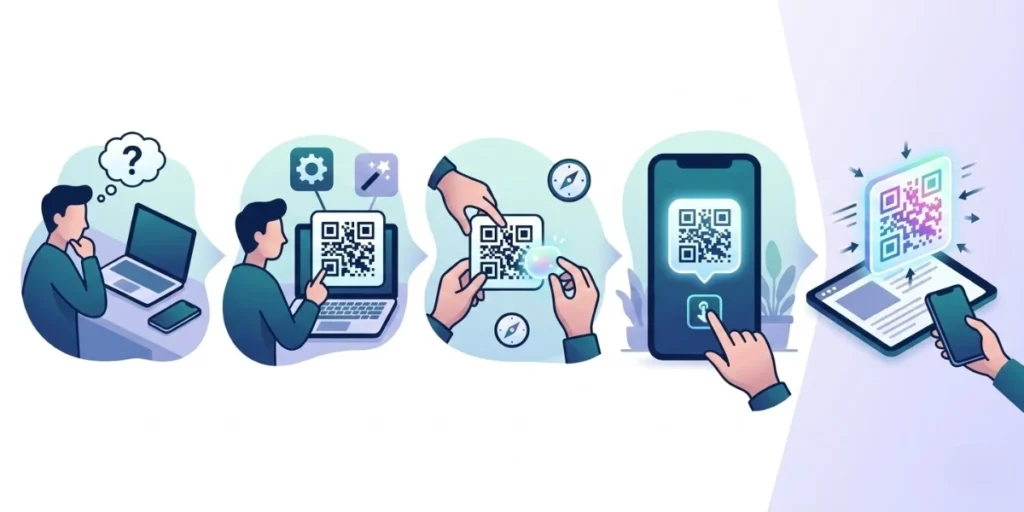
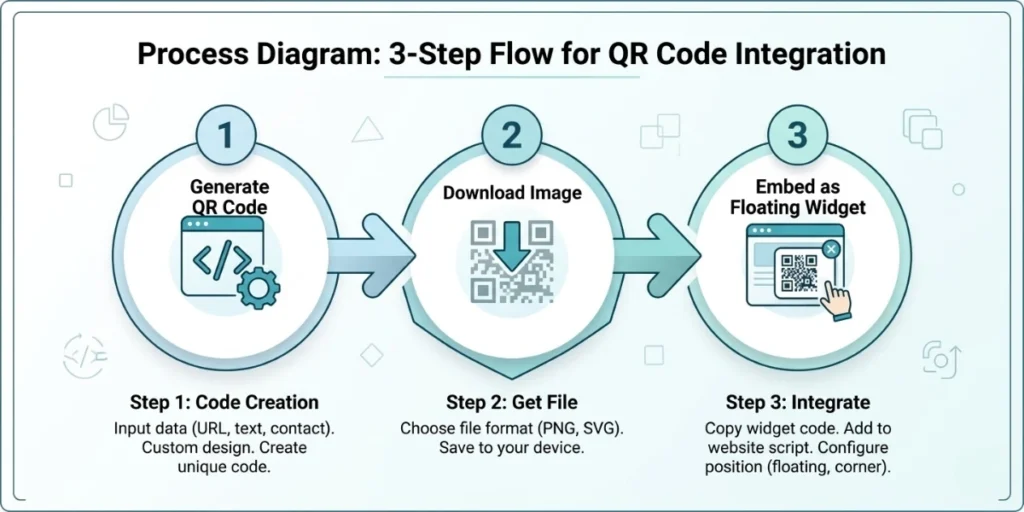
Creating a floating QR Code involves two simple stages:
- Creating the QR Code
- Adding the QR Code to your website as a floating element
I’ll walk through both parts so a beginner can easily follow.
Before adding a floating element to a website, we first need the QR Code itself. For this example, I’ll be using the Scanova QR Code Generator.
Step 1: Go to Scanova QR Code Generator
Open your browser and go to: https://scanova.io
The homepage features an embedded free QR Code generator where you can start building right away, but to save, download, and access Dynamic QR Code features (like scan tracking and editable links), you’ll need an account.
Click the Sign up button in the top-right corner of the homepage. This will take you to the registration page.
Fill in your details and create your account. The free trial gives you access to the full feature set, including Dynamic QR Codes, without entering payment details upfront.
Once your account is created and you’re logged in, you’ll be taken to the QR Code creation dashboard.
Step 2: Choose the type of QR Code you want to create
On the dashboard after logging in, you’ll see a category selector with options displayed as tiles. Scanova lets you create different types of QR Codes depending on the action you want users to take.
For example:
- If you want visitors to open a webpage on their phone → choose Website URL
- If you want users to download an app → choose App
- If you want them to find your location → choose Google Maps
Select the option that matches your goal, then enter the destination link or content in the field that appears below the category tiles.
Step 3: Enter the destination link
After selecting the QR Code type, enter the destination that should open when someone scans the QR Code.
For example:
- a product page
- an app download link
- an event registration page
Then click Continue.
Step 4: Choose Dynamic QR Code (recommended)
Scanova allows you to create Dynamic QR Codes.
Dynamic QR Codes are usually better for websites because they allow you to:
- Change the destination link later
- Track how many people scanned the code
- See scan analytics, such as time and location
For example, if you later want to send users to a different landing page, you can update the link without replacing the QR Code.
Why Dynamic makes a real difference for floating QR Codes? With a Dynamic QR Code, you can change the destination at any time without touching your website. More importantly, every scan is tracked, you get data on how many desktop visitors used the floating widget, what device they scanned from, where they were located, and when they scanned. This is how a floating QR Code becomes more than a design element: it becomes a measurable acquisition channel.
Step 5: Customize the QR Code design
Scanova also lets you customize your QR Code’s appearance.
You can adjust things like:
- QR Code color
- Background color
- Corner shapes
- Patterns
- Adding your brand logo
However, make sure the QR Code still maintains good contrast so it scans easily.
Example:
Good combination
dark QR Code on light background
Avoid
very light QR Codes on light backgrounds
Step 6: Generate and download the QR Code
Once the design is ready:
- Click Generate QR Code
- Download the QR Code image
Scanova allows downloads in formats such as:
- PNG (best for websites)
- SVG (best for high-resolution graphics)
Save the QR Code image on your computer.
This image will be used in the floating widget on your website.
Now that the QR Code is ready, the next step is to make it float on the website screen.
This means the QR Code stays visible even when visitors scroll.
If your website runs on WordPress, you do not need to write HTML or CSS. Skip ahead to the WordPress section at the end of Step 7. You can add the floating QR Code using a plugin (WP Sticky, Elementor Popup Builder) in a few clicks, no code required.
Step 7: Add the QR Code to your website page
First, upload the QR Code image to your website and copy its URL. You should ask a developer for help with this.
Example:
https://yourwebsite.com/images/qr-code.png
Then insert the QR Code into your webpage using HTML:
<div class=”floating-qr”>
<img src=”https://yourwebsite.com/images/qr-code.png” alt=”Scan QR Code to continue on mobile”>
<p class=”qr-text”>Scan to continue on mobile</p>
</div>
This code places the QR Code on the page and adds a short instruction so visitors understand what the scan does.
If you are using WordPress
You can add the QR Code without coding.
- Go to Appearance → Widgets or Customize
- Add a Custom HTML block
- Paste the HTML code above
- Save the changes
Another simple option is to place the QR Code inside a floating pop-up or sticky element plugin, such as:
- WP Sticky
- Elementor Popup Builder
- Sticky Menu (or Anything) on Scroll
These plugins allow you to position the QR Code on the screen without writing CSS.
Step 8: Make the QR Code float on the screen
To keep the QR Code visible while users scroll, add CSS:
.floating-qr {
position: fixed;
bottom: 20px;
right: 20px;
width: 120px;
z-index: 9999;
}
.qr-text {
font-size: 12px;
text-align: center;
margin-top: 5px;
}
This CSS keeps the QR Code fixed on the screen, positions it in the corner, and ensures it appears above other elements.
Now the QR Code stays visible while visitors scroll, making it easy for them to scan and continue the action on their phone.
If your website uses JavaScript widgets
Many modern websites use JavaScript frameworks or tag managers. In this case, you can inject the floating QR Code using a small script.
Example:
const qr = document.createElement(“div”);
qr.className = “floating-qr”;
qr.innerHTML = `
<img src=”https://yourwebsite.com/images/qr-code.png” alt=”Scan QR Code”>
<p class=”qr-text”>Scan to continue on mobile</p>
`;
document.body.appendChild(qr);
This method is useful if you want to:
- Deploy the QR Code using Google Tag Manager
- Add it across multiple pages automatically
- control when the QR Code appears (for example, after scrolling)
Step 9: Test the floating QR Code
Before publishing the page, test the QR Code carefully.
Open the webpage and check:
- whether the QR Code stays visible while scrolling
- whether the QR Code is large enough to scan
- whether it opens the correct page
- whether it works on different screen sizes
I usually test it using multiple phones to make sure scanning works properly. Once these steps are complete, your floating QR Code is ready to use on your website.
Visitors browsing on desktops can now scan it instantly and continue the action on their phones.
C. What Are the Best Use Cases for Floating QR Codes on Websites?
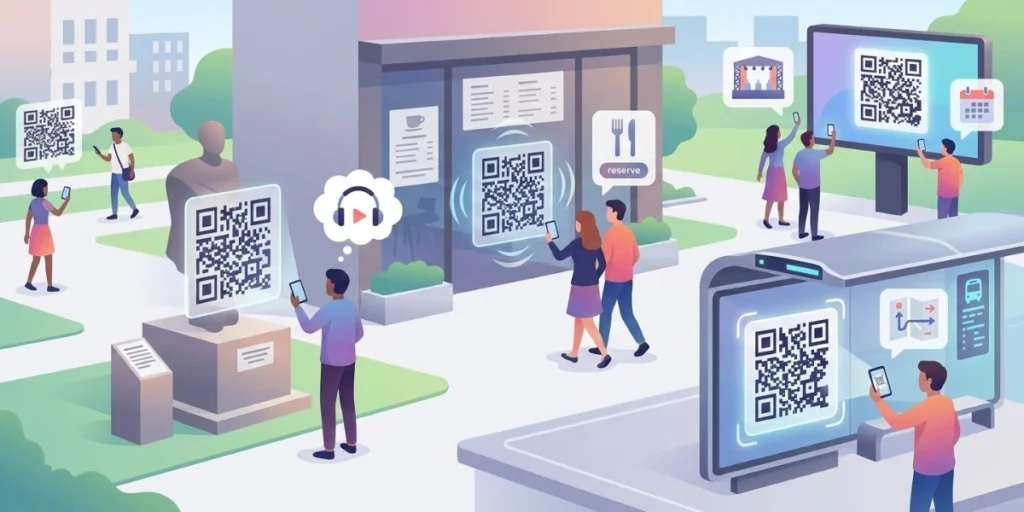
Floating QR Codes are most useful when a visitor is browsing on a desktop but needs to continue the action on mobile.
“The floating QR Codes that convert best share one trait: the destination is campaign-specific, not a generic homepage. When you send a desktop visitor to a pre-filled WhatsApp thread, a one-tap app install, or a mobile payment flow, scan rates climb, and you get attribution data that actually means something. A floating widget pointing nowhere useful is just visual noise.” — Siddharth Pangtey, Product Manager at Scanova
Below are some practical ways businesses use floating QR Codes on websites.
1. App downloads
Many companies want users to download their mobile app after visiting their website. But if a visitor is browsing on a laptop, downloading the app becomes inconvenient; they would have to search for it all over again on their phone.
A floating QR Code solves this problem. The website can show a message like: “Scan to download the app.” An App Store QR Code makes this seamless; the visitor scans the code, and the App Store or Google Play page opens instantly on their phone, skipping the search entirely.
This matters more than most teams realise. Research shows that users drop off when there is even one extra step in an install sequence Databox, reducing that friction from desktop discovery to mobile installation is exactly what a floating QR Code is built to do.
Food delivery platform Swiggy uses a persistent QR prompt on its app download page specifically to bridge this gap, directing browsing users straight to the app install page without asking them to search again.
2. Starting a WhatsApp conversation
Businesses often use WhatsApp for customer support or sales conversations. If someone is browsing the website on a desktop, they may prefer continuing the conversation on their phone.
A floating QR Code can link directly to a WhatsApp chat link. When scanned, it opens a conversation window with the business number, and the visitor can start messaging immediately.
This is especially useful for customer support, product inquiries, and appointment bookings.
The opportunity here is significant. Meta announced in June 2023 that WhatsApp Business, its app designed specifically for small businesses, had crossed 200 million monthly active users, up from 50 million in 2020. TechCrunch
For businesses already operating in mobile-first markets like India, Brazil, and Southeast Asia, a floating QR Code that routes desktop visitors to WhatsApp is one of the lowest-effort, highest-return contact tools available.
3. Mobile payments
In many regions, payments are simply easier on mobile because people already have payment apps, digital wallets, or mobile banking set up on their phones.
A floating QR Code can link to a payment page or a payment QR Code. Visitors scan it and complete the payment directly on their phone, no account creation required on desktop, no payment details re-entered.
The scale of this use case in India alone is striking. According to data cited by India’s Ministry of Finance, UPI payment volume grew at a CAGR of 147% from FY2017–18 to FY2022–23, reaching 8,375 crore (approximately 84 billion) transactions in that financial year, accounting for 62% of all digital payment transactions in India. Business Today
For businesses running donation drives, event registrations, or subscription signups, placing a floating UPI QR Code on the desktop site removes the single biggest drop-off point in the checkout flow.
We’ve seen clients in the education and NGO sectors use this approach to convert desktop browsers into mobile donors during fundraising campaigns, often within seconds of a visitor landing on the page.
4. Restaurant menus
Restaurants commonly use QR Codes for digital menus. If someone is browsing the restaurant website on a laptop and wants to view the menu on their phone, a floating QR Code can help, opening the mobile menu page instantly. This allows visitors to browse dishes easily, share the menu with friends, or pull it up at the table on their own device.
A Restaurant Menu QR Code makes this effortless, linking directly to the menu so customers always have the latest version, no app or download required.
QR menu adoption accelerated sharply after 2020 and never fully reversed. According to the National Restaurant Association, 40% of operators implemented contactless or mobile payments as an added safety measure during the pandemic, and nearly a quarter of restaurant guests cited the availability of these options as a contributing factor in their dining decisions. QSR Magazine
Guests have since become accustomed to QR Code menus, and digital is now the status quo, with consumers’ demand for convenience, not the pandemic itself, keeping these tools permanently in place. Nation’s Restaurant News
5. Event registrations and tickets
Event websites often promote registrations through desktop browsing. But people usually prefer saving tickets or confirmation details on their phone.
A floating QR Code can link directly to the event registration page, a ticket download page, or an event app. Visitors can scan immediately and save event details to their phones, without having to revisit the site on another device later.
6. Coupons and promotional offers
Some brands use floating QR Codes to promote exclusive mobile offers. For example, the website might show: “Scan to unlock a mobile discount.” When the visitor scans, they’re redirected to a coupon page, a special-offer landing page, or a loyalty-program signup page.
Because the QR Code remains visible while scrolling, it functions as a persistent call to action, rather than a banner that gets ignored or dismissed.
We’ve seen retail and D2C clients use this format during sale campaigns to create a sense of mobile exclusivity: the offer is available only to people who scan. That framing alone tends to lift scan rates noticeably compared to standard discount banners.
7. File downloads and documents
Sometimes websites need visitors to access documents on their phones, brochures, product catalogs, travel tickets, and warranty cards. Instead of downloading the file on a desktop and transferring it later, the visitor can simply scan the QR Code to open the file directly on their mobile device. It’s a small change that removes a step most people wouldn’t bother taking on their own.
Document QR Codes allow instant sharing of files like PDFs, spreadsheets, and presentations, perfect for manuals, brochures, or reports without the need for email attachments.
Image QR Codes let businesses share photos, infographics, or design assets with a single scan, making them ideal for product galleries, portfolios, and visual marketing materials.
D. How Do You Design a Floating QR Code That Actually Gets Scanned?
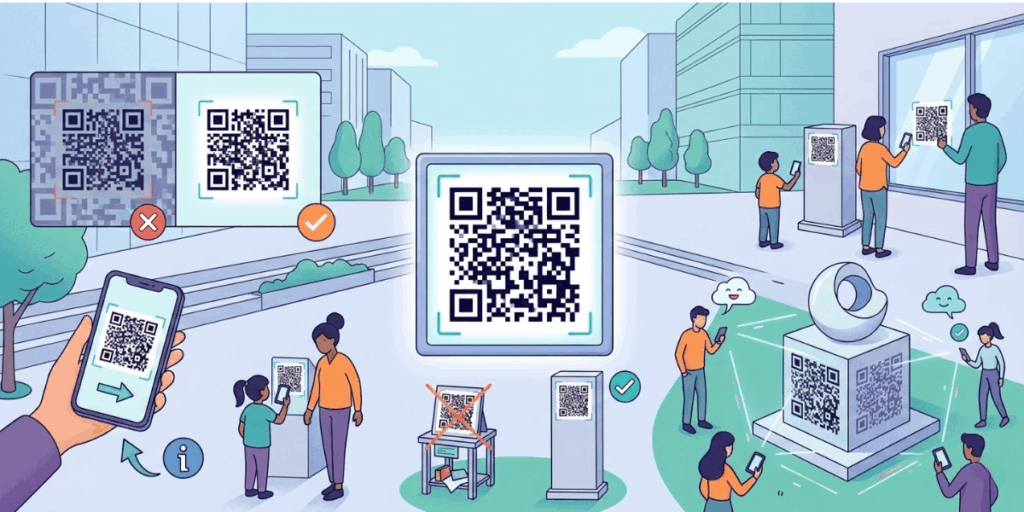
Ensuring people actually scan a QR requires thoughtful design.
I’ve seen many websites place QR Codes that look nice but are difficult to scan. Small design mistakes can reduce scan success and make the QR Code ineffective.
Here are a few design practices I usually follow to make floating QR Codes work better.
Tools like Scanova’s AI-powered QR Code designer can take your logo and instantly produce an on-brand, scan-optimized design, saving you the back-and-forth of manual customization.
1. Make the QR Code large enough to scan
One of the most common mistakes is using a QR Code that is too small.
If the QR Code is very small on the screen, phone cameras may struggle to detect it.
For floating QR Codes on websites, I usually recommend:
- Minimum width: 100–150 pixels
- Ideal width: 150–200 pixels
This size is large enough to scan comfortably while still keeping the floating widget compact.
If the QR Code is too small, visitors may try scanning it and give up if it does not work quickly.
2. Maintain strong contrast
QR Codes need a clear contrast between the pattern and the background to scan correctly.
A safe rule is:
- dark QR Code on light background
For example:
Good combinations:
- black on white
- dark blue on white
- dark green on light background
Avoid combinations like:
- light grey on white
- yellow on white
- low contrast pastel colors
Poor contrast can make the QR Code difficult for cameras to detect.
3. Keep the quiet zone around the QR Code
Every QR Code needs a small empty margin around it. This margin is called the quiet zone.
The quiet zone helps scanning devices identify the QR Code properly.
If a QR Code is placed too close to other elements, such as icons or text, scanning may fail.
So when designing a floating QR Code widget, always leave some white space around the QR Code.
4. Add a clear call-to-action
Visitors are more likely to scan a QR Code when they understand what it does.
I usually add a short instruction next to the QR Code.
For example:
- Scan to download the app
- Scan to open WhatsApp
- Scan to view the menu
- Scan to continue on mobile
Without a call to action, many people simply ignore QR Codes.
5. Avoid placing the QR Code too close to the screen edge
If the QR Code is pushed too close to the screen edge, it may be cut off on some devices.
This can happen especially on:
- smaller laptop screens
- tablets
- mobile browsers
Adding a small margin from the screen edges helps ensure the QR Code remains fully visible.
For example:
- 20–30 pixels from the edge usually works well.
6. Test the QR Code on different devices
Before launching the floating QR Code on your website, test it thoroughly.
I usually test:
- desktop screens
- laptops
- tablets
- multiple smartphones
I check whether:
- The QR Code is easy to scan
- The link opens correctly
- The floating element does not block important content
Testing helps ensure the QR Code works smoothly for all visitors.
Following these design practices can significantly improve the chances that visitors will notice the QR Code and scan it successfully.
E. When Should You NOT Use a Floating QR Code?
Floating QR Codes are helpful when users start on a desktop but need to continue on their phone. However, they are not useful on every website.
Avoid using a floating QR Code in these situations:
1. When most visitors are already on mobile
If the majority of your traffic comes from mobile devices, a floating QR Code does not add value. Users cannot easily scan a QR Code from the same screen they are viewing.
In these cases, a direct button or link works better.
Quick check in GA4: Reports Tech Tech Overview Device category. If mobile is above 65% of sessions, skip the floating QR Code and use a direct button instead.
2. When the action already works well on the desktop
If visitors can complete the action easily on their computer, such as filling a form, making a payment, or downloading a file, a QR Code may add unnecessary complexity.
Floating QR Codes are most useful when the task is better suited to a phone, such as installing or opening apps or messaging apps.
3. When the page already has too many floating elements
Many websites already use floating chat widgets, cookie banners, and pop-ups. Adding another floating element can make the screen feel crowded.
If the interface already feels busy, a floating QR Code may distract users rather than help them.
The goal is to reduce friction, not add visual noise.
F. UX best practices for floating QR Codes
A floating QR Code should help visitors, not interrupt them. Small UX mistakes can make the widget annoying or difficult to use.
Here are a few simple practices that improve usability.
1. Always provide a close button
Visitors should be able to hide the floating QR Code if they do not need it.
A small close icon (×) prevents the widget from blocking important content or distracting users.
2. Avoid covering important interface elements
Floating widgets should never overlap:
- navigation menus
- checkout buttons
- chat widgets
- cookie consent banners
Before publishing, scroll through the page and confirm the QR Code does not block key actions.
3. Consider showing it after a delay
Displaying the QR Code immediately upon page load can feel aggressive.
Some websites show the floating QR Code after 5–10 seconds or after the visitor scrolls, which makes it feel less intrusive.
4. Hide it on small screens
Floating QR Codes are primarily designed for desktop users who want to continue on mobile devices.
On smaller screens, it often makes sense to hide the QR Code and replace it with a direct button, such as:
- Download the app
- Open WhatsApp
- View the menu
This keeps the mobile experience clean.
G. FAQs: QR Code widget

1. Will a floating QR Code affect page speed?
A floating QR Code usually has minimal impact on page speed if implemented correctly. In most cases, it is just a small image or SVG placed inside a lightweight floating widget using simple CSS or JavaScript.
Performance issues typically arise only if the widget loads heavy scripts or third-party libraries. To avoid this, use optimized QR Code images, lazy-load the widget if possible, and avoid unnecessary animations or large scripts.
2. Does a floating QR Code work on mobile browsers?
Yes, but its usefulness is different on mobile. Floating QR Codes are mainly designed for desktop visitors who want to continue the action on their phone. On mobile browsers, users usually cannot scan a QR Code from the same screen.
Because of this, many websites hide the floating QR Code on smaller screens or replace it with a direct action button such as “Open link,” “Download app,” or “Start chat.”
3. How do I hide a QR Code on mobile screens?
You can hide a floating QR Code on mobile devices using a simple CSS media query.
For example:
@media (max-width: 768px) {
.floating-qr {
display: none;
}
}
This code hides the QR Code when the screen width is smaller than 768 pixels.
Many websites do this because the floating QR Code is mainly useful for desktop visitors who want to continue the experience on their phone.
On mobile screens, the user is already on their phone, so the QR Code is usually unnecessary.
4. Can I add a floating QR Code to a Shopify or Squarespace website without coding?
Yes. On Shopify, you can use the Custom HTML section in the theme editor. On Squarespace, use a Code Block in any section. In both cases, paste the HTML from Step 7, then add the CSS to your custom CSS settings. No plugin required.
5. Can I use a floating QR Code for multiple campaigns on the same website?
Yes, if you use a Dynamic QR Code. You can update the destination from your Scanova dashboard at any time, pointing the same floating widget to different campaign landing pages across promotions without changing the code image or your website.
Final Thoughts
A floating QR Code is useful when your website journey starts on desktop but finishes on mobile. Instead of asking visitors to copy links or search again on their phones, you give them a quick way to continue the action instantly.
The real value is in the friction it removes. Whether someone wants to download your app, start a WhatsApp conversation, complete a payment, or register for an event, the QR Code creates a smooth bridge between screens.
If your website regularly prompts users to take mobile actions, adding a floating QR Code can turn passive browsing into immediate engagement.
Ready to create your floating QR Code? Scanova’s Dynamic QR Code Generator lets you create, customise, and track a floating QR Code in minutes. Every scan is tracked: device, location, and time, so you can measure how your floating widget performs and update the destination without touching your website. Start free at scanova.io, no credit card required. scanova.io