Manual QR Code: How to Turn Paper Instructions Into a Smart, Scannable Guide

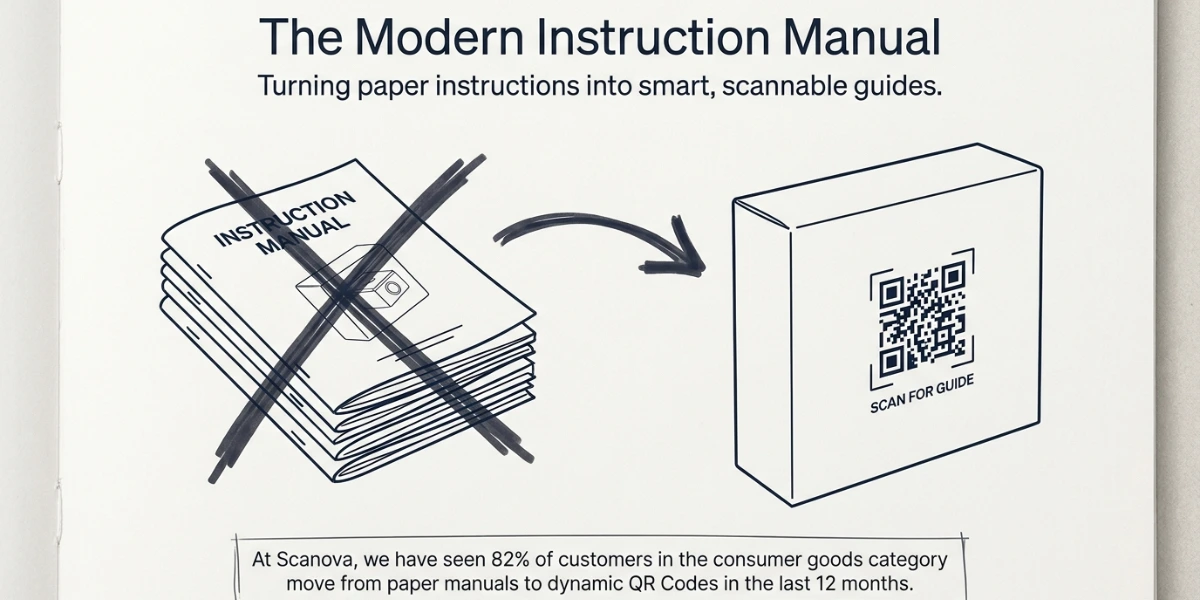
In a nutshell (TL;DR): Paper manuals get lost, tossed, or never read. A manual QR Code fixes this by linking your product to a digital guide that users can scan in seconds. In this guide, I’ll show you what a manual QR Code is, why brands like Tesla already use it, how to create one with Scanova, and the mistakes I see most teams make.
A. What is a manual QR Code?
A manual QR Code is a QR Code printed on a product, package, or label that links to a digital version of the user manual. When someone scans it with a phone camera, they instantly see the instructions on their screen.
The destination can be:
- A PDF user guide
- A how-to video
- A web page with text and images
- A multilingual instruction hub
- An AR or 3D demo
The point is simple. Instead of stuffing a thick paper booklet inside the box, you give your customer a small square they can scan. They get the manual on the device they already trust, in the format they prefer.
This shift is happening fast. According to a 2025 Wave Connect report, QR Codes are now on 92% of CPG packaging in the U.S.
B. Why paper manuals fall short today?
Let’s be honest. Most of us throw away the printed manual before we even open the product.
Here’s why paper-based instructions struggle in 2026:
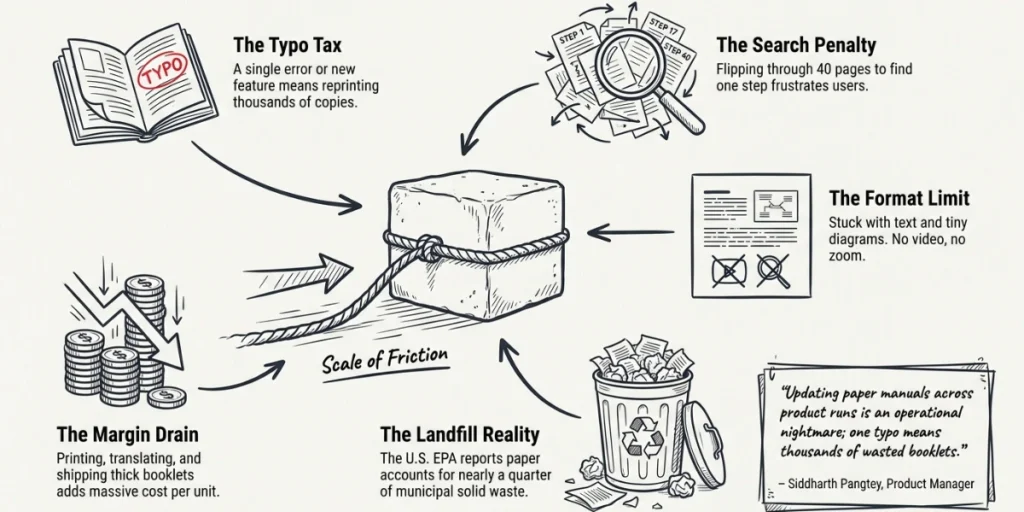
- They get lost. Once a user misplaces the booklet, they’re stuck.
- They can’t update. A typo or a new feature means reprinting thousands of copies.
- They’re hard to search. Flipping through 40 pages to find one step is painful.
- They limit the format. Text and tiny diagrams only. No video, no audio, no zoom.
- They hurt the planet. The U.S. Environmental Protection Agency reports that paper accounts for nearly a quarter of municipal solid waste in landfills.
- They’re expensive. Printing, translating, and shipping manuals add real cost per unit.
Bitly’s research team notes that QR-based instructions reduce paper use, lower print costs, and eliminate the friction of separate booklets in industries like automotive, electronics, and home furnishings.
That’s the gap a manual QR Code fills.
The data backs this up. In our 2026 CPG benchmarks, codes linking to a how-to or tutorial video average 19,181 scans each, the highest rate of any use case we measured. They are also the rarest, deployed by only 2 of the 28 brands in the study. See the CPG use-case benchmarks for how the rest compare.
Siddharth Pangtey, Product Manager at Scanova — “Updating paper manuals across multiple product runs is a surprisingly painful operation. With dynamic QR Codes, brands can update instructions instantly without reprinting packaging.”
C. Which industries are already using manual QR Codes?
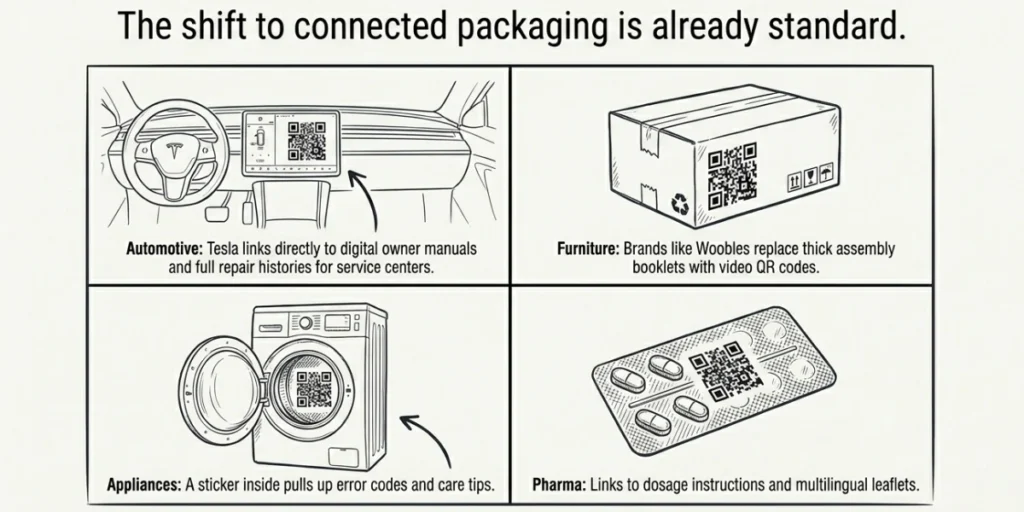
These are not theoretical use cases. Big brands have moved.
1. Automotive
Tesla prints QR Codes on its vehicles that link to digital owner manuals and troubleshooting guides. Service centers also use them to pull up full repair histories during maintenance.
2. Furniture and home goods
Flat-pack furniture makers replace thick assembly booklets with video QR Codes on the box. The crochet kit brand Woobles, for example, prints tutorial QR Codes on every kit so beginners can watch step-by-step videos.
3. Consumer electronics
Brands print QR Codes on the back of devices that lead to setup guides, warranty pages, and FAQ portals. This also helps with returns. The user can self-serve before calling support.
Setup-heavy products are the clearest fit. See QR Codes on consumer electronics for more on that category.
4. Appliances and white goods
Washing machines, ovens, and microwaves often have a sticker inside the door. Scanning it pulls up the full manual, error code lookup, and care tips.
Scan volume compounds the longer a programme runs. Customers with us six years or more average 13,951 scans per code, against 240 for those under two years. Our benchmark data on code age shows the full curve.
5. Manufacturing and industrial equipment
Factories print codes on machines that link to safe operating procedures, maintenance logs, and service histories. Technicians scan and access everything on the shop floor.
6. Pharma and medical devices
QR Codes link to dosage instructions, side-effect details, and multilingual leaflets. This is now common on inhalers, insulin pens, and home test kits.
A clear pattern shows up. Any product complex enough to need a manual benefits from a scannable version.
D. Static vs Dynamic QR Codes for manuals
This is the choice that trips people up. So let me break it down.
1. Static QR Codes
A static QR Code stores the destination directly within its pattern. Once printed, you can’t change where it points.
Use a static code if:
- The manual will never change
- You don’t need scan analytics
- It’s a one-time, short-run product
2. Dynamic QR Codes
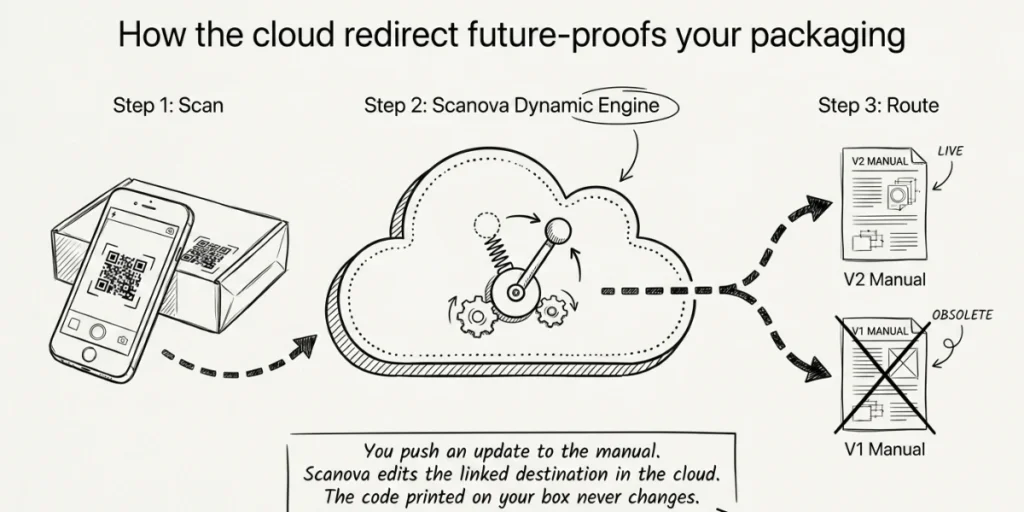
A dynamic QR Code points to a short redirect URL. You can update the destination at any time without reprinting. You also get scan data: count, location, device, and time.
Use a dynamic code if:
- Your manual might get updated (it usually will)
- You want to know who’s scanning, when, and from where
- You plan to A/B test content or add a video later
- You sell across regions and need to swap languages
This is also where platforms like Scanova come in. Scanova lets you generate dynamic QR Codes, edit the linked manual whenever you push an update, and track scans by city and device.
For brands that ship to multiple regions, that flexibility matters more than the code itself.
“In the past year, Scanova has observed increased demand for dynamic QR Codes from consumer brands aiming to digitize packaging instructions and post-purchase support.” – Scanova Research Team
E. What content can you link to a Manual QR Code?
This is the fun part. A manual QR Code is not just a PDF link.
Here’s what you can link to:
- PDF guide. Classic, lightweight, easy to print.
- HTML web page. Searchable, mobile-friendly, easy to update.
- Step-by-step video. Great for assembly, installation, or first-time setup.
- AR overlay. Show users where each part goes in real time.
- 3D product demo. Useful for complex hardware.
- Multilingual hub. One QR Code, many languages, picked by user choice or device.
- Chatbot or support page. For troubleshooting.
- Warranty registration form. Capture user info while they’re already engaged.
Pick the format that matches the product. For a kettle, a one-page PDF works. For a bike or a smart camera, a video plus an FAQ page is better.
F. How to create a manual QR Code?
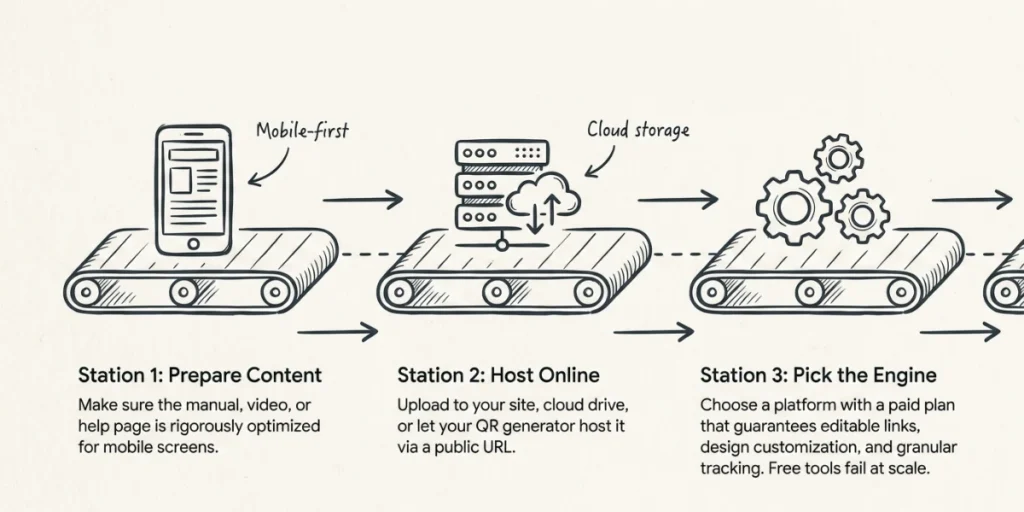
Step 1: Decide what your QR Code will link to
Before anything else, get clear on what users will see after scanning. This could be a PDF manual, a how-to video, a product support page, or a step-by-step help article.
Whatever you choose, make sure it opens cleanly on a mobile browser without requiring a login or a separate app, since most scans happen on phones.
Step 2: Create and finalize your content
Write the manual, record the video, or build the help page. Keep the language simple and the layout clean. If it’s a PDF, make sure the text is large enough to read on a small screen.
If it’s a webpage, test it on mobile before moving forward. Do not generate the QR Code until this content is complete and ready.
Step 3: Host your content online and copy the URL
Your content needs a live, publicly accessible URL. Upload your PDF to your website, Google Drive, or Dropbox.
Publish your video on YouTube or Vimeo. Make sure the link works for anyone without a login. Once confirmed, copy that URL. You’ll need it shortly.
Step 4: Sign up on Scanova and start a new QR Code
Go to scanova.io and create a free account. Once on the dashboard, click “Create QR Code” to open the QR Code type selection panel.
Step 5: Select Website URL and paste your link
From the list of QR Code types, select “Website URL.” A text field will appear. Paste the URL you copied in Step 3 and double-check it by opening it in a new tab before proceeding.
Step 6: Choose Dynamic QR Code
When prompted to choose between Static and Dynamic, always select Dynamic. A Dynamic QR Code lets you change the destination URL at any time without reprinting.
This is essential for product manuals since you may need to update content after the product is already in the market.
Step 7: Customize the design
In the design editor, add your brand colors, upload your company logo, and choose a frame with a short call to action, such as “Scan for Manual” or “Scan to Get Started.”
Keep the design clean and maintain a strong contrast between the dots and background so the code stays scannable.
Step 8: Test on multiple devices
Before downloading, scan the QR code on your screen with at least one iPhone and one Android device. Confirm it opens the correct URL.
Also test in different lighting conditions, including dim indoor light. If it fails to scan reliably, increase the contrast or simplify the design.
Step 9: Download and print at the right size
Download the QR Code as an SVG for print use, since it stays sharp at any size. Hand it off to your packaging or design team with a clear instruction: print it at a minimum size of 2 x 2 cm.
Place it where users naturally look for help, such as the back panel, inside the lid, or on a product sticker. Include a short label near the code that explains what users’ll find, such as “Scan to view the full user manual.”
Step 10: Track scans and update content anytime
Log in to your Scanova dashboard regularly to review scan analytics. You can see total scans, device types, and geographic data.
Whenever the manual changes, simply update the destination URL inside Scanova. The printed QR Code stays the same, and users will always be directed to the latest version of your content.
G. What are the best practices for printing and placement?
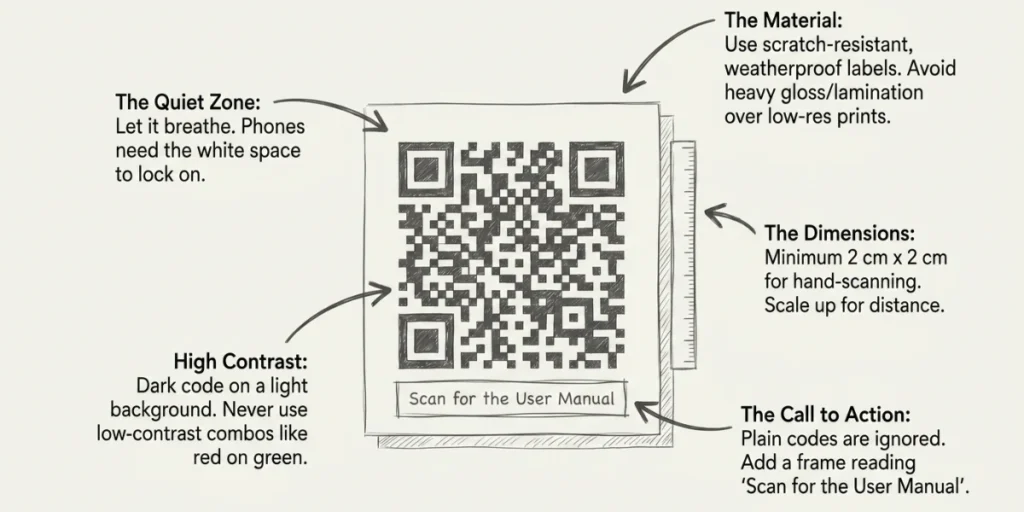
This is where most teams cut corners. Don’t.
- Minimum size: 2 cm by 2 cm for hand-scanning, larger for distance scans.
- Keep a quiet zone around the code. White space helps phones lock on faster.
- Pick high contrast colors. Dark code on a light background. Avoid red-on-green or low-contrast combos.
- Add a call to action. Something like “Scan for the User Manual” or “Watch the Setup Video.” Plain codes get ignored.
- Choose the right material. Use weatherproof labels for outdoor products. Use scratch-resistant labels for hardware.
- Don’t place on curved surfaces without testing. A code wrapped around a cylinder may not scan.
- Avoid laminating over a low-resolution print. Sharpness matters more than gloss.
- Test every batch before mass printing. A typo in the redirect URL on a million packages is a costly mistake.
Scanova QR Code Generator’s product team recommends testing every code on multiple phones and in varying lighting conditions before going to print. I agree.
H. Real benefits I’ve seen from Manual QR Codes
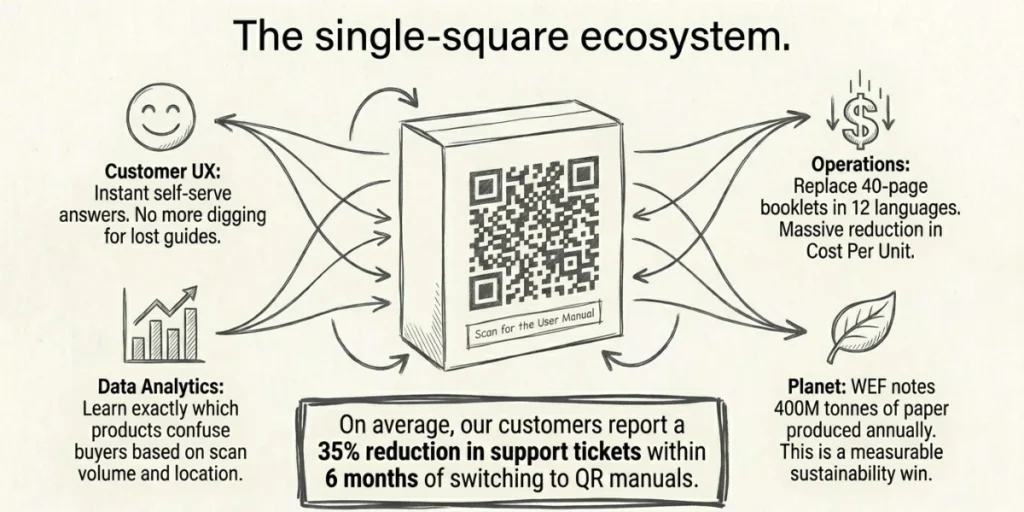
These are the wins that show up in real campaigns.
1. Lower cost per unit
You stop printing 40-page booklets in 12 languages. One QR Code replaces all of them.
2. Better customer experience
Users find the answer in seconds. No more digging through drawers for a lost guide.
3. Lower support load
When users can self-serve through a video or FAQ, support tickets drop. That saves staff time.
4. Real data
Dynamic codes show you what users scan, when, and where. You learn which products confuse buyers and which steps need clearer instructions.
5. Continuous updates
Found a bug in the setup process? Update the linked page. The QR Code on every box still works.
6. Sustainability gains
According to the World Economic Forum, the world produces over 400 million tonnes of paper each year, much of which is used for single-use printing. Replacing paper manuals with QR Codes is a small but real contribution to lowering waste.
7. Multilingual support without reprinting
Auto-detect the user’s language and serve the right version. One code, every market.
I. What are the common mistakes to avoid?
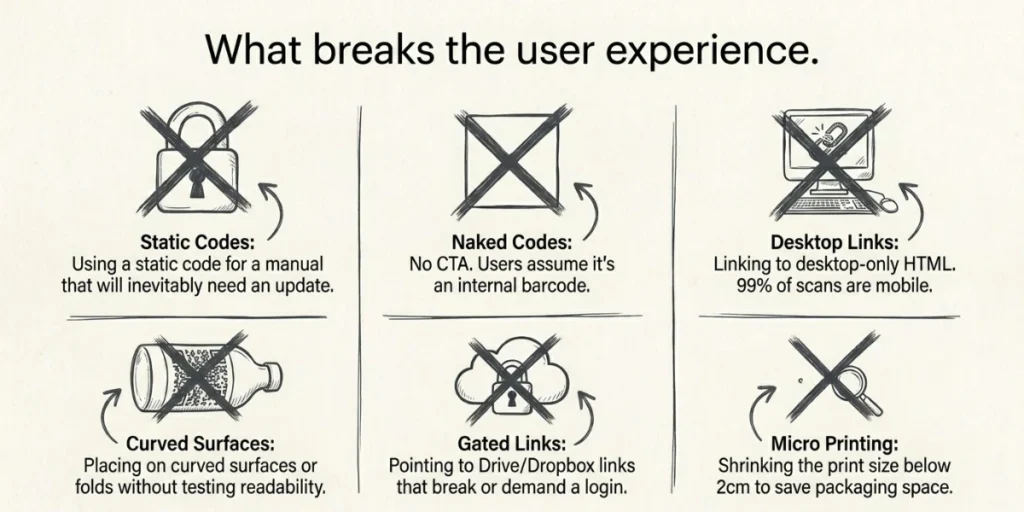
I see these mistakes too often.
- Using a static QR Code for a manual. You will need to update something. Reprinting packaging is painful.
- No CTA. A naked QR Code looks like a barcode. Add text that explains what users’ll get.
- Linking to a desktop-only page. Most scans are mobile. The page must work on a small screen.
- Tiny print size. Below 2 cm, many phones struggle, especially in low light.
- No analytics. If you can’t measure scans, you can’t improve the manual.
- Skipping the test scan. Always scan the final printed proof before signing off.
- Hiding the code. Don’t tuck it in a fold or under a sticker. Make it visible.
- Pointing to a Google Drive link. These can break or require a login. Host the file properly.
J. FAQs: Manual QR Code
1. What does a Manual QR Code link to?
It can link to a PDF, a video, an HTML page, an AR experience, or a multilingual hub. You pick the format that fits your product.
2. Are Manual QR Codes free?
Static codes are free to generate. Dynamic codes, which let you edit the link and track scans, usually require a small subscription. For most brands, the dynamic option is worth the cost.
3. How long does a manual QR Code last?
Static code lasts forever, but the destination URL must remain live. A dynamic code is valid for as long as your subscription is active. If the platform shuts down, the redirect can break, so pick a stable provider.
4. Can a manual QR Code work without the internet?
The scan itself works offline, but loading the manual page needs an internet connection. For users in low-signal zones, link to a downloadable PDF so they can save it for later.
5. What size should the QR Code be on packaging?
At least 2 cm by 2 cm for short-range scans. For shelf-distance scans, go larger. Always test on the final print before mass production.
6. Is a manual QR Code GDPR-friendly?
Yes, as long as you disclose scan tracking and avoid collecting personal data without consent. Stick to anonymized scan counts and aggregate location.
Final Thoughts
A manual QR Code is one of the easiest upgrades a product brand can make. It costs little, saves print money, lowers support load, and gives customers a better first experience with the product.
If you’re picking a platform, look for three things: dynamic QR Codes, design customization, and clear scan analytics.
A manual code is one job a pack can do. For the rest, see our guide to QR Codes on product packaging.
Tools like Scanova check all three boxes and let you swap the linked manual without ever reprinting your packaging. That kind of flexibility pays off the first time you ship an updated product.
The next time you open a new gadget, look at the box. If there’s no QR Code on it yet, that brand is leaving a small but real piece of customer experience on the table.
You don’t have to.