QR Code Generator for Storage Boxes: Your Complete Guide

In a nutshell (TL;DR): QR Code labels make storage boxes searchable by letting you see what’s inside with a quick scan instead of opening every box. Using dynamic QR Codes means you can update the linked inventory anytime without reprinting the label. You can link each code to a photo album, spreadsheet, or inventory page, making them especially useful for long-term storage, moving, or managing 20+ boxes. Setup is simple: create the QR Code, print it, stick it on the box, and scan it with your phone.
A. What does this guide cover?
A QR Code generator for storage boxes helps you turn every box into a searchable one. You create a code, link it to a list of the contents, and stick it on the box. Later, one phone scan tells you exactly what is inside. No lifting lids. No guesswork.
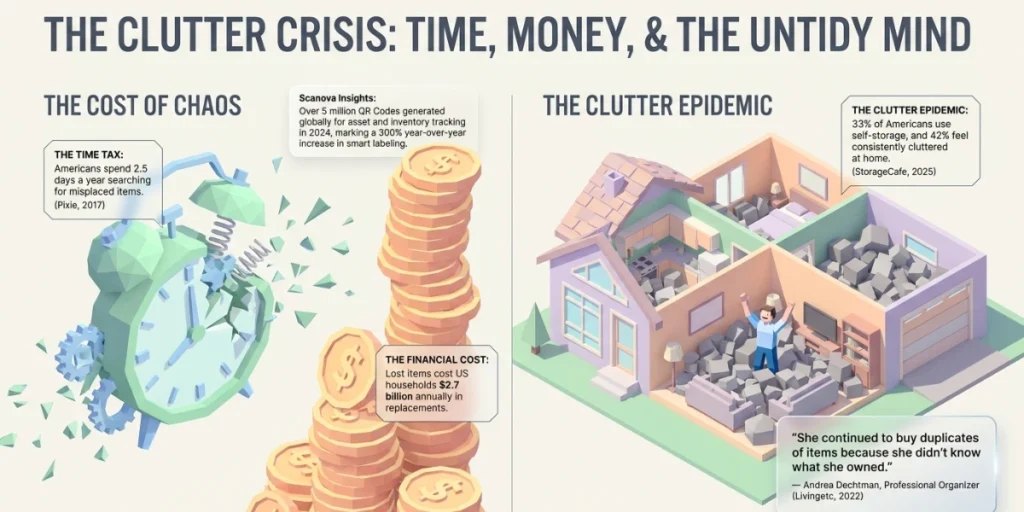
The need is real. According to Pixie’s Lost and Found survey (2017), the average American spends 2.5 days a year looking for misplaced items. The same survey found that lost items cost US households $ 2.7 billion a year in replacement costs. A lot of that stuff is not lost. It is just sitting in an unlabeled box.
In this guide, we will explain how QR Code labels for storage boxes work. You will learn how to create them, what to link them to, and how to print labels that last. We will also cover the best use cases, common mistakes, and the most-asked questions.
B. Why should you use QR Codes on storage boxes?
You should use QR Codes on storage boxes because they hold far more detail than a marker ever can. A handwritten label says “Kitchen.” A QR Code label can open a full list of items, photos, and notes. You can also update that list without touching the box.
Clutter is a growing problem. A StorageCafe survey (2025) found that 33% of Americans now use self-storage. The same study found that 42% feel cluttered at home either often or all the time. More boxes in more places means more chances to forget what went where.
QR Code labels solve four problems that marker labels cannot:
- They are searchable. Need the fairy lights? Search your linked sheet or folder and find the right box in seconds.
- They are editable. Took the blender out? Update the list on your phone. The printed code does not change.
- They hold photos. A quick top-down photo of the open box beats any written list.
- They are shareable. Anyone in your family or team can scan the same code and see the same list.
Professional organizers back this up. Organizer Andrea Dechtman told Livingetc (2022) that a client kept buying duplicates of craft supplies. In her words, “She continued to buy duplicates of items because she didn’t know what she owned.” QR Code labels fixed that. The client could finally see her full inventory before buying more.
We see the same pattern on our side. [YELLOW PLACEHOLDER: Internal Scanova data point on label/inventory QR Code creation or scan trends, e.g., growth in QR Codes created for labeling and asset use cases. Confirm the exact figure with the product team before publishing.]
C. How do QR Code labels for storage boxes work?
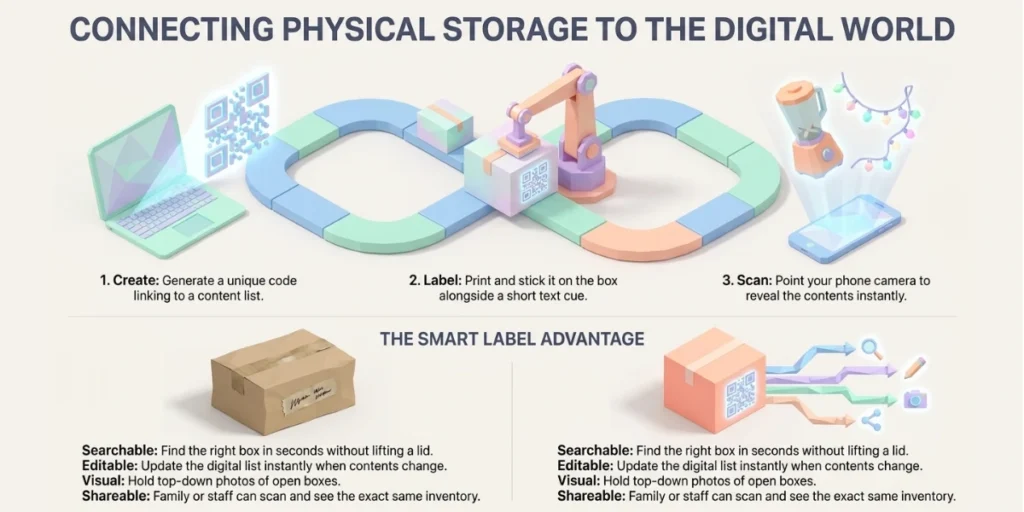
QR Code labels work by linking a printed code to digital content about the box. The code itself stores a short link. When you scan it, your phone opens that link. The link can lead to a list, a photo folder, or a page you control.
Here is the flow in three steps:
- Create. You use a QR Code generator to make a unique code for each box. The code points to that box’s content list.
- Label. You print the code and stick it on the box. A short text label next to it helps with quick sorting.
- Scan. You point your phone camera at the code. The content list opens on screen. Modern iPhones and Android phones scan QR Codes natively, so no extra app is needed.
That is the whole system. The magic is in what the code points to, and whether you can change it later. That brings us to the most important choice you will make.
D. Should you use static or dynamic QR Codes for storage boxes?
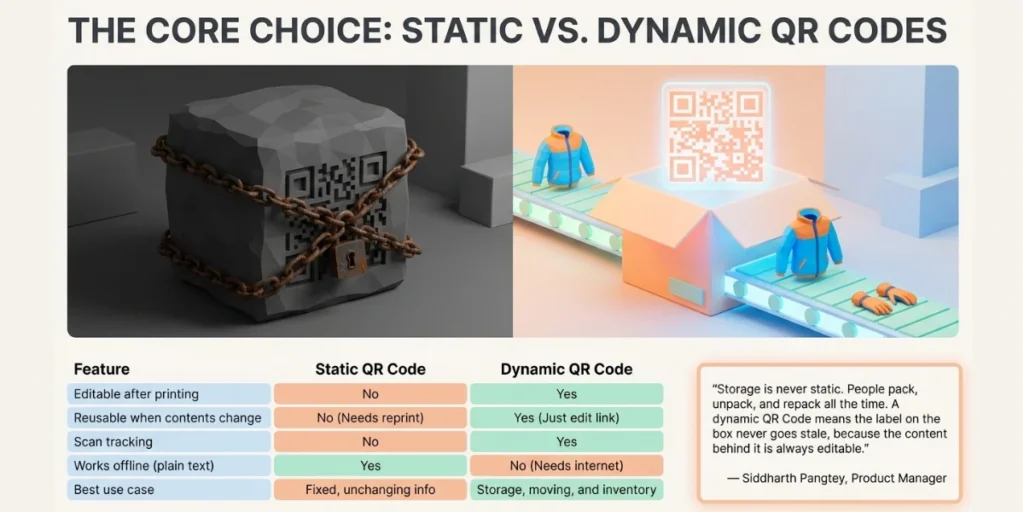
You should use dynamic QR Codes for storage boxes in almost every case. A dynamic QR Code lets you edit the linked content any time. A static QR Code locks the data in forever. Box contents change, so your labels should too.
Here is how the two compare for storage use:
|
Feature |
Static QR Code |
Dynamic QR Code |
|
Editable after printing |
No |
Yes |
|
Reusable when contents change |
No, needs a reprint |
Yes, just edit the link |
|
Scan tracking |
No |
Yes |
|
Works offline (plain text) |
Yes |
No, needs internet |
|
Best for |
Fixed info that never changes |
Storage, moving, and inventory |
Think about how storage really works. You pack the winter box in March. You pull out two jackets in November. You add ski gloves in December. With static code, the label is now wrong three times. With dynamic code, you can edit the list in seconds, and the printed label stays accurate.
There is one honest exception. If you only want a code that shows a short, fixed text note, a static QR Code works offline and costs nothing. For everything else, dynamic wins.
“A storage label should not become outdated the moment something inside a box changes. With dynamic QR Codes, teams can keep the same physical label while updating the linked information as their inventory evolves.” — Siddharth Pangtey, Product Manager at Scanova
E. How do you use a QR Code generator for storage boxes?
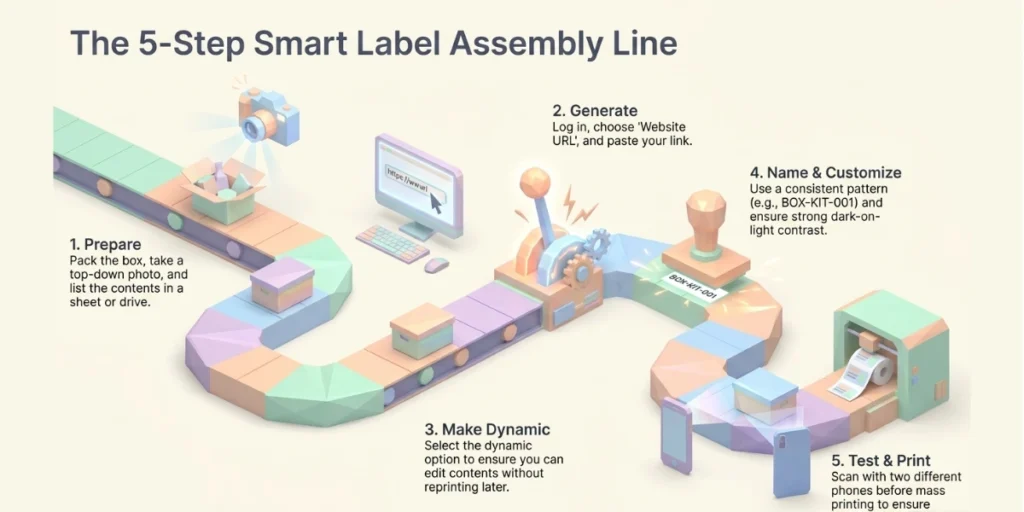
You can create your first QR Code label in under five minutes. Any good generator will do the job. We will walk through the steps with Scanova, since that is the tool we built and use every day.
Here is the step-by-step process:
- Prepare the content first. Pack the box, but leave it open. Take a clear top-down photo of everything inside. Then make a simple list of the contents. A Google Sheet, a Google Doc, or a cloud photo folder all work well. One box, one list. Do not mix the contents of two boxes in one file.
- Set the sharing permission on your link. This is the step most people miss. Open the sharing settings of your sheet, doc, or folder. Change it to “anyone with the link can view”. If you skip this, the QR Code will work on your phone but show a permission error on everyone else’s.
- Go to Scanova’s QR Code Generator. Log in to Scanova, and you will see a list of QR Code categories. Each category matches a type of content, such as a website, a PDF, or a contact card. For storage boxes, select the Website URL category.
- Paste your content link. Copy the link to your sheet, doc, or folder. Paste it in the URL field and click Continue. Double-check the link for typos before you move ahead. A broken link means a useless label.
- Name the QR Code. Use a clear naming pattern such as BOX-KIT-001 for kitchen box one. So a bedroom box becomes BOX-BED-001, and a garage box becomes BOX-GAR-001. Consistent naming makes large setups much easier to manage. When you have forty codes in your dashboard, you will be glad you did this.
- Select the Dynamic option. This is the most important choice in the whole process. A dynamic QR Code lets you edit the linked content any time, even after the label is printed. Move an item out of the box, update the list, and the same label stays accurate. A static code cannot be changed once created.
- Customize the design. You will see two options here. A custom logo design lets you add colors and a small logo to the code. A custom background design places the code on an image. For storage labels, simple works best. Keep strong contrast between the code and its background. A dark code on a light base scans best.
- Preview and test the code. Scan the on-screen preview with two different phones, such as one Android and one iPhone. Check that the right list opens and that the photos load. Fix any issues now, not after fifty labels are printed.
- Download the QR Code. Click Download, then choose the size and format. PNG works fine for regular home printing. SVG is better if you plan to resize the code, because it stays sharp at any size. Keep the code at least 2 x 2 cm so phones can scan it easily.
- Print and attach the label. Print the code as a sticker or on plain paper. Stick it on the short side of the box, not the top, so you can scan it even when boxes are stacked. Add a short handwritten word like “Kitchen” next to the code as a quick visual backup.
Labeling a full garage or a warehouse? Creating codes one by one gets slow past a few dozen boxes. Bulk generation solves this. You upload one spreadsheet of names and links, and you get all your codes in one file.
F. What should your storage box QR Code link to?
Your storage box QR Code should link to whatever you will actually keep updated. The best content type depends on how much detail you need. Here are the four options that work best, from simplest to most complete:
- A plain text note. Good for short, fixed lists like “Diwali lights and lamps.” Fast to set up, but limited in detail.
- A cloud photo folder. Snap photos of the open box and upload them to Google Drive or Dropbox. One glance at the photos beats reading any list. Set the folder link to be viewable by anyone with the link.
- A spreadsheet. One Google Sheet with a tab or row per box gives you search across every box at once. Type “drill” in the search bar and find the right box instantly. This is the best option for 30 or more boxes.
- A content page. Some generators, including ours, let you build a simple mobile page with text, images, and files using a single code snippet. This keeps everything in one place with no extra apps.
You can also mix these. Many people link each code to a sheet row that also holds a photo link. Pick the setup you will maintain. A perfect system you never update is worse than a simple one you do.
G. How do you print and place QR Code labels on storage boxes?
Print your QR Codes at least 2 x 2 cm in size, or about 0.8 x 0.8 inches, and place them on the front face of the box at eye level. A label that will not scan is just decoration, so materials and placement matter as much as the code itself.
Follow these print and placement rules:
- Size for distance. A rough rule: the scan distance should be about ten times the code’s width. A 2.5 cm code scans well from 25 cm away. Going bigger never hurts.
- Keep a quiet zone. Leave a white margin around the code. Do not let tape edges, text, or box art crowd it.
- Pick durable material. For garages, attics, and storage units, use waterproof vinyl or polyester labels. Plain paper under clear packing tape is a fine budget option for indoor boxes.
- Mind the surface. Flat, smooth surfaces scan best. Avoid placing codes over box seams, ridges, or curved corners.
- Use two sides for stacked boxes. If boxes sit on shelves or in stacks, put a label on the front and one on the side. You will thank yourself later.
- Add a text backup. Write the room or category next to the code in big letters. This hybrid method gives movers instant visual sorting, and gives you the deep digital list. If the phone dies, the marker still works.
One more tip for outdoor or damp spaces. Laminate paper labels or use a clear label protector. Faded and wrinkled codes are the top cause of failed scans over time.
H. Where do QR Code storage labels help the most?
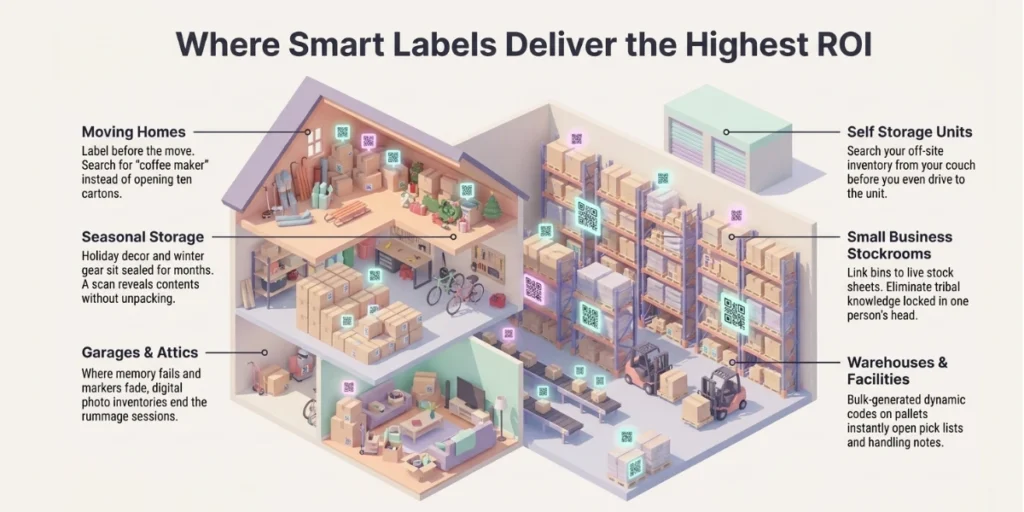
QR Code storage labels are most helpful when boxes stay closed for a long time or when many people handle them. If you can name every box in your home from memory, you do not need them. Most of us cannot. Here are the highest-value use cases we see:
- Moving homes. Label every box before the move. On unpacking day, search for “coffee maker” instead of opening ten cartons. Movers can scan a box to see which room it goes to.
- Seasonal storage. Holiday decor, winter clothes, and camping gear sit sealed for months. A scan in October tells you which box has the lights and which has the ornaments.
- Garages, attics, and basements. These are where labels fade and memory fails. Photos behind a QR Code end the rummage sessions.
- Self storage units. With a third of Americans renting storage units, off-site boxes are the easiest to forget. Search your inventory from home before you even drive to the unit.
- Small business stockrooms. Link codes on bins to live stock sheets. Staff scan to check contents and update counts. No more tribal knowledge locked in one person’s head.
- Warehouses and facilities. Codes on pallets and racks can open pick lists, handling notes, or maintenance logs. Bulk-generated dynamic codes scale to thousands of locations.
- Insurance records. A photo inventory behind each code doubles as proof of ownership. If a box is lost or damaged, you have dated evidence for the claim.
- Tool and equipment tracking. A code on each toolbox or kit can list the tools inside. Teams can flag missing items right in the linked sheet.
The pattern is simple. The longer a box stays shut, and the more people who touch it, the more a QR Code label pays off.
I. What mistakes should you avoid with QR Code storage labels?
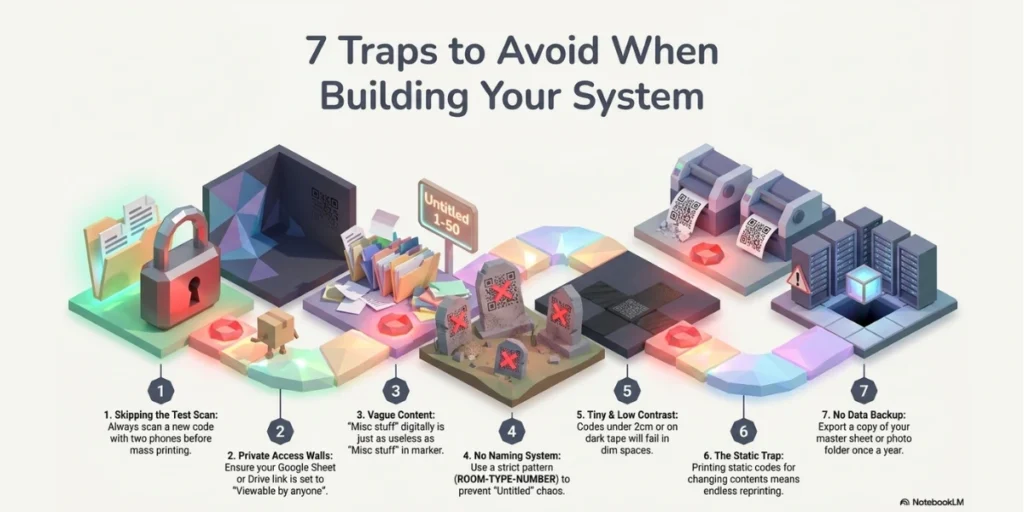
The biggest mistake is printing static QR Codes for content that will change. You will end up reprinting labels every few months, which defeats the point. Here are the other mistakes we see most often, and how to avoid them:
- Skipping the test scan. Always scan a new code with two phones before mass printing. Check the link opens for people other than you.
- Locking content behind private access. If your sheet or folder is private, family and staff will hit a login wall. Set link sharing to view access, or use a code that opens a public content page.
- Vague content. “Misc stuff” behind a QR Code is no better than “Misc stuff” in marker. List real items and add a photo.
- No naming system. Fifty codes named “Untitled” are impossible to manage. Use a pattern like ROOM-TYPE-NUMBER from day one.
- Tiny or low-contrast codes. Codes under 2 cm, or light codes on dark tape, fail in dim garages. Size up and keep contrast high.
- Never updating the lists. Make it a habit. Take an item out, update the list. A ten-second edit keeps the whole system honest.
- No backup of your data. Your linked sheets and photos are the real inventory. Keep them in a cloud storage service you trust and export a copy once or twice a year.
Avoid these seven traps, and your system will still be accurate years from now.
J. FAQs: QR Code generator for storage boxes
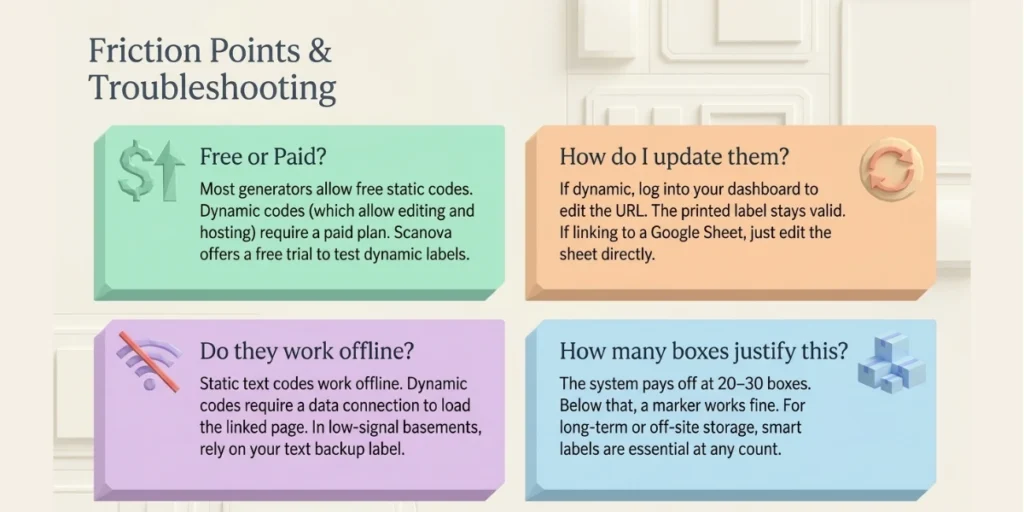
1. Can I create QR Codes for storage boxes for free?
Yes. Most generators, including ours, let you create static QR Codes for free. Dynamic QR Codes usually need a paid plan because they include editing and hosting. Scanova offers a free trial, so you can test dynamic labels on a few boxes before you commit.
2. How do I update a QR Code label after the box contents change?
If the code is dynamic, log in to your generator dashboard and edit the linked content or URL. The printed label stays valid. If the code links to a sheet or folder, just edit that sheet or folder directly. Static codes cannot be updated and must be reprinted.
3. What size should a QR Code be on a storage box?
Print it at least 2 x 2 cm, or about 0.8 x 0.8 inches. Use the ten-to-one rule for bigger spaces. If people will scan from one meter away, print the code at least 10 cm wide. Always leave a white margin around the code.
4. Do QR Code storage labels work without the internet?
Static text QR Codes work offline because the text lives inside the code. Dynamic codes need a data connection to load the linked page. In low-signal spots like basements, add a short text label next to the code as a backup.
5. How many storage boxes justify a QR Code system?
QR labels start paying off at around 20 to 30 boxes. Below that, a marker works fine. Above that, or for boxes stored longer than a month, the searchable digital inventory saves real time. For long-term or off-site storage, we consider them essential at any count.
Start Labeling Your Storage Boxes the Smart Way
QR Code labels turn sealed boxes into a searchable inventory. Create dynamic codes, link them to lists or photos, print them large and clean, and keep the content up to date. That is the entire system, and it saves hours every single year.