QR Code to Share Photos: The Simple Way to Send Albums in 2026

In a nutshell (TL;DR): A QR Code to Share Photos lets anyone instantly access a photo album by scanning the code with their phone. It links to your album rather than storing the photos, making sharing quick and simple. You can create view-only or collaborative albums, use free tools for small groups, and choose a dynamic QR Code if you want to update the album later without changing the printed code. It is an easy and effective way to share photos for weddings, events, businesses, real estate, and more.
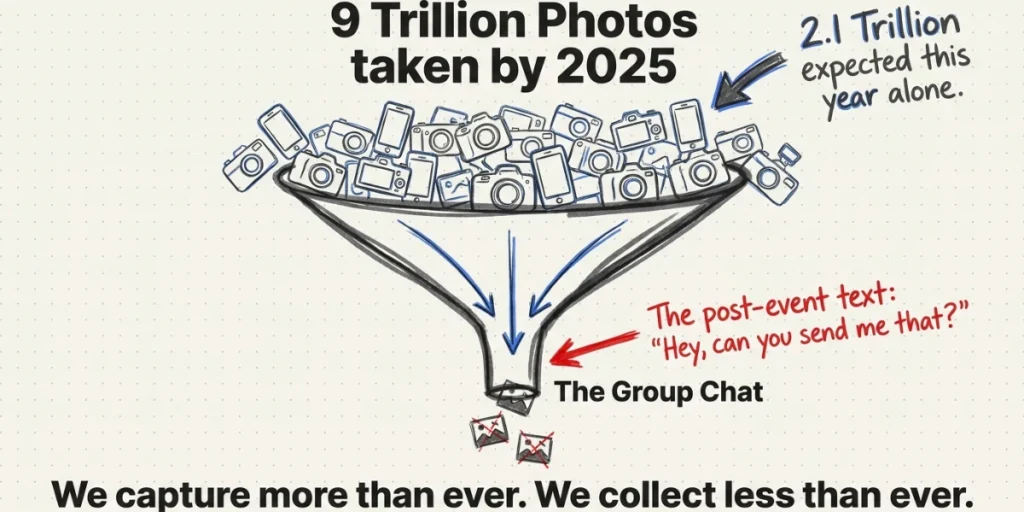
People take a lot of photos. By the start of this decade, more than 4 trillion photos sat in Google Photos alone, with 28 billion new uploads every week (Google Cloud).
By 2025, that number had climbed past nine trillion (PetaPixel). And the wider picture is bigger still. Around 2.1 trillion photos were expected to be taken worldwide in 2025 (Photutorial).
So we have never had more photos. Yet sharing them still feels hard.
Think about the last event you went to. Everyone held up a phone. Everyone got a great shot. And then those shots scattered.
Some sat in a group chat that scrolled past too fast. Some hid in camera rolls. Some never reached the one person who wanted them most. The host ended up asking, days later, “Hey, can you send me that photo?”
That gap is the problem. We capture more than ever. We collect less than ever.
A QR Code to share photos closes that gap. You print or post one small square. People scan it. They land on your album in seconds. They can look, save, or add their own shots. No download. No sign-up. No fuss.
I have set these up for weddings, trade show booths, and product pages.
In this guide, I will show you how they work, how to build one in a few minutes, and how to get people to actually scan it. I will also share the small mistakes that quietly kill participation, so you can skip them.
Let’s get into it.
A. What is a QR Code to share photos?
A QR Code to share photos is a scannable square that links to a photo album online. When someone points their phone camera at it, the link opens. They see your photos right away.
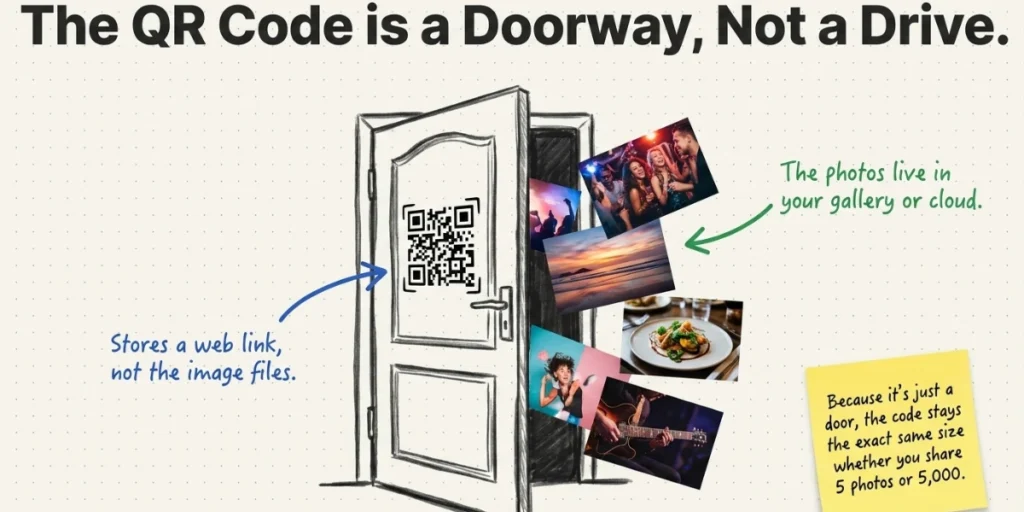
Here is the key idea. The QR Code does not store the images. It stores a web link. The photos live in a gallery, a cloud folder, or a hosted page. The code is just the door.
As one guide puts it, the code encodes a URL, and the only thing that changes between methods is what waits on the other side of that link.
That small detail matters more than it sounds. It means one code can hold an album of 5 photos or 5,000. It means you can change the album later. And it means the code stays the same size whether you share a single picture or a full wedding.
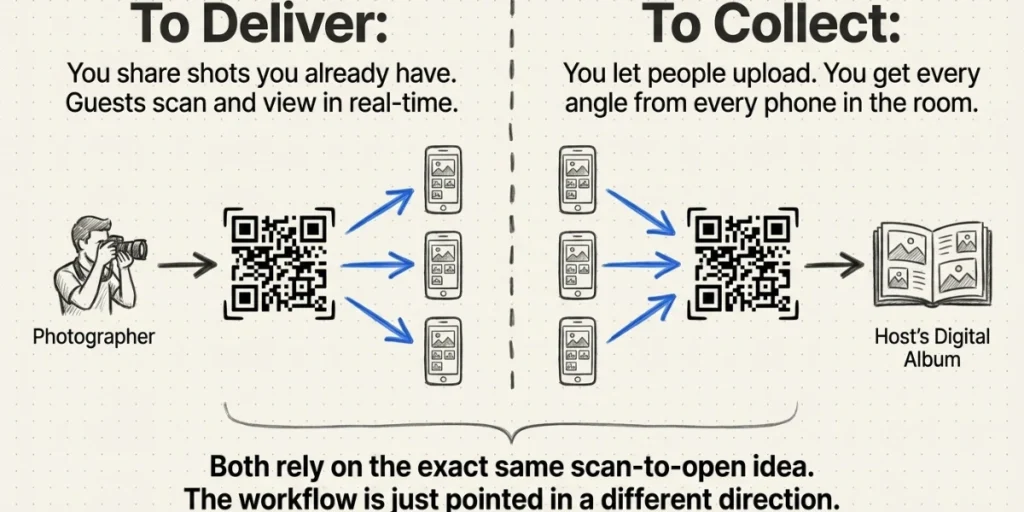
There are two main ways people use these codes:
- To deliver photos. You share shots you already have. Guests scan and view. A photographer might use this to hand out event photos in real time.
- To collect photos. You let people upload. Guests scan and add their own shots to a shared album. The host gets every angle from every phone in the room.
Both rely on the same scan-to-open idea. The workflow behind them is just pointed in a different direction.
You can use one, the other, or both at once. A wedding might deliver the photographer’s gallery and collect candid guest shots in the same code. That is the flexible part.
B. Why use a QR Code instead of email, texts, or chat apps?
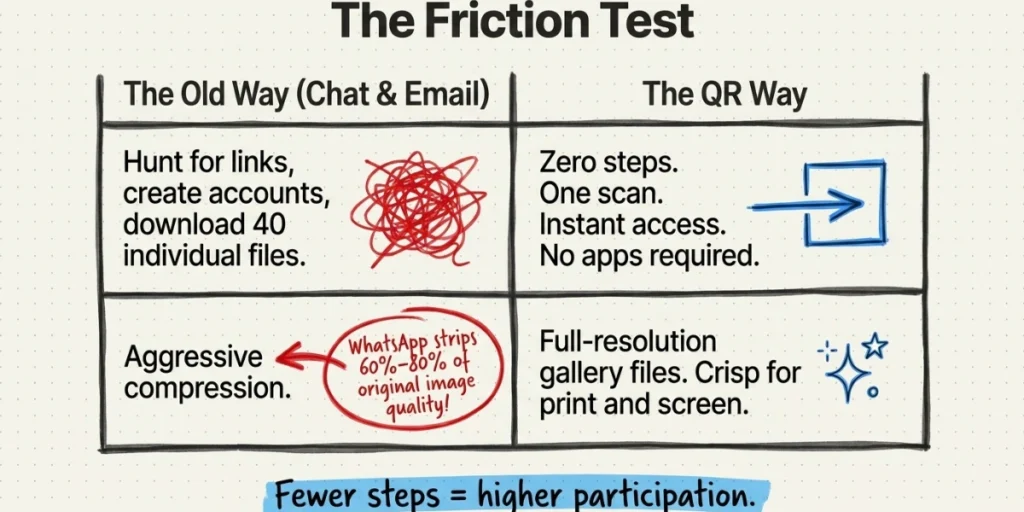
Sending photos the old way breaks down fast. Large albums hit inbox size limits. Group chats bury the link under new messages. And nobody wants to download forty files one at a time.
A QR Code fixes those friction points. Here is what you gain.
1. One scan, zero steps
Guests do not type a long URL. They do not hunt for a link. They do not download an app or make an account. They scan, and they are in. That low effort is the whole point, because fewer steps means more people actually do the thing.
2. Full quality, not squished files
This one surprises people. When you send a photo through some chat apps, the file gets compressed hard. Wedibox notes that WhatsApp can strip 60-80% of the original image quality. A QR Code points to a gallery that holds the full-resolution file. Your printed photo looks crisp, not blurry.
3. Update the album without reprinting
This is where a dynamic QR Code earns its keep. A dynamic code lets you change the linked album at any time, even after you print it. Add 200 photos after the event, and the same square still works (QR Code Dynamic). No reprint. No new code. No dead link on a sign you already hung.
4. Works on print and screen
You can drop a QR Code on a wedding invite, a table card, a product box, a flyer, or a slide. One code, many surfaces. That flexibility is part of why events lean on them so much.
5. You can see what works
A trackable QR Code shows you scan counts, times, and rough locations. That tells you which sign placement pulled the most scans, so you can do more of what worked next time.
A quick honesty note. A static QR Code is fine for a one-off you will never change. But for anything printed, pick dynamic. The ability to fix or swap the link later is worth it. We will address this choice in the FAQ.
C. How do I create a QR Code to share photos?
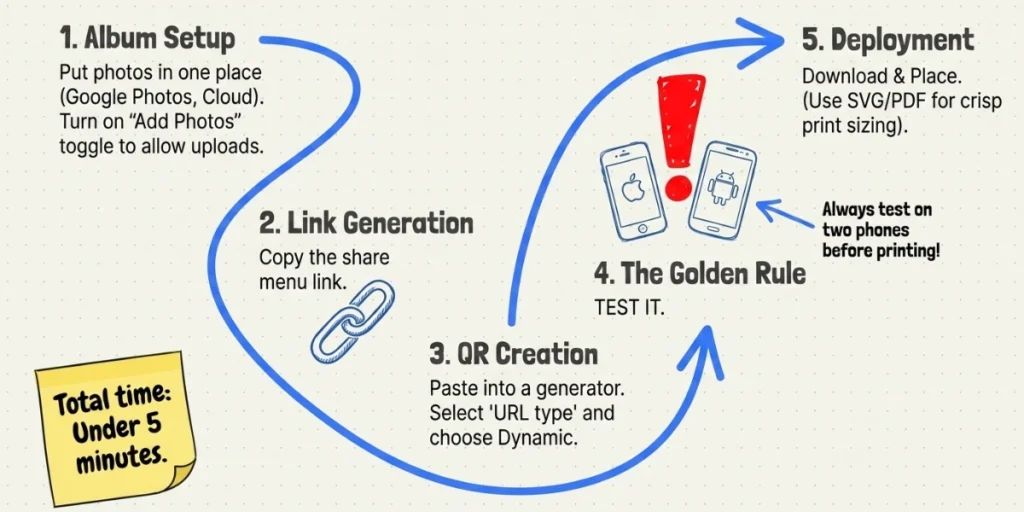
Step 1: Put your photos online and copy the link
Upload your images to a shared album in Google Photos, a cloud folder, or a hosted gallery. Open the album, tap share, and copy the link. If you want guests to add their own photos, turn on the setting that lets anyone with the link upload. Leave it off, and people can only view.
Step 2: Go to Scanova and sign up
Open your browser, visit scanova.io, and sign up with your email or Google account to start the 14-day free trial. An account lets you make a Dynamic QR Code you can edit and track later.
Step 3: Select the Website URL category
From the list of QR Code types, choose Website URL. A shared photo album is just a web link, so this is the right pick.
Step 4: Paste your link and name the code
Paste your album link into the URL field, then name the code something like “Event Gallery” so you can find it later in your dashboard.
Step 5: Choose Dynamic if you will print it
Pick Dynamic for anything printed. It lets you change the destination link later without reprinting, and it shows you scan data like how many people scanned, where, and when.
Step 6: Customize the look
Open Edit Design to add your colors, a center logo through Custom Logo Design, or a backdrop through Custom Background Design. Add a short call to action near the code, like “Scan to view tonight’s photos.”
Step 7: Test on two phones
Scan with one Android and one iPhone to confirm the album opens on both. Phones behave differently, so test every time before you print.
Step 8: Download and place it
Use PNG for screens. Use SVG or PDF for print so the code stays sharp at any size. Then put it where people will easily see it.
D. A free DIY method with Google Photos
You do not always need a dedicated tool. For a small group, the free route works well.
Here is the quick version. Open Google Photos and make a new album. Tap share, then get link, and switch on the option that lets anyone with the link add photos. Copy that link. Paste it into a QR Code generator, customize it, and download the file.
Google itself now even creates QR Codes for albums so people nearby can scan and join instantly (Google).
This is great for a birthday dinner or a weekend trip. But it has limits at scale. Some guests do not have a Google account. Others forget their password at the worst moment. And the upload screen wasn’t designed for 90 people uploading at once.
So here is my honest rule of thumb. Small and casual? The free DIY route is fine.
Large, branded, or important, like a wedding or a company event?
Use a generator that provides dynamic code, a custom design, and scan tracking. The cleaner experience is worth it when participation matters.
E. Where can you use a photo-sharing QR Code?
This trick stretches far past weddings. Here are the places it shines, and how each one works in practice.
1. Weddings and parties
This is the classic. Print the code on table cards, welcome signs, or thank-you notes. Guests scan and upload their candid shots to one shared album. You get the day from every angle, not just the photographer’s. It becomes a digital guestbook of real moments.
One smart move is to use separate albums for the ceremony, reception, and after-party, so everything sorts itself.
2. Live events and conferences
When photos arrive live, photography becomes part of the event itself. Guests get their photos while they are still in the room, and many post them to social media right away.
Place the code near the photo area or on welcome signage. You can also drop the same code into a post-event recap email to keep engagement going.
3. Real estate
Agents use a single code to share photos of a listing. Put it on a for-sale sign, a flyer, or a social post, and buyers scan to view the property gallery on the spot.
It saves them from having to type a long link and lets them see the photos faster.
4. Products and packaging
A QR Code can turn a plain box into a visual gallery. Brands link a code to lifestyle shots, close-ups, and demos, then place it on packaging or in-store displays.
A dynamic code means you can refresh the gallery for a new season without reprinting a thing.
5. Portfolios and creative work
Photographers and artists link a code to a portfolio gallery. It turns a business card into a living showcase. One scan, and a client sees your best work.
6. Schools and clubs
Events are not just big venues. A school or local club can use a code to collect photos from a match, a concert, or a fundraiser. Parents scan, add their shots, and everyone sees the highlights.
The pattern is the same across all of these. One code. One clear destination. A few seconds to scan. That simplicity is why it travels so well across such different uses.
F. How do you get people to actually scan it?
Here is the part most guides skip. The tech is only half the job. You can build the most elegant QR Code in the world and still end up with 40 photos from 150 guests if nobody knows it exists.
These are the moves that actually lift participation.
1. Have someone announce it
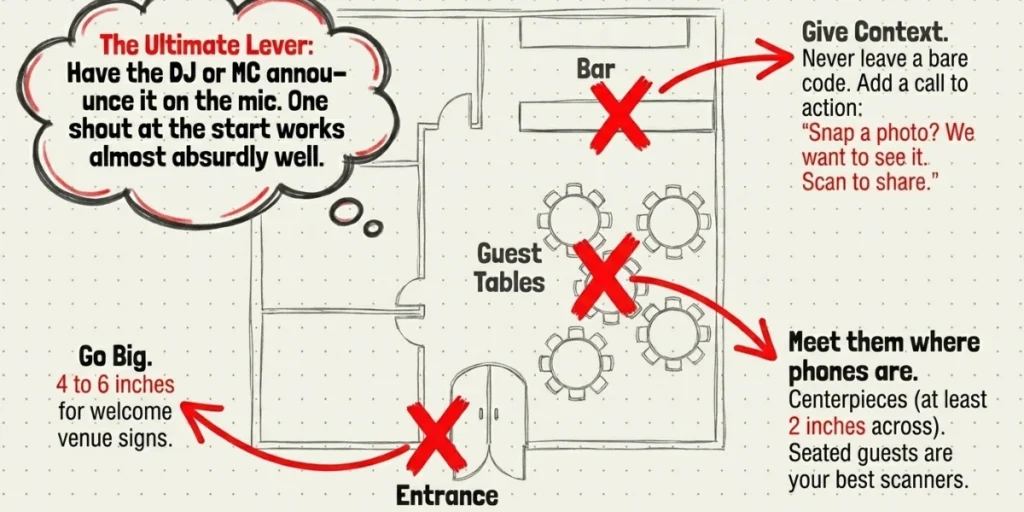
This is the single biggest lever. Ask your host, DJ, or MC to call it out. A simple line works: “Grab your phones and scan the code on your table to share your photos.” One shout at the start, one before the big moment. It works almost absurdly well.
2. Put codes where phones already are
People pull out their phones in certain spots. Meet them there. Table centerpieces, the bar area, the photo booth, and cocktail signage. A relaxed, seated guest with a phone in hand is your best scanner.
3. Tell people what it does
A bare code on a table gets ignored. Context fixes that. Add a warm, clear line: “Snap a photo? We want to see it. Scan to share.” A QR Code without an explanation is easy to skip.
4. Make it big enough
A code too small to scan is worse than no code at all. Use at least 2 inches across for table cards. Use 4 to 6 inches for venue signs.
5. Introduce it early
Put the code on a save-the-date, a website, or rehearsal signage before the main event. If guests have scanned it once, they will scan it again without thinking.
Do these five things, and your scan rate climbs. Skip them, and even a perfect setup falls flat.
G. How do you keep shared photos private and secure?
Your photos are personal. A few simple habits keep them that way.
- Share the code only with the people you want. Avoid posting a private album code in fully public places (Scanova).
- Set view-only access when you do not want uploads or edits. Give people what they need and nothing more.
- Use a password-protected album for sensitive sets. Many platforms support this, and it adds a real layer of safety.
- Set an expiry date with a dynamic code. When the moment has passed, you can retire the link.
- Revoke access anytime. With a dynamic code, you can change or kill the link, and the code stops leading anywhere.
The theme here is control. A QR Code does not weaken your privacy. Used well, it actually gives you more say over who sees what, and for how long.
H. Static vs Dynamic QR Codes: Which one for photos?
This choice shapes everything else, so it deserves its own moment.
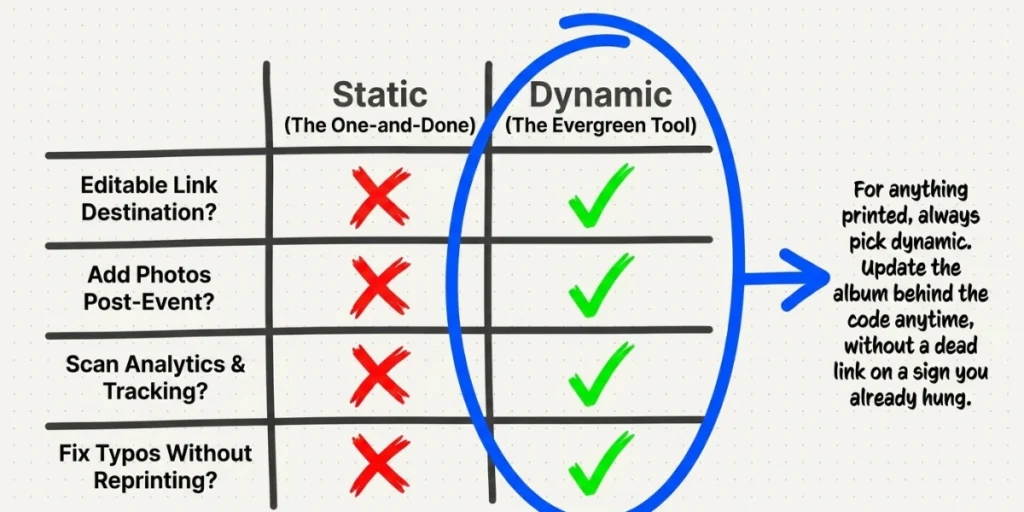
A static QR Code holds a fixed link. Once you make it, the destination cannot change. It is fine for a quick, one-time share you will never update.
A dynamic QR Code holds an editable link. You can point it to a new location at any time, and the code itself never changes. For photos, this is almost always the better pick. Here is why:
- You can add more photos after an event and keep the same code.
- You can fix a wrong link without reprinting anything.
- You can set a fallback page so a scan never reaches a dead end.
- You get scan analytics to see what worked.
One clever tactic: a week after an event, redirect the same code to a recap page, a thank-you note, or a highlight reel. The code stays useful long after the live album stops updating, so late scanners still find something worth their time.
“Photo sharing doesn’t end when you print a QR Code. Plans change, albums get reorganized, and new photos are added. A dynamic QR Code gives you the flexibility to update the destination anytime without replacing the printed code, making it a practical choice for events, businesses, and long-term campaigns.” — Siddharth Pangtey, Product Manager
At Scanova, every piece of code you write is dynamic by default for this reason. You should never be locked into a link you cannot fix.
I. Common mistakes that quietly kill participation
I have watched these trip up good setups. Avoid them, and you are ahead of most.
- Sharing an empty album. A generator will happily make a code for a blank album, and scanners land on nothing. Add photos, or set the upload flow, before you print.
- Copying the wrong link. Use the share menu link, not the address bar URL. The address bar link is often tied to your own account and asks others to sign in.
- Forgetting the upload toggle. If you want guests to contribute, turn on the add-photos permission. Broken permissions are shockingly common.
- Using static code on a printed piece. If anything changes, you are stuck. Go dynamic for print.
- Skipping the test scan. Always scan it on two phones first. This one habit prevents most disasters.
J. FAQs: QR Code to Share Photos
1. Can I update the album after I share the QR Code?
Yes, if you use a dynamic QR Code. A dynamic code lets you change the linked album at any time without reprinting or recreating the code (Scanova). Static code cannot be changed once it is created.
2. Can other people upload photos using the QR Code?
Yes. Many platforms let you create a shared album where others can add their own photos. In Google Photos, you turn on the option that lets anyone with the link add photos. On a dedicated platform, guest upload is usually built in.
3. Do I need the internet to use a photo-sharing QR Code?
Yes. Scanning the code opens an online album, so the person scanning needs an internet connection to view or upload (Scanova).
4. What file types can I share?
Most albums support both photos and videos. Cloud platforms like Google Photos support common image and video formats, so you can link a mixed album in a single code (Scanova).
5. Is a QR Code for photos free to make?
You can make a basic one for free using a free album host and a free generator. For dynamic codes, custom design, and scan tracking, a dedicated generator gives you greater control and cleaner results.
6. How big should the QR Code be?
Make table cards at least 2 inches across. Make venue signs 4 to 6 inches across. A code too small to scan is worse than no code at all.
7. Should I use a single photo code or an album code?
Use an image or single-photo code type when you only want to share one picture. Use a website or URL code type when you want to share a full album.
Conclusion
We take more photos than any generation in history. The hard part was never capturing the moment. It was getting that moment into the right hands.
A QR Code to share photos solves that in the simplest way possible. One square. One scan. Your whole album opens in seconds. Whether you are collecting candid shots at a wedding, handing out event photos live, or showing a product gallery on a box, the code does the heavy lifting for you.
The two ideas worth keeping: pick a dynamic code so you can fix and update the link later, and make the code easy to find and easy to understand so people actually scan it. Do those two things, and the rest takes care of itself.
When you are ready to build one, we have made the process quick at Scanova. Link your album, design the code to match your style, and download a sharp, dynamic code you can update whenever you like.
Your photos deserve to be seen. A good QR Code makes sure they are.