Small QR Code Generator: Tiny Codes That Still Scan

In a nutshell (TL;DR): Print QR Codes at a minimum of 2 cm x 2 cm. Size limits come from data, not the print itself, so use a short dynamic link to keep the code simple, scannable at smaller sizes, and editable later. Stick to error correction level M unless you add a logo or print on rough surfaces, where Q or H works better. Before printing, export a vector file (SVG or EPS), keep a strong contrast, leave a quiet zone around the code, and test the actual print size on 2 to 3 phones.
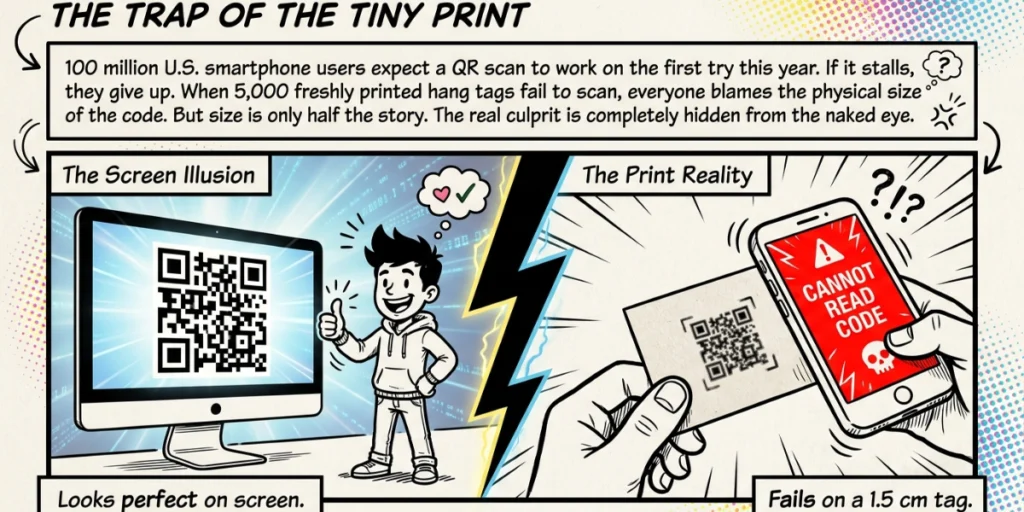
I once watched a client print 5,000 hang tags. The QR Code looked crisp on screen. In person, on a 1.5 cm tag, almost no phone could scan it. The code was not broken. It simply held a long tracking URL, which made the pattern too dense for that tiny space. That mistake cost a full reprint.
This is the trap with small QR Codes. People blame the size. The real cause is usually the data inside. Get that right, and a tiny code scans every time.
QR Codes are now everyday tools. More than 100 million U.S. smartphone users are expected to scan a QR Code this year. People expect the scan to work on the first try. If it stalls, they give up.
Size sits at the center of this. The team at Nielsen Norman Group recommends a minimum of 2 cm by 2 cm for reliable scanning. But size is only half the story.
In this guide, I will tell you all about a small QR Code generator, the one hidden rule that decides how small you can go, a step-by-step fix for code that will not scan, and the safest way to build tiny code.
We make dynamic QR Codes at Scanova, so I will also share what keeps a small code sharp in the real world.
A. How small can a QR Code be and still be scanned?
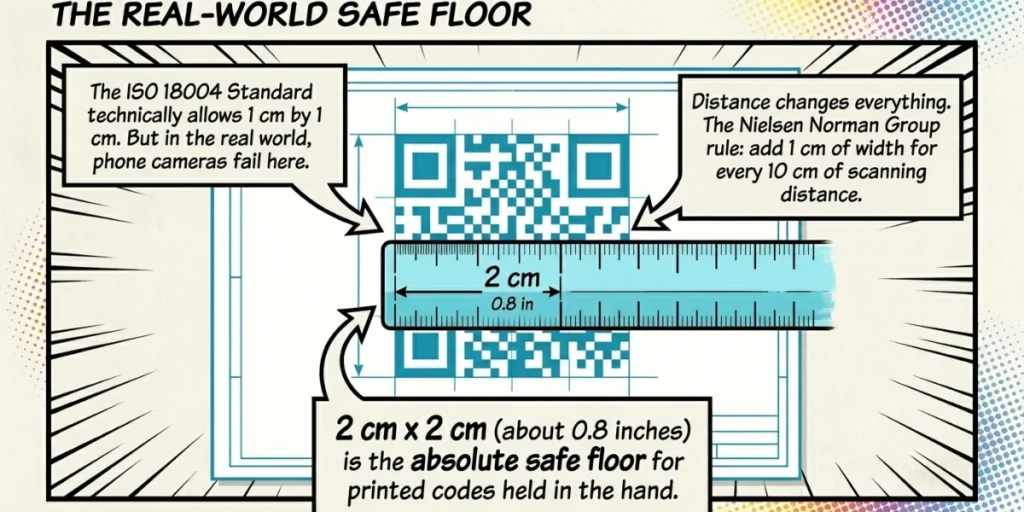
A printed QR Code should be at least 2 cm by 2 cm (about 0.8 inches) to scan well on most phones. That is the safe floor for print.
The official standard, ISO 18004, allows a smaller code of 1 cm by 1 cm. But that size fails on many phone cameras. I treat 2 cm as my real-world minimum, then I test before I trust it.
Distance changes everything. The farther the scan, the bigger the code must be. A simple guide helps here. Nielsen Norman Group shares the 10-to-1 rule: add 1 cm of width for every 10 cm of scan distance.
Here is a quick size cheat sheet by use case. Print sizes assume a clean, low-data code at 300 DPI.
|
Use case |
Typical scan distance |
Minimum size |
Error correction |
Note |
|
Business card |
In hand, ~10 cm |
2 cm (0.8 in) |
M |
Put it in a corner with clear space |
|
Jewelry or product tag |
Up close |
2 cm |
Q |
Test it on the curve, not flat |
|
Packaging or label |
Up close to 30 cm |
2 to 3 cm |
Q |
Size up if the surface is glossy |
|
Flyer or brochure |
~30 cm |
3 cm |
M |
Matte paper scans better than gloss |
|
Table tent or counter sign |
~50 cm |
5 cm |
M |
Keep a wide white border |
|
Poster or wall |
1 to 3 m |
10 to 30 cm |
M |
Scale up, do not skimp |
|
Billboard |
Far |
About 1 ft per 10 ft of distance |
L to M |
Use a large quiet zone |
Pro tip: Pick your scan distance first. Then size up from the 2 cm floor. A code that is a touch too big still scans. One that is too small does not.
B. The hidden rule: your link length sets your smallest size
Here is the insight that most guides skip. The amount of data in your code, not the picture you draw, sets how small it can go.
A QR Code is built from small black-and-white squares called modules. Every code has a “version” from 1 to 40. DENSO Wave, the company that invented the QR Code, explains it well. Version 1 is a 21-by-21 grid. Each step up adds 4 modules per side, up to 177 by 177 at Version 40.
More data means more modules. More modules in the same space means each square gets smaller. Smaller squares are harder for a camera to read. So a code with a lot of data needs a larger print to stay scannable.
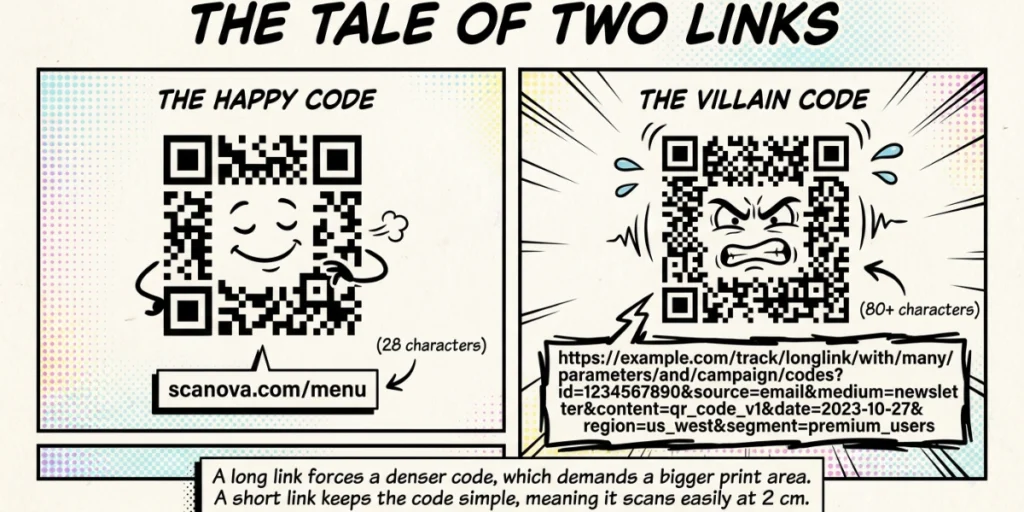
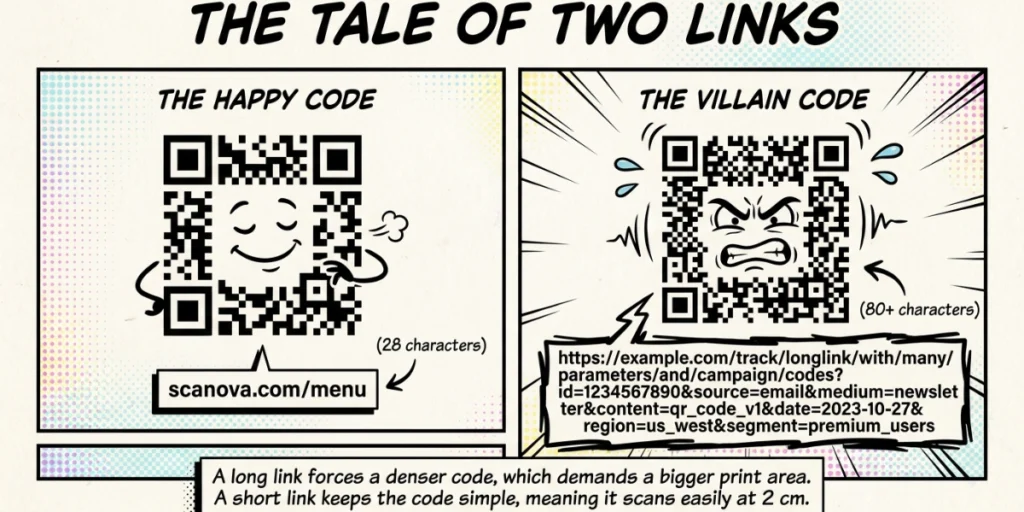
Let me make this concrete. A short link of about 28 characters fits in a small Version 3 code, which is just 29 by 29 modules. Now add tracking tags to that link.
A long URL can run 80 characters or more. That pushes the code to a higher version with far more modules. The pattern turns into a dense block of static. On a small tag, it fails.
This is the real reason “use a short link” works. It is not a style tip. It is module math.
A dynamic QR Code solves this by design. It stores a single short, fixed redirect link, regardless of the real destination’s length. The code stays at a low version, so it prints small and scans clean. This is how we build codes at Scanova, which is why our codes hold up on tiny tags and labels.
Pro tip: Before you print small, count your characters. If your link is long, shorten it or switch to a dynamic code. You will drop the version and shrink the safe size.
C. Why won’t my small QR Code scan?
A small QR Code fails when the camera cannot distinguish the squares. When a code will not scan, I run these five checks in order. The first one is the most common.
- Too much data. This is the top cause. Look at your link length. A long URL packs in modules and needs a bigger print. Shorten the link or use a dynamic code, then try again.
- Low print quality. A code that looks fine on screen can blur on paper. Print needs about 300 DPI. A low-resolution image turns sharp edges into grey, and the scanner reads grey as noise.
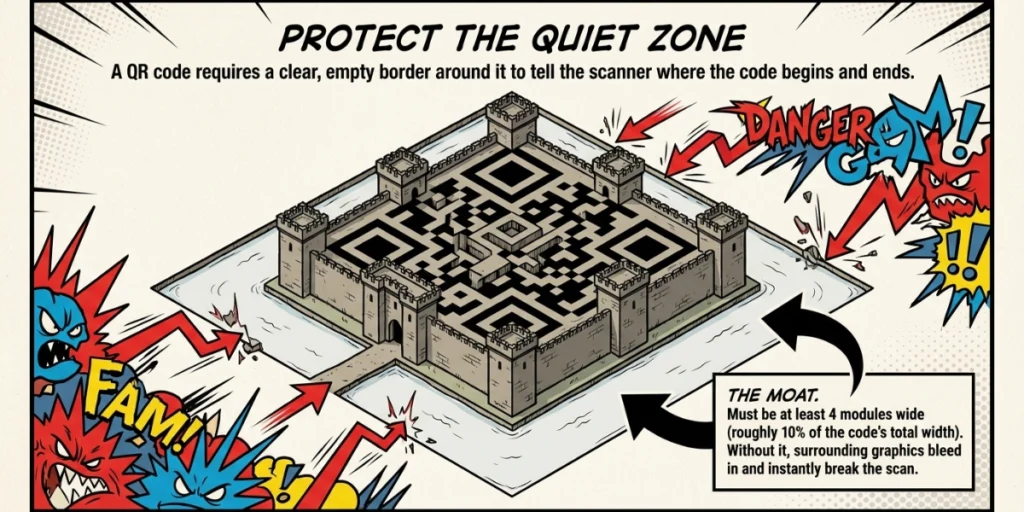
- No quiet zone. A QR Code needs a clear border around it. This empty space is the quiet zone. It should be about 4 modules wide. Without it, nearby text bleeds into the code and breaks the scan.
- Weak contrast. The code needs a clear gap between dark and light. Black on white is best. Pale colors or two close shades often fail at a small size.
- Rough or shiny surface. Glossy paper causes glare. Curved or textured surfaces bend the pattern. Both get worse as the code shrinks. Size up or raise the error correction here.
Work through these five, and most small codes start to scan. If you still get a fail after all five, the code is likely too small for the scan distance. Go back to the cheat sheet and size up.
D. How should I set error correction for a small QR Code?
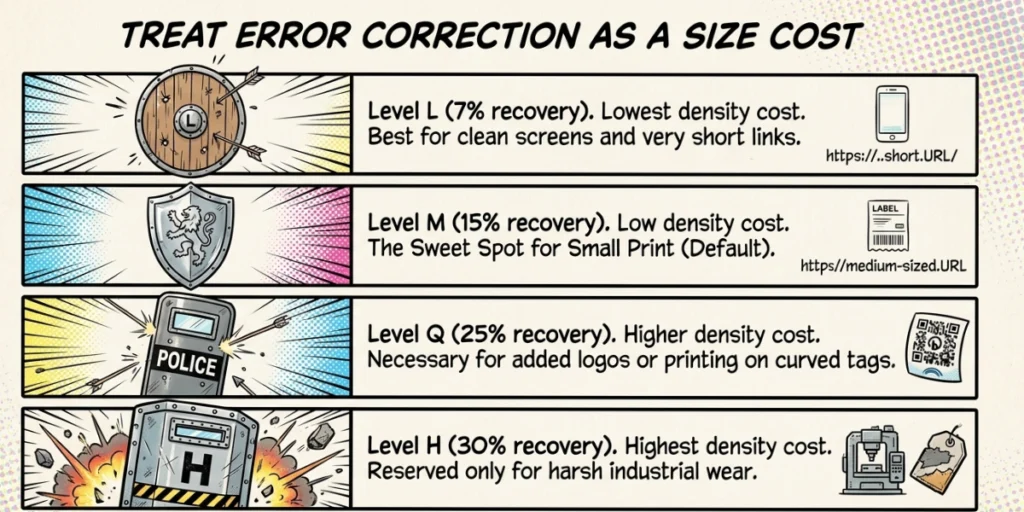
Error correction allows a code to be scanned even when part of it is damaged or hidden. It sounds like a free safety net. For small codes, it is not. Higher error correction adds modules, making the code denser and increasing the smallest size it can scan.
So treat error correction as a size choice, not just a safety choice. There are four levels. Here is how to pick.
|
Level |
Recovers up to |
Density cost |
Best for |
|
L |
7% |
Lowest |
Clean screens and very short links |
|
M |
15% |
Low |
Most small printed codes (the default) |
|
Q |
25% |
Higher |
Logos, curved tags, rough surfaces |
|
H |
30% |
Highest |
Harsh wear, like industrial labels |
For a clean, small code with no logo, M is the sweet spot. It balances safety and density. Move up to Q or H only when you add a logo, print on a curve, or expect scuffs and dirt. Just know that the higher you go, the bigger you must print to keep the same scan ease.
Pro tip: If you need a logo on a small code, raise error correction to Q and shrink the logo. The logo hides modules, and the higher level covers that gap.
E. How do I shrink a QR Code without breaking it?
To shrink a QR Code safely, cut the data, keep high contrast, protect the border, and export as a vector. Here are the moves I use, in order of impact.
- Cut the data. This is the biggest win. Use a short link or a dynamic code. Fewer characters means a lower version and a smaller safe size.
- Keep contrast high. Use a dark code on a light background. Skip pale colors and gradients on tiny codes.
- Protect the quiet zone. Leave a clear border of about 4 modules, or roughly 10% of the width. Do not crowd it.
- Go easy on the logo. A center logo hides modules. On a small code, that can break the scan. Keep it small and raise error correction.
- Set error correction to M. Use M for clean small codes. Save Q and H for logos or rough surfaces.
- Export as a vector. Download SVG or EPS, not a small PNG. A vector scales to any size with no blur, so the edges stay crisp.
We offer vector downloads and short dynamic links for this exact reason. Both keep small codes sharp.
F. Static or dynamic: which is better for a small QR Code?
For small codes, dynamic usually wins. The rule is simple. If space is tight or the link might change, go dynamic. If the code is large and the link is fixed forever, static is fine.
A static code stores the full data in the pattern. A long link makes it dense, and you can never change it. A dynamic code stores a short redirect link, so the pattern stays light and prints small. You can also edit the destination after printing and track scans.
“People think small codes fail because of their size. Most of the time, it is the link. A dynamic code stores only a short redirect, so the pattern stays light enough to print on a product tag and still scan.” Siddharth Pangtey, Product Manager, Scanova.
The edit feature alone can save a full reprint. If a campaign link changes, you update the destination, and the printed code still works. For small, high-volume prints like tags and labels, that safety net matters.
As per our internal usage data, around 98% of the QR Codes created on Scanova today are dynamic. Most people already lean this way, and small prints are a big reason why.
G. How do I make a small website URL QR Code with Scanova?
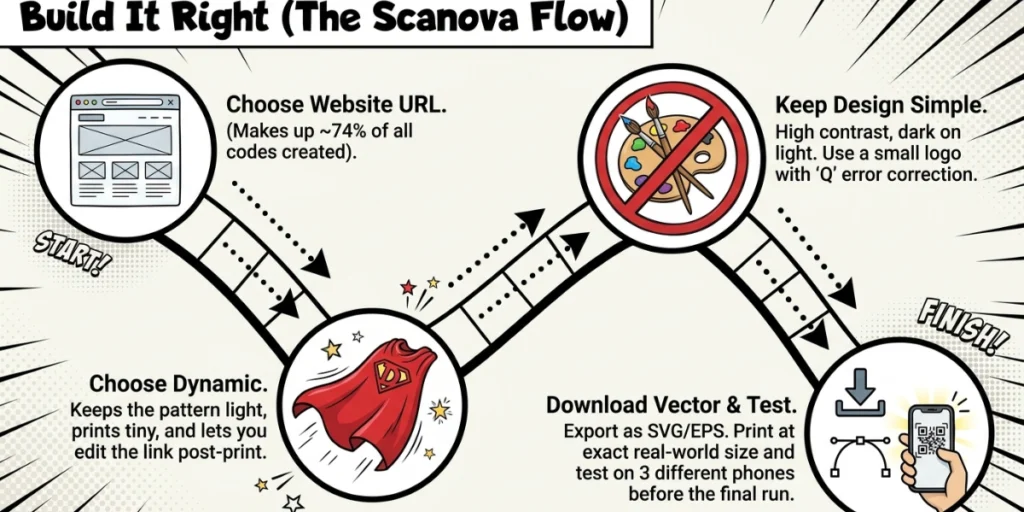
You can create a small, scannable QR code for a website URL with us in a few minutes. The trick is to keep it dynamic, so the link stays short and the pattern stays light. Here is the full flow, using a website URL as the example.
- Open Scanova’s login page and pick “Website URL.” It is by far the most used type. Website URL codes make up about 74% of all codes created on Scanova, per our internal data.
- Paste your link. Enter the web address you want the code to open, such as your homepage or a product page. Then click Continue.
- Name your code. Give it a clear name and add tags. This makes it easy to find later when you manage many codes.
- Choose dynamic. This is the key step for a small code. A dynamic code stores a short redirect link, so the pattern stays light and prints small. You can also edit the link later and track scans.
- Click Create QR Code. We build a clean black-and-white code for your link.
- Keep the design simple. You can add brand color and a logo. For a small print, go light. Use a dark code on a light background. If you add a logo, keep it small and increase error correction to cover the gap.
- Download a vector file. Save the code as SVG or EPS for crisp print at a small size. Skip a small, low-resolution PNG.
- Test before you print. Show or print the code at the real size. Scan it on two or three phones, including an older one. If it scans on the first try, it is ready.
One honest note. Our free generator makes static codes. Dynamic codes come with a free trial, then a paid plan. For a small, high-volume print, the dynamic short link is usually worth it. It keeps the code light and lets you fix the link without a reprint.
Because the link stays short, the same code that works on a poster also fits a 2 cm tag. That is the real win of this flow.
H. Does color affect a small QR Code?
Yes, color affects a small QR Code a lot. The scanner needs a clear gap between the dark code and the light background. On a tiny code, that gap matters even more.
Aim for high contrast. A dark code on a white or light background is safest. Black on white is the gold standard. Maintain a contrast ratio of at least 4:1 between the code and the background. Higher is better.
Watch for two common traps. First, inverted codes. A light code on a dark background looks modern, but many scanners cannot read it. Second, gradients. A color that fades across the code blurs the squares. Both get worse as the code shrinks.
If you want brand color, use one dark, solid shade and test it. When in doubt, fall back to black on white. A scan that works beats a code that looks nice but fails.
I. Three myths that make small QR Codes fail
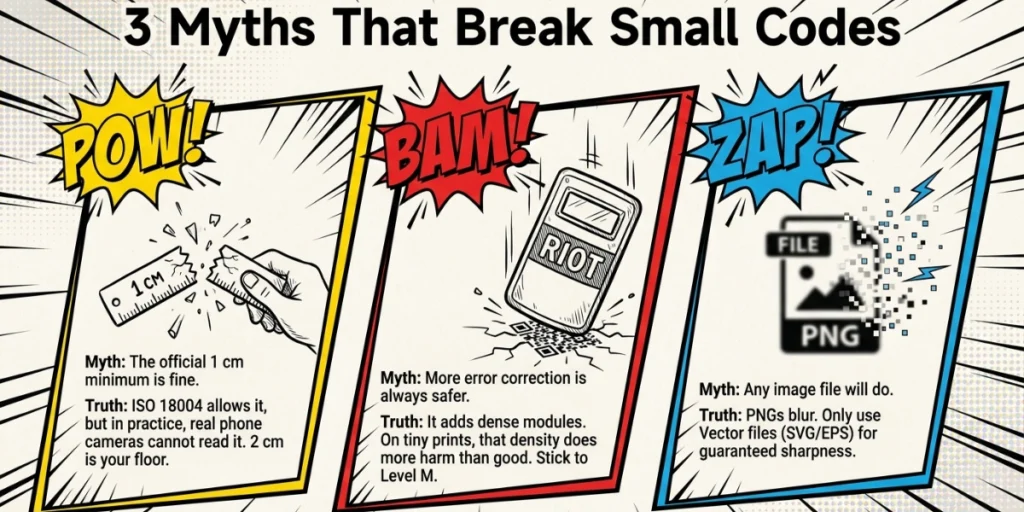
A few common beliefs lead people to print codes that do not scan. Let me clear them up.
Myth 1: The official 1 cm minimum is fine. It is not, in practice. ISO 18004 allows 1 cm, but many phone cameras cannot read a code that small. Use 2 cm as your printing floor.
Myth 2: More error correction is always safer. Not for small codes. Higher error correction adds modules, making the code denser. On a tiny print, that can do more harm than good. Use M unless you have a clear reason to go higher.
Myth 3: Any image file will do. A small, low-resolution PNG often blurs in print. Use a vector file, like SVG or EPS, so the code stays sharp at any size.
Pro tip: When two goals fight, pick the function. A code that scans beats a code that looks perfect but fails in someone’s hand.
J. How can a small business use small QR Codes on a budget?
A small business can use small QR Codes at little or no cost, with no design skills required. The tool does the hard part. You just point the code at the right page.
Start with high-value links. Send people to your menu, booking page, reviews, or social profiles. A code by the till can open a payment or tip page. A code on a flyer can capture sign-ups.
Pick a dynamic so you can edit the link later and track scans. Tracking is the quiet superpower here. It shows which codes earn scans and which sit idle. Then you spend your time on what works.
We see many small teams start free and add tracking and editing as they grow. That path keeps costs low while you learn. The key is to treat the code as a tool, not decoration. Make it useful, keep it small and sharp, and test it before it goes out the door.
K. FAQs: Small QR Code Generator
1. What is the smallest QR Code that still scans?
About 2 cm by 2 cm, or 0.8 inches, on most phones. ISO 18004 allows 1 cm by 1 cm, but many cameras do not support that size. To go smaller safely, cut the data and keep high contrast, and always test first.
2. Why does my small QR Code fail when a bigger one works?
Usually because of data, not size. A long link makes the pattern dense, so it needs a bigger print. Shorten the link or use a dynamic code, so the same small size can be scanned.
3. Can I make a small QR Code for free?
Yes. Many tools, including ours, let you write code for free. For a tiny printed code, pick one that offers vector downloads and a short dynamic link.
4. Does a logo make a small QR Code harder to scan?
It can. A logo hides modules. On a tiny code, that may break the scan. Keep the logo small and raise error correction to Q or H to cover the gap.
5. What file format is best for a small printed QR Code?
A vector file, such as SVG or EPS. Vectors scale without blurring, so the code stays crisp. Avoid a small, low-resolution PNG.
6. How do I test a small QR Code before I print it?
Print or show it at the real size. Then scan it on two or three phones, including an older model. Try it in normal light and at the distance people will use. If it scans on the first try, it is ready.