Square QR Code Generator: Create a Code That Gets Scanned

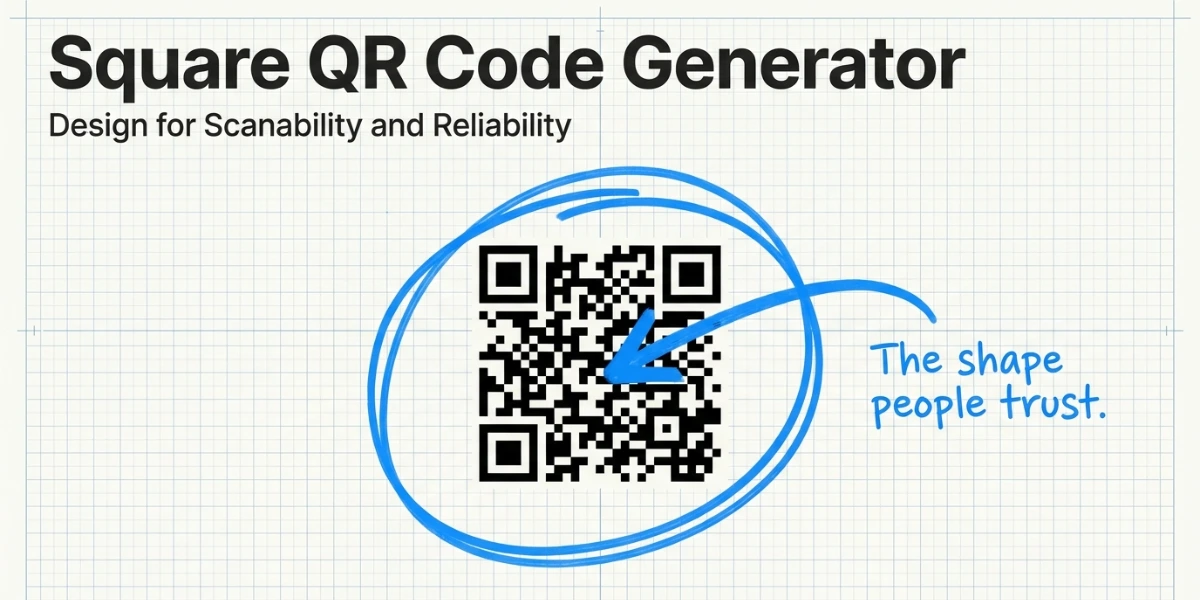
In a nutshell (TL;DR): A square QR Code is the classic, full-square format that people scan and trust most. QR Codes are square by design: the grid and corner markers help cameras lock on fast, so square wins when you need speed, a small print size, or scannability against a busy background. To make one, pick your content, generate the code, keep it square, add light branding, and test it. Go with a dynamic square QR Code if you want to edit the link or track scans after printing.
Most people scan QR Codes without thinking. That is the point. A good square code just works.
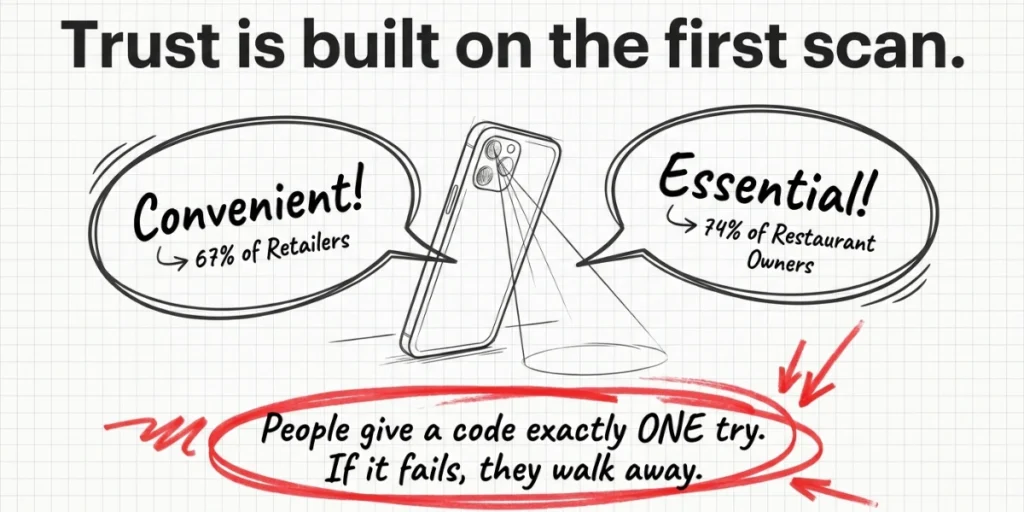
QR Codes are now part of daily life. Square, the payments company, ran a 2025 report on this shift. It found that 67% of retailers call QR Codes a convenient way to pay, and 74% of restaurant owners say the same about QR ordering. That is a lot of trust placed in a small black-and-white box.
But here is the catch. A QR Code only helps if it scans. A messy shape, a tiny size, or a weak design can break it. People give a code one try. If it fails, they walk away.
So the shape matters more than it looks. In my work, the plain square format is still the safest pick for most jobs.
In this guide, I will show you what a square QR Code generator is, why the square shape works, and how we make one that scans clean. I will also clear up a common mix-up with the Square payment app.
A. What is a Square QR Code?
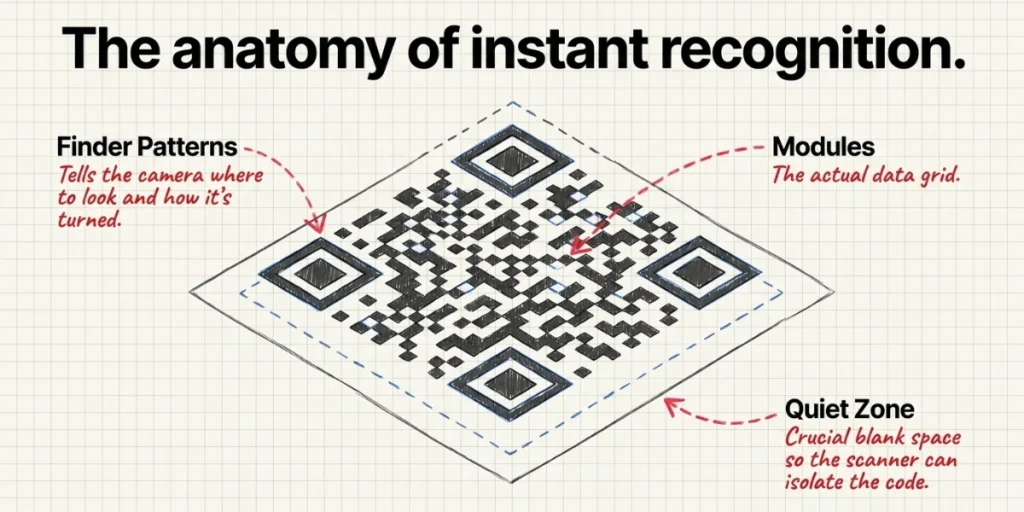
A square QR Code is a QR Code in its full, classic shape. It is a square grid of small black-and-white blocks. We call those blocks modules. Three large squares sit in the corners. Those are the finder patterns. They tell the camera where the code starts and how it is turned.
You have seen this shape a thousand times. It is the default look on menus, packs, and posters.
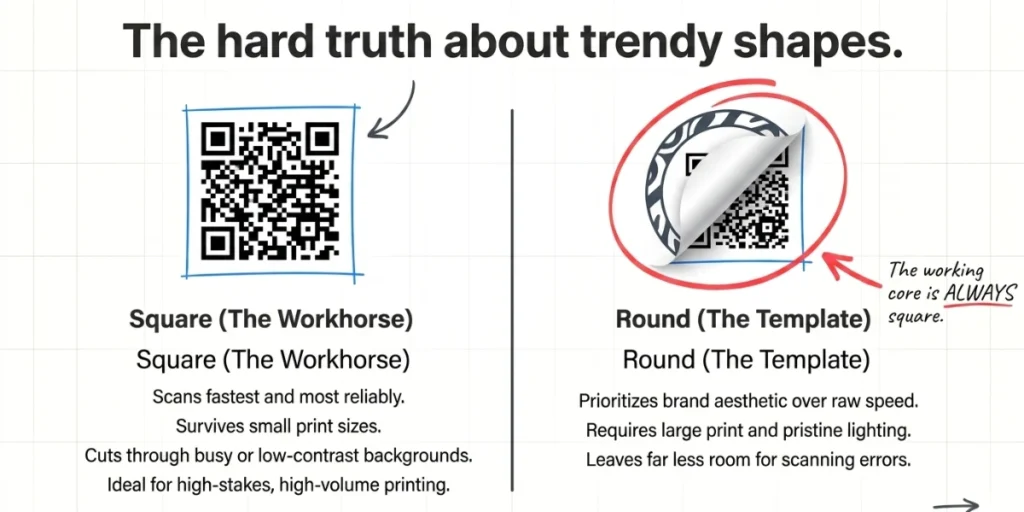
A “square” QR Code stands apart from trendy shapes. Some tools let you create round, heart, or logo-shaped codes. Those can look fun. But they change the frame around the data. The square format keeps the frame clean and standard.
Here is the key fact. The data part of every QR Code is square. You can dress up the outside, but the working core stays a grid. That is why a true square code is the most reliable choice.
A square QR Code can hold a link, Wi-Fi details, contact info, or text. Once a phone reads it, the content opens in a second. No typing. No app needed on most phones.
“When QR Codes are printed on packaging, labels, menus, or business cards, available space becomes limited. In these situations, the traditional square QR Code provides the greatest margin for error and the highest likelihood of a successful first scan.” — Product Team, Scanova
B. Why are QR Codes square in the first place?
The square shape is not a style choice. It is built into the code.
QR Codes were invented in 1994 by Masahiro Hara and his team at Denso Wave, a Toyota group company. They wanted a code that could hold more data than a barcode and be read quickly. According to Denso Wave, the inventor, the goal was to handle product data more efficiently on the factory floor.
The team made a grid of black-and-white squares. As Wikipedia describes it, a QR Code is a square grid of black-and-white squares with markers in the corners. The first design was even shaped by a Go board, with its black-and-white stones.
Why does the square grid help? A camera can read it from any angle. The three corner markers act like anchors. The phone finds them first, then maps the rest of the grid. A long or odd shape would slow that down.
There is one more reason the square holds up so well. It has built-in error correction. Denso Wave explains that a code can still be read even if part of it is dirty or damaged. It uses a math system called Reed-Solomon.
There are four levels of repair power. Level M, which fixes about 15% of damage, is the one most people pick.
So the square shape gives you speed, a clear frame, and damage repair. That is hard to beat.
C. Square vs round QR Codes: Which should you pick?
Round and custom shapes are popular now. They look modern on a sleek brand asset. But they come with trade-offs. Let me lay it out simply.
Pick a square QR Code when:
- You need the fastest, most reliable scan.
- The code will be small, like on a label or business card.
- The background is either busy or low-contrast.
- You print at scale and cannot test each spot.
- Older phones or older cameras may scan it.
Pick a round or custom shape when:
- The brand looks matter more than raw speed.
- The code is large and well-lit, like a poster or screen.
- You can test the exact print before you ship it.
Here is the honest truth. A round look is a template wrapped around a square core. So a round code can scan well. But it leaves less room for error. A tight crop or a low-quality print can push it over the edge.
My rule is simple. If the job is high-stakes or high-volume, go square. If it is a one-off brand piece with room to test, a custom shape can be fine. When in doubt, square is the safe bet.
D. How do you create a Square QR Code?
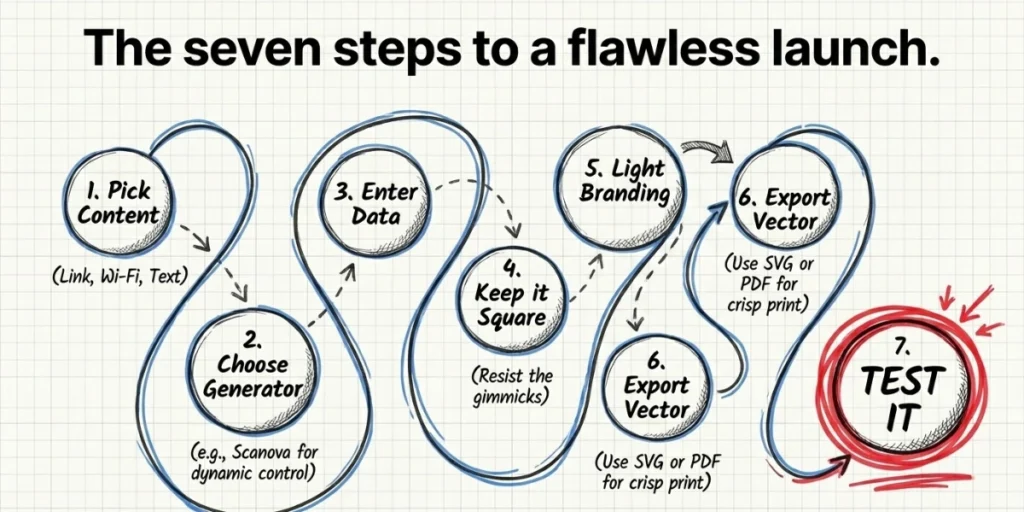
A square QR Code is the most reliable kind to make. It is the shape of phones that scans fastest. Here is how to make one, step by step.
Step 1: Sign up or log in
Open your browser and go to Scanova. Click the Sign Up button in the top corner. You can register with your email or sign up with a Google account if that is faster for you. If you already have an account, click Log In instead.
You need an account because it lets you save your code, edit it later, and download it. Setting it up takes less than a minute.
Step 2: Start a new code and choose Website URL
Once you are logged in, you will land on your dashboard. Click the Create QR Code button.
Scanova will show you a list of QR Code types, like Website URL, vCard, Wi-Fi, and more. Choose Website URL. This is the type that takes anyone who scans it straight to a web page.
Step 3: Enter your website link
A box will appear prompting you to enter your link. Paste the full web address, including the https:// at the start. For example: https://yourbrand.com/offer.
Before you continue, open that link in a new tab to make sure it loads the right page. A wrong or broken link is the most common mistake, and fixing it now saves a reprint later.
Step 4: Pick static or dynamic
Now choose how your code will work. A static code is fixed. Once you create and print it, the link can never change. A dynamic code is flexible.
You can change the link it points to anytime, even after printing, and you can see how many people scanned it and when. If you are putting the code on something printed, like a flyer or packaging, dynamic is the safer choice. It means a typo or a changed URL will not force you to reprint everything.
Step 5: Generate the code
Click the Create or Generate button. Scanova builds your QR Code in a few seconds, and you will see it appear on the screen. That black-and-white square is your working code.
Step 6: Keep the shape square
Scanova makes a square code by default, so you do not have to do anything here. Just avoid switching to round or unusual shapes. The square shape, with its three corner squares, is what helps phone cameras lock on quickly and scan from a distance.
Step 7: Add light branding (optional)
If you want the code to match your brand, open the Design or Customize options. You can upload your logo to center it and change the code color to your brand color. Keep two things in mind.
First, keep a strong contrast, dark code on a light background, so it stays easy to scan. Second, do not cover the three corner squares. As you make changes, watch the preview to be sure the code still looks clean.
Step 8: Test it right now
Before you download anything, pick up your own phone and scan the code on your screen. Open your camera and point it at the code. If it opens the correct web page, you are on track. If nothing happens, go back and check your link and your design contrast.
Step 9: Download in the right format
Click Download and choose the format that fits where the code will go. For anything printed, such as posters, packaging, or business cards, choose a vector format like SVG or PDF. These stay sharp no matter how big or small you print them. For screens like websites, emails, or social posts, a PNG file is fine.
Step 10: Test on more than one phone
Do one final check. Scan the finished code on both an iPhone and an Android phone, as they can behave slightly differently.
If you can, test it in the real spot where people will see it, under normal lighting, and from the distance they will actually stand. This last step is the one people skip, and it is the one that catches problems before they go live. Do not skip it.
E. How can you customize a Square QR Code without breaking it?
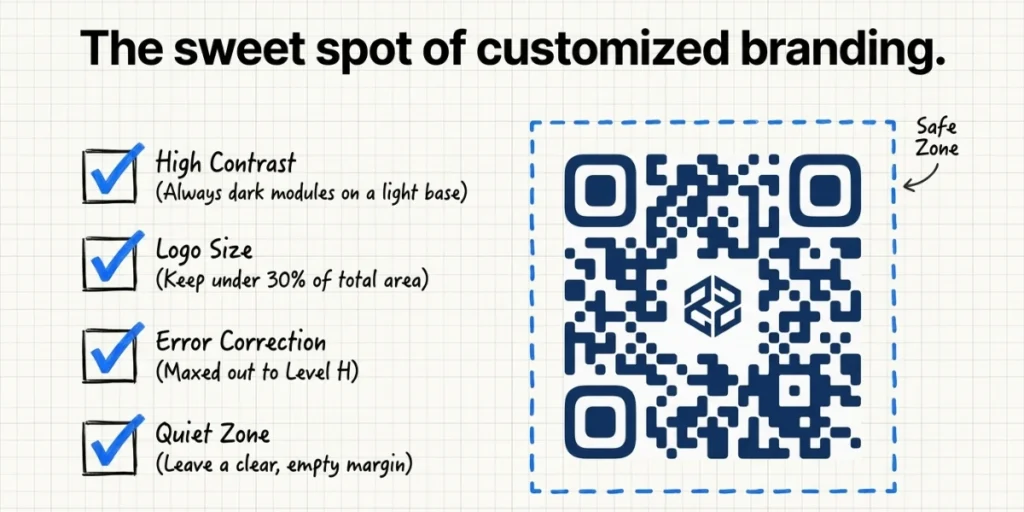
You can brand a square code and keep it scannable. The trick is to stay within safe limits.
Add a logo the smart way. Place a small logo in the center. Keep it under about 30% of the code area. To make room, raise your error correction level. Denso Wave’s highest level, H, can repair up to about 30% of the code. That gives the logo space without breaking the scan.
Use color with care. Dark code on a light background works best. Keep a strong contrast. Avoid light gray on white. Never invert to light dots on a dark field unless your tool supports it and you test it.
Style the corners gently. Rounded eyes or soft modules can look nice. But small changes are safer than big ones. Test each tweak.
Keep the quiet zone. This is the white margin around the code. The anatomy of a QR Code includes a quiet zone to help the scanner distinguish the code from its surroundings. Leave clear space on all four sides. Do not crowd it with text.
In our experience, the best branded codes look calm, not busy. A small logo, one brand color, and a clean square frame. That is the sweet spot.
According to Square’s 2025 Future of Commerce report, 67% of retailers consider QR Codes a convenient payment method, while 74% of restaurant owners say QR Code-enabled ordering is convenient.
F. What makes a Square QR Code scan reliably?
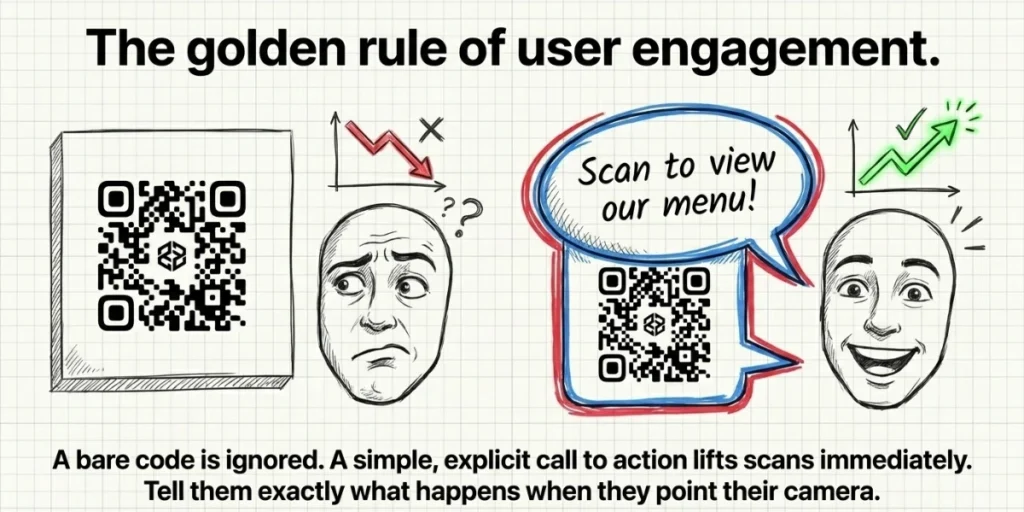
A square code gives you a head start. Good design seals the deal. Run through this short checklist before you publish.
- Size. Make it big enough to scan with ease. A common rule is at least 2 by 2 cm (about 0.8 inches) for close range. Go bigger for far-away prints.
- Contrast. Use dark modules on a light base. High contrast scans fast.
- Quiet zone. Leave a clear white border on all sides.
- Resolution. Use a vector file for print to keep edges crisp.
- Logo size. Keep any center logo small. Raise the error correction if you add one.
- Real-world test. Scan it in the actual place. Check the light and the print.
- A clear call to action. Add a short line near the code. Tell people why to scan, like “Scan to view our menu.”
The call to action matters more than people think. A bare code gets fewer scans. A simple prompt lifts them. This small step often makes the biggest difference.
G. Where do Square QR Codes work best?
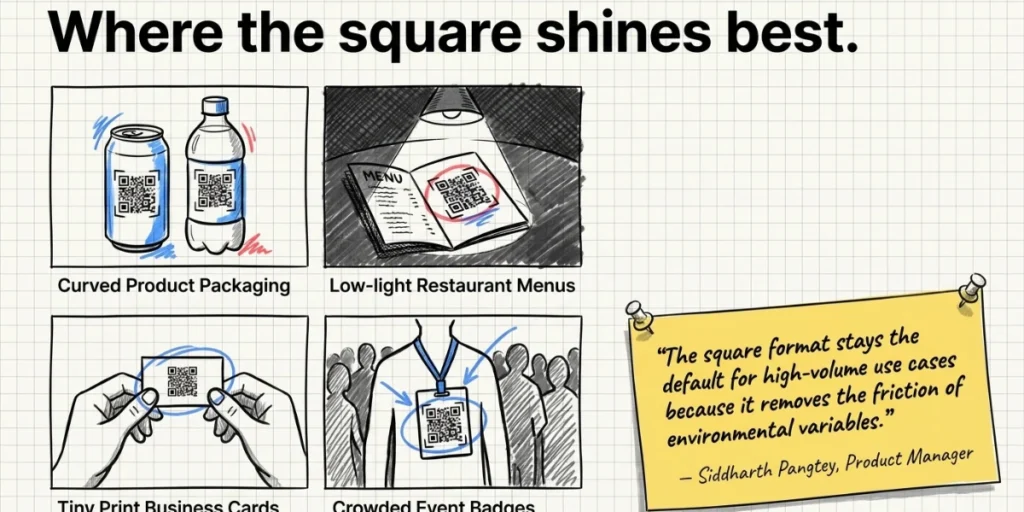
The square format fits almost any job. Here are the spots where it shines.
- Product packaging. Small space and busy art make the square format the safe pick. It scans even on a curved label.
- Restaurant menus. Diners scan in low light. A clean square code with strong contrast reads fast.
- Business cards. Cards are tiny. The square format packs the most reliable scan into a small footprint.
- Posters and flyers. A square code with a bold call to action draws scans across a room.
- Events. Badges, signs, and tickets all suit the square shape. It scans quickly in a crowd.
- Payments. A square code keeps checkout simple and fast.
Each of these jobs rewards speed and trust. That is the square format’s strong suit. The fancier shapes are best saved for large, well-lit brand pieces.
H. Static or Dynamic: Which square QR Code do you need?
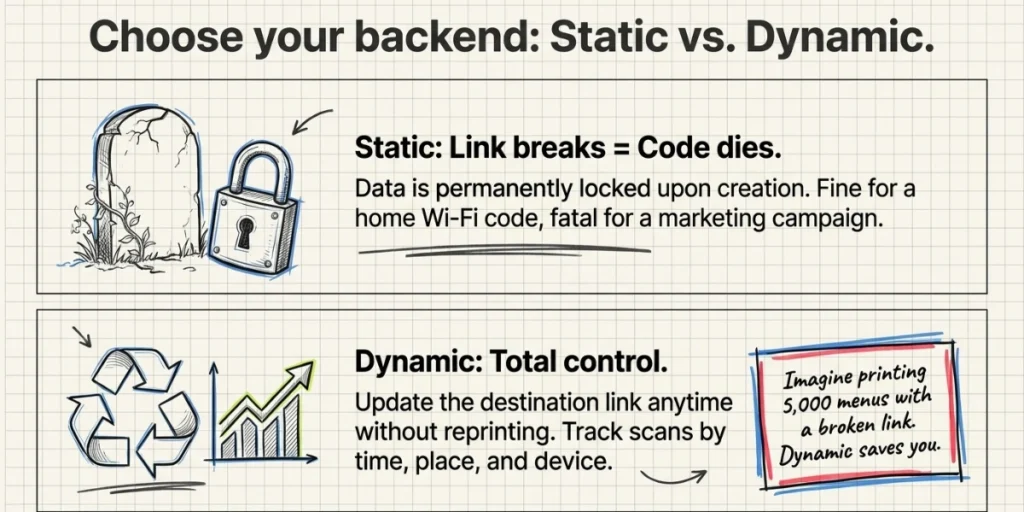
A square code can be static or dynamic. The shape is the same. What changes is what you can do after you print.
A static code holds fixed data. Once you make it, the link is locked. You cannot edit it or see scans. It is fine for a simple, one-time use, like a Wi-Fi code at home.
A dynamic code is editable. The printed code stays the same, but you can change where it points. You can also track scans by time, place, and device. This is the better pick for any campaign.
Here is a real example. You print 5,000 menu flyers. The link breaks, or the offer ends. With a static code, every flyer is now dead. With a dynamic code, you fix the link in seconds, and the flyers still work.
This is where a tool with dynamic features pays off. We built Scanova to make square, dynamic codes you can edit and track after they go live. You can also set a code to turn on or off on a schedule. Many tools offer dynamic codes, so compare a few and pick the one that fits your plan.
For most business use, I lean towards dynamic. The small cost buys you control. And control is what keeps a printed code from going to waste.
I. Is a “Square QR Code” the Same as a Square (POS) QR Code?
This is a common mix-up, so let me clear it up.
A square QR Code in this guide means the shape. It is the classic square format that any tool can make.
A Square QR Code with a capital S can also mean a code from Square, the payment company.
Square is a point-of-sale and payments brand. Its app lets a seller show a code so a buyer can pay by phone. Square explains that a customer scans the code at checkout and lands on a simple pay page.
So which do you need? If you want to take in-person payments through Square’s system, use Square’s own tool.
If you want a square-shaped code for a link, menu, card, or campaign, any good QR Code generator will do. The two serve different goals. It is easy to find one and search for the other.
J. Frequently Asked Questions
1. Are all QR Codes square?
The working data part is always square. Some tools wrap a round or custom shape around it. But the core grid stays square, so the scan still works.
2. Why are QR Codes square and not round?
The square grid and three corner markers help a camera find and read the code fast from any angle. The shape is built into the Denso Wave QR standard.
3. Is a square QR Code better than a round one?
For speed, small sizes, and busy backgrounds, yes. A square code is the most reliable. Round codes can work, but leave less room for error.
4. Can I add a logo to a square QR Code?
Yes. Keep the logo small and centered. Raise the error correction level to make room. Then test it on multiple phones.
5. What size should a square QR Code be?
At least 2 by 2 cm (about 0.8 inches) for close-range scans. Make it larger for codes seen from far away.
6. Is a square QR Code generator free?
Many are free for static code. Dynamic features, like editing and tracking, are often available only on paid plans. Compare a few tools to find the right fit.
Final Thoughts
The square QR Code is the workhorse of the QR world. It is plain, but plain is good here. The square shape gives you speed, a clear frame, and built-in damage repair.
So keep it simple. Pick your content. Stay square. Add light branding. Set the right size. Then test it in the real world. Do that, and your code will scan on the first try, every time.
If you want to make a square code, you can also edit and track it; you can create one with Scanova. Or use the tool that fits your plan. Either way, the square format will serve you well.