Yellow QR Code: A Complete Guide

In a nutshell (TL;DR): A yellow QR code is a QR code that uses yellow in its design, most often as the background behind dark modules. Yellow QR codes scan reliably when the contrast between the pattern and the background stays high. This guide covers the color combinations that work, the ones that fail, the exact steps to create one, and the design rules we follow at Scanova to keep every scan smooth.
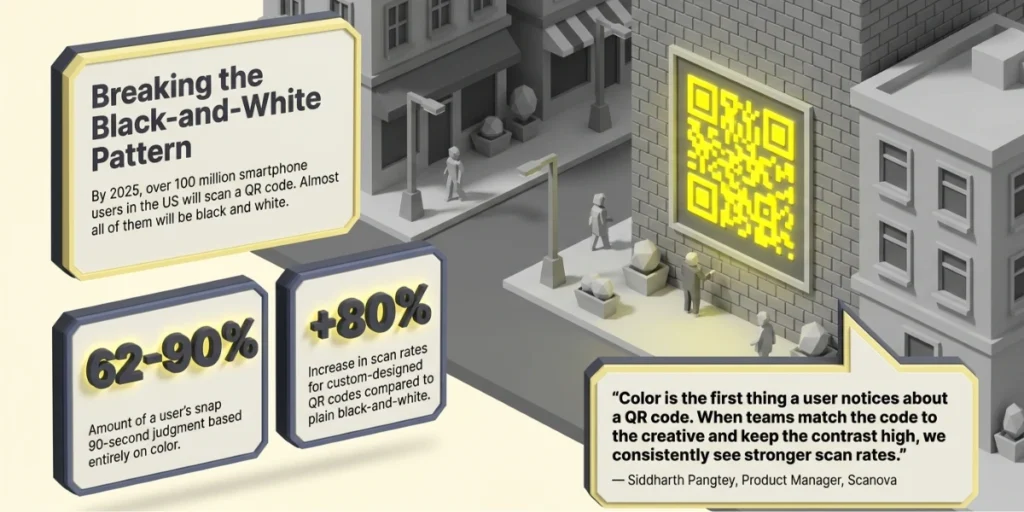
Here is a number worth pausing on. According to a 2022 eMarketer forecast published on Statista, more than 100 million smartphone users in the US were expected to scan a QR code in 2025. That is a lot of eyes. And almost every code they scan looks the same: black squares on white.
A yellow QR code breaks that pattern. It grabs attention, matches sunny brand palettes, and still works like any other QR code. But there is a catch. Get the colors wrong, and the code will not scan at all.
I work on QR code campaigns at Scanova every week. So I have seen both sides: yellow codes that lift scan rates, and yellow codes that fail on the first try. Here is how we would design one that never misses.
A. What is a yellow QR Code?
A yellow QR code is a standard QR code designed with yellow as one of its two colors. In most working designs, yellow forms the background, and a dark color forms the data modules. The code stores the same content as a black-and-white one. Only the look changes.
There are two common ways to build one:
- Yellow background, dark modules. Black, dark blue, or dark brown squares sit on a yellow base. This is the safest route.
- Dark yellow modules, light background. A deep amber or mustard pattern sits on a white or cream background. This works only if the yellow is dark enough.
One quick note before we go deeper. Some people search for “yellow QR code” with a different question in mind. They want to know what a yellow code meant on health apps during COVID-19. We answer that later in this guide, too.
B. Do yellow QR Codes actually scan?
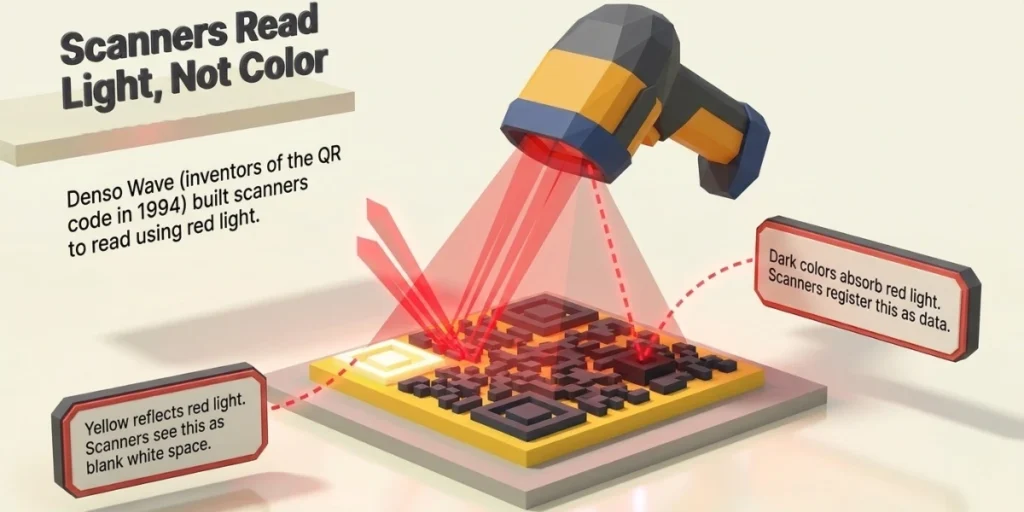
Yes, yellow QR codes scan well when the design keeps a strong contrast between the modules and the background. Scanners do not care about color itself. They care about the difference in light between the dark and light areas of the code.
1. Why contrast decides everything
Here is the part most guides skip. Many scanners read codes using red light. Denso Wave, the company that invented the QR code in 1994, explains this on its official FAQ page. Colors that reflect red light act like white to a scanner. Colors that absorb red light act like black.
Yellow reflects red light very well. So a yellow background behaves almost like a white one. That is why black on yellow scans so easily. But it also means yellow modules on a white background are nearly invisible to a scanner. Both areas reflect the light the same way. The code melts into the page.
Denso Wave puts it plainly: “detailed experimentation is necessary before actually using colored QR Codes.” In our words at Scanova: always test before you print.
2. The inversion problem
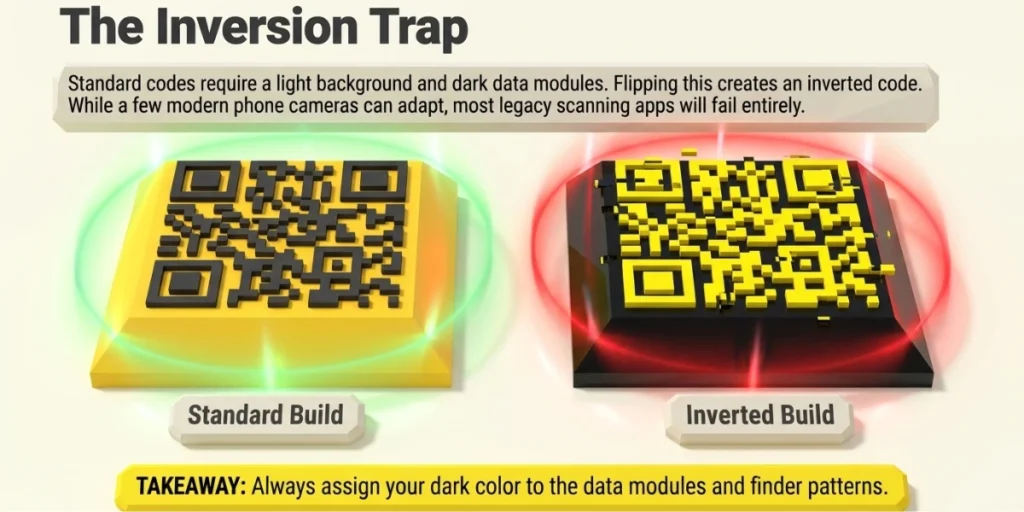
A second trap is inversion. Standard QR codes use dark modules on a light background. Flip that, with light yellow modules on a black base, and many scanning apps struggle.
Some modern phone cameras handle inverted codes. Many older devices and apps do not. If you want every phone to read your code, keep the dark part as the pattern.
“Color is often the first thing people notice about a QR code. When brands match the QR code to their creative while maintaining strong contrast, we consistently see higher scan rates.” – Siddharth Pangtey, Product Manager at Scanova
C. Which yellow QR Code color combinations work best?
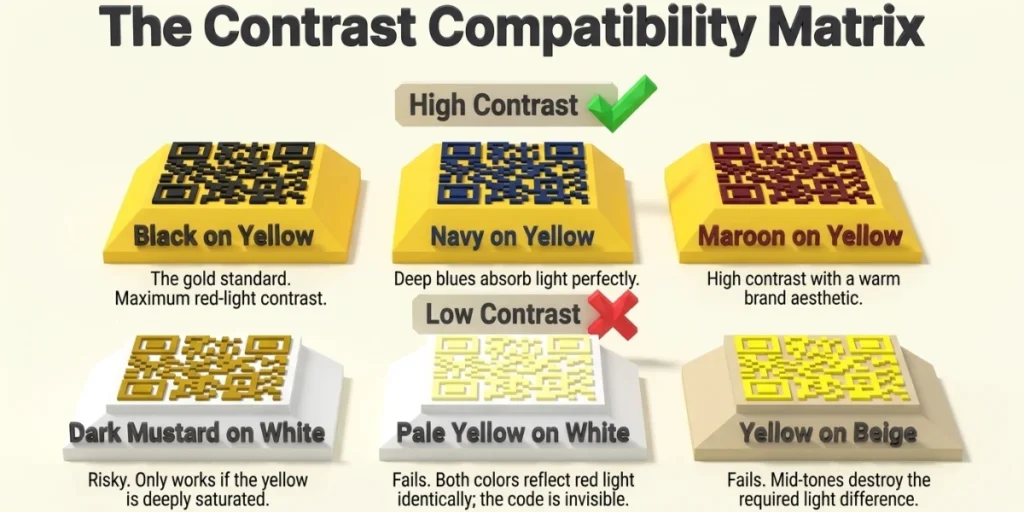
The best combinations pair a bright yellow background with a very dark foreground. The table below sums up what we have seen work in real campaigns.
|
Combination |
Verdict |
Why |
|
Black modules on yellow background |
Scans great |
Highest contrast pairing with yellow. Same logic as road warning signs. |
|
Navy or dark blue on yellow |
Scans great |
Deep blues absorb red light, so scanners read them as dark. |
|
Dark brown or maroon on yellow |
Scans well |
Strong contrast, warm look for food and retail brands. |
|
Dark mustard on white or cream |
Scans, with care |
Works only if the yellow is deep. Test on multiple phones. |
|
Pale yellow modules on white |
Fails |
Both colors reflect light the same way. No contrast. |
|
Yellow modules on black (inverted) |
Risky |
Some apps read inverted codes. Many do not. |
|
Yellow on grey or beige |
Fails |
Mid-tone backgrounds kill the light difference. |
Two more ground rules. Keep the three corner squares, called finder patterns, in the dark color. And never place the code over a busy photo or gradient that touches the modules.
D. How do you create a yellow QR Code?

You can create a yellow QR code in under five minutes with Scanova. You do not need any design skills. The tool shows you a live preview at every step, so you always know how your code looks. Here is the exact flow:
1. Go to Scanova and pick your QR code type
The QR code type decides what happens when someone scans it. You will see options like Website URL, PDF, vCard, and more. Want to send people to your website? Pick Website URL. Want to share a menu or brochure? Pick PDF. Choose the one that matches your goal.
2. Add your content and click Continue
This is the information your QR code will hold. Paste your link or upload your file in the box you see. Double-check it before you move ahead. A QR code with a broken link helps no one.
3. Name your QR code and choose static or dynamic
Give the code a clear name, like “Diwali Sale Poster.” This helps you find it later in your dashboard. Then pick the code type. A static code is fixed forever. A dynamic code lets you change the link later without printing a new code. If you are not sure, go with dynamic. It also shows you scan numbers. Now click Create QR Code.
4. Click Edit Design and select Custom Logo Design
Your basic QR code is ready, but it is still black and white. Click Edit Design to open the design tool. Choose the Custom Logo Design option. You will now see tabs for the logo, eyes, data modules, and background. This is where the fun starts.
5. Open the Background tab and enter your yellow hex code
A hex code is a six-character code for an exact color, like a recipe. Type it in the color field and the preview turns yellow right away. Amber shades like #FFC107 and golden tones like #FFD700 both work well. Pick the one that matches your brand or poster.
6. Keep the pattern dark
Go to the Eyes tab and the Data tab. These control the three corner squares and the small dots inside the code. Set them to black or another very dark shade. Here is the rule: dark pattern on a light background. Phone cameras need that contrast to read the code. A yellow background with a yellow pattern will not scan.
7. Add a logo if you want one
Open the Logo tab and upload your logo image. Keep it small and centered so it does not cover too much of the code. Then set the error correction level to H. In simple terms, this adds backup data to your code. So even with a logo sitting in the middle, phones can still read it without any trouble.
8. Preview and test the code on real phones
Click Preview and scan the code yourself. Test it with at least one iPhone and one Android device. Try it under normal light and dim light too. If it scans fast every time, you are good. If it scans slowly, make the pattern darker or the code bigger.
9. Download in the right format
Click Download and pick your file type. Use PNG if the code will appear on a screen, such as a website or an email. Use SVG, EPS, or PDF if you are printing it on a poster, flyer, or packaging. These print formats stay sharp at any size, even on a billboard.
E. Why choose yellow for your QR code design?
Yellow attracts attention faster than almost any other color, making it a smart choice for QR codes that need to be noticed. There is real research behind this. A 2006 study by Satyendra Singh in the journal Management Decision found that people judge products within 90 seconds, and “about 62-90 percent of the assessment is based on colors alone.”
That snap judgment is exactly what a QR code lives or dies by. A code on a poster gets a glance, not a study session. Yellow helps in three ways:
- Visibility. Black on yellow is one of the most legible color pairings known. It is the reason school buses, taxis, and hazard signs use it.
- Emotion. Yellow signals warmth, energy, and optimism. That tone suits offers, events, and food promotions.
- Brand fit. If your identity is built on yellow, a matching code looks intentional. Think of brands like McDonald’s, IKEA, or Snapchat, whose yellow scan codes trained millions of people to scan on sight.
Where yellow codes work best
In our campaign work, yellow shines in a few settings:
- Restaurant menus and food trucks. Yellow pairs with appetite and speed, and the code stays readable on laminated cards when the finish is matte.
- Sales and clearance tags. Shoppers already link yellow with discounts, so a scan feels like part of the deal.
- Event passes and posters. A bold yellow block draws the eye across a crowded wall of prints.
- Construction and safety notices. Black on yellow matches the visual language of caution signs, so the code feels native to the space.
Design also pays off in numbers. Our research at Scanova found that QR codes with custom design elements are scanned 80% more often than plain black-and-white codes.
F. What does a yellow QR code mean on health apps?
On China’s COVID-19 health apps, a yellow QR code meant medium risk. The system, run through Alipay and WeChat, assigned each person a colored code.
A 2020 analysis by the Center for Strategic and International Studies explains the scheme. Green meant free movement. Yellow signaled potential risk and required home quarantine for 7 to 14 days. Red imposed a full 14-day quarantine.
These health codes are now a thing of the past. China wound the system down after the pandemic. So if you saw a yellow code on a health app back then, it was a status label, not a design choice. It has nothing to do with the marketing QR codes we cover in this guide.
G. Why is my yellow QR code not scanning?
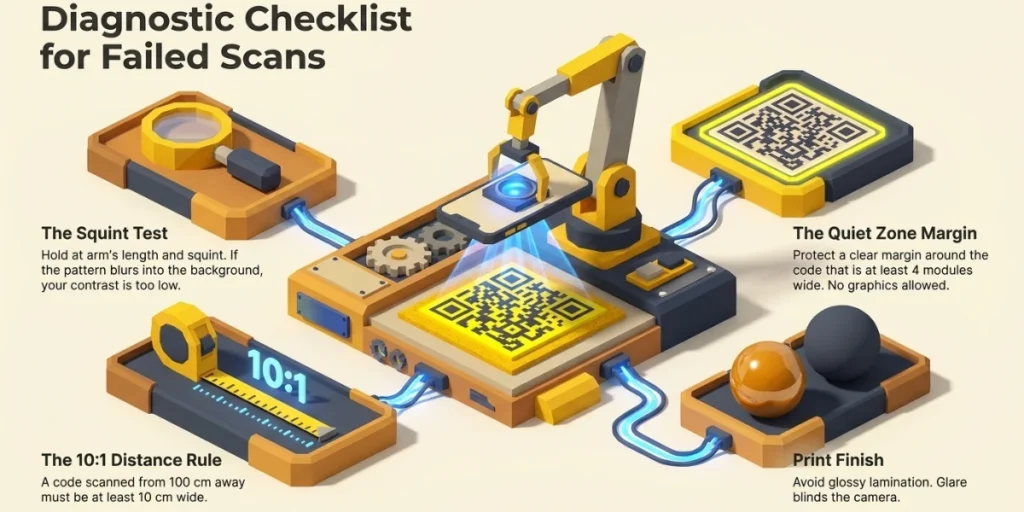
A yellow QR code usually fails to scan because the contrast between the modules and the background is too low. If your code will not read, run through this list:
- Check the contrast first. Hold the code at arm’s length and squint. If the pattern fades into the background, scanners see the same blur. Darken the modules or brighten the yellow.
- Look for inversion. If your modules are lighter than your background, flip the colors.
- Protect the quiet zone. The code needs a clear margin around it, at least four modules wide, in the background color. Text or graphics inside that margin break the scan.
- Watch the size and distance. Follow the 10:1 rule. A code scanned from 100 cm away should be at least 10 cm wide.
- Mind the print finish. Glossy lamination over yellow creates glare that blinds cameras. Matte finishes scanning better.
- Check the printed color. Screens show RGB, printers use CMYK. A bright digital yellow can print muddy. Ask your printer for a proof, and test that exact print.
- Raise error correction. If a logo or design is embedded in the code, set error correction to level H so the scanner can recover the hidden data.
We covered broader design fixes in our guide to QR code customization, which pairs well with this checklist.
H. What are the best practices for yellow QR code design?
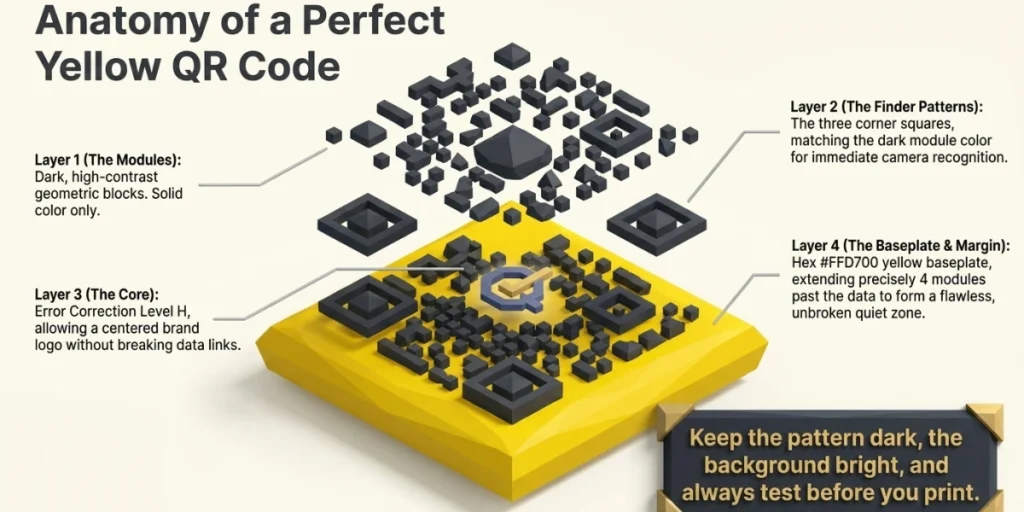
The best practices for yellow QR codes all serve one goal: keep the code beautiful without ever risking the scan. Here is the short list we follow on client campaigns:
- Use yellow as the background, not the pattern, in most designs.
- Keep the modules and the corner eyes in one dark, solid color.
- Aim for the strongest contrast you can get. When in doubt, go darker on the pattern.
- Keep the quiet zone in the same yellow as the background, fully clear.
- Add a short call to action near the code, such as “Scan for the menu.”
- Test on iPhone and Android in both bright and dim light before printing.
- For print runs, lock the yellow with a Pantone or CMYK value so every batch matches.
- Use a dynamic QR code for campaigns. You can fix a wrong link without reprinting, and you get scan analytics by time, place, and device.
If you want the full background on color choices beyond yellow, our guide on whether a QR code can be any color goes deeper into the science.
I. Frequently asked questions
1. Can a QR code be yellow?
Yes, a QR code can be yellow. The safest design uses a yellow background with black or dark modules on top. Yellow modules on a light background will not scan because both areas reflect light the same way.
2. What color QR code scans best?
Black on white scans best because it has the highest possible contrast. Black on yellow is a close second and stands out more. Any dark pattern on a light background will scan well if the contrast stays strong.
3. Can I put a yellow QR code on a black background?
It is risky. Yellow modules on black create inverted codes, and many scanning apps cannot read them. If you want a black creative, place a standard dark-on-yellow code inside a yellow tile on the black layout.
4. Do colored QR codes scan slower than black and white ones?
No, not when the contrast is high. A well-designed yellow code scans as quickly as a black-and-white one. Speed only drops when low contrast forces the scanner to work harder to find the pattern.
5. What did a yellow QR code mean in China?
A yellow health code in China meant medium COVID-19 risk and required home quarantine, usually for 7 to 14 days. It was a status color inside Alipay and WeChat health apps, not a design style, and the system has since been retired.
Make yellow earn the scan
A yellow QR code is one of the easiest ways to make a campaign stand out without touching the tech under the hood. The rules are simple. Keep the pattern dark, keep the background bright, protect the quiet zone, and test on real phones before anything goes to print.
Get those right, and yellow will do what yellow does best: pull eyes toward your code and invite the scan. Design it, scan it, and let the results speak.