Cash App QR Code: How to Find, Print, and Get Paid

In a nutshell (TL;DR): A Cash App QR Code is a scannable square that opens your Cash App payment page. You can find yours in the app in 3 taps. But Cash App actually gives you three different codes, and the wrong one will fail on a printed sign. This guide covers how to find each code, print one that scans on any phone camera, recognize fraudulent codes, and choose the right setup for a business.
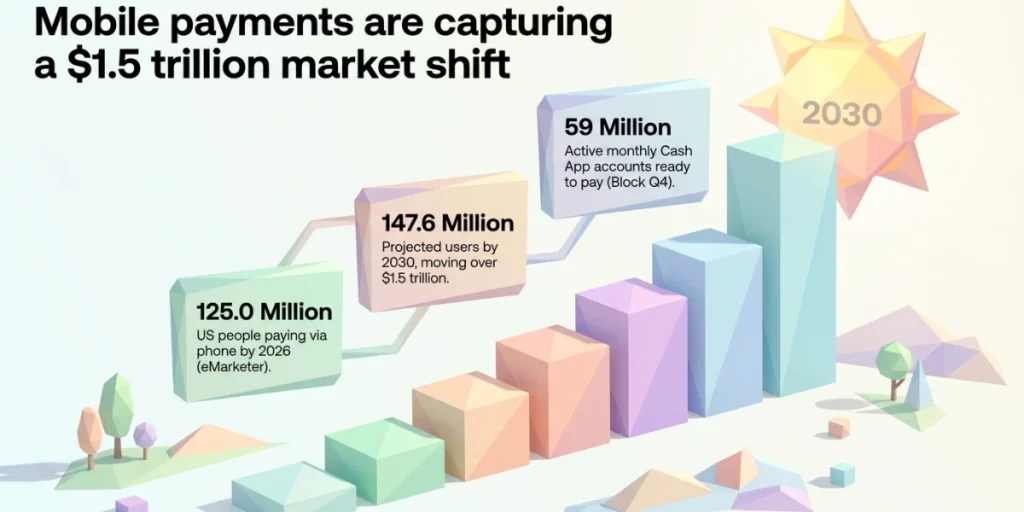
More people pay by phone every year. eMarketer estimates that 125.0 million people in the US will pay in person or by phone in 2026. By 2030, that number should reach 147.6 million, and the money moving through them should pass $1.5 trillion.
Cash App sits in the middle of that shift. In its Q4 2025 shareholder letter, Block reported 59 million monthly active Cash App accounts.
So the demand is clearly there, and the friction is the actual problem. Customers mistype your $cashtag, your payment link opens a login page instead of the app, and the code taped to your tip jar does nothing when somebody points a camera at it.
A Cash App QR code fixes most of that, but only if you use the right one. Here is how we would set it up.
A. What is a Cash App QR code?
A Cash App QR code is a scannable square that links to a Cash App account. Someone scans it, and their phone opens the Cash App payment screen with your name already filled in. They just enter an amount and send.
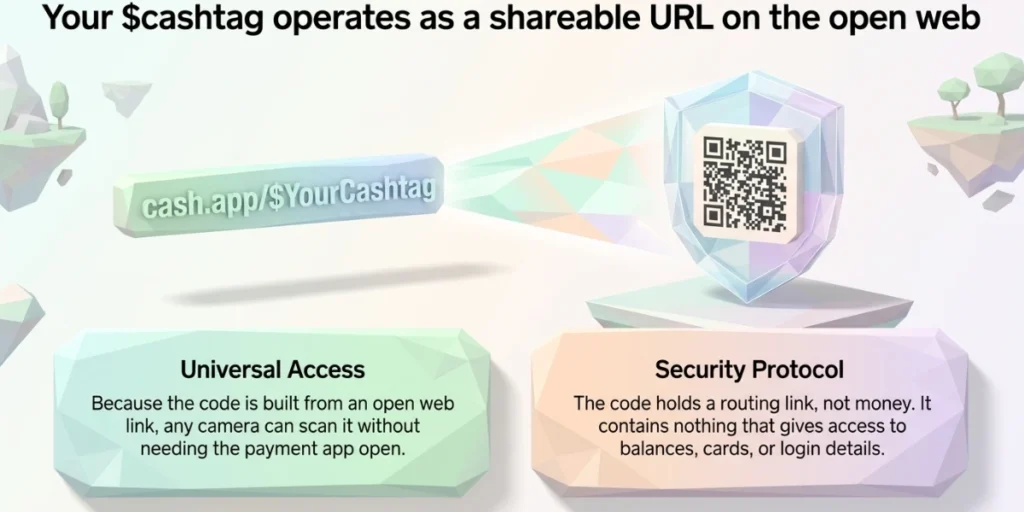
The code holds a link rather than money, and that link simply points to your account. Nothing inside it gives anyone access to your balance, your card, or your login details.
Every Cash App account gets one, and your $cashtag is the handle behind it. Cash App confirms that choosing a $cashtag automatically creates a shareable URL at cash.app/$yourcashtag, where friends, family, and customers can pay you.
That single sentence matters more than it looks, because it means your payment page lives on the open web. Anything on the open web can be converted into a QR code that you design and print yourself.
B. Which Cash App QR code do you actually need?
This is the part most guides skip, and it is the reason so many printed codes fail.
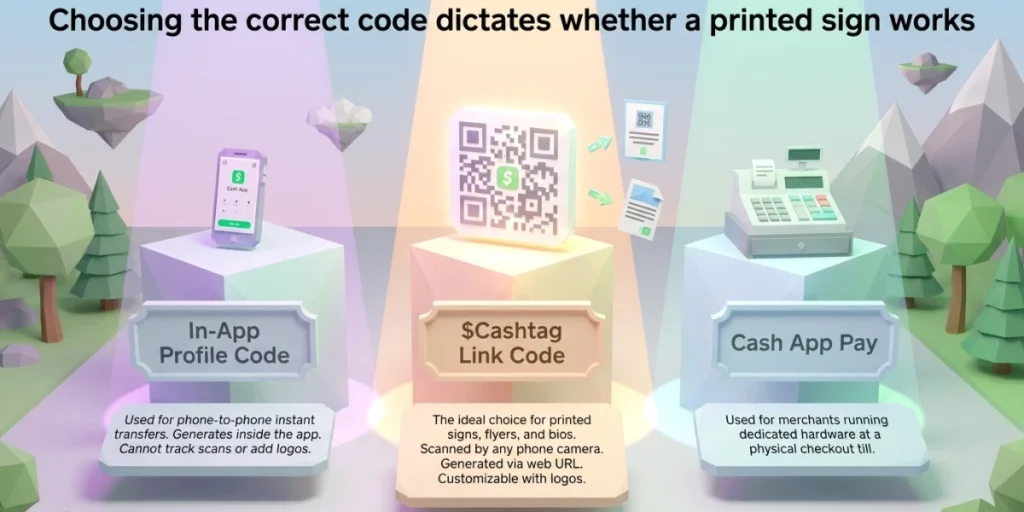
Cash App does not really have one QR code. It has three separate codes, and they behave very differently.
|
Difference |
In-app profile code |
$cashtag link code |
Cash App Pay checkout code |
|
Where it comes from |
Inside the Cash App app |
You make it from your cash.app/$cashtag link |
Square creates it at checkout |
|
Who scans it |
Cash App users, phone to phone |
Anyone with a phone camera |
Cash App users at a till |
|
Amount |
The payer types it |
Can be set in the link |
Locked to the sale |
|
Add a logo |
No |
Yes |
No |
|
Track scans |
No |
Yes, if the code is dynamic |
Only on the seller side |
|
Best for |
Splitting a bill in person |
Signs, flyers, invoices, bios |
Shops running Square |
Use the in-app code when two people are standing together with the app already open, because it is instant and completely free.
Use a $cashtag link code for anything you print or post online. This is the one that works with the built-in camera app, which most customers will actually use.
Use Cash App Pay if you already run Square. Square lists it as available across Square Register, Stand, Terminal, Point of Sale, Invoices, and Websites.
Getting this choice right takes about two minutes, and getting it wrong means reprinting 500 stickers.
C. How do I find my Cash App QR code?
You can find your Cash App QR code in three taps:
- Open Cash App on your phone.
- Tap your profile photo in the top right corner.
- Your QR code appears on the profile screen. Tap it to fill the screen.
That is your personal payment code, and anyone who scans it can send you money instantly.
To share it, tap the share icon near the code. You can send it by text, email, or any app on your phone. To save it, take a full-screen screenshot of the code.
One habit saves a lot of trouble later. Open a browser and type cash.app/$YourCashtag. If your payment page loads correctly, your link is working. If it does not load, fix that before you print anything.
D. How do I scan someone else’s Cash App QR code?
You have two ways to scan, and they are not equal.
The in-app scanner is the reliable option. Open Cash App, tap the QR icon on the home screen, and point it at the code. The app opens the payment screen immediately.
Your phone camera usually works too. Open the camera, hold it over the code, and tap the banner that pops up.
Square notes one catch worth knowing. Its support page says a customer using a third-party scanning app while logged out of Cash App will need to log in and try again. That extra step is where most failed payments happen at a busy counter.
When money is on the line, use the in-app scanner.
E. How do I turn my $cashtag into a printable QR code?
Your in-app code is designed for a phone screen, so it is small, plain, and unable to carry your logo. Enlarge it for a poster, and it simply looks generic.
The fix is to build the code from your link instead. Here is the process we use:
- Get your link. Open Cash App, tap your profile, and copy your $cashtag. Your link is cash.app/$YourCashtag.
- Test it in a browser. Paste it in and check that your payment page loads with your name on it.
- Encode the link. Drop that URL into a QR code generator. You now have a code that any camera can read.
- Brand it. Add your logo and colors so the code matches your sign, stall, or packaging.
- Download the right file. Use PNG for screens. Use SVG or PDF for anything printed at a large scale.
This is a standard URL QR code, so it never connects to Cash App and never touches your money. The payment still happens entirely inside the app.
F. How do I print a Cash App QR code that actually scans?
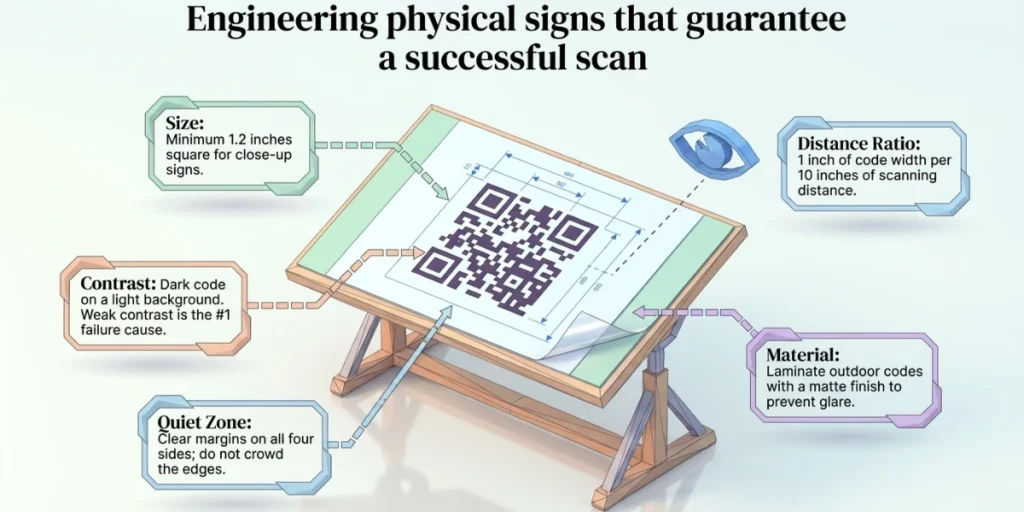
A code only earns you money if phones can actually read it, and these specifications keep yours working.
|
Rule |
What to do |
|
Size |
Print at least 1.2 inches square for close-up signs. Go bigger for posters and windows. |
|
Distance |
Add about 1 inch of code width for every 10 inches of scan distance. |
|
Contrast |
Use a dark code on a light background. Weak contrast is the top reason codes fail. |
|
Quiet zone |
Leave a clear margin on all four sides. Do not crowd the edges. |
|
File type |
Use SVG or PDF for large prints. A stretched screenshot turns into blurry blocks. |
|
Glare |
Laminate outdoor and window codes with a matte finish. |
Then run a proper test before you order in bulk. Print a single proof and scan it with two different phones, using the plain camera app rather than Cash App itself. Try it at the actual distance customers will stand, not at your desk.
Add your $cashtag as plain text under the code as well. Some customers prefer to type it, and it gives you a backup when a phone will not cooperate.
Write a clear instruction too. “Scan to pay with Cash App” removes all the guesswork.
G. How can a business use a Cash App QR code?
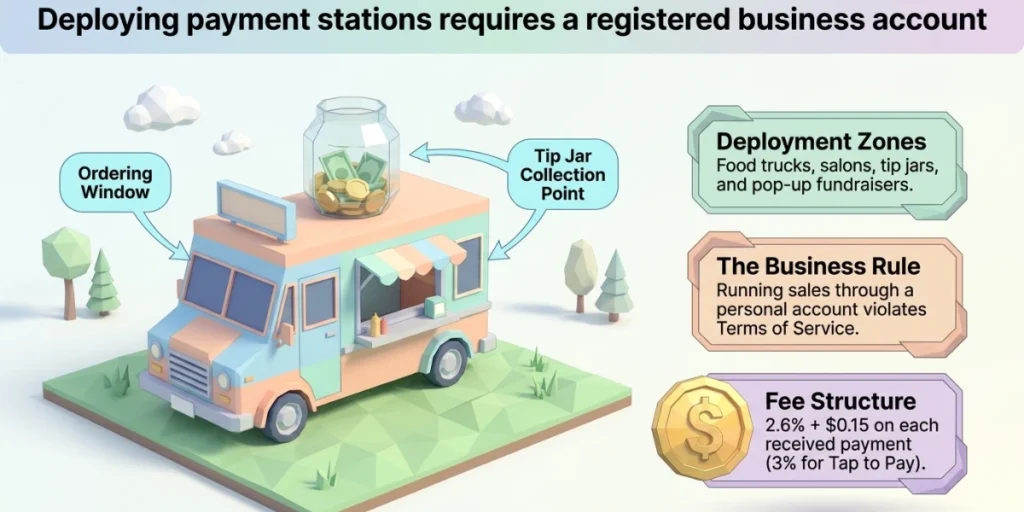
Small sellers get the most value out of this because a printed code turns “I only have my phone” into a completed sale.
Places it works well:
- Food trucks and market stalls. Mount a laminated code at the order window. Customers pay while they wait.
- Tip jars. A code on the jar collects tips from people carrying no cash.
- Salons and barbers. Put one at each station and one at the desk.
- Freelancers. Add it to invoices, quotes, and your email signature.
- Pop-ups and fundraisers. Stick one on the booth or the donation box.
Merchants notice the difference. Peter James of The London Tea Merchant told Square that “our customers love the ability to scan a QR code and quickly pay” from their phone.
Two rules matter before you scale this up.
First, use a Business account for business payments. Running sales through a personal account breaks Cash App’s terms of service, and accounts really do get frozen for it.
Second, know the fee. Cash App states that a Business account pays 2.6% plus $0.15 on each payment received, and 3% on Tap to Pay. Plenty of articles still quote an older 2.75% figure. Check the current rate yourself before you build a price list around it.
H. Why does my Cash App link open a browser instead of the app?
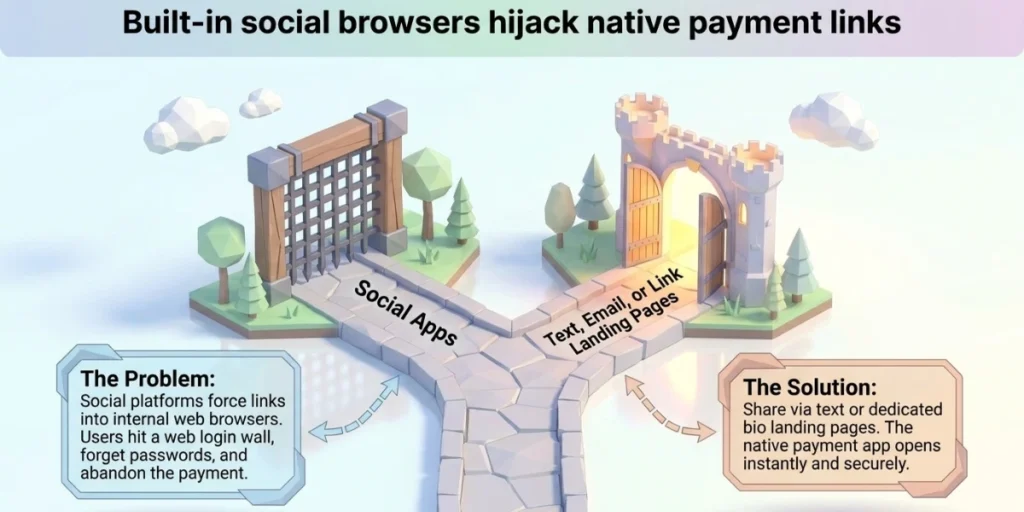
Because social apps generally do not hand links over to other applications.
Instagram, Facebook, and LinkedIn open links inside their own built-in browser, so your Cash App link loads a web login page instead of the app. Your customer sees a password prompt, cannot remember the password, and abandons the payment.
Nothing is actually broken. This is simply how those apps are built.
Two things help here. Share the link where it behaves properly, which means text messages and email, and for social bios, point people at a page you control that lists your payment options rather than at the raw Cash App link.
This is the single most common complaint we see about payment links, and almost nobody explains it.
I. Are Cash App QR codes safe?
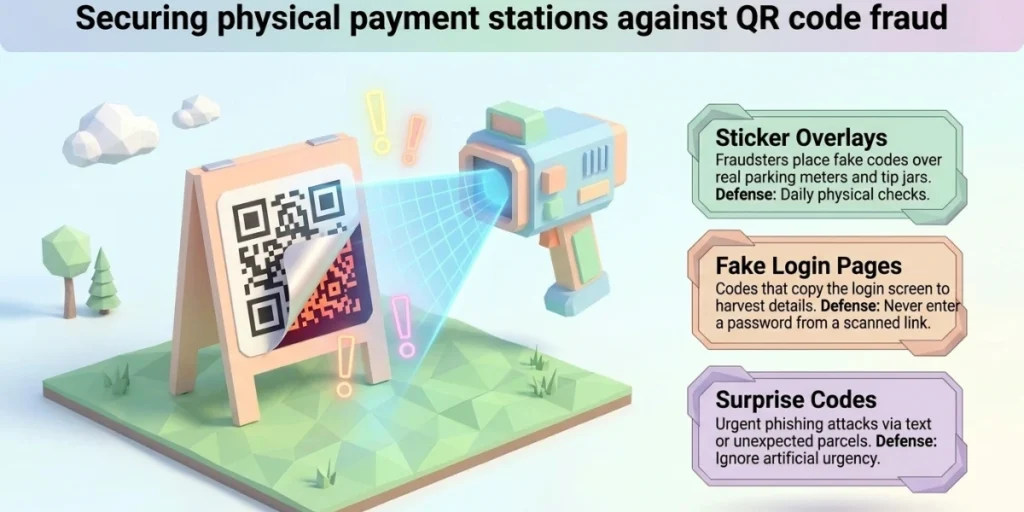
Sharing your own code is safe because it only allows people to send you money. It does not expose your balance, your card, or your login, and Cash App also requires your PIN or your face before any money leaves your account.
Scanning other people’s codes is where the risk sits.
The Federal Trade Commission warns that scammers hide harmful links in QR codes to steal your information. The agency has logged reports of fake codes stuck over real ones on parking meters.
Three scams to know:
- Sticker overlays. Someone sticks a fake code on top of a real one. The sign looks normal. The money goes elsewhere.
- Fake login pages. The code opens a page that copies Cash App’s login screen and harvests your details.
- Surprise codes. A code arrives by text, email, or in an unexpected parcel, with a reason to act fast.
How to stay safe:
- Check printed codes for tampering. A sticker over a printed sign is a red flag.
- Read the link before you tap it. Look for odd spellings.
- Never enter your Cash App password on a page you reached by scanning.
- Ignore codes that push you to act right now.
Business owners should check their own signs too. Walk past your codes each morning and look for stickers that were not there yesterday.
J. Why is my Cash App QR code not working?
Most failures come down to five causes.
|
Problem |
Likely cause |
Fix |
|
Code will not scan |
Poor light or a small image |
Raise screen brightness, or print bigger |
|
Printed code is blurry |
Screenshot used for a large print |
Reprint from an SVG or PDF file |
|
Camera opens a browser |
The link went to a web login |
Use the in-app scanner |
|
Payment fails after scanning |
Low balance or weak signal |
Check the balance and the connection |
|
Code sends to the wrong person |
The $cashtag changed after printing |
Reprint with the current link |
That last one catches businesses out regularly. Your printed code is frozen the moment it leaves the printer, so changing your $cashtag makes every sticker you own instantly obsolete.
K. When should you use a dynamic QR code instead?
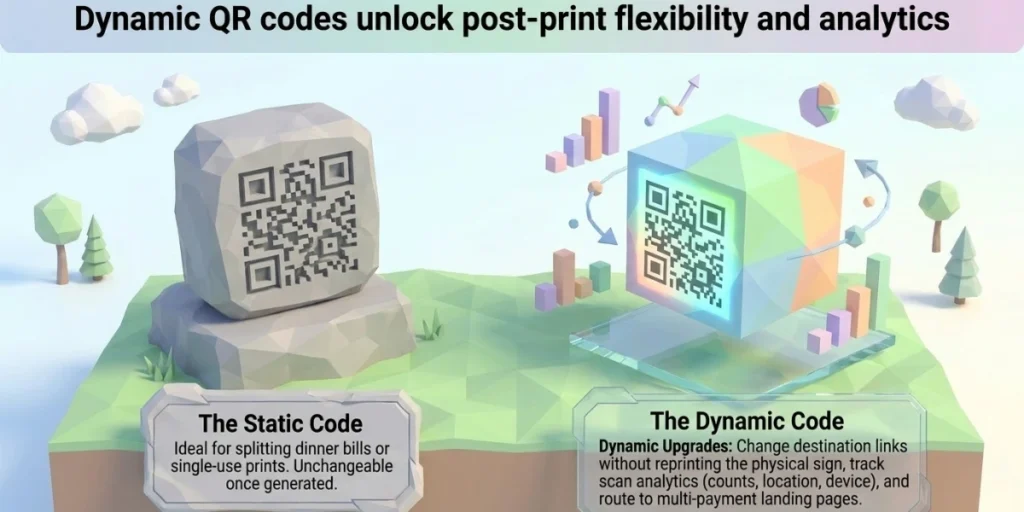
For most people, the native Cash App code is entirely enough. If you are splitting a dinner bill, you simply do not need anything else, and we would not pretend otherwise.
A dynamic code earns its place when three things are true.
You need to change the destination later. A dynamic code keeps the same printed image while you edit where it points. Switch your $cashtag, add a second payment option, or swap in a seasonal offer, all without reprinting.
You need to know if it works. Cash App does not tell you how many people scanned your tip jar. A dynamic code does. Scan counts, rough location, and device type let you see which sign pulls its weight.
You offer multiple payment methods. Instead of printing four codes for four apps, point one code at a page listing all of them. That page also sidesteps the social browser problem, because it loads properly anywhere.
This is where our own dynamic QR code tools fit. You get an editable destination, scan analytics, logo and color control, and vector files built for print.
If you are printing once and never changing it, a plain static code is fine, and we will say so. If your code is out in the world doing real work, the ability to edit and measure it tends to pay for itself.
For a wider view of how these codes are used, our QR code statistics roundup tracks adoption across payments and retail. Our guide to payment QR codes covers the same setup for other wallets.
L. Frequently asked questions
1. Does Cash App have a QR code?
Yes. Every account has one. Open the app, tap your profile photo, and it appears on the profile screen. It links to your payment page, so anyone who scans it can send you money without typing your $cashtag.
2. How do I print my Cash App QR code?
Take a full-screen screenshot and move it to a computer. For better results, build a code from your cash.app/$YourCashtag link instead, and export an SVG or PDF. Print at 1.2 inches square or larger, then test the proof with two phones before ordering more.
3. Is it safe to share my Cash App QR code?
Yes. Your code only lets people send you money. It gives no one access to your account, balance, or card. Cash App also requires your PIN or a face scan before any payment leaves. Be careful scanning other people’s codes, though.
4. Can someone take money using my Cash App QR code?
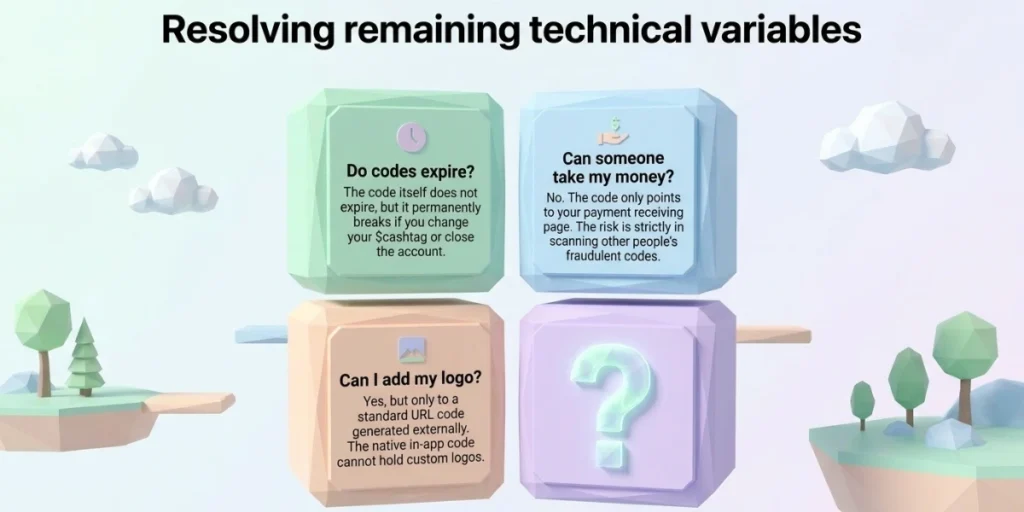
No. The code points to your payment page. It cannot pull money out. The risk runs the other way, so you should check any code you scan.
5. Do Cash App QR codes expire?
The code itself does not expire. It stops working if you change your $cashtag or close the account. Anything you printed before that change will send people to the wrong place.
6. What stores accept Cash App QR codes?
Mostly Square sellers and merchants who turn on Cash App Pay. That covers many cafes, market stalls, salons, and independent shops. There is no official list, and acceptance varies. Larger chains often use their own apps or tap-to-pay instead.
7. Can I add my logo to a Cash App QR code?
Not to the one inside the app. You can add a logo to a code you build from your cash.app/$YourCashtag link, because that is a standard URL code. Keep the logo small so the code still scans.
8. What does Cash App charge for business payments?
Cash App lists 2.6% plus $0.15 on each payment received into a Business account, and 3% on Tap to Pay. Personal accounts don’t charge a fee to receive money, but using one for business violates Cash App’s terms.
9. Should I use a static or a dynamic QR code?
Static works if your $cashtag will never change and you do not care about scan data. Choose dynamic if you want to edit the destination after printing, track how often signs get used, or route people to a page with several payment options.
Get paid with one scan
A Cash App QR code removes the typing, the mistakes, and the awkward pause at the counter. Find your code, test your link, print it properly, and check it now and then for tampering.
Pick the code that matches the job: the in-app version for friends, a branded link code for anything printed, and Cash App Pay if you already run Square.