Excel QR Code Generator: How To Make File-Sharing Easier

You know that sharing and accessing data efficiently is crucial for any business. One tool that has revolutionized data sharing is the Excel QR Code generator. This tool lets you create QR Codes that link directly to Excel files, making file sharing within your organization a breeze.
This blog post will delve into what an Excel QR Code generator is, how to create Excel QR Codes, where to use them, and more.
So, let’s get started and explore how this tool can enhance your team’s communication and data management.
Also read: Types of QR Code
A. What is an Excel QR Code Generator?
An Excel QR Code generator lets you create QR Codes that link to Excel files upon scanning. It enables hassle-free sharing of Excel files within your team.
It’s useful for enabling mobile access to crucial documents, thus boosting productivity.
According to research by M-Files, 81% of employees require mobile access to company documents.
With Microsoft Excel being a widely used, accessing files at any time and any place is crucial, especially via mobile devices.
With an Excel QR Code generator, you can take people to the required spreadsheets on scanning.
Related: Types of QR Codes
B. How to create Excel QR Codes using Scanova
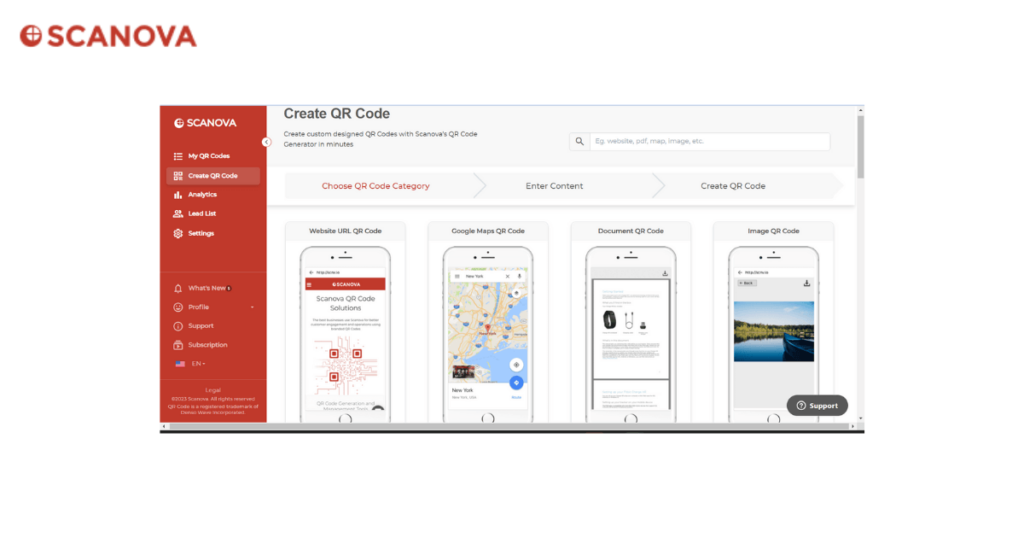
Creating Excel QR Codes using Scanova is a simple process that involves the following steps:
1. Log in to the Dashboard: First, log in to the Scanova dashboard and navigate to ‘QR Codes’ from the left panel
2. Select the Campaign Type: Click on ‘Create QR Code‘ and select ‘Website’ from the list of campaign types
3. Set Up Your Campaign: Paste the link to your Excel file in the box provided and click ‘Next’
(If you rather have an Excel file nd not a spreadsheet, go for the Document QR Code category and then upload your Excel file)
4. Customize the Excel QR Code: Here, you can customize your QR Code by selecting a template, changing the color and shape of eyes and data patterns, adding a logo, etc. Once you finish customizing, click ‘Next
5. Test and Download Your Excel QR Code: Your QR Code is now ready. Scan it to check if it works, and download it in any of the five formats –PNG, JPG, SVG, PDF, and EPS


C. How to create bulk QR Codes using an Excel file
You might be wondering, “Can you generate QR Codes in Excel?”
To create bulk QR Codes using an Excel file, read our comprehensive guide
D. Features of Scanova as an Excel QR Code generator
Scanova, as an Excel QR Code generator, offers several features that make it a top choice for businesses and individuals. Here are some of its key features:
- Dynamic QR Codes: Scanova allows you to create QR Codes that are editable and trackable. You can edit the linked content anytime, track scanning activity, and even activate or deactivate the QR Code as per your needs
- QR Code Design: With Scanova, you can create personalized QR Code designs to attract more scans from your audience. It offers two design options—With Logo and With Background. You can add colors, patterns, and images, use readymade templates, and even save your QR Code design as a template
- Analytics: Scanova provides detailed analytics that help you track the scanning activity of QR Codes and get meaningful insights. You can track scans by date, geography, exact GPS location, and device information
- High-resolution QR Codes: With Scanova, you can export QR Code images in high-resolution raster or vector formats in the desired size
D. Where to use Excel QR Codes?

Excel QR Codes can be used in various settings, each with its unique benefits. Here are some key areas where Excel QR Codes can find their use:
1. Team Collaboration
Excel QR Codes can facilitate seamless file sharing among team members.
You may create Excel QR Codes and add them to summarized reports. Team members can scan to access the files on their mobiles for better (or later) use.
You can also use them during meetings with investors or business partners. Here, just add it to the last slide of your presentations. It’ll help the attendees scan and access the file using their phones.
At least once every hour, 66% of office workers utilize Excel
2. Inventory Management
Managing inventory can be a hassle without an effective file-sharing system. By adding an Excel QR Code to the inventory boxes, authorized personnel can scan and check the inventory details anytime.
To protect the information in the Excel file, you can restrict access to only authorized email addresses. In addition, you can password-protect QR Code for maximum security.
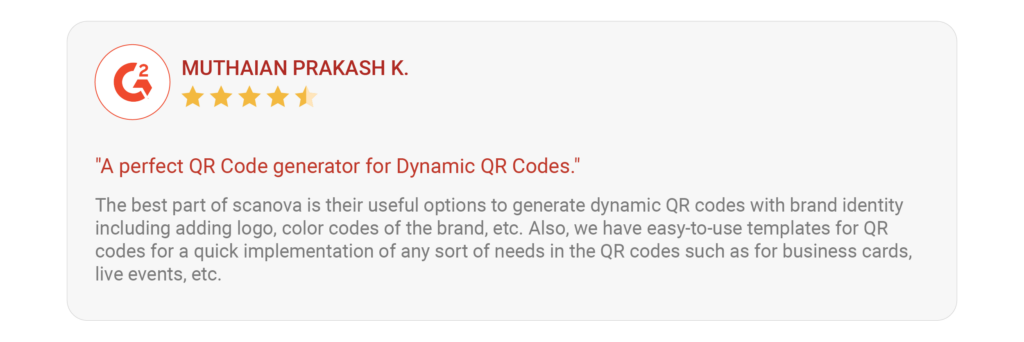
What our customers have to say about our product:
3. Schools
Schools maintain multiple records, from attendance to grades and health records. To share these records present in Excel file, you can make Excel QR Codes and share them with faculty members or supervisors.
These can be handy when creating student performance or progress reports.

 No spam guaranteed
|
No spam guaranteed
|
 Unsubscribe anytime

4. Hospitals and Clinics
In hospitals and clinics, an easy way of sharing a patient’s detailed medical history is to digitize it via Excel QR Code.
Create and then embed the QR Code on the patient’s hospital ID card, appointment slip, or test results. Doing so will help designated doctor to access the file instantly.
Brands that trust us:

Of course, medical data is sensitive. While it is possible to secure these files by restricting access or adding a password, some cases may also require a way to prove that the file itself is authentic.
This is where QR Mark comes in. It adds a unique QR Code to documents that links to a secure verification page. When scanned, doctors or administrators can instantly confirm that the file is original, untampered, and issued by the right source.
With the QR Mark add-in for Microsoft Office, hospitals can even embed these secure QR Codes directly into their Excel files, reports, or discharge summaries, without leaving the app. This ensures that critical medical data is both easy to access and trustworthy.
By using Excel QR Codes in these ways, healthcare organizations can make data sharing more efficient, secure, and reliable.
E. Best practices: Excel QR Code Generator
When generating QRs in Excel, there are several best practices to ensure efficiency and accuracy:
1. Use reliable add-ins
Choose a trusted QR code generator add-in for Excel from reputable sources. Ensure the add-in is regularly updated and has positive user reviews.
2. Data validation
Double-check the data you’re encoding into QRs to ensure accuracy. Mistakes in data entry can lead to incorrect QRs.
3. Customization options
Look for add-ins that offer customization options for QRs, such as size, error correction level, and color. This allows you to tailor the QRs to your specific needs.
4. Bulk generation
If you need to generate a large number of QRs, select an add-in that supports bulk generation. This can save you time and effort compared to generating QRs one by one.
5. Testing
Always test the QRs before using them in production. Scan each QR with multiple devices and QR scanners to ensure they encode the correct data and are readable.
6. Data security
Be mindful of the data you encode into QRs, especially if it contains sensitive information. Avoid encoding personal or confidential data unless necessary, and ensure proper security measures are in place.
On average, it takes 8 and a half minutes to resolve a typical Excel issue
7. Documentation
Keep track of the data associated with each QR. Documenting the purpose of each QR and the data it represents can help avoid confusion later on.
8. Regular updates
Stay informed about updates to the QR generator add-in and any changes in QR standards. Update your add-in regularly to ensure compatibility and security.
F. FAQs about Excel QR Code generators
Here are some frequently asked questions about Excel QR Code Generators:
1. How can I create a QR Code for a spreadsheet?
You can use an Excel QR Code generator like Scanova to create a QR Code for a spreadsheet.
2. Can you create a QR Code in Excel?
Yes, you can create a QR Code in Excel with the help of an add-in. However, the major drawback is that you won’t be able to track your QR Codes’ performance. So, use a QR Code solution that enables QR Code tracking, like Scanova.
3. How do I create a bulk QR Code in Excel?
To create a bulk QR Code in Excel, you can use a tool like QR Batch. You need to sign up for a free, log in to the dashboard, go to QR Codes, and select ‘Bulk Upload’.
Then, select the QR Code type, upload an Excel file with the required data, customize your QR Code, and click ‘Finish’.
You’ll get an email notification when your bulk QR Codes are ready for download.
4. What are the drawbacks of using an Excel add-in for creating QR Codes?
While you can create QR Codes within your spreadsheets using an add-in, there are several limitations. You won’t be able to track your QR Code’s performance, the customization options are limited. And you can only save the QR Code in PNG format, which can affect the quality and scannability of the QR Code if you resize it.
5. Where can I use Excel QR Codes?
You can use Excel QR Codes in various scenarios such as:
- Team collaboration
- Inventory management
- Inventory boxes
- Student ID cards
- Patient’s hospital ID cards
6. How do I create a QR Code for an Excel spreadsheet?
You can generate QR Codes directly within Excel using add-ins available in the Excel Add-ins marketplace or online. After installing the add-in, organize your data in the spreadsheet and utilize the add-in’s functionality to generate QR Codes based on your data. Customize QR Code settings as needed and insert the generated QR Codes into your spreadsheet, either directly into cells or as images. Remember to save your spreadsheet and test the QR Codes to ensure they encode the correct data before use. This method offers a convenient way to create QR Codes in bulk or as part of Excel-based workflows.
7. How do I export a QR Code to Excel?
To “export” a QR Code to Excel, first generate the QR Code using Scanova and save the image. Then, insert the image into Excel by navigating to the desired cell, selecting “Insert” > “Pictures,” and choosing the QR Code image. Adjust its size and position if necessary and save your Excel file. This method allows you to incorporate QR Codes into your spreadsheet for various purposes.
8. Can QR Code generator for Excel open Excel file?
No, QR codes themselves cannot directly open Excel files. QR Codes are merely a way to encode data, such as a URL, text, or other information, into a graphical representation that a QR Code reader can scan. However, you can encode a URL that links to an Excel file stored online (e.g., on a cloud storage service like Google Drive or Dropbox), and scanning the QR Code would then open the link to download or view the Excel file. Alternatively, you could encode text instructions in the QR Code directing the user to open an Excel file stored locally on their device.
Generate a QR Code For Your Unique Case
START TODAY!
G. Transform file-sharing with Excel QR Codes
An Excel QR Code generator can significantly enhance data sharing and team communication within your organization.
So, start using an Excel QR Code generator today and take your data management to the next level.
{ “@context”: “http://schema.org”, “@type”: “VideoObject”, “name”: “Excel QR Code Generator: Two Easy Ways To Share Spreadsheets”, “description”: “Today, we have something really exciting to share with you – QR Codes in Excel! That’s right, we’ll show you how to generate QR Codes and use them to enhance your Excel spreadsheets. The first is by creating a QR Code that links to an Excel file (via QCG). The second is by generating QR Codes using data in your Excel file. 00:00 – Introduction 01:14 – Create Excel QR Code Using Scanova 03:14 – Excel QR Code in Bulk By QR Batch We will be using Scanova’s QR Code Generator Tool (QCG) to create the Excel QR Code. You just need to follow these steps: Go to Scanova and sign-up for a 14-day free trial. From QR Code categories, select the Website URL QR Code. On the page that loads, paste the link to your Excel file. Now, click on Create QR Code. A window will pop up asking you to name and save the QR Code. Enter a suitable name and click Save. Next, you will see three QR Code designs on your screen. These are—standard black-and-white, custom with a logo, and custom with a background. You can proceed with either of them. Note that if your use case is marketing or promotional and you want to attract as many scans as possible, you must consider adding a design to your QR Code. Once you specify the details, click Export. Your QR Code image will be exported. Now let’s see how to create QR Codes with data present in an Excel sheet. In this case, you’ll have to generate QR Codes in bulk. You’d have a spreadsheet (XLS, XLSX, or CSV) with data in each row for each QR Code. You’d need an online tool where you can upload Excel and generate QR Codes. If this is what you need—you need a bulk QR Code generator tool such as QR Batch. Here is how you can get started. First, format your spreadsheet. To do it, follow these steps: The first column should be the QR Code Filename. The QR Code images that will be generated in a zip folder will have these filenames. The second column should be the content you want to encode. This will depend on the QR Code category you will select. To encode content in Excel, you can choose from the following three categories: First category is Website URL QR Code A Website URL QR Code, when scanned, takes the end-users to visit the encoded website address. Here, the first column should be the Filename (QR Code 1, QR Code 2, etc). While the second column should be the Website URL that will be encoded into the QR Code. Second Category is Plain Text QR Code Plain Text QR Codes store textual information such as an address, product information, or, a short bio. To create a Plain Text QR Code using Excel, the second column should contain the text. While the first column, as usual, should be the Filename. Third Category is VCard QR Code A VCard QR Code, when scanned, displays contact information. These include details such as name, title/designation, company, email, phone, and website. It also prompts the user to ‘Add as contact’. For a VCard QR Code, You can add contact details second column onwards. That is, the name is Column B, title in Column C, the company in Column D, and so on. Now, choose the QR Code category—URL, VCard, or Text—as per requirements. As mentioned earlier, we have selected Website URL QR Code for demo purposes. Next, Upload Spreadsheet. Upload the spreadsheet you created in Step 1 on the page that opens. You can upload it in CSV, XLS, or XLSX format. Now, Review Data. For example, say you want to create Simple Text QR Codes. The ‘Review’ page on which you land will prompt you to confirm the columns. That means you need to select which column is QR Code filename and which column has text. Moving on, Add Design. Once you review the data, you will be landed on a page where you will see three design options: Standard design: It gives generic black-and-white QR Codes Custom Logo Design: It allows you to add a logo and color to your QR Codes Custom Background Design: It helps you add an image as QR Codes’ background If you want a basic black-and-white QR Code, go for the standard QR Code. But if your use case is promotional or customer-facing, choose one of the other two design options. Also, custom QR Codes attract 50-100% more scans than plain black-and-white ones. Next, specify batch name and other details. After you finalize the design of your QR Code, a window will pop up prompting you to specify the batch name. In the same window, you will also get an option to choose how you wish to export the QR Codes. Note that if in the beginning, you had selected Generate QR Code Images as batch, then you’ll have to select the size and format of QR Code images to be generated. On the other hand, if you had selected the Generate QR Code labels option, you’ll see the option to name the batch and choose the label sheet layout. Generating QR Codes in Excel is a fantastic way to make your spreadsheets more interactive and user-friendly. Whether it’s for tracking inventory, creating interactive menus, or sharing information, QR Codes can be a game-changer.”, “thumbnailUrl”: “https://i.ytimg.com/vi/gEg4zliuOS8/default.jpg”, “uploadDate”: “2023-07-28T12:30:31Z”, “duration”: “PT8M34S”, “embedUrl”: “https://www.youtube.com/embed/gEg4zliuOS8”, “interactionCount”: “1365” }
