QR Code for Bank Account: All You Need To Know

In a nutshell (TL;DR): You can make a QR Code for a bank account in a few minutes. Pick the method that fits where you live and how you want to get paid. The safest and most flexible option for most people is a Dynamic QR Code that links to a payment page or shows your bank details. It lets you edit the details later and track every scan.
People are done typing long account numbers. They want to scan and pay. And the numbers back this up. Juniper Research expects the value of QR Code payments to grow by about 50%, from $5.4 trillion in 2025 to more than $8 trillion by 2029 (Juniper Research, 2025).
So if you want to get paid faster, this is a smart move. The problem is that most guides skip a key point. There is no single “bank account QR Code.”
What you create depends on your country and your goal. In this guide, I will map out the real options, show you how to build one step by step, and help you keep it safe. Let us get into it.
A. What is a QR Code for bank account?
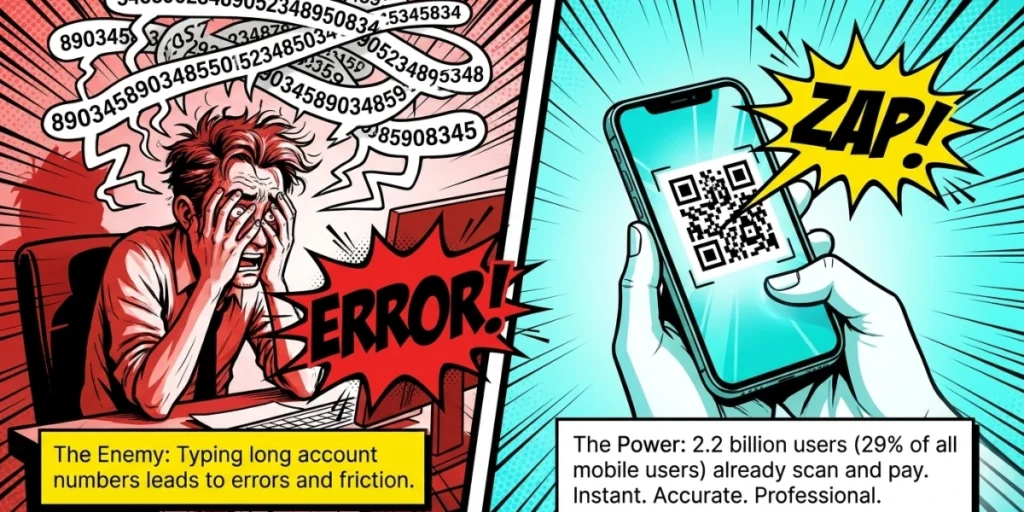
A QR Code for bank account is a scannable code that helps someone pay you or view your payment details. When a person scans it with their phone camera, it opens your payment link, your bank app flow, or a page with your account details. They confirm the amount and send the money. No typing needed.
Here is the part that few people explain. The code does not “hold” your bank account. It holds a link or a set of details. That link can point to many things.
It can open a payment app, a checkout page, or a simple page that shows your account number. This matters because the right choice changes based on your needs.
B. Why use a bank account QR Code?
A bank account QR Code saves time and cuts errors. Instead of reading out an account number, you show a code. The payer scans it and pays. That is the core value. But the upside runs deeper than speed.
This is no longer a niche trick, either. Juniper Research found that QR Code payment users would pass 2.2 billion in 2025. That is close to 29% of all mobile users worldwide (Juniper Research, via Business Wire). Your customers already know how to scan and pay.
Here is what you gain:
- Faster payments. People pay in seconds. No long numbers to type.
- Fewer errors. A code with your details built in means no wrong-account transfers.
- Less friction. Every extra step loses payers. A scan removes most of them.
- A professional look. A branded code on an invoice builds trust.
- A bridge from print to phone. A poster or receipt turns into an instant payment.
- Real data. A Dynamic QR Code shows you scans by time, place, and device.
C. What are the ways to create a bank account QR Code?
There are four common ways to turn a bank account into a scannable code. Each one fits a different setup. Here is a quick view before we go deeper.
|
Method |
Best for |
Editable later? |
Trackable? |
|
Dynamic QR Code to a payment link or page |
Most people and small businesses worldwide |
Yes |
Yes |
|
EPC / SEPA QR Code (IBAN based) |
Europe, bank transfers in euros |
No |
No |
|
UPI or Bharat QR Code |
India |
Depends on app |
Limited |
|
QR Code that shows account details on a page |
Simple sharing, invoices, one-off requests |
Yes, if dynamic |
Yes, if dynamic |
Method 1: A Dynamic QR Code to a payment link or page
This is the most flexible option, and it works almost anywhere. You create a payment link first. It can be a PayPal.me link, a Stripe or Razorpay link, or a page that lists your bank details. Then you turn that link into a QR Code. When someone scans it, they land on the page and pay.
The big win here is control. A Dynamic QR Code lets you change the link later without printing a new code. Switched banks? Update the link in seconds. This is why so many businesses prefer it. In fact, Scanova’s internal data shows that nearly 98% of QR Codes created on our platform are dynamic (Scanova).
Method 2: An EPC or SEPA QR Code (for Europe)
If you are in Europe and want direct bank transfers in euros, an EPC QR Code is built for you. It encodes your name, your IBAN, your BIC, and an optional amount. The payer scans it in their bank app, and the details are automatically filled in. This cuts typing errors on invoices and rent.
Keep one thing in mind. An EPC QR Code is static. Once you make it, you cannot edit it. So double-check your IBAN before you print. If a detail changes, you must create a new code.
Method 3: A UPI or Bharat QR Code (for India)
In India, UPI runs the show. A UPI QR Code links to your UPI ID, which sits on top of your bank account. People scan it in apps like Google Pay, PhonePe, or Paytm and pay with one tap. Bharat QR works similarly across banks and cards.
The scale is hard to ignore. UPI grew from 2 crore transactions in FY2016-17 to more than 24,162 crore transactions in FY2025-26, worth about ₹314 lakh crore, per India’s Press Information Bureau (PIB, 2026). If your customers are in India, a UPI QR Code is often the default.
Method 4: A QR Code that shows your account details
Sometimes you just want to share your account number in a clean way. Here, you build a small page with your bank name, account number, and IFSC, IBAN, or routing number. Then you link a QR Code to it. The payer scans your details and pays from their own bank app.
This works well on invoices, emails, and posters. If you use a Dynamic QR Code with a mobile landing page, you can even add a logo, a note, and a thank-you line. And you can edit it later.
D. How do I make a QR Code for my bank account?
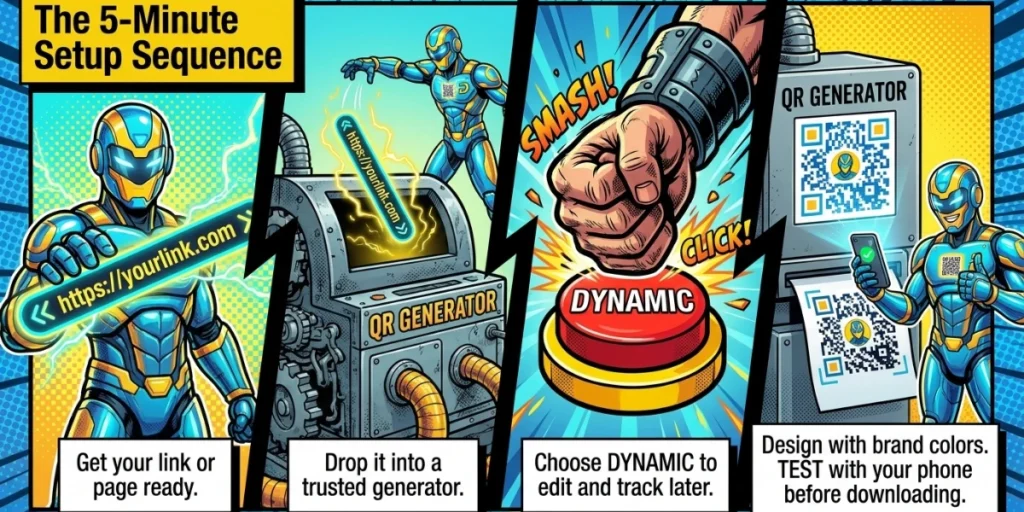
The easiest way to create a payment QR Code is to use an online QR Code generator, which is suitable for most people. I use our own tool, Scanova, here, but the flow is similar on most platforms.
Step 1: Get your payment link or page ready
This can be a PayPal.me link, a payment gateway link, or a page with your bank details. Keep it copied and ready. If you only have bank details and no link, do not worry. In Step 4, Scanova can build a simple page for you.
Step 2: Log in to Scanova
Go to Scanova and sign in. If you are new, you can sign up in under a minute with your email or Google account.
Step 3: Click Create QR Code
You will land on your dashboard. Find “Create QR Code” in the sidebar on the left, then click it. You will see a list of QR Code categories.
Step 4: Pick the right category
If you have a payment link, select Website URL QR Code. If you want to show your bank details instead, select Custom Page QR Code. It creates a simple mobile page for you.
Step 5: Add your payment details
For a Website URL QR Code, paste your payment link in the URL field. Make sure it starts with https://. For a custom page, add your bank name, account number, and a short note like “Scan and pay via bank transfer.”
Step 6: Name your QR Code and choose Dynamic
Click Continue. Give your code a clear name, such as “Store Counter Payment.” Then choose Dynamic instead of Static. This lets you edit the link and track scans later. Click Create QR Code.
Step 7: Design your code
Add your brand colors and place your logo in the center. Keep the contrast strong. A dark code on a light background scans best.
Step 8: Test it with your own phone
Open your phone camera and scan the code from the screen. Check that it opens the correct page and shows the correct details. Ask a friend to test it on a different phone, too.
Step 9: Download in high resolution
Click Download and pick your format. Use PNG for digital use and SVG or PDF for print. High resolution keeps the code sharp at any size.
Step 10: Place it where people will scan it
Print it on your counter card, invoice, poster, or menu. Add a short line near it, like “Scan to pay.” A clear prompt gets more scans.
That is it. Your payment QR Code is live. If you ever change banks, just update the link in your Scanova dashboard. The printed code keeps working.
E. Static vs dynamic QR Codes: which is better for payments?
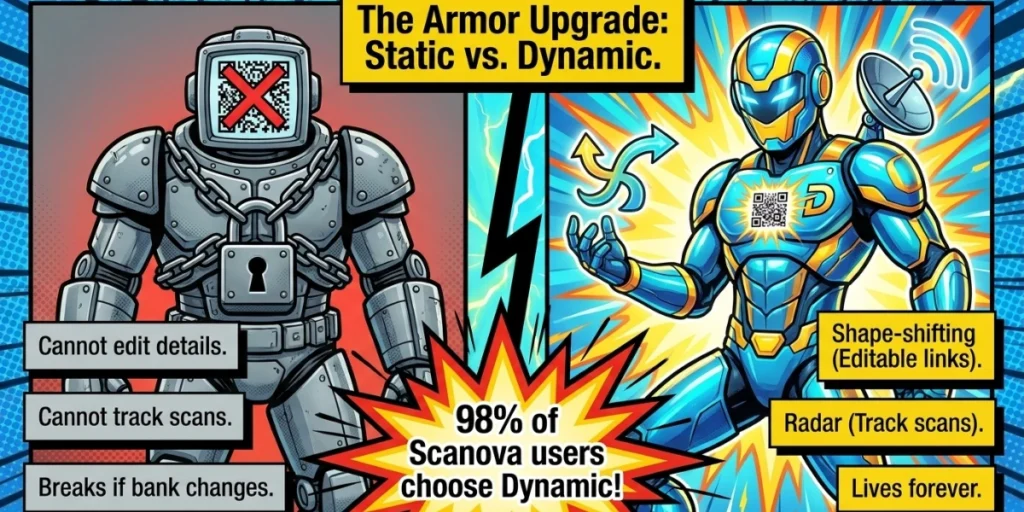
For payments, a Dynamic QR Code is usually the better pick. It lets you edit the destination and track scans. Static code cannot be changed or tracked. Here is a simple side-by-side.
|
Feature |
Static QR Code |
Dynamic QR Code |
|
Edit details later |
No |
Yes |
|
Track scans |
No |
Yes |
|
Works if you switch banks |
No, reprint needed |
Yes, just update the link |
|
Best use |
One-off, fixed details |
Ongoing payments, business use |
Static codes still have a place. An EPC QR Code, for example, must be static by design. But if you plan to reuse the code, dynamic saves you time and money. You can learn more in our guide to dynamic QR Codes.
F. Where should you place your payment QR Code?
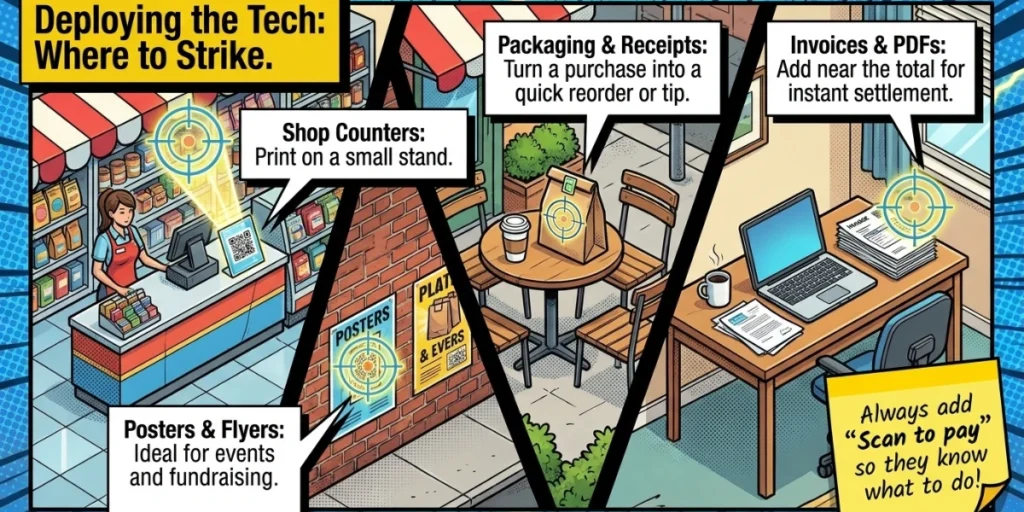
Place your code where people already look. The goal is to remove friction when they want to pay. A few high-value spots work best for most businesses.
- Invoices and bills. Add the code near the total. People pay on the spot instead of later.
- Shop counters and tables. Print it on a small stand so buyers can scan and pay in seconds.
- Packaging and receipts. Turn a purchase into a quick reorder or tip.
- Email signatures and PDFs. Great for freelancers who bill by email.
- Posters and flyers. Useful for donations, events, and fundraisers.
Make the code large enough to scan from a normal distance. Keep good lighting around it. And always add a short line like “Scan to pay” so people know what to do.
G. Is it safe to use a QR Code for a bank account?
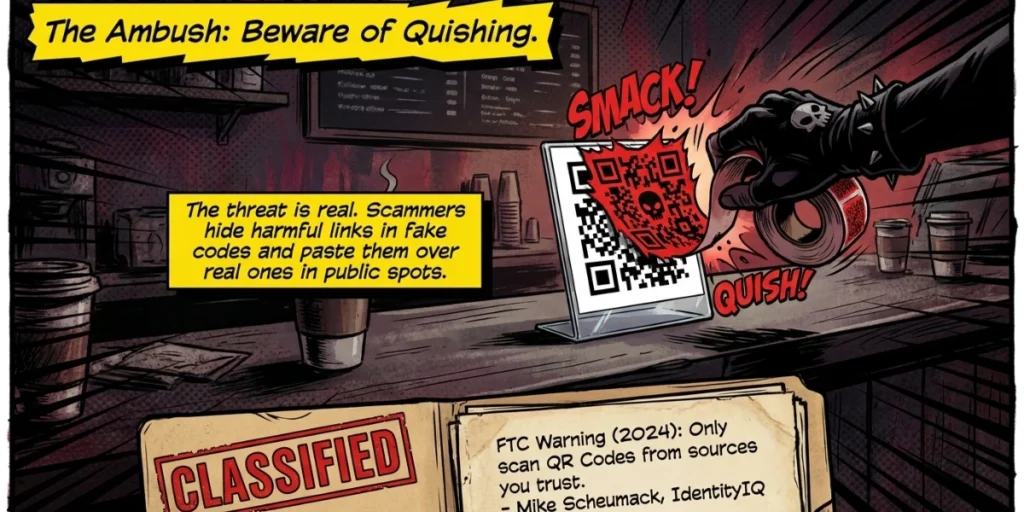
Yes, a bank account QR Code is safe when you make it and share it with care. The code itself does not steal money. The risk comes from fake codes that scammers place over real ones. This is called quishing, short for QR phishing.
The threat is real enough that the U.S. Federal Trade Commission put out a warning about it. Scammers hide harmful links in QR Codes to steal your information, the agency reports. They even paste their own codes over real ones in public spots (FTC, 2024).
As Mike Scheumack, chief innovation officer at IdentityIQ, told CBS News: “Only scan QR Codes from sources you trust.” That advice cuts both ways. Protect your payers, and protect yourself.
Here is how to stay safe on both sides:
- Check for tampering. Before you print, make sure no one can stick a fake code over yours. Laminate or frame it.
- Show the destination. Add your business name near the code, so payers know it is real.
- Use a trusted generator. Pick a tool with strong security. Scanova is ISO/IEC 27001:2022, GDPR, and SOC 2 compliant, keeping your data protected.
- Add password protection. For private links, a Dynamic QR Code can lock the page behind a password.
- Never share account details in a random text. Real banks will not ask you to scan a code to “verify” your account.
H. What mistakes should you avoid?
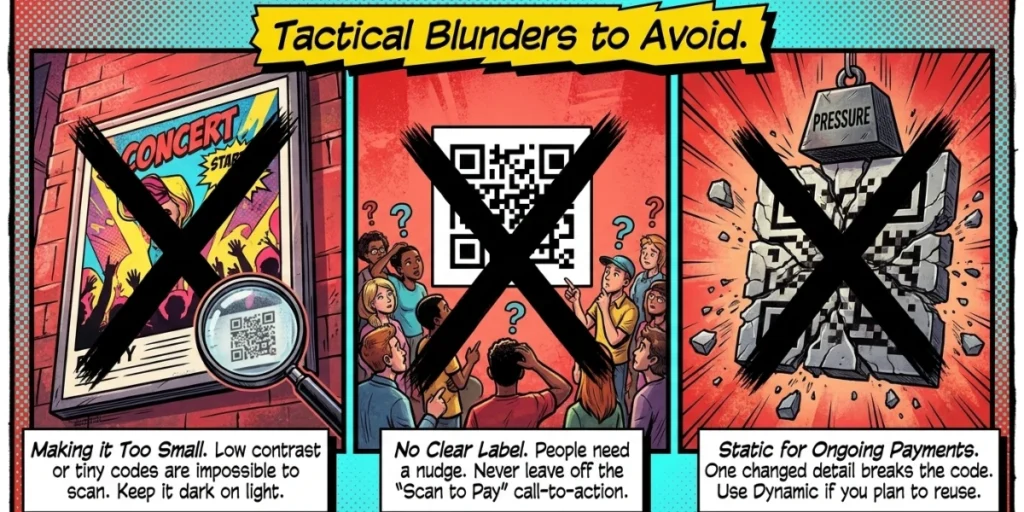
A few small mistakes can cost you scans or money. I see them often. Here is what to avoid to make your code work on the first try.
- Using a static code for ongoing payments. You cannot edit it. If your details change, the code breaks. Use dynamic for anything you reuse.
- Skipping the test scan. Always scan your own code before you share it. Check that it opens the right page.
- Making the code too small. A tiny or low-contrast code is hard to scan. Give it room and keep it dark on light.
- No clear label. People need a nudge. Add a short line like “Scan to pay” next to the code.
- Not guarding against tampering. Frame or laminate printed codes so no one can paste a fake over yours.
- Not checking details first. For static codes like EPC, one wrong digit means a reprint. Confirm your IBAN before you export.
I. How can you get more people to actually pay?
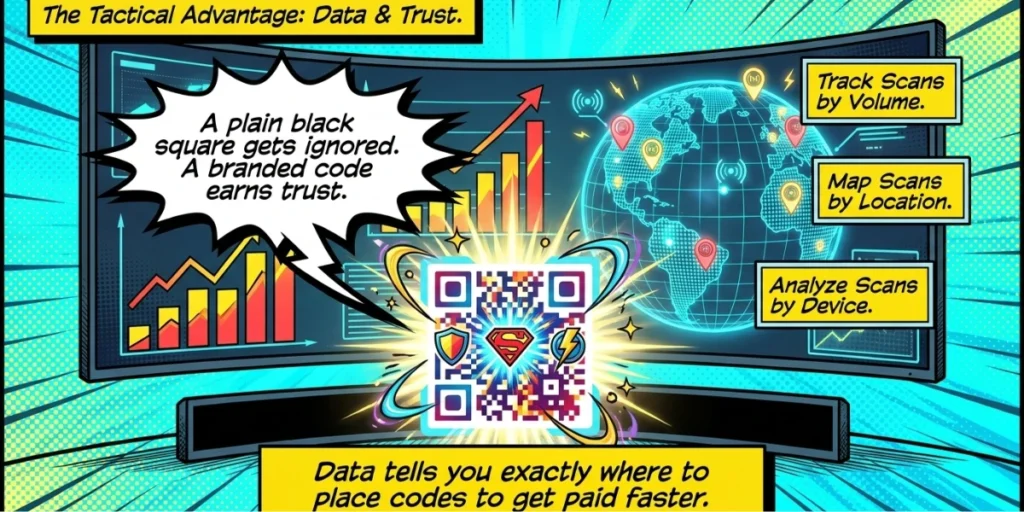
Making the code is step one. Getting scans is step two. This is where a little design and data go a long way. A plain black square gets ignored. A branded code earns trust.
Add your logo and brand colors to make the code look official. Use a clear “Scan to pay” frame. Then track your scans to see what works.
With our analytics, you can see how many people scanned, where they were, and what device they used. That data helps you place codes better and get paid faster. If you run a bank or finance brand, our QR Codes for financial services show a few more ideas.
J. FAQs: QR Code for Bank Account
1. Can I create a QR Code for a bank transfer for free?
Yes. Many tools let you make a static QR Code for free. A basic EPC QR Code or a simple link code costs nothing. Dynamic codes, which you can edit and track, usually need a paid plan. Scanova offers a 14-day free trial so you can test the full feature set first.
2. Do I need a special app to scan a payment QR Code?
No. Most modern phones scan QR Codes with the built-in camera. For payments, the payer often uses their bank app or a wallet like Google Pay or PayPal to finish the transfer.
3. What details go into a bank account QR Code?
It depends on the method. A payment link code holds a URL. An EPC QR Code holds your name, IBAN, BIC, and an optional amount. A UPI code holds your UPI ID. A details page can show your account number and bank name.
4. Can I change my bank details after I print the QR Code?
Only if you used a Dynamic QR Code. Dynamic codes let you update the linked page or link anytime, so the printed code keeps working. Static codes, like EPC QR Codes, cannot be changed once made.
5. Is a bank account QR Code safe for my customers?
Yes, if you use a trusted generator and guard against tampering. Frame the code, add your business name, and tell people what they are paying for. Ask them to check the page before they confirm any amount.
Final thoughts
A bank account QR Code is one of the simplest ways to get paid in 2026. The trick is to match the method to your needs. Use a payment link code for flexibility, an EPC code for euro transfers, or a UPI code in India. For most people, a Dynamic QR Code wins because you can edit it, brand it, and track it.
Want to build one that you can update anytime and see the results? See how our Dynamic QR Codes and mobile landing pages work.