QR Code Visiting Card: A Complete Guide for 2026

In a nutshell (TL;DR): Most paper visiting cards never make it to a phone. A QR Code visiting card fixes that. With one scan, your name, number, email, and links land straight in someone’s contacts. No typos. No lost card. No reprint when your phone number changes. In this guide, I will walk you through what a QR Code visiting card is, how to design one that scans, and how I would create one today using a tool like Scanova.
I have lost count of how many paper visiting cards I have collected at conferences and meetups. Most still sit in a drawer somewhere. I never typed them into my phone. None of those professionals ever heard from me again.
If you are the one handing out cards, that is the part that stings.
A QR Code visiting card fixes that gap. Someone scans it. Your contact details land in their phone with one tap. The card does not have to survive their wallet, their desk drawer, or their next move.
I spent weeks researching what actually works in this space. The data is clear. The design rules are simple. But most articles online either skim the surface or pitch a product right away.
So in this guide, I will share what I learned. What a QR Code visiting card is. Why it works. How to design one that scans every time. And how I would build mine today using a tool like Scanova. I will keep it practical and skip the fluff.
A. What is a QR Code visiting card?
A QR Code visiting card is a paper visiting card with a small scannable square printed on it. That square holds your contact details.
Someone scans it with their phone camera. Your name, phone, email, website, and links land in their contacts app. They tap “Save.” You are in their phone for good.
That is the surface answer. The deeper one matters more because there are two ways to encode data in a QR Code.
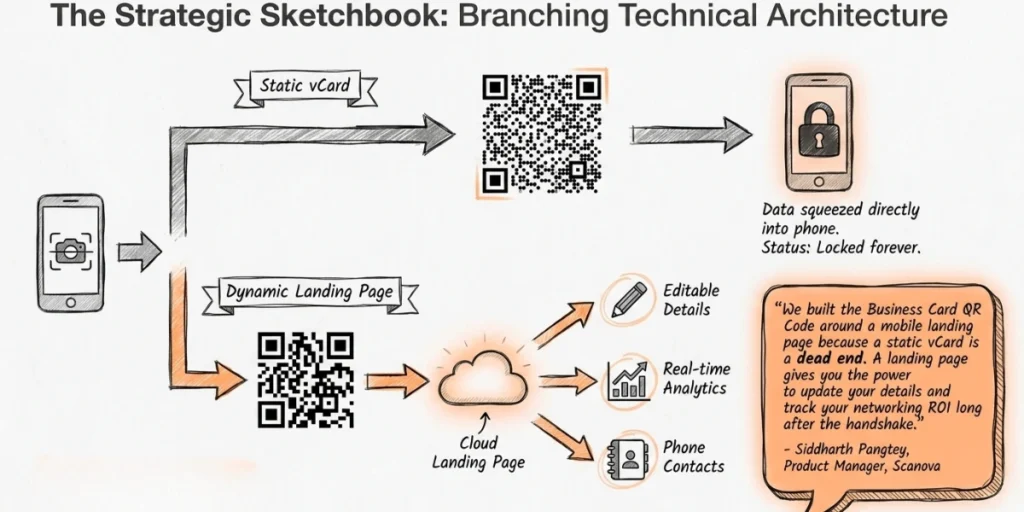
vCard format. All your details sit inside the QR Code itself. The phone reads the code and offers to save the contact. No internet needed. The downside is that you cannot change anything once the card is printed.
Landing page format. The QR Code points to a small hosted page. That page shows your photo, your role, your social links, and a “Save to contacts” button. Most modern tools default to this format. It looks more polished, lets you update details later, and tracks how many people scan your card.
I lean toward the landing page format for one simple reason. Your job title, your phone number, and your company can change. With a landing page, you update once online.
Every printed card you ever handed out still points to the new information. Scanova, for example, builds its Business Card QR Code around this approach, with a mobile landing page and analytics included by default.
“We designed Scanova’s Business Card QR Code around a mobile landing page instead of a static vCard because networking today goes beyond saving a phone number. Users want a flexible space to share social links, portfolios, booking pages, and more—all without reprinting the QR Code.” — Siddharth Pangtey, Product Manager, Scanova
That single design choice is what separates a card that becomes a contact from one that ends up in a landfill.
B. Why are traditional visiting cards losing ground?
Paper cards still feel professional. I get it. There is something tactile about handing one over. But the data tells a harder story.
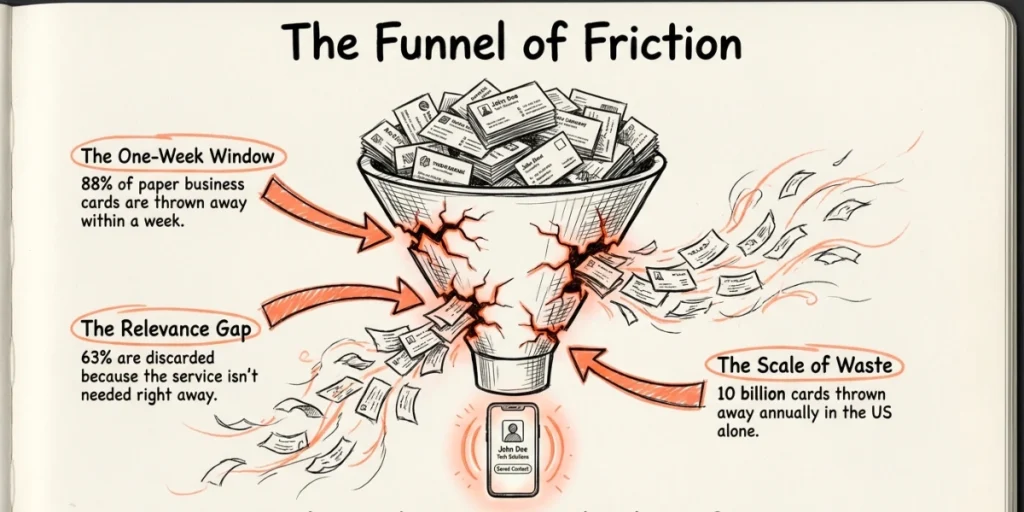
According to HiHello’s research, 88% of paper business cards are thrown away within a week of receipt. The same study found that over 63% of people throw cards away because they do not need the service right away. That is most of the cards you ever printed, gone within seven days.
The waste scales fast. Profyle Card reports that over 10 billion business cards are thrown away in the US alone every year. Most end up in landfills.
Then there is the cost of being wrong. You print 500 cards. Six months later, you change phone numbers, get promoted, or switch offices. Every card you handed out is now misleading people. You spend money to reprint. Then it happens again.
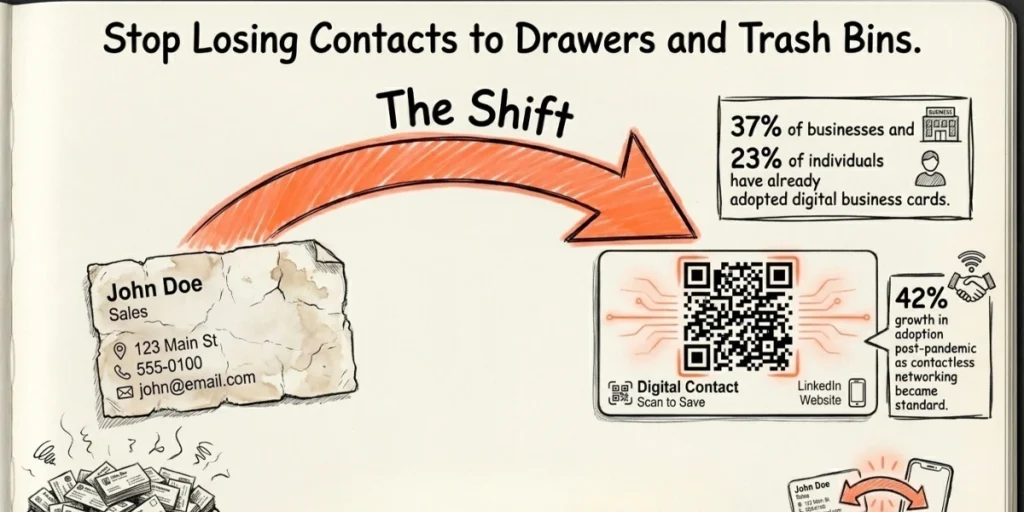
The shift is already underway. Wave Connect’s data shows that 37% of businesses and 23% of individuals have adopted digital business cards, and post-pandemic adoption grew by 42% as more professionals shifted to contactless networking.
I am not telling you to throw out your paper cards. Paper still has a place. I am telling you that pairing your card with a QR Code is the cheap, fast way to stop losing contacts to drawers and trash bins.
C. How does a QR Code visiting card actually help you?
The benefits go beyond looking modern. Here are four that actually move the needle.
1. One scan, zero typos
The biggest reason cards never become contacts is friction. People do not want to type your name, number, and email into their phone. A QR Code removes that friction. Your details copy across cleanly in seconds.
2. Your information stays current
This is the one that surprised me most. With a dynamic QR Code, you update your details once online. Phone number, designation, website, any of it. Every card you ever handed out reflects the change. No reprint. No outdated contacts stuck in someone’s phone.
3. You can see who actually engages
Paper cards are a black box. You hand them out and hope. A QR Code can show you scan counts, dates, locations, and device types. According to Wave Connect’s research, cards with interactive elements, such as QR Codes, see a 30% increase in engagement.
4. You look credible and modern
A clean QR Code signals that you take networking seriously. It tells the person across the table you are easy to reach. In a room of 50 people handing over identical paper cards, the one with a scannable code stands out without trying.
This is where tools like Scanova quietly earn their place. The analytics dashboard shows whose card got scanned and when. The dynamic QR Code keeps your information up to date. That combination is hard to replicate with paper alone.
D. Static vs dynamic QR Code on a visiting card: which one to pick
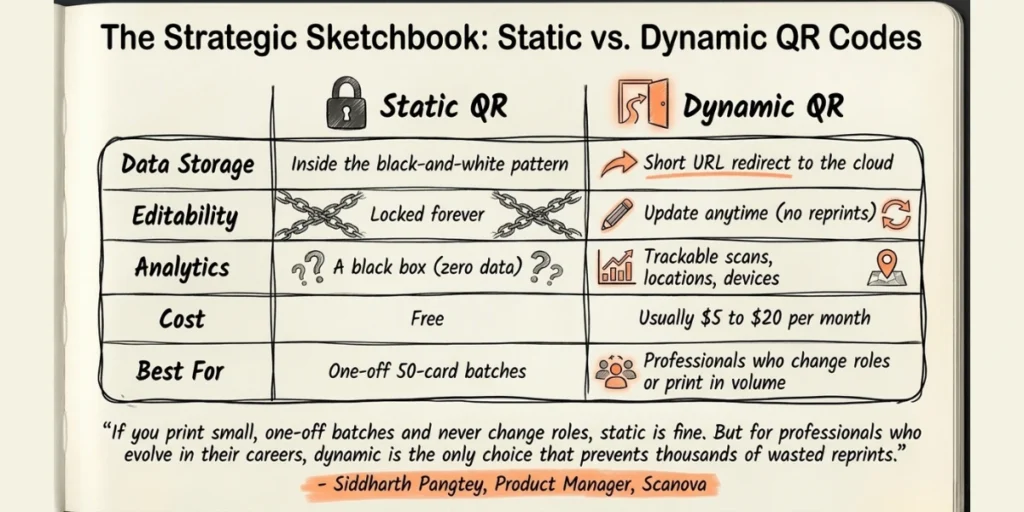
This is the choice most articles dodge. They want you on the paid plan. Let me give you the honest version.
Static QR Codes store your contact details directly inside the black-and-white pattern. They are free. They work offline. Once printed, they are locked. You cannot edit them. You cannot track them.
Dynamic QR Codes point to a short URL that redirects to your details. You can change the destination anytime. You can track scans, location, and device. They usually need a paid plan after a free trial.
Here is when each makes sense.
Pick a static QR Code if:
- Your contact details are unlikely to change for years
- You only need a small batch of cards
- Tracking does not matter to you
- You are testing the format before committing to a tool
Pick a dynamic QR Code if:
- You change roles or phone numbers occasionally
- You want to see who is actually scanning
- You print cards in volume
- You want one card design that survives multiple updates
For most working professionals, dynamic wins. Bitly’s own analysis makes the case plainly: static code stores all the information directly in the pattern, which increases visual density and can make it harder to scan quickly. Dynamic codes encode a short link, which keeps the pattern cleaner and the scan faster.
That said, static is not useless. If you are a freelancer printing 50 cards for one event, static is fine. The trick is to be honest with yourself about which group you are in.
“Based on patterns we see across Scanova’s customers, static QR Codes work well for users with fixed contact details. Dynamic QR Codes are better suited for businesses, sales teams, and professionals who frequently update information or want scan analytics.” — Siddharth Pangtey, Product Manager, Scanova
E. How to create a QR Code visiting card?
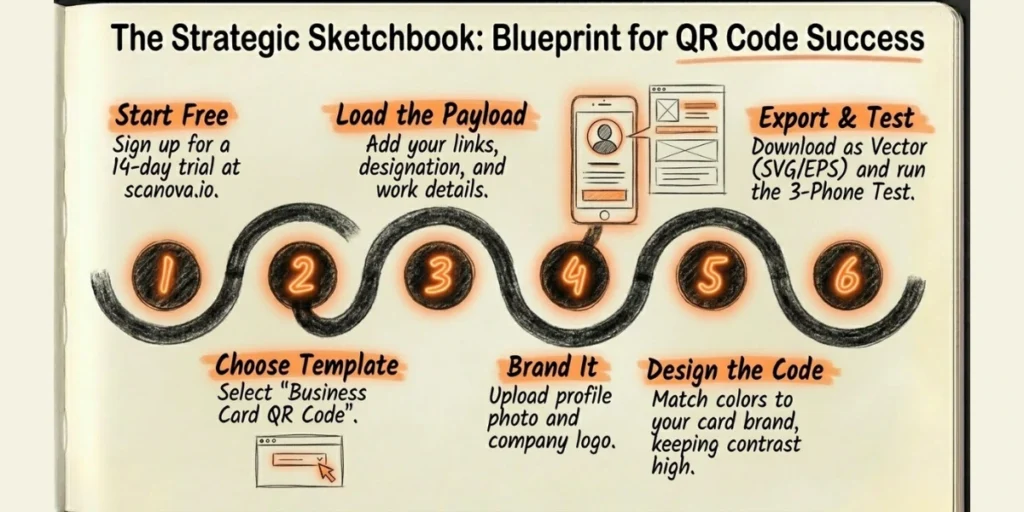
Here is how I would build mine today. I am using Scanova as my example because the flow is clean and the landing page format is built in. The same logic applies to most solid generators.
Here is how I would build mine today in 10 simple steps. The whole process takes about 10 minutes. I am using Scanova as my example because the flow is clean and the landing page is built in. The same logic works for most solid generators.
Step 1: Sign up for the free trial
Go to scanova.io and click “Sign Up Free” in the top-right corner. Enter your name, work email, and a password. Scanova offers a 14-day free trial with no credit card required. Once you confirm your email, the dashboard loads automatically.
Step 2: Start a new QR Code
Look at the left sidebar of the dashboard. Click “QR Codes,” then click the blue “Create QR Code” button at the top right. A list of QR Code types will load on the next screen.
Step 3: Pick the Business Card category and a template
Scroll through the list and click “Business Card QR Code.” This template gives you a ready-made mobile landing page with a “Save to contacts” button. Then pick one of the landing page designs. You can change colors and fonts later, so do not overthink this.
Step 4: Add your name and contact details
Type your full name, job title, and company name in the first section. Then add your work phone, work email, and office address. Double-check every digit. Whatever you type here gets saved to the contact card on the other person’s phone. One missed number, and you are unreachable.
Step 5: Add your work links and social profiles
Paste in your website, LinkedIn, Calendly, WhatsApp, and portfolio. You can add as many as you need. The more useful links, the more reasons someone has to scan twice and save them for later.
Step 6: Upload your photo and logo
Click the upload box in the media section. Pick a clear headshot, around 500×500 pixels for the cleanest result. Then upload your company logo. A PNG file with a transparent background looks best. A friendly face builds trust. A logo builds recognition. Add both if you have them.
Step 7: Name your code and click “Create QR Code”
Give the code an internal name so you can find it later, like “Shivam Business Card 2026.” Add tags if you manage a lot of code. Enable the lead generation form to collect visitor details. Then click “Create QR Code” at the bottom. Your QR Code is now live in your dashboard.
Step 8: Design the QR Code itself
You will now see the design panel. Pick a color that matches your business card. Stick to dark patterns on a light background for the best scan rate. Pick an eye shape and pattern style you like. Then drop your logo into the center. Keep it small, around 20 percent of the code size. Any bigger and scanners may struggle.
Step 9: Preview and test on three phones
Click “Preview” to see what the landing page looks like on a phone. Then scan the code with an iPhone, an Android, and an older phone if you have one. Check three things. Does the page open in under three seconds? Does the “Save to contacts” button work? Do all your links open?
Step 10: Download in vector format and print
Click “Download,” then choose SVG or EPS. Vector files stay sharp at any size, so the code scans on a card, a poster, or a billboard. Email the file to your printer along with your card design. Your QR Code business card is ready to hand out.
F. Design rules that protect your scan rate
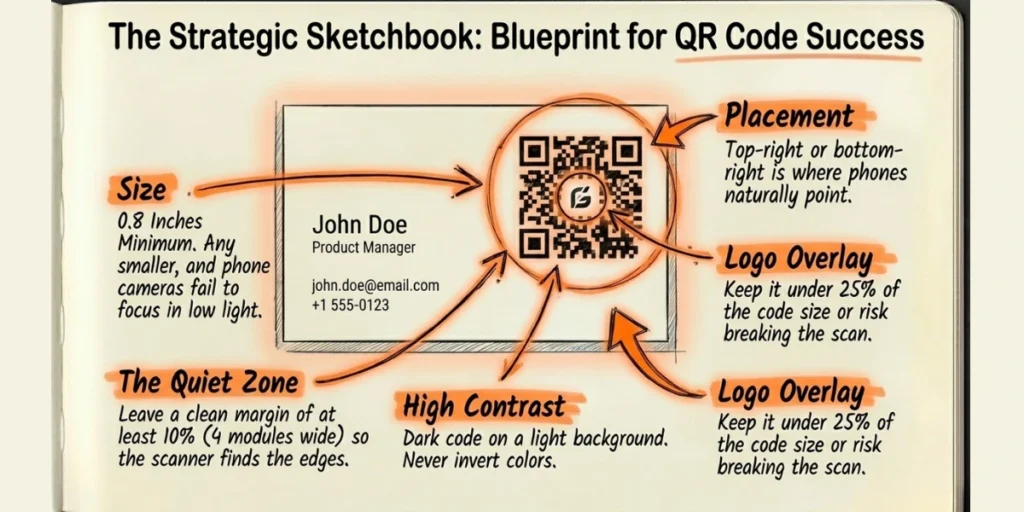
This is where most QR Code visiting cards fail. The code looks fine on screen, then prints small or murky, and half the people who try to scan it give up.
Here are the design rules I follow.
1. Size: at least 0.8 inches per side
A standard visiting card is 3.5 by 2 inches. On that surface, your QR Code should be at least 0.8 inches (2 cm) per side. Smaller than that, and phones struggle to focus in low light.
2. Quiet zone: leave a clean margin
Every QR Code needs empty white space around it. The rule of thumb is at least four modules wide, which works out to roughly 10% of the code’s size. If the scanner cannot find the edges, it will not read the code.
3. Contrast: dark code, light background
Black on white is safest. Dark navy on cream works. Light grey on white does not. Avoid inverting the colors so the code is light and the background is dark. Most phone scanners are trained on dark-on-light.
4. Placement: top-right or bottom-right corner
That is where most people naturally point their phone. Keep your text and design elements on the left side of the card.
5. Logo overlay: less than 25% of the code
You can drop a logo in the center, but keep it small. Tools with high error correction can cover up to 30%. Push past that, and the scan fails.
6. Always test on three phones before bulk printing
iPhone, Android, and one older device. Scan from 6 inches and 12 inches away. If any phone struggles, fix the design before you place the print order.
A single broken code can waste an entire batch of cards. The five minutes of testing pay off the moment you hand over the first card.
G. What to encode beyond name and phone?
A QR Code visiting card can hold more than the basics. The trick is knowing what to add and what to leave out.
Here is what I would include on mine, beyond the standard name, phone, and email.
- Website or portfolio link. This is the single most useful add. Whatever you do, people want to see it before they reply.
- LinkedIn profile. Easier than typing your name into a search and hoping for the right match. One tap, they follow you.
- Calendly or booking link. If your job involves meetings, this is the move. They scan, they pick a time, and you both skip the email tag.
- WhatsApp click-to-chat link. Useful in markets where WhatsApp is the default channel. The link opens a chat with you, prefilled with a greeting.
- Payment links. For freelancers, consultants, and small business owners. UPI, PayPal, or Stripe. Faster than chasing an invoice.
- Apple Wallet or Google Wallet pass. Some tools, including Scanova, let your contact save the card to their phone wallet. Always there, no scrolling through contacts.
The real advantage of a landing page format is that none of this crowds your card. The QR Code stays small and clean. The page does the heavy lifting. Add what is useful. Drop what is not.
H. What are the real use cases by profession?
The “right” QR Code visiting card looks different depending on what you do. Here is how I would set it up for five common roles.
1. Real estate agents
Your card needs to do double duty. The QR Code should point to your active listings page, not just your contact details. A scan becomes a property browse, which becomes a viewing request. Add your WhatsApp link so prospects can reach you instantly during open-house hours.
2. Founders and CEOs
Investors and partners want to see a signal, fast. Point your QR Code at a landing page that surfaces your company website, your latest funding announcement, your LinkedIn, and a strong demo video. Skip the long bio. Let the work speak.
3. Sales reps at conferences
You are handing out cards in a 48-hour window. You need to know which ones turned into anything. A dynamic QR Code with a UTM-tagged landing page tells you which event drove the most scans. Pair it with a lead-capture form that books a follow-up call before they forget your name.
4. Freelancers and consultants
Your card is your portfolio’s front door. Encode a page with your three best case studies, your service tiers, and a Calendly link. Add a Stripe or UPI link for retainers. Make it easy for someone to go from “interesting card” to “let’s chat” in under a minute.
5. Doctors and healthcare professionals
Trust matters more than design here. The landing page should include your qualifications, your clinic address with a Google Maps link, your appointment booking page, and a phone number that goes straight to reception. Keep the design clean. No flashy colors.
The pattern across all five is the same. Match the QR Code’s destination to the single most useful action for that audience. Do not try to do everything.
I. Common mistakes that kill scan rates
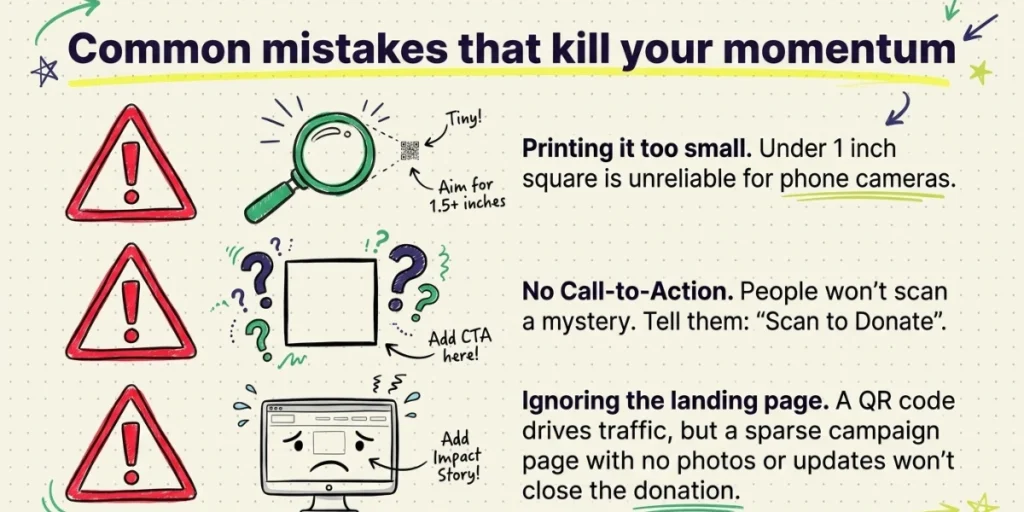
I have seen these slip past even careful designers. Worth a quick checklist.
1. Picking static when you should pick dynamic. If your role, number, or company is likely to change in the next two years, dynamic is safer. You will not need to reprint.
2. No call-to-action next to the code. A bare QR Code is a guessing game. Add a one-line cue: “Scan to save my contact” or “Scan for portfolio.” Small text, big difference.
3. Linking the code to a generic homepage. A homepage is not designed for one person at a coffee meet. Link to a focused page with your photo, role, and a save-to-contacts button.
4. Testing on screen only. The code looks fine on your laptop. It prints muddy on matte stock. Order a sample card first.
5. Skipping analytics setup. If your tool offers scan tracking, turn it on before printing. You cannot get data retroactively for cards already in the wild.
Each one is a five-minute fix at the design stage. Each one is a full-batch reprint after the cards ship.
J. How to track ROI from your QR Code visiting card?
Paper cards give you nothing. A QR Code can give you data if you set it up correctly.
Here is what a dynamic QR Code tool can show you:
- Scan count across weeks, months, or specific events
- Location by city or country
- Device type (iPhone, Android, browser)
- Time and date patterns
Scanova layers a lead-capture form on top of this. When someone scans, they can submit their name and email before saving your contact. That turns a card hand-off into a tracked lead.
You do not need a marketing team to use this. Open the dashboard once a month. See which events brought in scans. Stop printing for those who did not.
K. Frequently asked questions
1. Are QR Code visiting cards safe to use?
Yes, as long as you use a trusted generator. Stick with well-known tools. Reputable generators use clean, secure URLs that scanners trust.
2. Can I update a QR Code visiting card after printing?
Yes, but only with a dynamic QR Code. The pattern stays the same. The destination behind it can change at any time. Static codes are locked once printed.
3. Do QR Code visiting cards work without internet?
Static vCard codes work offline. The phone reads the data straight from the code. Landing page formats need the internet to load the page after the scan.
4. How long does a QR Code on a visiting card last?
A static QR Code lasts forever. A dynamic QR Code remains valid as long as your subscription is active. Cancel the plan, and the redirect stops.
5. What does it cost to create a QR Code visiting card?
Static code analysis is free in most tools. Dynamic codes typically cost $5 to $20 per month, depending on features such as analytics and lead capture.
6. Can I use the same QR Code on multiple cards?
Yes. The same dynamic QR Code can sit on your visiting card, email signature, and event badge. Every scan still routes to your live landing page.
Closing thoughts
Most paper cards end up in a drawer somewhere. The few that do not are the ones that make it easy for the other person to act. A QR Code visiting card does exactly that.
You do not have to overthink it. Pick a generator. Choose the landing page format. Test on three phones. Print a sample first.
If you want to try the version I walked through, Scanova’s Business Card QR Code generator has a 14-day free trial. Build one. Test it. See for yourself before you commit to a print run.