How Do You Download a QR Code? A Step-by-Step Guide

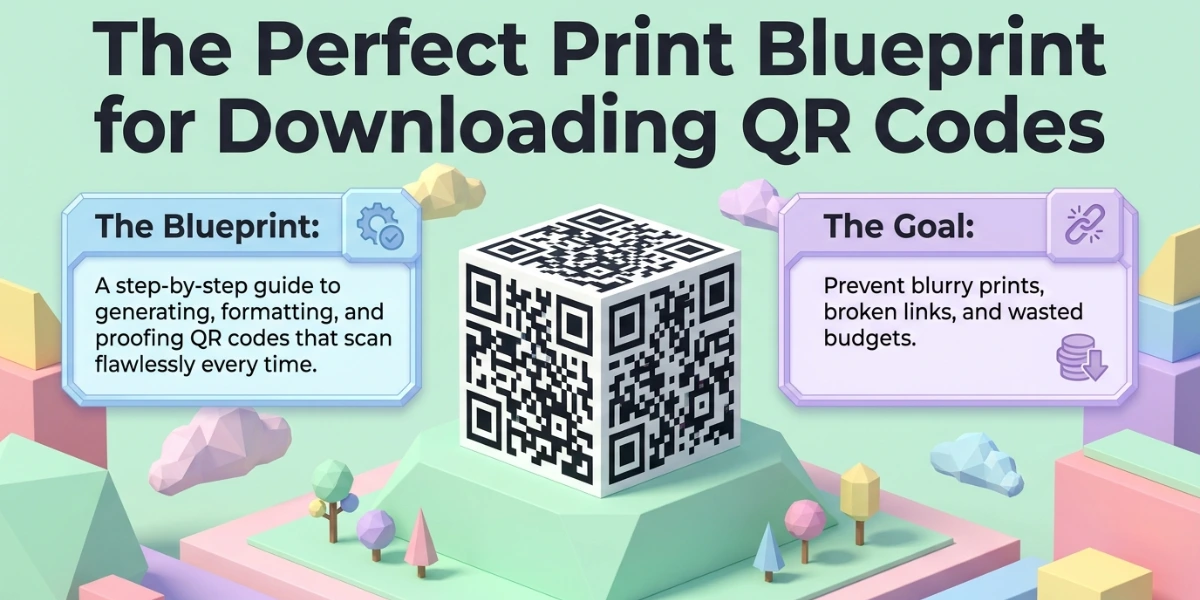
In a nutshell (TL;DR): To download a QR Code, create it in a QR Code generator, run a test scan, pick a file format, and click Download. The file saves to your Downloads folder on desktop or to your gallery on mobile. Choose PNG for digital use and SVG, PDF, or EPS for print. For large prints, always pick a vector format so the code stays sharp at any size. If your content may change later, download a dynamic QR Code so you never need to reprint.
Your poster is at the printer. Your packaging design is approved. Then someone scans the QR Code on the proof and nothing happens. The code is blurry, stretched, or saved in the wrong format. I have seen this exact problem stall campaigns more times than I can count.
So, how do you download a QR Code the right way? You generate the code, test it, choose a format that fits where you will use it, and then save the file. That last choice matters more than most people think.
According to eMarketer data published by Statista, more than 100 million smartphone users in the US were expected to scan QR Codes by 2025. Every one of those scans depends on a file that someone downloaded correctly.
In this guide, I will walk you through the full process. You will learn the exact download steps, which file format to pick, how to get print-ready quality, and how to save a code on any device. I will also share the checks we run at Scanova before a single code goes out the door.
A. What does downloading a QR Code actually mean?
Downloading a QR Code means saving the code as an image file on your device. The QR Code you see on screen is just a preview. The download turns that preview into a real file, such as a PNG or SVG, that you can print, embed, or share anywhere.
This is different from scanning. When you scan a QR Code, your phone reads it and opens the link. Nothing gets saved. When you download a QR Code, you get the actual image file. You own it. You can place it on a business card, a menu, a billboard, or a web page.
One more thing to know before you start. The file is only half the story. A static QR Code locks the destination forever. A dynamic QR Code points to a link you can edit later, even after you print it. We built our platform around dynamic codes for this reason. It means one download can serve a campaign for years.
B. How do you download a QR Code?
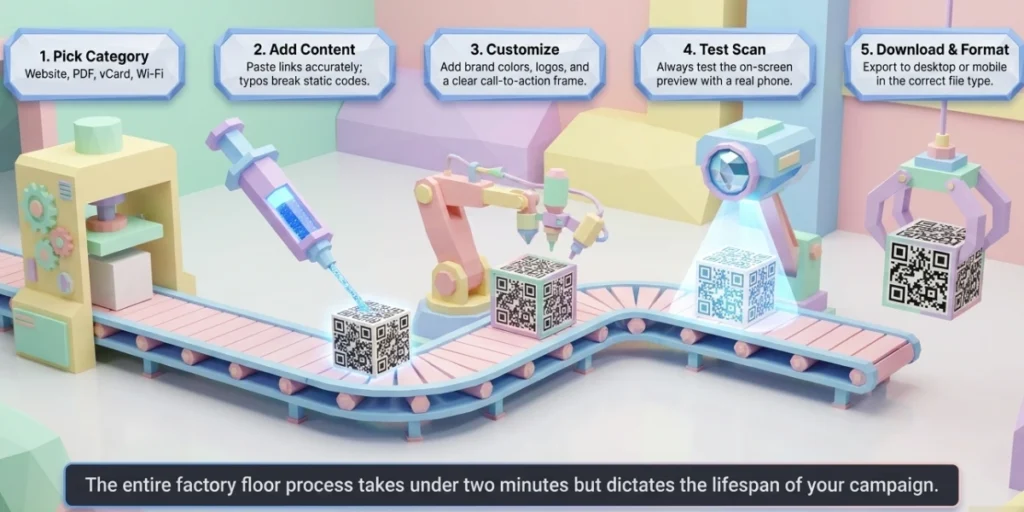
You can download a QR Code in under two minutes. Open our QR Code generator, add your link, customize the design, test it, then click Download in your chosen format. Here is the full process, using our Website URL QR Code as the example.
Step 1: Log in to Scanova and open your dashboard
If you are new, sign up first. It takes less than a minute. Once you log in, you will land on your dashboard.
Step 2: Click QR Codes, then Create QR Code
You will find both options in the sidebar panel. This opens the full list of QR Code categories.
Step 3: Select Website URL QR Code
You will see many categories, such as PDF, vCard, and Wi-Fi. For this guide, pick Website URL QR Code. This code opens a web page when scanned. It is also our most-used category. As per our internal data, it accounts for 74% of all codes created on Scanova.
Step 4: Enter your website link
Paste the full URL in the field, starting with https://. Check it twice. A typo here sends every scanner to the wrong page.
Step 5: Name your QR Code and add tags
Give it a clear name, such as “Summer Sale Poster.” Tags are optional. They help you find the code fast once your list grows.
Step 6: Choose static or dynamic, then click Create QR Code
Pick dynamic if you may need to fix the link later or want to track scans. A static code cannot be changed once it is created. Once you decide, click Create QR Code.
Step 7: Customize the design
Your code now appears on the screen. Make it match your brand. Pick a design template. Set your brand colors. Add your logo in the center. Adjust the pattern shapes if you like. Add a frame with a call to action such as “Scan to visit our website.” Keep the code darker than its background. Strong contrast keeps the code easy to scan.
Step 8: Run a test scan on the preview
A test option appears right below your code. Point your phone camera at the on-screen code. Confirm it opens the correct page and loads well on mobile. Never skip this step.
Step 9: Click Download and pick your format
We let you export the code as PNG, JPG, SVG, PDF, EPS, or PS. Pick the format that matches where the code will live. PNG and JPG work well for screens and digital use. SVG, PDF, and EPS stay sharp at any print size. On the desktop, the file is saved to your Downloads folder. On mobile, it saves to your gallery or Files app.
That is the whole process. If you manage many codes, use our bulk generation feature to create and export whole batches at once. It saves hours on large product label runs.
C. Which file format should you choose for your QR Code download?
Choose PNG for screens and small prints, and choose SVG, PDF, or EPS for professional or large-format printing. The right format depends on one question: is your QR Code going on a screen or on paper?
Formats fall into two families. Raster formats, such as PNG and JPG, are made of pixels. They look great at their saved size but turn blurry when you stretch them.
Vector formats, such as SVG, EPS, and PDF, are made of math, not pixels. You can scale them to any size, even a billboard, and they stay perfectly sharp.
Here is how I decide:
|
Format |
Type |
Best for |
Avoid when |
|
PNG |
Raster |
Websites, emails, social posts, presentations, small flyers |
Printing larger than the saved resolution |
|
JPG |
Raster |
Quick digital sharing where file size matters |
Print jobs; compression can soften the code’s edges |
|
SVG |
Vector |
Design work in Illustrator, Figma, or Canva, plus large prints |
Platforms that only accept photo formats |
|
|
Vector |
Print-ready handoffs to a press or print shop |
Embedding inside web pages |
|
EPS |
Vector |
Billboards, banners, packaging, and pro print workflows |
Everyday digital use |
A few practical notes from our own work. PNG supports transparent backgrounds, which makes it easy to place code over any design.
JPG does not support transparency and its compression can blur fine modules, so I never use JPG for print. SVG is my default for anything a designer will touch. EPS and PDF are what print vendors usually ask for.
Also, downloading in multiple formats costs you nothing. When we ship a campaign at Scanova, we export the same code as a PNG for digital and as an SVG or EPS for print. One code, two files, zero surprises.
D. How do you download a QR Code that prints sharp every time?
Download a vector file, or a raster file large enough for 300 DPI at the final print size. Those two rules prevent almost every blurry QR Code I have ever seen.
Print shops measure sharpness in DPI, or dots per inch, and 300 DPI is the standard for crisp results. A small 500-pixel PNG printed on a poster falls far below that bar, and the modules smear.
A vector file has no resolution limit at all, so it hits the bar at any size. That is why SVG, PDF, and EPS are the safe choice for anything bigger than a flyer.
Size matters just as much as resolution. The Nielsen Norman Group, a leading UX research firm, recommends a minimum size of 2 x 2 cm for reliable scanning, and larger when people scan from a distance.
A simple rule I use: take the farthest scan distance and divide by ten. That is your minimum code width. A code scanned from 1 meter away should be at least 10 cm wide.
Give people time as well as size. As UX researcher Tanner Kohler of Nielsen Norman Group puts it, “assume users need at least 15 seconds to scan a QR Code.” A big, sharp code placed at eye level makes those seconds count.
Two final print checks. First, keep the quiet zone, which is the blank margin around the code. Scanners need it to find the code’s edges.
Second, keep the contrast high. Dark modules on a light background scan best, and inverted or low-contrast codes fail in bright sun or dim rooms.
E. How do you save a QR Code on iPhone, Android, or desktop?
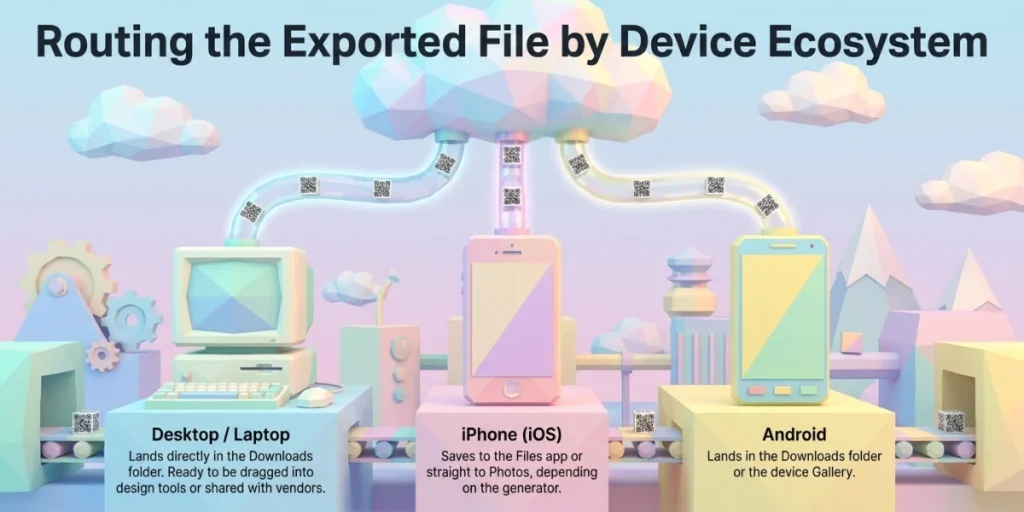
On any device, the download works the same way: generate the code, tap or click Download, and the file saves to your default storage. Where it lands, and how you grab codes outside a generator, differs a little by device. Here is the quick rundown.
On a desktop or laptop. Click Download in your generator. The file goes to your Downloads folder. From there, drag it into your design tool or attach it to an email.
Chrome users get a bonus trick: right-click any web page and choose “Create QR Code for this page,” then click Download. It is handy for quick shares, though these browser codes are static and offer no tracking or editing.
On an iPhone. Tap Download in your generator. Depending on the tool, the code saves to the Files app or straight to Photos. If someone sends you a QR Code image, press and hold it, then tap “Add to Photos.”
Need to save a code that is printed or on another screen? Just photograph it. The image in your camera roll scans like the original.
On an Android phone. Tap Download and the file lands in your Downloads folder or gallery. For a code inside a chat or web page, long-press the image and choose “Download image.” Screenshots work too. Your phone can even scan a QR Code from a saved screenshot through Google Lens.
Saving a QR Code someone sent you. A downloaded QR Code is just an image, so screenshots and photos preserve it perfectly.
One caution: only save and reuse codes from sources you trust. Scammers hide bad links behind clean-looking codes, so check the destination before you share a code onward.
Wherever you save it, name the file clearly. Something like “menu-qr-table-tent-svg” beats “download(3).png” when you search for it six months later.
F. What should you check before you hit download?
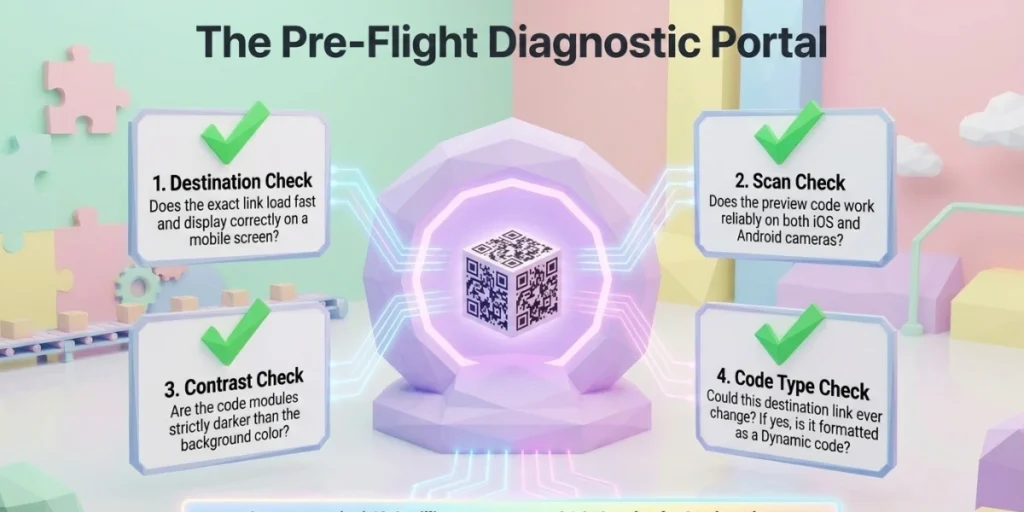
Run four checks before every download: the destination, the scan test, the contrast, and the code type. This two-minute routine is the difference between a code that works for years and a reprint that eats your budget.
Check the destination: Open the exact link your code points to. Confirm it loads fast and looks right on a phone, because almost every scan happens on one.
Check the scan: Test the preview with at least one real phone. If you can, test on both an iPhone and an Android device.
Check the contrast and quiet zone: Confirm the code is darker than its background and has clear space around it. Pretty designs fail when they break these basics.
Check the code type: Ask yourself one question: could this link ever change? If yes, make it dynamic before you download. This choice is permanent for static codes.
The data backs this up. In our Scanova Annual QR Code Performance Report, we tracked 69.9 million scans across 36,810 QR Codes from 211 brands in consumer goods, manufacturing, hotels, and food and beverage.
These are print-heavy industries. Once a code ships on a label or a sign, there is no second chance to download it differently. The brands that get long life from one download are the ones that made it dynamic and tested it first.
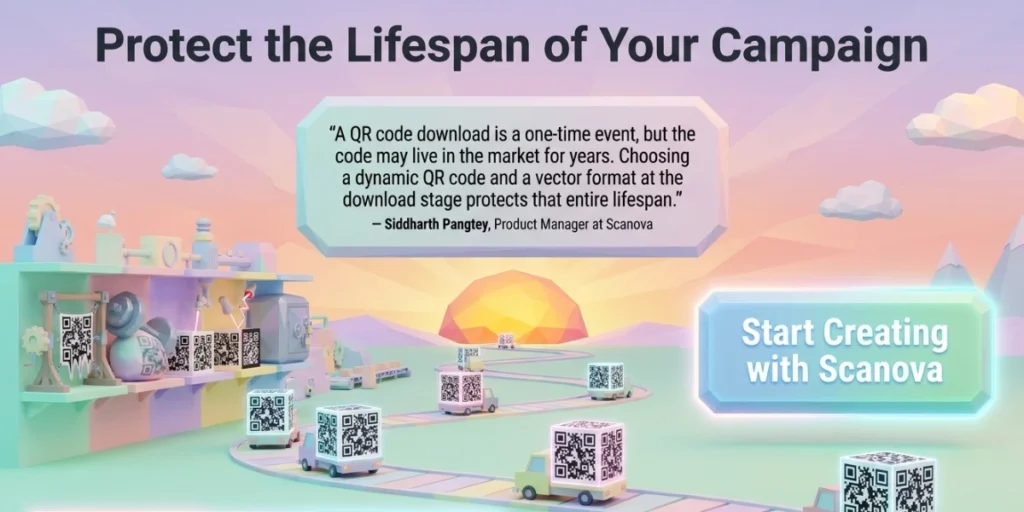
“A QR Code download is a one-time event, but the code may live in the market for years. Choosing a dynamic QR Code and a vector format at the download stage protects that entire lifespan.” — Siddharth Pangtey, Product Manager at Scanova
G. What mistakes should you avoid when you download a QR Code?
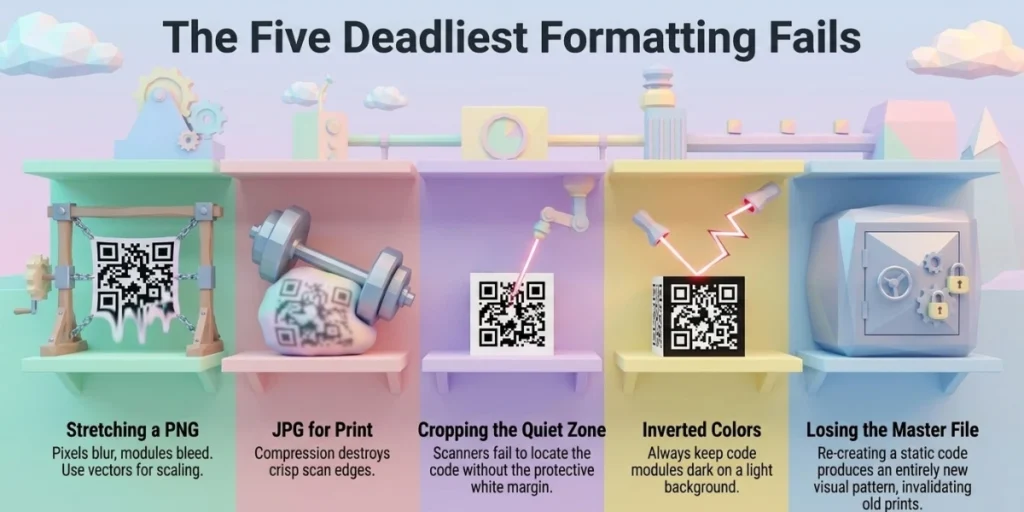
The most common mistake is stretching a small PNG to fit a big print. The pixels blur, the modules bleed into each other, and scan rates drop. If a design needs a bigger code, go back and download a vector file instead.
Here are the other mistakes I see most often:
- Downloading a JPG for print. JPG compression softens edges. It is fine for a quick digital share and wrong for paper.
- Skipping the test scan. A broken link discovered after printing is the most expensive typo in marketing.
- Cropping the quiet zone. Designers sometimes trim the white margin to save space. Scanners then struggle to find the code.
- Using light-on-dark or low-contrast colors. Some phone cameras handle inverted codes. Many scanners do not. Keep it dark on light.
- Downloading a static code for changing content. Menus change. Campaign pages move. A static download locks you in and forces reprints.
- Losing the file. Save your master files in a shared drive with clear names. Re-creating a static code produces a new pattern, so the old prints and the new file will not match.
Avoid these six traps and your downloaded code will do its job quietly for years.
H. FAQs: How do you download a QR Code
1. Can I download a QR Code for free?
Yes. Most generators, including ours, let you create and download a basic QR Code for free. Paid plans add dynamic codes, scan tracking, bulk downloads, and full design control. Free is fine for a one-time static code. Business campaigns usually need the paid features.
2. Where does a downloaded QR Code go on my phone?
On Android, the file lands in your Downloads folder or gallery. On iPhone, it saves to the Files app or Photos, depending on the generator. Scanning a code saves nothing. Only a download or a screenshot stores the image.
3. Which format is best for printing a QR Code?
Use a vector format such as SVG, PDF, or EPS. Vector files scale to any size without losing sharpness, so they work for everything from business cards to billboards. If you must print from a PNG, make sure it delivers at least 300 DPI at the final print size.
4. Can I change a QR Code after downloading it?
You can change the destination of a dynamic QR Code anytime, even after printing, because the image stays the same. You cannot change a static QR Code. Its data is baked into the pattern, so a new link means a new download and a reprint.
5. Why does my downloaded QR Code look blurry?
The file is a raster image that was enlarged past its saved resolution, or it was compressed as a JPG. Fix it by downloading the same code again as an SVG, PDF, or EPS, or as a larger PNG. Never scale a small raster file up.
Ready to download your QR Code?
Downloading a QR Code is easy. Downloading the right file is what protects your print budget and your scan rates. Pick your format with the end use in mind, test before you save, and choose dynamic when the content might change.
We built Scanova to make every step of that process simple, from design to format choice to bulk exports with scan tracking.
For more on where QR adoption is heading, see our roundup of the latest QR Code statistics.