QR Code Generator With Text Below: How It Works in 2026

In a nutshell (TL;DR): A QR Code with text below is a QR Code placed inside a frame with a short label under it. The label is often a call to action (CTA) such as “Scan to View Menu.” The frame sits outside the QR Code’s quiet zone, so it does not hurt scanning. In fact, it lifts scan rates because people know what they will get. To add one, use a QR Code generator with frame support, such as Scanova. Create your QR Code, open the design editor, pick a frame, and type your text. Keep it under five words. Test on iPhone and Android before you print.
Here is a problem we see all the time at Scanova. A business prints a QR Code on a poster. The code works fine. But almost no one scans it. Why? Because a bare QR Code tells people nothing. It gives no reason to pull out a phone.
A short line of text below the code fixes that. And the audience is there. According to a 2025 forecast by eMarketer (Insider Intelligence), 102.6 million smartphone users in the US will scan a QR Code in 2026.
That is roughly one in three Americans. But these users only scan codes that capture their attention and earn their trust.
In this guide, we will explain what a QR Code Generator with text below is and why it works. We will show you how to add one step by step.
You will also learn what the text should say, as well as the design rules and mistakes to avoid. Let’s get into it.
A. What is a QR Code with text below?
A QR Code with text below is a standard QR Code enclosed in a frame. The frame has space under the code for a short text label. That label tells people what the code does. Think of “Scan Me” or “Scan to Book a Table.”
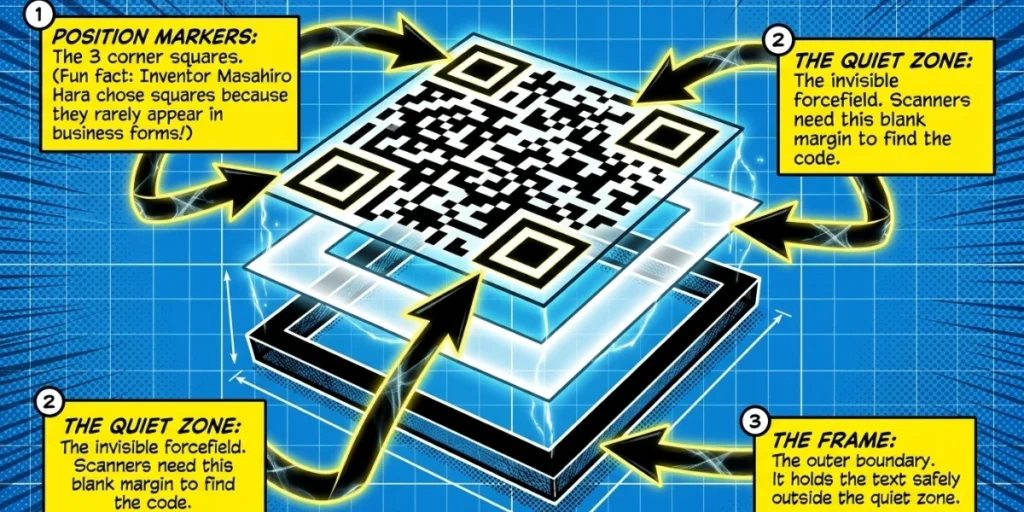
The text is not inside the code itself. It sits on the frame, outside the code’s quiet zone. The quiet zone is the blank margin around every QR Code. Scanners use it to find the code among nearby graphics. As long as the frame respects this margin, the code scans just as well as a plain one.
There is some clever science behind this. Every QR Code has three large squares in its corners.
These are position markers. Masahiro Hara, the inventor of the QR Code, told DENSO WAVE that he chose squares because “it was the pattern least likely to appear on various business forms and the like.”
These markers help a phone spot the code in a busy layout. A proper frame works with this system, not against it.
One quick note to avoid confusion. A QR Code with text below is not the same as a Text QR Code. A Text QR Code stores plain text within the code, which is displayed after scanning.
A QR Code with text below shows its text before the scan, printed under the code. This article is about that printed label. For code styling itself, see our guide to QR Code customization.
B. Why should you add text below your QR Code?
You should add text below your QR Code to turn a mystery box into a clear offer. That single change drives more scans, better trust, and cleaner design. Here is how.
1. It gives people a reason to scan.
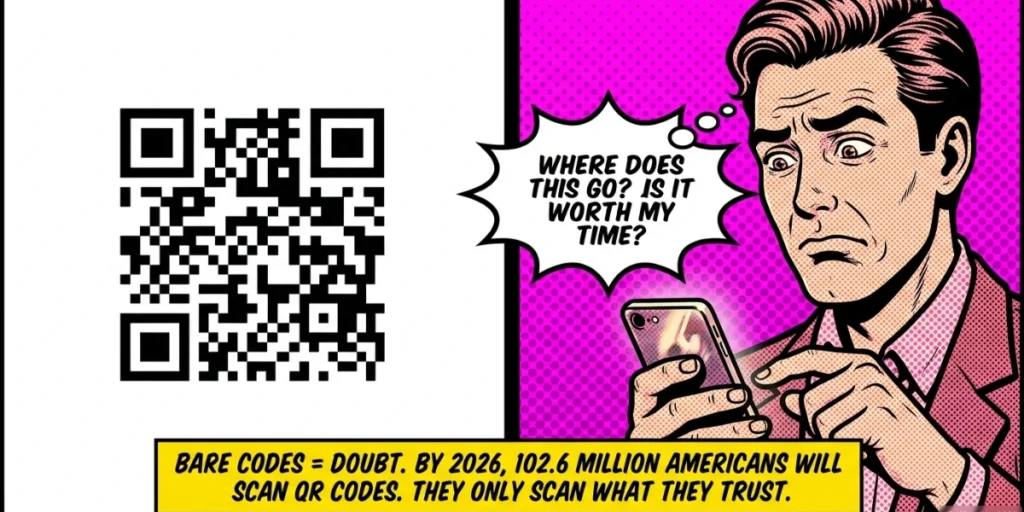
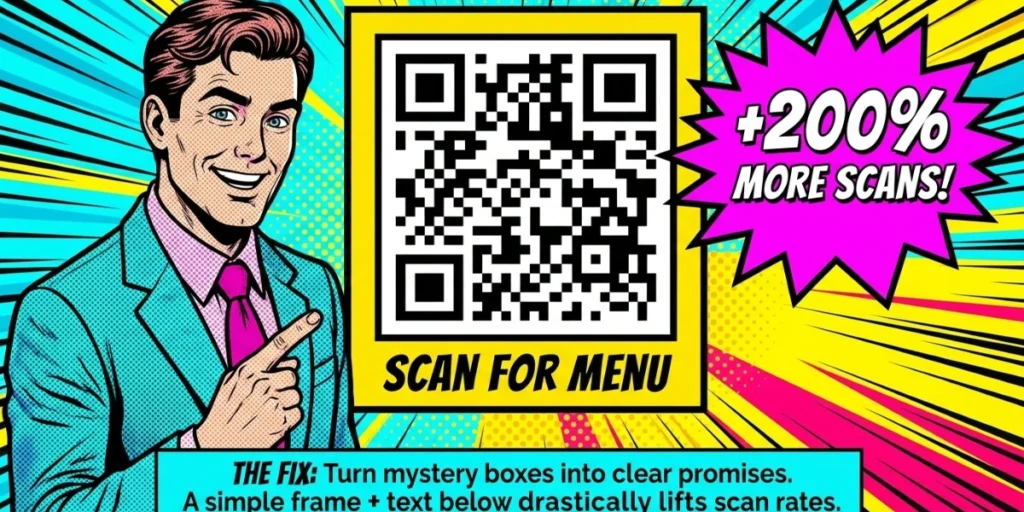
A bare QR Code creates doubt. Where does it go? Is it worth my time? A label answers both in a second. “Scan for 20% Off” is a promise. People act when they know the outcome. Based on what we’ve seen at Scanova, custom QR Codes with design elements like frames and CTAs can attract 50-200% more scans than plain black-and-white codes.
2. It builds trust.
QR Code scams are a real concern. Fake codes that lead to phishing pages are called “quishing.” Reports from the security firm Abnormal Security found that QR-based phishing attacks rose 587% in 2023.
A branded frame with clear text looks intentional and safe. Pair it with your logo, and people can tell your code from a random sticker. We explain this pairing in our guide to creating a QR Code with logo.
3. It sets the right expectations.
The text tells people what happens after the scan. That reduces drop-offs on the landing page. Someone who scans “Watch the Setup Video” expects a video. They stay and watch it.
4. It helps your code stand out in busy designs.
Posters, packaging, and ads are full of graphics. A frame separates the code from the noise and protects the quiet zone.
5. It labels the code’s purpose in professional setups.
Factories put codes on machines. Offices put them on assets. A label like “Scan for Safety Data Sheet” tells a technician exactly which code to use. No guesswork.
“A QR Code by itself doesn’t tell users what they’ll get after scanning it. A well-designed frame CTA adds context and sets the right expectation. In our experience, campaigns that use clear CTAs like ‘Scan to Get 20% Off’ or ‘Scan to View Menu’ often create more intent because users understand the value before they take action.” – Siddharth Pangtey, Product Manager at Scanova
C. How do you add text below a QR Code?
To add text below a QR Code, you need a QR Code generator with a frame feature. The frame holds your text and keeps the quiet zone safe. Here are the exact steps in Scanova. Most professional tools follow a similar flow.
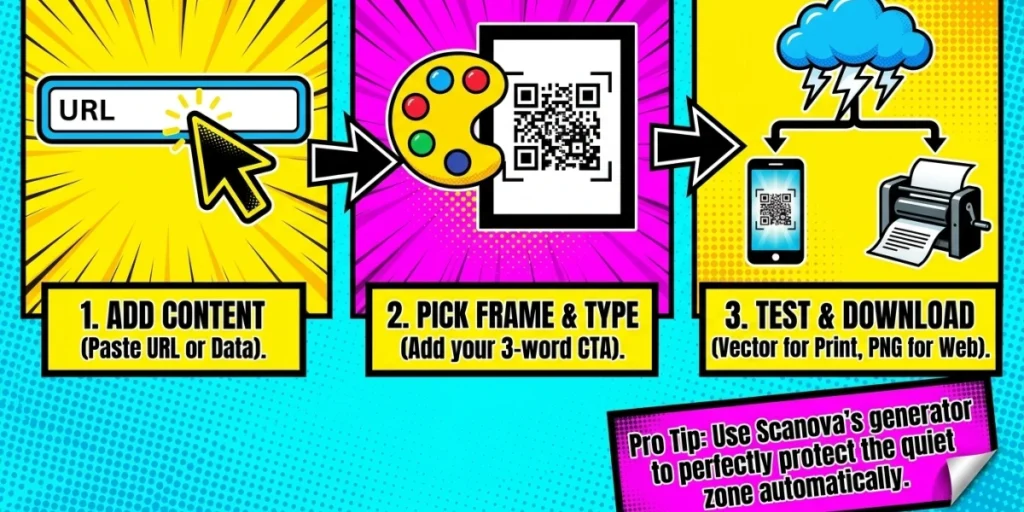
Step 1: Choose your QR Code category
Go to Scanova’s QR Code generator login page. Pick the category that fits your goal, such as Website URL, Menu, vCard Profile, or Social Media.
Step 2: Add your content
Enter the link or details you want the code to hold. Click Continue. Give your QR Code a name and create it.
Step 3: Open the design editor
Click the Edit Design button below your new QR Code. Choose the Custom Logo Design option. The Frame tab opens by default.
Step 4: Pick a frame with text below
Browse the Suggested and All tabs. Choose a frame style that places the text under the code. Then type your CTA into the text field.
Step 5: Style the frame and text
Match the frame color to your brand. Keep a strong contrast between the text and its background. You can also tweak the code’s eyes, data pattern, and colors. For inspiration, see our roundup of QR Code design ideas.
Step 6: Test the QR Code
Scan it with an iPhone and an Android phone. Try different apps, angles, and distances. Check that it opens the right page every time.
Step 7: Download in the right format
Use PNG or JPG for screens and social posts. Use SVG, EPS, or PDF for print. Vector formats stay sharp at any size, from a business card to a billboard.
One honest note. Our free QR Maker tool does not include frames. You will need Scanova’s 14-day free trial to unlock the full QR Code design suite. No credit card is needed.
A tip before you print. If your code links to a web page, use a Dynamic QR Code. You can change where it points at any time, without reprinting. The frame text is fixed once printed, though. So proofread it well.
D. What should the text below your QR Code say?
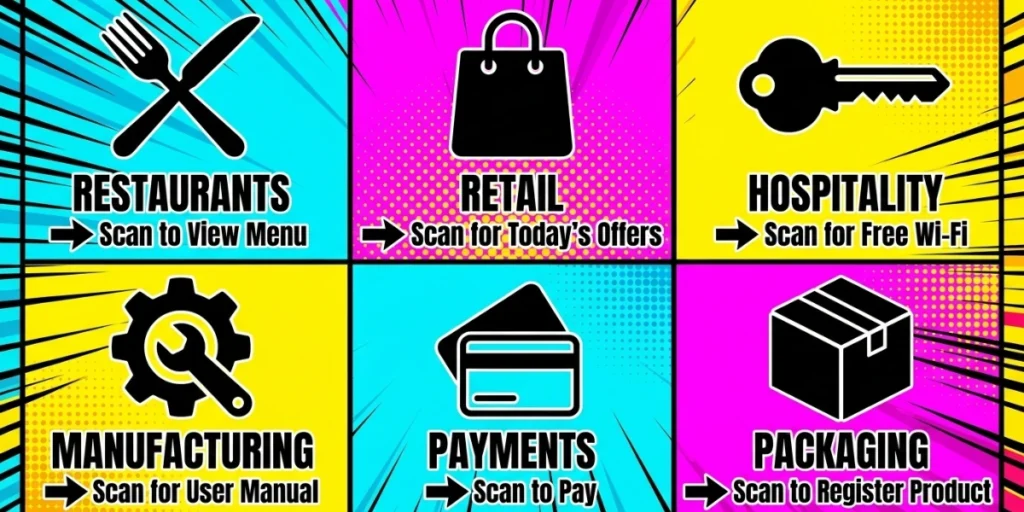
The text below your QR Code should tell people exactly what they get when they scan. Specific beats vague every time. “Scan for Menu” outperforms “Scan Me” because it removes all doubt.
Follow these simple rules when you write your CTA:
- Keep it short. Two to five words is the sweet spot. Longer text shrinks the font and gets hard to read.
- Lead with a verb. Scan, Watch, Get, Book, Order, Register, Pay. Verbs prompt action.
- Name the payoff. A menu, a discount, a video, a booking. Give people the “why.”
- Add value or urgency when it is true. “Scan to Win” works because it promises something real. Never promise what the landing page does not deliver.
Here are proven CTA examples by use case:
|
Use case |
Text below the QR Code |
|
Restaurant table tent |
Scan to View Menu |
|
Product packaging |
Scan to Register Product |
|
Retail shelf or poster |
Scan for Today’s Offers |
|
Hotel room card |
Scan to Order Room Service |
|
Guest Wi-Fi sign |
Scan for Free Wi-Fi |
|
Review request |
Leave Us a Review |
|
Equipment label |
Scan for User Manual |
|
Event flyer |
Scan to Register |
|
Business card |
Scan to Save Contact |
|
Payment counter |
Scan to Pay |
Match the tone to the setting, too. A toy brand can be playful. A bank should be plain. Both should be clear.
E. What are the design rules for text below a QR Code?
The design rules for text below a QR Code all protect one thing: scannability. A stylish code that fails to scan is a wasted print run. Stick to these rules, and you will be safe.
1. Protect the quiet zone
Keep the blank margin around the code clear. Never let text, borders, or graphics touch the code. This is the top reason to use a generator’s frame feature instead of adding text by hand in a design tool. The generator spaces everything correctly for you.
2. Keep the contrast high
Use a dark code on a light background. Do not invert the colors. Most phone cameras struggle with light codes on dark backgrounds. The same rule applies to your text. Dark text on a light frame is easiest to read.
3. Mind the size
We recommend printing QR Codes at 2 x 2 cm (0.8 x 0.8 in) or larger. Scale up for distance. A code on a poster across a room must be much bigger than one on a business card. As a rule of thumb, make the code at least one-tenth of the expected scan distance.
4. Pick a clean font
Use a simple, bold typeface for the CTA. Skip script and decorative fonts. The text must be readable at a glance, even from a few steps away.
5. Use vector files for print
SVG, EPS, and PDF formats scale without losing sharpness. PNG and JPG can blur when enlarged, and blurry codes fail scans.
6. Test before every print run
Scan the final artwork, not just the digital preview. Test in the light conditions where the code will live. Glossy lamination or glass can catch glare, so check for that too.
F. Where do businesses use QR Codes with text below?
Businesses use QR Codes with text below anywhere print meets a customer. The pattern we see across Scanova’s customer base is simple. The best results come from codes on physical things that many people see repeatedly.
Here are the most common setups.
1. Product packaging: Consumer brands print framed codes on boxes, labels, and inserts. The text drives one clear action: “Scan to Register” or “Scan for Recipes.” Packaging will soon get a big push too.
Under GS1’s global “Sunrise 2027” initiative, retail checkouts worldwide are set to move to 2D barcodes, such as QR Codes, by the end of 2027. Brands that build QR habits on packaging now will be ahead of that shift.
2. Hotels and resorts: Hotels place a handful of codes in rooms, lobbies, and pool areas. Each code gets scanned thousands of times. Labels like “Scan for Wi-Fi” make each touchpoint self-serve.
3. Restaurants and cafes: Table tents with “Scan to View Menu” became standard after 2020. They stayed because they work. Clear frame text is what makes a first-time diner comfortable scanning.
4. Manufacturing and field service: Industrial teams label machines and parts with framed codes. “Scan for Manual” or “Scan for Safety Data Sheet” tells a technician what each code holds. It saves time and prevents errors on-site.
5. Banks and branches: Banks add framed codes to in-branch posters, ATM screens, and mailers. Text like “Scan to Apply for a Loan” turns a poster into a lead form.
6. Retail stores: Shelf talkers and window signs with “Scan for Offers” pull shoppers from aisle to app. One chain can deploy hundreds of labeled codes and track each one.
Track your codes with Dynamic QR Codes to see which placements and CTAs win. Scans by location, time, and device tell you where to double down.
This market keeps growing, too. Mordor Intelligence projects the global QR Code market to reach USD 15.23 billion in 2026. For the full picture of adoption, see our roundup of QR Code statistics.
G. Which mistakes should you avoid?
Avoid these seven mistakes, and your QR Code with text below will perform as it should.
1. Using vague text. “Scan Me” is better than nothing. But “Scan for Menu” will always beat it. Say what people get.
2. Adding text by hand in a design tool. Dropping text near a code in a design app risks crowding the quiet zone. One misplaced element can kill scans. Use a built-in frame feature instead.
3. Inverting the colors. Light code on a dark background looks sleek. It also fails on many phones. Keep the code dark and the background light.
4. Writing too much. Long sentences force a tiny font. Tiny fonts get ignored. Five words or fewer.
5. Skipping the test scan. Always test the final file on multiple phones before printing. A typo in static code cannot be fixed after printing. With a Dynamic QR Code, you can at least update the linked page. The frame text, though, is fixed once printed.
6. Sending people to a weak page. The scan is a promise. If the text says “menu,” the page must load a menu, fast, on mobile. A slow or broken page wastes every scan you earned.
7. Forgetting the brand. A plain frame works. A branded frame works harder. Match your colors, add your logo, and the code becomes part of your identity.
H. FAQs: QR Code Generator With Text Below
1. Does adding text below a QR Code affect scanning?
No, adding text below a QR Code does not affect scanning when done right. The text sits on a frame outside the code’s quiet zone. Scanners read the code the same way they read a plain one. Problems arise only if the text or frame intrudes into the quiet zone.
2. What is the best text to put below a QR Code?
The best text below a QR Code is a short, specific call to action of two to five words. It should name the exact payoff, such as “Scan to View Menu” or “Scan for Free Wi-Fi.” Specific text beats vague text like “Scan Me” because it tells people what to expect.
3. Can I edit the text below a QR Code after printing?
No, you cannot edit the text after printing because the frame text is part of the printed image. However, if you use a Dynamic QR Code, you can change the linked content at any time without reprinting. Always proofread your CTA before you send files to print.
4. How big should a QR Code with text below be?
A QR Code with text below should be at least 2 x 2 cm (0.8 x 0.8 in) in print, not counting the frame. Scale it up for distance. A useful rule is to make the code at least one-tenth of the distance from which people will scan it.
5. Which QR Code generator lets me add text below the code?
Any QR Code generator with a frame feature lets you add text below the code. With Scanova, you create your QR Code, click Edit Design, open the Frame tab, and type your CTA. The tool maintains the quiet zone, ensuring the code remains fully scannable.
Ready to create a QR Code with text below?
A QR Code with text below is a small design choice with a big payoff. The text gives people a reason to scan. It turns a silent square into a clear invitation.
The recipe is simple. Pick a specific CTA of five words or fewer. Use a frame, not a hand-placed label. Keep the contrast high and the quiet zone clear. Test on real phones. Then track and improve.
Want to try it now? See how Scanova’s QR Code design tools handle frames, CTAs, logos, and colors in one editor. With the 14-day free trial, your first framed QR Code can be ready in minutes.
Have a question we did not cover? Drop it in the comments, and we will answer it.