Safari QR Code Generator: All You Need To Know


In a nutshell (TL;DR): Safari does not have a built-in QR Code generator. But you can still make one in under a minute. You have three options. First, use an online QR Code generator such as Scanova right inside Safari. Second, add a QR Code extension from the App Store. Third, build a free Apple Shortcut. Online generators are the only option that gives you Dynamic QR Codes. These can be edited and tracked after you print them. Extensions and Shortcuts create static codes that can never be changed.
You found the perfect webpage in Safari. Now you want to share it as a QR Code on a poster, a menu, or a slide. So you look for a “Create QR Code” button. And you find nothing.
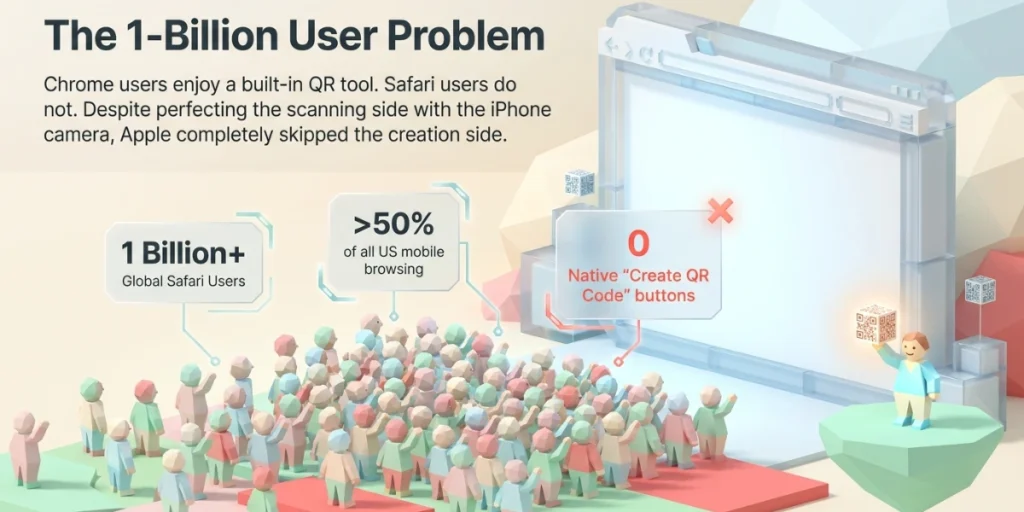
Chrome users get a built-in QR tool. Safari users do not. That gap trips up a lot of people. According to StatCounter, Safari is the second-most-used browser in the world, with more than a billion users. In the US, StatCounter data shows Safari handles over half of all mobile browsing. That is a huge crowd with no native way to make a QR Code.
The good news? You do not need to switch browsers. We will show you three easy ways to create QR Codes in Safari on your iPhone, iPad, or Mac. We will also show you which method lets you edit and track your codes later. Let us start with the fastest option.
A. What is a Safari QR Code Generator?
A Safari QR Code generator is any tool that turns a link or text into a QR Code while you browse in Safari. It is not one single product. It is a category with three types of tools.
The first type is an online QR Code generator. This is a website you open in a Safari tab. You paste your link, design the code, and download it. The second type is a Safari extension. This is a small add-on from the App Store.
It adds a QR button to your Safari toolbar. The third type is an Apple Shortcut. This is a mini automation you build once in the Shortcuts app. It grabs the page you have open and turns it into code.
All three get the same basic job done. But they differ a lot in design options, tracking, and long-term control. Teachers use them to share class links. Shops use them for menus and reviews. Marketers use them to move print readers to web pages. Your use case decides the right tool, so we will break down each one below.
B. Does Safari have a built-in QR Code generator?
No. As of 2026, Safari has no native QR Code generator on iPhone, iPad, or Mac. There is no “Share as QR Code” option in the Safari share sheet or menus.
This surprises many people because Apple handles QR scanning so well. Your iPhone camera reads QR Codes instantly. Safari then opens the link with one tap. So Apple built the reading side, but not the making side.
Google took the other route. Chrome has a built-in “Create QR Code” option in its share menu. That is handy, but it only makes plain, static codes with a small dinosaur logo. You cannot edit the link, change the design, or see scan counts.
Apple’s answer is the Shortcuts app, which we cover below. But for full design and tracking control, an online generator inside Safari is still the strongest path. Here is how each method works.
C. How do you create a QR Code in Safari with an online generator?
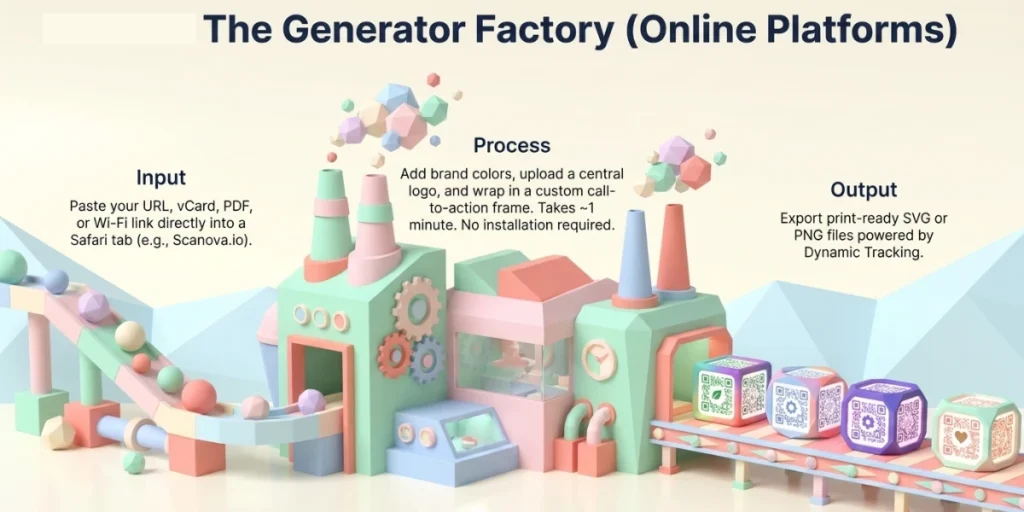
The fastest, full-featured method is to use an online QR Code generator opened in a Safari tab. It works the same way on iPhone, iPad, and Mac. There is nothing to install.
Here is how we do it with a Website URL QR Code on Scanova:
- Open Scanova in Safari. Go to scanova.io in a new Safari tab. Our QR Code generator loads right on the homepage. You do not need to sign up or download anything to start.
- Select Website URL as your category. You will see a row of QR Code categories at the top of the generator. Website URL is the first tab and is usually already selected. This category links your QR Code to any web page. We also support Business Card, Document, Wi-Fi, and 25+ other categories. But Website URL is the most popular pick. As per our internal data, it accounts for 74% of all codes created on our platform.
- Paste your link. Switch to the Safari tab that has your target page. Tap the address bar, copy the URL, and come back to Scanova. Paste it into the “Enter Website URL” field. A green check mark confirms the link is valid. Double-check that it points to the exact page you want people to land on.
- Decide between static and dynamic. A static code is free and works forever, but you can never change it. A dynamic code lets you edit the link and track every scan later. To go dynamic, open Advanced Settings and turn on “Flexibility to Edit URL Later” and “Enable Scan Tracking.” This starts a 14-day free trial, and no credit card is needed. For anything printed, we suggest dynamic.
- Design your QR Code. Pick a ready-made frame from the “Choose QR Design” gallery below the URL field. Want to go further? Open the design editor to add your brand colors, place your logo in the center, and add a call to action such as “Scan to order.” Keep the code dark on a light background so it’s easy to read on every phone.
- Download and test. Export your code as a PNG or JPG for screens, or a print-ready SVG for large formats. Before you share it, point your iPhone camera at the code and scan it. If the right page opens, you are good to go.
The whole flow takes about a minute. On an iPhone, the steps feel just like using any mobile site. We wrote a full walkthrough in our guide on how to make a QR Code on an iPhone.
Why do we favor this method? Design and data. A plain black-and-white square works, but a branded code earns more trust and more scans. And only a dynamic code tells you how it performed after launch.
D. How do you make a QR Code with a Safari extension?
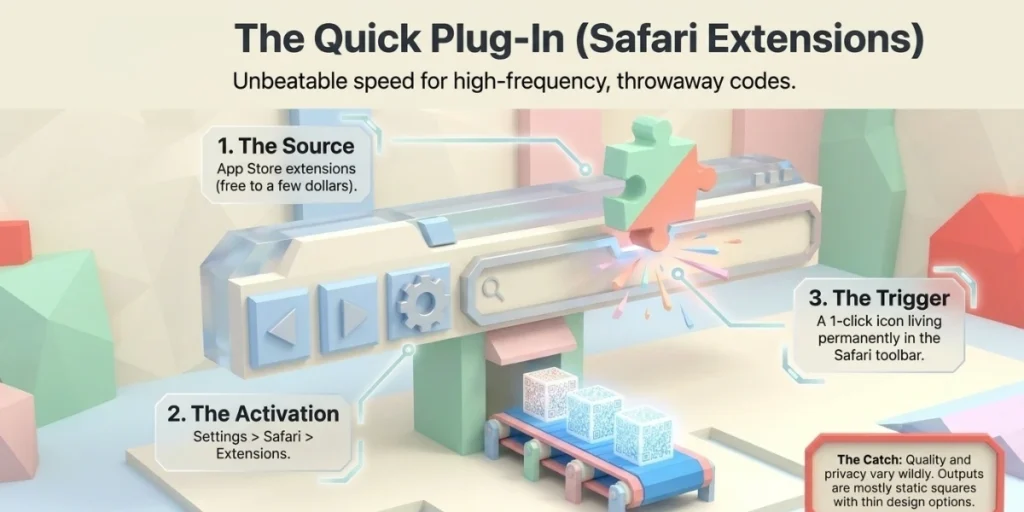
A Safari extension adds a one-click QR button to your browser toolbar. It instantly converts the page you are on into a QR Code. Extensions live in the App Store, and most cost between free and a few dollars.
Here is the setup on a Mac:
- Get the extension. Open the App Store, search “QR code Safari extension,” and install one from a developer you trust.
- Turn it on. Open Safari, go to Settings, then Extensions, and tick the box next to the new extension.
- Use it. Open any webpage, click the QR icon in the toolbar, and your code appears. Copy it or download it as a PNG.
On iPhone and iPad, the path is closed. Install the extension, then go to Settings > Safari > Extensions and switch it on. In Safari, tap the puzzle or extensions icon in the address bar to run it.
Extensions are great for speed. They shine when you make quick, throwaway codes many times a day. But keep three limits in mind. First, almost all of them generate only static code. No edits, no scan data.
Second, design options are thin. Most output a plain square with no logo or colors. Third, quality varies a lot.
Some extensions have few reviews or unclear privacy practices. Since an extension can read the pages you visit, stick to well-reviewed developers and check the App Store privacy labels first.
E. How do you generate a QR Code using Apple shortcuts?
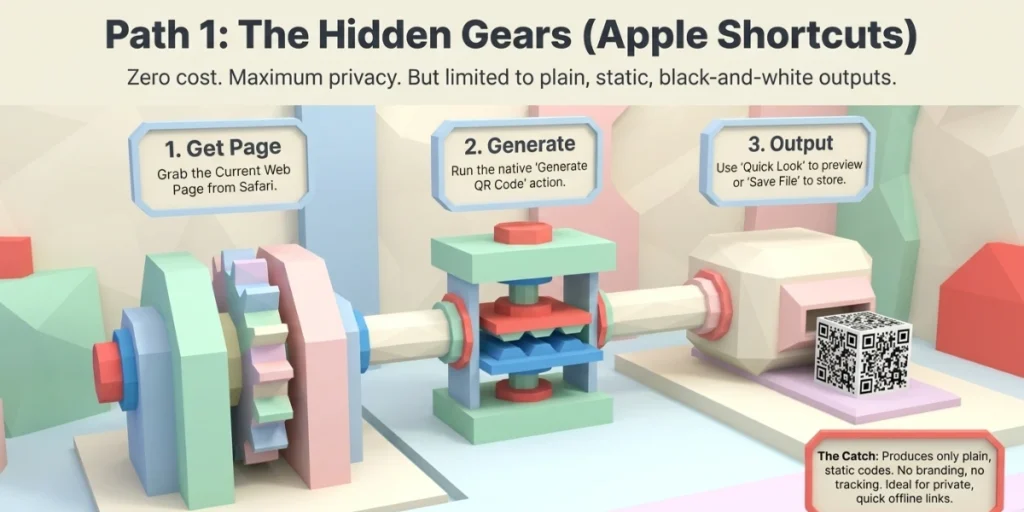
Apple’s Shortcuts app can generate QR Codes for free using the native “Generate QR Code” action. You set it up once, and it works forever, even offline.
Here is a simple recipe for Mac:
- Open the Shortcuts app and click the plus button to start a new shortcut.
- Add the Safari action. Search for “Get Current Web Page from Safari” and add it.
- Add the QR action. Search for “Generate QR Code” and add it below. Set its input to the page URL.
- Add an output step. Add “Quick Look” to preview the code, or “Save File” to store the image.
- Run it. Open any page in Safari, run the shortcut, and your code appears.
On iPhone, swap the first step for “Receive input from Share Sheet.” Then you can open Safari, tap Share on any page, and tap your shortcut. The code pops up right there.
Shortcuts win on privacy and price. Nothing leaves your device, and it costs nothing. Teachers and students love this method for quick classroom links. The trade-offs match the extension route, though.
The output is a bare black-and-white square. It is always static. There is no logo, no frame, no colors, and no way to know if anyone ever scanned it.
F. Which Safari QR Code method should you choose?
Pick based on what the code must do after you create it. For one-off personal use, a Shortcut or extension is fine. For anything customer-facing or printed, use an online generator with Dynamic QR Codes.
Here is the quick comparison:
|
Feature |
Online generator |
Safari extension |
Apple Shortcuts |
|
Setup time |
None |
2 minutes |
5 minutes |
|
Works on iPhone, iPad, Mac |
Yes |
Yes |
Yes |
|
Custom design and logo |
Yes |
Rarely |
No |
|
Dynamic (editable) codes |
Yes |
No |
No |
|
Scan tracking |
Yes |
No |
No |
|
Best for |
Business, print, campaigns |
Quick shares |
Private, offline use |
Think of it this way. A code you text to a friend can be plain and static. A code on 5,000 flyers cannot. One more angle to weigh: risk. A static code with a typo in the URL is dead the moment it is printed.
A dynamic code lets you fix the link in seconds without reprinting a thing. If your code will live on paper, packaging, or signage, that safety net alone settles the choice.
G. Why do dynamic QR Codes matter for Safari users?
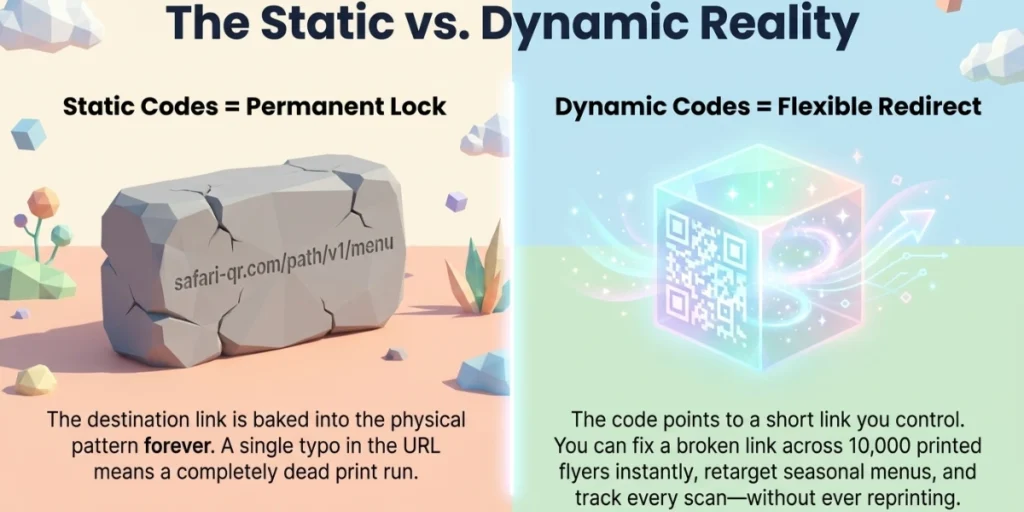
Dynamic QR Codes matter because they stay useful after the download. A static code locks your link inside the pattern forever. A dynamic code points to a short redirect link that you control, so you can change the destination and measure every scan.
The scale of scanning today makes this data too valuable to skip. Masahiro Hara, the engineer at Denso Wave who invented the QR Code, told SBS News, “Never did I imagine people scanning QR codes on the street.” That street-level scanning is now the norm.
According to a Statista report based on eMarketer data, around 100 million smartphone users in the US alone were expected to scan QR Codes by 2025 (Statista).
We see this shift in our own numbers, too. Our latest Annual QR Code Performance Report tracked 69.9 million scans across 36,810 QR Codes used by 211 brands. Most of those scans happened on smartphones, where the link opens in the default browser.
On every iPhone, that default is Safari. So the codes you make in Safari are very often opened in Safari as well.
“For printed campaigns, dynamic QR Codes give brands the flexibility to update the destination, fix errors, and track engagement without reprinting the material. That flexibility turns a one-time print asset into a campaign you can continuously optimize.” — Siddharth Pangtey, Product Manager at Scanova
With a dynamic code, you get a dashboard showing when, where, and on which device people scanned. You can retarget a menu code to a seasonal page. You can fix a broken link across 10,000 printed flyers with one edit. Static code gives you none of that.
H. What are the best practices for QR Codes made in Safari?
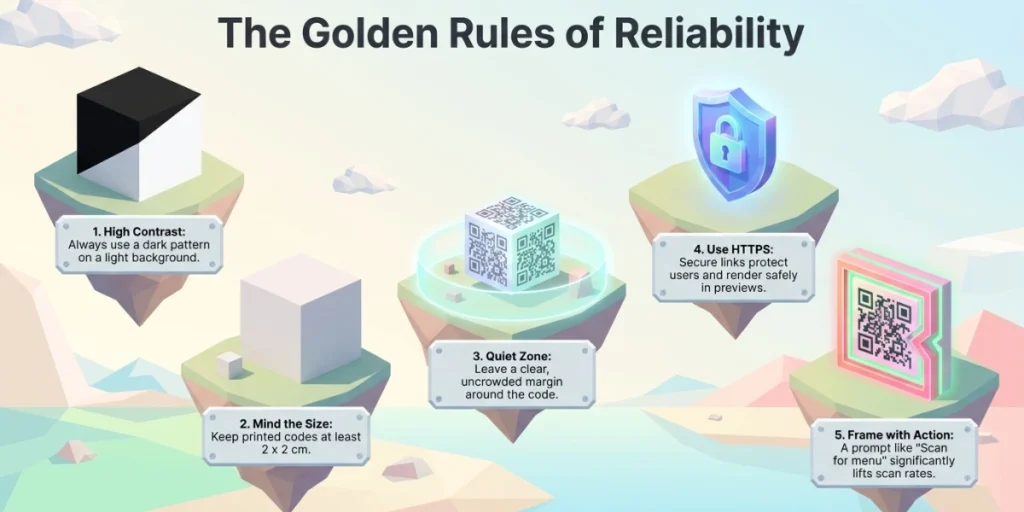
A QR Code only works if it scans fast on the first try. A slow or failed scan means a lost visitor, and most people will not try twice. These habits keep your codes reliable, no matter which Safari method you used to make it.
- Test before you publish: Scan the code with an iPhone and an Android phone from arm’s length. Test the printed version too, not just the screen.
- Keep a strong contrast: Use a dark pattern on a light background. Low contrast is the top reason codes fail to scan.
- Mind the size: For print, keep the code at least 2 x 2 cm (0.8 x 0.8 inches). Bigger is better for posters that people scan from far away.
- Leave a quiet zone: Keep a clear margin around the code. Crowding it with text or art confuses scanners.
- Use HTTPS links only: Secure links protect your users and look safer in the Safari preview.
- Add a frame with a call to action: A short prompt, such as “Scan for the menu,” can significantly boost scans.
- Raise error correction if you add a logo: A logo covers part of the pattern. Higher error correction keeps the code readable anyway.
I. FAQs: Safari QR Code Generator
1. Does Safari have a QR Code generator built in?
No. Safari has no native option to create QR Codes on iPhone, iPad, or Mac. You need an online generator, a Safari extension, or an Apple Shortcut. Safari handles scanned codes very well, but it cannot make them on its own.
2. How do I make a QR Code on my iPhone without an app?
Open Safari and use an online QR Code generator such as Scanova. Paste your link, design the code, and download it to your Photos. No app install is needed, and the whole process takes about a minute.
3. Are Safari QR Code extensions free?
Some are free and some cost one to three dollars in the App Store. Nearly all of them produce static, plain codes with no tracking. Check reviews and privacy labels before you install one.
4. Can I track scans on a QR Code made in Safari?
Yes, but only if you create a Dynamic QR Code with an online generator. Dynamic codes record each scan with time, location, and device data. Codes made with extensions or Shortcuts are static and cannot be tracked.
5. Do QR Codes made in Safari expire?
Static codes never expire. They work as long as the linked page exists. Dynamic codes depend on your generator account staying active, and in return, they give you editing and analytics for life.
Conclusion
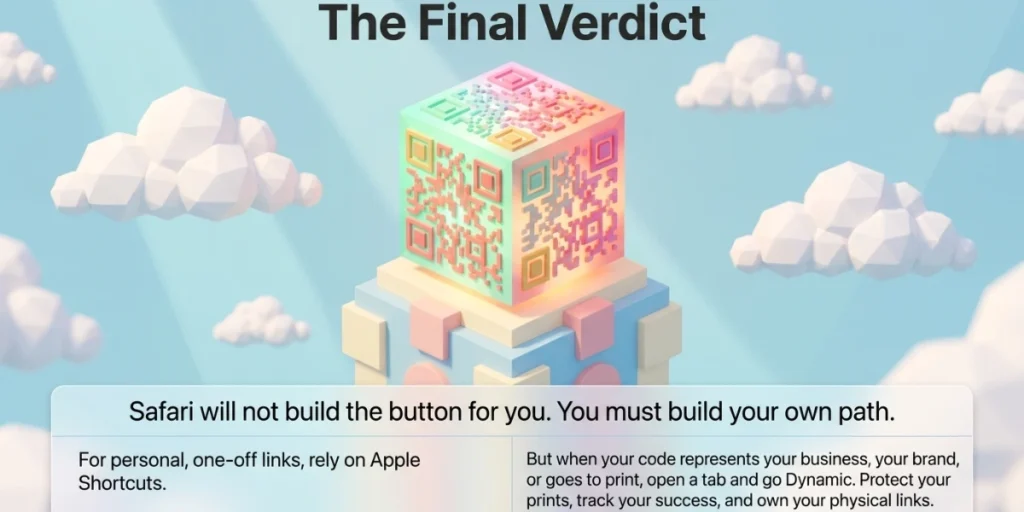
Safari may skip the built-in QR button, but you now have three solid workarounds. Use Apple Shortcuts for free, private, one-off codes.
Use a Safari extension when speed matters most. And when the code represents your brand or goes to print, use an online generator so the code stays editable and trackable.
That last part is where we can help. Our QR Code generator runs directly in Safari on any Apple device, with full design control and built-in scan analytics. See how Scanova’s Dynamic QR Codes work and create your first one in the same Safari tab you are reading this in.