How to add location QR Code in Canva: A Complete Guide


In a nutshell: A location QR Code lets people scan it and instantly open your venue in Google Maps without typing the address manually. To add one in Canva, copy your Google Maps “Share” link, open Canva, use Scanova, paste the link, and generate the code. Canva creates static QR Codes, so if you need to edit the location later or track scans, use a dynamic QR Code solution like Scanova instead.
Have you ever shared a venue address… and still had people call asking for directions?
I have.
Typing addresses is slow. Copy-pasting map links feels messy. And printed invites with just an address? Not very helpful.
That’s where a location QR Code changes everything.
Instead of reading directions, people just scan and open Google Maps instantly.
And this matters more than ever.
According to a report, QR Code usage continues to grow globally, with millions of smartphone users regularly scanning them for everyday interactions. Source: Statista
People are already comfortable scanning. So if you’re designing in Canva, adding a location QR Code is one of the smartest upgrades you can make.
So now, let’s learn how to add location QR Code in Canva.
A. What Is a Location QR Code and Why Should You Use One?
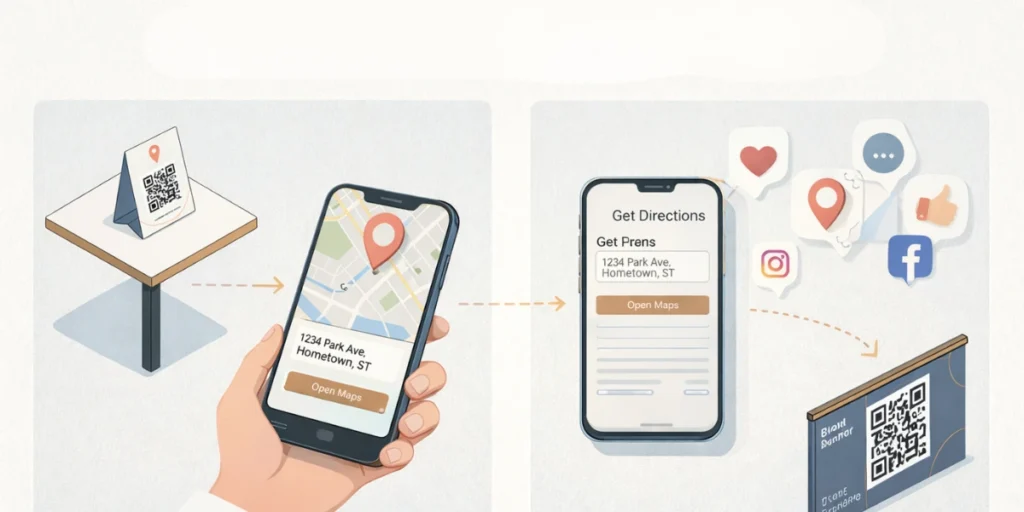
A location QR Code opens a specific location on Google Maps (or any map app) when scanned.
Instead of typing:
“123 Green Avenue, Near City Mall, Opposite Metro Gate 3…”
People just scan. Maps open, and navigation starts.
Simple.
Technically, the QR Code stores a Google Maps URL. When someone scans it, their phone reads the link and opens the exact location pin.
As Jotform explains: “QR Codes direct users instantly to encoded information, making them ideal for connecting physical materials to digital destinations.”
That’s exactly what a location QR Code does. It connects your printed design to live directions.
B. How to Create a Google Maps Link for Your Location (Step-by-Step)
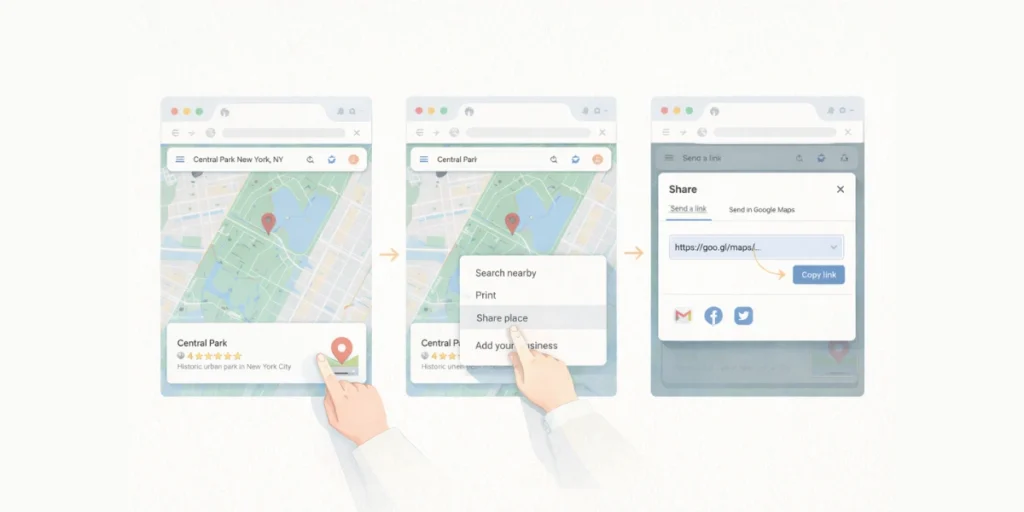
Before adding a location QR Code in Canva, you need one thing:
A clean Google Maps share link.
This step is simple. But it’s important to do it correctly. A wrong pin means people end up at the wrong place.
Let me show you exactly how I do it.
Step 1: Open Google Maps
Go to: https://maps.google.com
You can do this on:
- Desktop
- Android
- iPhone
Step 2: Search for Your Exact Location
Type:
- Business name
OR - Full address
Make sure the correct pin appears.
Important: Zoom in and confirm the exact building entrance. Especially for malls, hospitals, apartment complexes, or large campuses. Small accuracy errors can confuse visitors.
Step 3: Click “Share”
Once the correct location appears:
- Click the location name
- Select Share
- Click Copy link
Now you have a Google Maps URL.
It usually looks like this:
https://goo.gl/maps/abc123xyz
Or sometimes a longer map link.
Both work fine for QR Codes.
Pro Tip: Use the Shortest Clean Link
Google often gives shortened links automatically.
Short links:
- Scan slightly faster
- Look cleaner
- Reduce encoding complexity
So if you see a very long tracking link, use the standard Google “Share” link instead.
Now that you have your Google Maps link ready…
Let’s move to the core of this guide.
C. How to Add Location QR Code in Canva? (Step-by-Step)
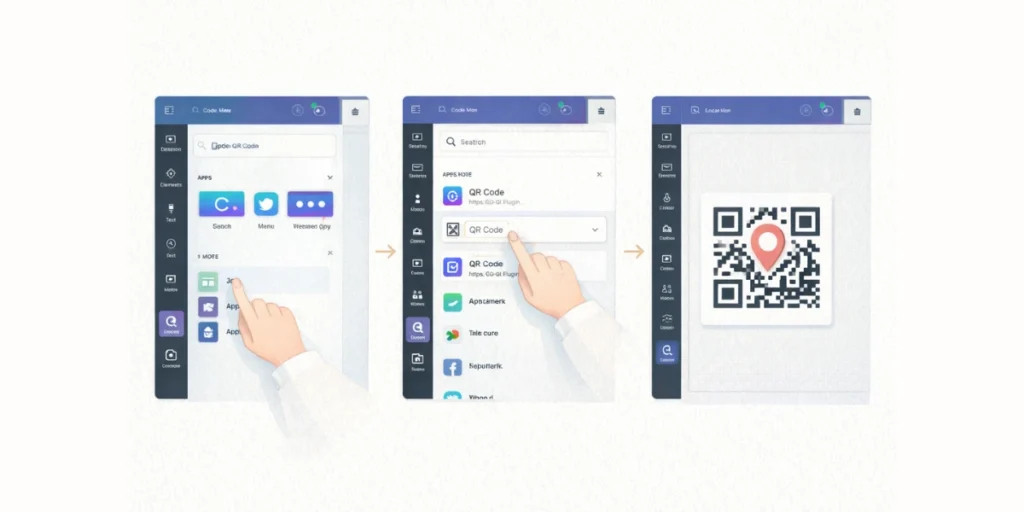
If you are new to QR Codes, don’t worry. You don’t need coding skills or design experience. You just need your Google Maps link.
Before You Start: What You Need
Make sure you have:
- ✅ A Canva account
- ✅ A Google Maps location link
- ✅ A Scanova account (you can sign up if new)
Once you have these, you’re ready.
Step 1: Open Your Design in Canva
- Go to www.canva.com
- Log in to your account.
- Open an existing design
OR
Click Create a Design and choose: - Invitation
- Poster
- Flyer
- Business card
Your blank or existing design will open on screen.
Step 2: Open the Scanova App Inside Canva
On the left side of your Canva screen, you will see a vertical menu.
- Click on Apps.
- In the search bar, type:
Scanova - Click on Scanova QR Code Generator.
If this is your first time:
- Canva will ask you to connect or log in.
- Log in to your Scanova account.
- If you don’t have one, create a free account.
Once connected, the Scanova panel will appear inside Canva.
You do not need to leave Canva.
Step 3: Select the Correct QR Code Type
Scanova offers different QR Code types:
- Website URL
- Image
- Video
- Social media
- And more
For a location QR Code, choose:
Website URL
Why?
Because Google Maps locations are shared using links.
That link is what the QR Code will open.
Step 4: Paste Your Google Maps Location Link
Now:
- Copy your Google Maps share link.
- Paste it into the URL field inside Scanova.
- Click Create QR Code.
In seconds, your location QR Code will appear.
At this point, your QR Code is already working.
But we can improve it.
Step 5: Customize the QR Code (Optional but Recommended)
This is where many beginners stop. But small design changes make a big difference.
Inside Scanova, you can:
- Change QR Code color
- Add your brand color
- Add your logo in the center
- Adjust pattern style
- Modify the corner “eyes.”
If this is your first QR Code, keep it simple:
- Use a dark color on a light background.
- Avoid too many design effects.
- Keep a strong contrast.
Simple designs scan better.
Step 6: Add the QR Code to Your Canva Design
Once ready:
- Click Add to Design.
The QR Code will now appear inside your Canva layout.
You can:
- Drag it to any position.
- Resize it.
- Align it with other elements.
Important: Do Not Make It Too Small
For printed designs:
- Minimum size: about 2 x 2 cm
- Bigger is better for posters
If the QR Code is too small, phones may struggle to scan it.
Add a Clear Instruction
Never place a QR Code without telling people what it does.
Add text like:
- “Scan for directions.”
- “Find us on Google Maps.”
- “Tap to navigate.”
People scan more when given a reason.
Step 7: Test the QR Code Before Downloading
This is very important.
Before you download:
- Click Preview.
- Scan the QR Code using your phone.
- Check:
- Does it open the correct location?
- Does the pin look accurate?
- Does it open smoothly?
Always test before printing.
Step 8: Download Your Final Design
When everything looks good:
- Click Share
- Click Download
- Choose:
- PDF (for print)
- PNG (for social media)
Your location QR Code is now live inside your Canva design.
Why Beginners Prefer Using Scanova Instead of Canva’s Default QR Tool?
Let me explain this simply.
Canva’s built-in QR generator creates a static QR Code.
That means:
- You cannot change the location later.
- If the venue changes, you must reprint.
- You cannot see how many people scanned.
Scanova creates a dynamic QR Code.
That means:
- You can change the location anytime.
- You can track scan numbers.
- You can see device insights.
- You don’t need to reprint if details change.
For weddings or one-time events, static may be fine.
For businesses, marketers, or event planners, dynamic gives more control.
That’s why I personally prefer using the Scanova App inside Canva.
It keeps Canva’s design power and adds the flexibility of professional QR Code management.
Similarly, if you use Adobe tools and need a dedicated QR solution, check out this comparison of the free QR code generator Adobe vs Scanova.
D. Best Design Practices for Location QR Codes in Canva (So They Actually Scan)
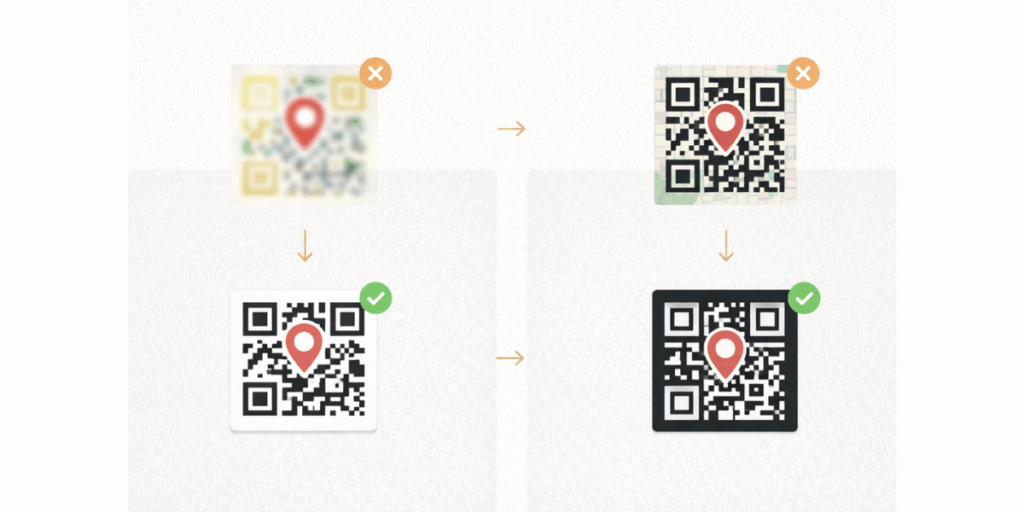
Adding a location QR Code in Canva is easy. Making sure it scans instantly is what matters.
I don’t treat QR Codes as decoration. I treat them as tools. If they don’t scan fast, they fail.
First, size matters more than people think. I never shrink a QR Code just to “fit the layout.” For print, I keep it at least 2 x 2 cm. For posters, I go bigger. Small codes blur. Blurred codes don’t scan well. Bigger is safer.
Next, contrast is everything. I stick to dark on light. Black on white works best. When I see pastel on pastel or QR Codes placed over busy photos, I know scanning will struggle. If I must place it on an image, I add a white box behind it. Clean background. Clear edges.
I also protect the white space around the QR Code. That border is not empty design space. It helps scanners properly detect the code. I never let text or graphics touch the edges.
Another thing I always do is add context. I don’t just place a square and hope people scan it. I add a simple line like “Scan for directions.” People scan when they know what they’re getting.
Customization is great. But I don’t over-design. If I add brand colors or a logo, I keep it subtle. Too many effects reduce clarity. When in doubt, I simplify.
Before printing anything, I test. I scan it from different distances. I try it under different lighting. If it doesn’t scan instantly, I fix it. I never assume it will “probably work.”
Lastly, I think about where it will live. Glossy surfaces reflect light. Reflection kills scan speed. On glossy prints, I increase the size slightly. On large banners, I scale it up.
That’s the standard I design for.
E. Real-Life Use Cases: Where I Add a Location QR Code in Canva Designs
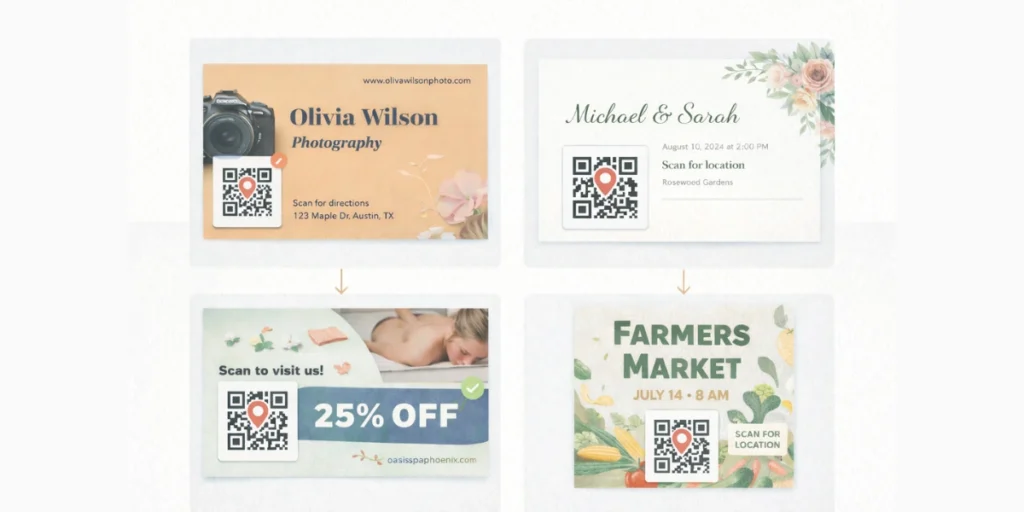
Here’s where I consistently use a location QR Code when designing in Canva, and why:
1. Event Invitations (Weddings, Conferences, Meetups)
I replace long written directions with a simple line: “Scan for directions.” Guests don’t need to type anything. One scan opens Google Maps. It reduces late arrivals and “Where is the venue?” calls.
2. Business Flyers and Posters
When someone sees a flyer, they may not visit immediately. But if they scan and save the location, I’ve created an intent. It turns passive interest into a stored action.
3. Storefront Windows and Outdoor Signage
Not everyone walking by will enter. A location QR Code lets people scan, save the place, and visit later. It works especially well in malls and busy streets.
4. Business Cards
I don’t like cramming full addresses into small cards. A clean QR Code keeps the design minimal while still giving full navigation access.
5. Trade Shows and Exhibitions
Booth numbers are easy to forget. If visitors scan and save the event hall location or booth map, it becomes easier for them to return.
6. Real Estate Brochures and Property Listings
Instead of vague location descriptions, I let buyers scan and open the exact pin. It builds trust because it feels accurate and transparent.
7. Restaurants, Cafes, and Hospitality Businesses
Tourists and first-time visitors often rely on maps. A QR Code removes language barriers and reduces friction.
8. Corporate Offices and Appointment-Based Businesses
Clinics, agencies, and studios benefit from this. Clients can navigate directly without manually copying addresses.
Before I add a location QR Code, I ask myself one simple question:
Does this reduce the user’s effort?
If the answer is yes, I include it.
Because at the end of the day, a location QR Code is not about looking modern. It’s about making navigation effortless.
F. Troubleshooting: What I Do If My Location QR Code Is Not Scanning
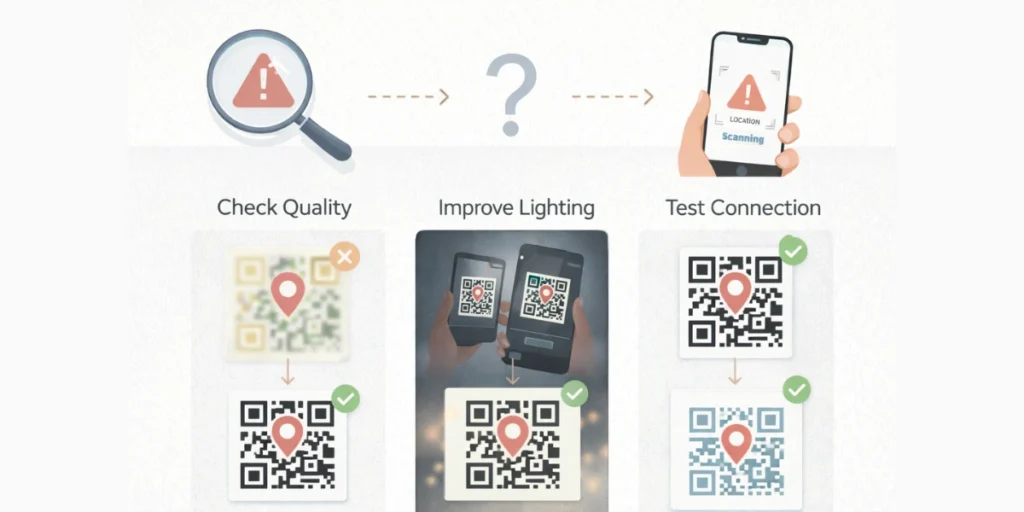
If a location QR Code doesn’t scan instantly, I don’t panic. I diagnose it step by step.
Here’s how I approach it.
1. It Doesn’t Scan at All
Example: You print event invites. Guests say the QR Code doesn’t open anything.
The first thing I check is the Google Maps link. Did I paste the correct one? This is more common than people think. Sometimes we paste the wrong venue, a preview link, or an incomplete URL.
Before generating the QR Code, I always open the link in my browser. If it doesn’t open the exact location there, it won’t work inside the QR Code either. Fix the link first. Then regenerate.
2. It Scans, But Opens the Wrong Location
Imagine a conference venue inside a large mall. The QR Code opens the mall entrance instead of the specific hall.
This usually happens because the wrong pin was selected or the address was typed manually instead of using the exact Maps share link.
I never type the address myself. I drop the pin directly in Google Maps, click “Share,” and copy that link. Precision matters. A small location error creates big confusion.
3. It Scans Only From a Very Close Distance
Example: A poster works when scanned from 10 cm away, but not from 2 feet.
That usually tells me the QR Code is too small or the resolution is low. Sometimes, print quality also softens the edges.
QR Codes need a sharp contrast to scan well. I increase the size slightly and regenerate it in high resolution. If it’s for print, I prefer a high-quality PDF or vector format.
4. It Struggles Under Bright Light
Let’s say your QR Code is on glossy signage outside your store. People try scanning under sunlight. It fails.
That’s glare. Light reflection reduces contrast and makes scanning harder. I fix this by slightly increasing the QR Code size and improving contrast.
If possible, I switch to a matte finish instead of a glossy one. Lighting conditions matter more than most people realize.
5. It Doesn’t Scan on Some Phones
Sometimes older phones struggle with low-contrast or heavily customized QR Codes.
If I’ve added fancy gradients, very light brand colors, or an oversized logo in the center, I simplify it.
Clean black on white almost always works. When scan reliability drops, I remove design complexity first. Simplicity solves most scanning issues.
6. The Venue Changes After Printing
Example: A workshop hall changes at the last minute.
If I used a static QR Code, I can’t fix it. The only solution is to reprint everything. But if I used a dynamic QR Code, like through Scanova, I just update the destination in the dashboard.
The printed QR Code stays the same. This is why I think ahead before choosing static or dynamic.
Final Thoughts: Is Canva Enough for Location QR Codes?
For simple, one-time use cases, Canva is enough. If I’m designing a wedding invite or a fixed office address, I can paste the Google Maps link, generate a static QR Code, and move on.
But if there’s even a small chance the location might change, or if I want scan data and flexibility, Canva alone feels limiting. In those cases, I prefer using a dynamic QR Code via the Scanova App in Canva.
I still design in Canva, but I keep control over edits and tracking. For me, the choice comes down to one thing: do I just need a QR Code, or do I need flexibility later?
FAQs: How to add location QR Code in Canva?
1. How do I add a location QR Code in Canva?
To add a location QR Code in Canva, first copy your Google Maps share link. Then open Canva, go to Apps, and use either the built-in QR Code generator or the Scanova App. Paste the link, generate the QR Code, and insert it into your design.
2. How do I create a Google Maps QR Code in Canva?
To create a Google Maps QR Code in Canva, copy your Google Maps location link and paste it into Canva’s QR Code app. Canva generates a static QR Code instantly. For editable and trackable QR Codes, use a dynamic tool like Scanova inside Canva.
3. What is a location QR Code?
A location QR Code is a QR Code that opens a specific place in Google Maps when scanned. It stores a map link, allowing users to navigate instantly without typing the address manually.
4. Can I change the location after creating a QR Code in Canva?
You cannot change the location of a static QR Code you created in Canva. Static QR Codes are permanent. To edit the location later without reprinting, you must use a dynamic QR Code solution.
5. What is the difference between static and dynamic location QR Codes?
A static location QR Code stores the final Google Maps link permanently. It cannot be edited. A dynamic location QR Code uses a redirect link, allowing you to update the destination and track scan data even after printing.
6. Why is my Canva location QR Code not scanning?
A Canva location QR Code may not scan if it is too small, has low contrast, lacks white space, or was downloaded in low resolution. Always use high contrast colors, proper sizing, and test the QR Code before printing.
7. What size should a location QR Code be for print?
For print materials, a location QR Code should be at least 2 x 2 cm. For posters or outdoor signage, increase the size for better scan reliability and visibility from a distance.
8. Can I track scans of a location QR Code created in Canva?
You cannot track scans with Canva’s static QR Code generator. To track scan analytics, device type, and location data, you need a dynamic QR Code platform like Scanova.
9. Does a Google Maps QR Code work internationally?
Yes. A Google Maps QR Code works globally as long as the user has access to Google Maps or a compatible map app. It automatically opens the saved location on their device.
10. Is it better to use a dynamic QR Code for business locations?
Yes. A dynamic QR Code is better for business locations because it allows you to update the address anytime and track scan data. This prevents reprinting costs if the location changes.