QR Code Wallpaper: All You Need To Know

In a nutshell (TL;DR): A QR Code wallpaper is a lock screen, home screen, or printed background with a working QR Code built in. Point a phone camera at it, and it opens your WiFi network, your contact card, your portfolio, or a payment link. Americans check their phones 186 times a day. And 91% of US adults own a smartphone. That is a lot of screen time going to waste. This guide covers 9 real uses, setup steps for iPhone and Android, why your link type matters, static vs. dynamic tradeoffs, design rules that keep the code scannable, and an honest look at safety.
Here is the short version. A QR Code wallpaper turns idle screen space into a working tool. Instead of a photo or a gradient, your lock screen carries a scannable square. Point a camera at it, and it hands over one piece of information right away.
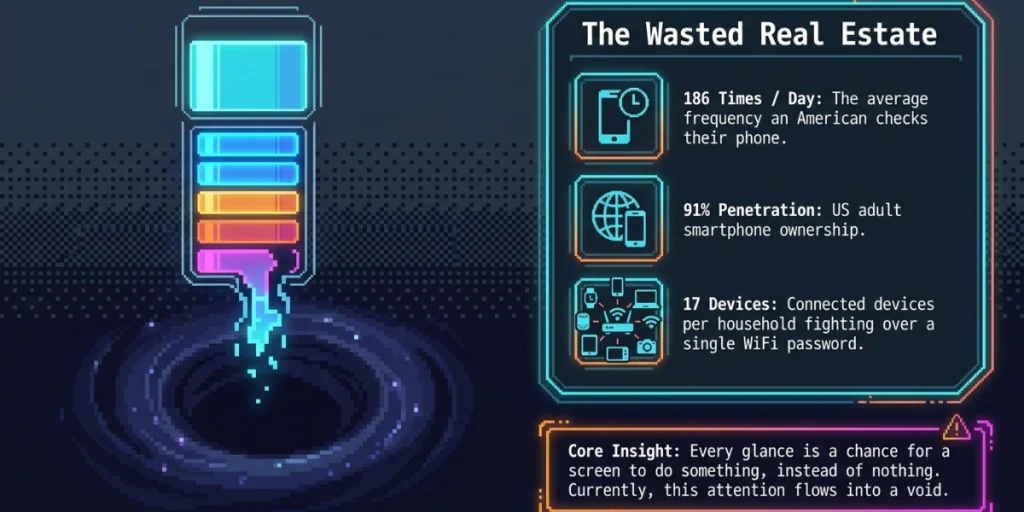
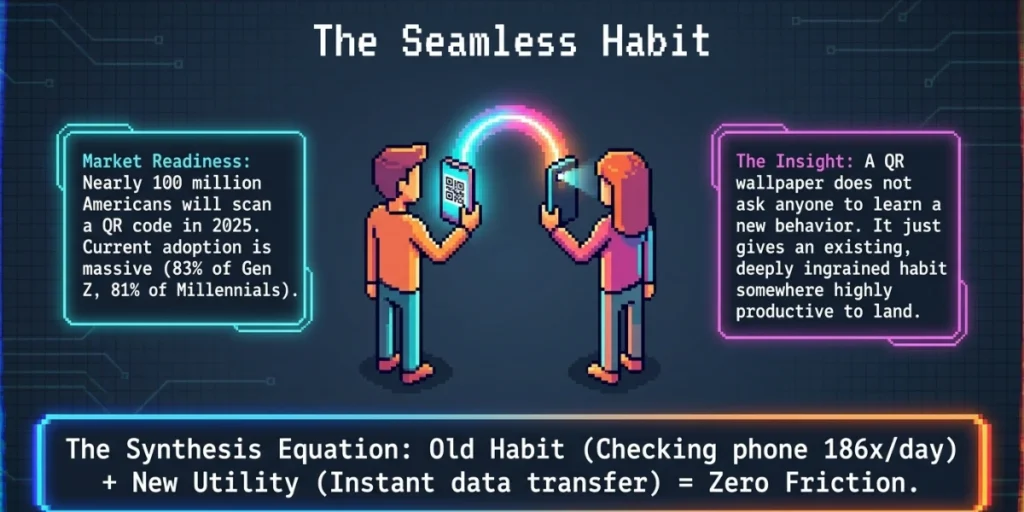
The timing makes sense. The average American checks their phone 186 times a day, according to a 2026 survey by Reviews.org. Nine in ten US adults now own a smartphone, per Pew Research Center.
And the average US household has 17 connected devices fighting over one WiFi password, says Parks Associates. Somewhere in that mix sits a screen you check all day.
Somewhere else sits one piece of information — a password, a contact, a link — that you repeat by hand each time someone asks. A wallpaper puts the two together.
I build QR tools at Scanova. I have tested this trend from both sides: the quick phone-lock-screen version, and the version teams rely on for events, cafes, and networking.
In this guide, I share what makes a QR Code wallpaper work, where it breaks, and how to build one that still works next month.
A. What is a QR Code wallpaper?
A QR Code wallpaper is any background image with a scannable QR Code on it. It could be a phone lock screen, a home screen, a desktop, or a printed backdrop. The code sits inside the design like a logo.
But it carries real data: a link, a WiFi network, or a contact card. Scan it, and that data opens in about a second.
Think of it as a QR Code you wear. A sticker QR Code sits on a wall or a menu. It waits for someone to walk past. A wallpaper QR Code sits on the screen you already hold up all day. Whoever stands near you sees it: a colleague at your desk, a guest at your door, a stranger across a table.
B. Why are people putting QR Codes on their lock screens?
Because the same question keeps coming up, and a wallpaper answers it without a word. “What’s the WiFi password?” “Can I get your number?” “Do you have a website?” Each one used to mean unlocking your phone, opening an app, and typing something out by hand. A QR Code wallpaper skips all three steps.
The math is simple. Almost every adult you know carries a smartphone. Each one gets checked hundreds of times a day, as the stats above show. Every glance is a chance for a QR Code to do something, instead of nothing.
And in a household juggling 17 connected devices, “what’s the WiFi password” is not a rare question. Guests ask it. Cousins ask it. Repair technicians ask it.
QR scanning itself is no longer a novelty. Nearly 100 million Americans are projected to scan a QR Code in 2025. And 68% of US consumers scanned at least one in the past year, per Scanova’s own 2026 statistics report. Among Gen Z and Millennials, adoption runs even higher: 83% and 81%.
A wallpaper QR Code does not ask anyone to learn a new habit. It just gives an old habit somewhere new to land.
C. 9 smart ways to use a QR Code wallpaper
A QR Code wallpaper is not one idea. It is a format. The use case decides what goes inside the code. Here are 9 that hold up in daily use.
|
Use case |
What the scan delivers |
|---|---|
|
1. Home WiFi network |
Guests self-connect, no shouted password |
|
2. Café or restaurant staff wallpaper |
New hires and regulars join staff WiFi in one scan |
|
3. Digital business card (vCard) |
Name, number, and email save straight to a contact |
|
4. Link-in-bio / social hub |
One scan opens every social profile you run |
|
5. Portfolio or resume |
Job fairs and interviews, no fumbling for a link |
|
6. Tip or payment page |
Freelancers, delivery drivers, street performers |
|
7. Emergency or medical info |
First responders scan a locked phone’s cover screen |
|
8. Conference or event badge screen |
Lead capture without a paper badge |
|
9. Desktop background at a kiosk or register |
Staff or customers scan a menu, catalog, or form |
Three of these deserve a closer look.
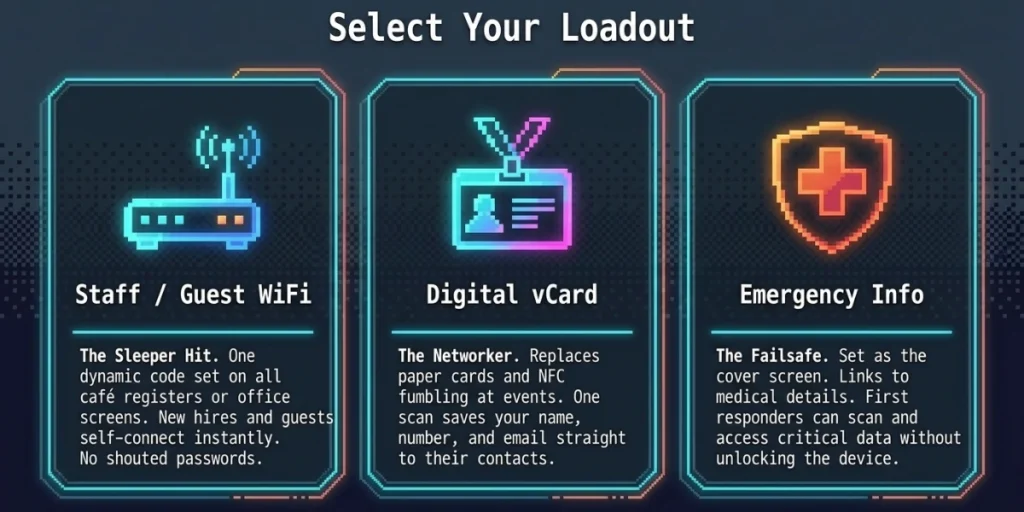
The staff WiFi wallpaper is the sleeper hit for small businesses. A café can set one dynamic QR Code as the wallpaper on every register and staff phone. New hires and regulars connect fast, with no “ask the manager.”
Update the router password once, and every phone stays correct. More on why that matters in the static-vs-dynamic section below.
A vCard wallpaper replaces the paper business card at events. No app. No fumbling with NFC. No lost card in a jacket pocket. Whoever scans it saves your name, number, and email straight to their contacts. Scanova’s guide to dynamic vCard QR Codes covers how to keep that card current after a job change.
The emergency-info wallpaper is the quiet, useful one. Set it as your lock screen’s cover-screen wallpaper. Link it to your medical details or an emergency contact. A first responder can scan it without ever unlocking your phone.
D. How do you make a QR Code wallpaper?
Making one takes about ten minutes. The design takes longer than the code. Here is the full process, whether you use Scanova, Canva, or a wallpaper app.
1. Decide what the code should open
Pick one job for the wallpaper. A WiFi network, a contact card, a portfolio link, or a payment page. One code, one job. Two codes on one screen confuse people, and a phone camera often grabs the wrong one. If you need two jobs done, make two wallpapers: one for the lock screen, one for the home screen.
2. Choose static or dynamic
Ask yourself one question: could this information change? A router password, a job title, a phone number, or a link all change eventually.
If the answer is yes, use a dynamic QR Code so you can edit the destination later without redesigning anything. If the answer is a firm no, a static code is free and fine. The next section covers the tradeoff in full.
3. Sign in to your QR Code generator
Static codes usually work without an account. Dynamic codes always need one, because the destination has to live somewhere you can log back into and edit. Sign in to Scanova here, or start a free trial from the same screen if you do not have an account yet.
One tip that saves trouble later: register the account to an email you will still have in two years, not a personal address you might lose. A wallpaper code on a whole team’s phones is only as durable as the login behind it.
4. Generate the code
Pick the QR Code type that matches step 1: Website URL, WiFi, or vCard. Fill in the fields, and your code is ready in under a minute. Two settings matter here.
Set error correction to a higher level if you plan to add a logo or rounded styling. And keep the code plain black on white at this stage. You can add color later, once you know the plain version scans.
5. Download it, then build the wallpaper around it
Export the code as a transparent PNG or an SVG. Then open your background image in Canva, Photoshop, or your phone’s photo editor. Three rules keep it scannable:
- Put a solid, light block behind the code. Never place it straight onto a photo or a gradient. A busy background is the number one reason wallpaper codes fail.
- Give the code room. Leave a clear margin around all four edges, about the width of four of its smallest squares.
- Size the canvas to your phone. Roughly 1170 x 2532 pixels for a recent iPhone, or 1080 x 2400 for most Android phones. Keep the code at least 600 pixels wide inside that canvas.
Place the code in the lower middle of the screen. The top is where the clock and notifications sit.
6. Set it as your wallpaper
- iPhone: Settings > Wallpaper > Add New Wallpaper > Photos. Choose your image, then tap Add. Assign it to the Lock Screen, the Home Screen, or both. Turn off Depth Effect if it pushes part of the image over your code.
- Android: Settings > Wallpaper & style > Change wallpaper. Wording varies by phone maker, so look for “Wallpaper” in Settings search. Choose your image, then pick Lock screen, Home screen, or both.
Check the preview before you save. Phones crop wallpapers, and a crop can eat the quiet zone you just protected.
7. Test it before you rely on it
Lock your phone. Then scan your own lock screen with a second phone, the way a guest would. Test three conditions: dim light, arm’s length, and a slight angle. Also check that the scan opens the right thing, not just that the camera reads the code. If a scan takes more than two seconds, make the code bigger or raise the contrast, then test again.
Building the code first? Scanova’s WiFi QR Code generator and vCard tools walk through each field before you touch a design app.
E. Which link type works best on a wallpaper?
Not every link behaves the same way once a stranger scans it. Here is how the main options compare for wallpaper use.
|
Link type |
Best for |
Watch out for |
|---|---|---|
|
WiFi |
Home, office, café guest access |
Password changes need a new code, unless dynamic |
|
vCard (contact) |
Networking, events, sales |
Job or number changes need an update path |
|
Website URL |
Portfolio, resume, link-in-bio |
Site redesigns can break a static code |
|
Payment / tip page |
Freelancers, gig workers |
Never encode account numbers directly; link to a hosted payment page instead |
The pattern holds across all four. Anything that can change should sit behind a link you can edit. It should never be baked permanently into the print or the pixels.
F. Static or Dynamic QR Code for your wallpaper?
This one decision decides whether your wallpaper still works in six months.
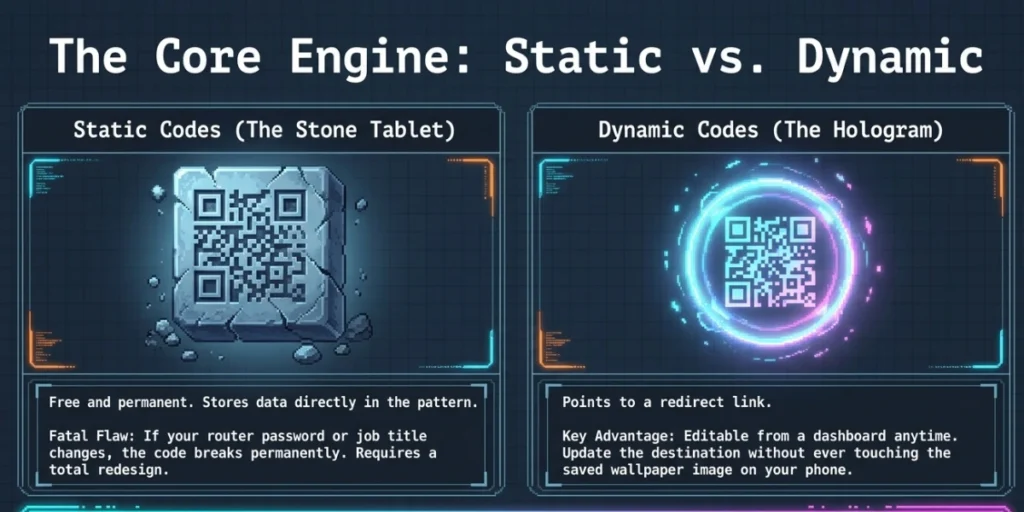
A static QR Code stores the WiFi password, contact details, or link right inside the pattern. It is free. It is permanent. But it cannot be edited. Change your router password, switch jobs, or move your portfolio to a new domain, and the code on your wallpaper is now wrong. Fixing it means redesigning the whole wallpaper.
A dynamic QR Code points to a short redirect link instead. You can change where that redirect leads at any time, from a dashboard, without touching the image on your phone. Update the destination once, and the same wallpaper keeps working, the one already saved on your phone and your team’s phones.
Business users have already voted with their data. In Scanova’s 2026 platform analysis of 36,810 live QR Codes, 94.6% to 99.5% of business codes in active use were dynamic, not static. When something might change, most people build in a way to fix it later.
My take: choose dynamic if the wallpaper carries a home WiFi password, a work contact card, or anything tied to a job or a router. The five-minute setup is cheaper than reshooting a wallpaper the day your password changes.
G. Design rules that keep a wallpaper code scannable
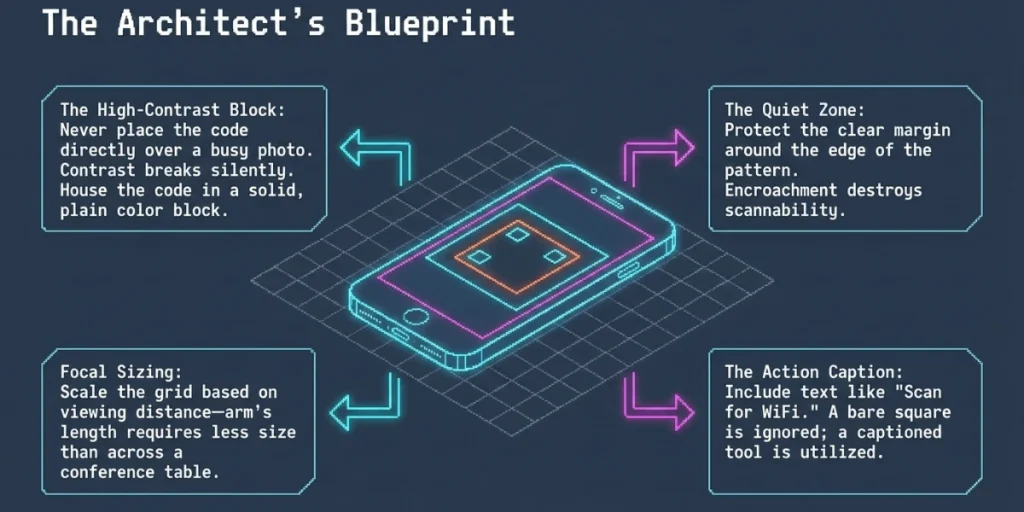
A wallpaper QR Code fails for the same handful of reasons every time. All of them are easy to fix before you set the image.
- Keep contrast high. A dark code needs a light, plain background right behind it, not a busy photo or a gradient. If your wallpaper has a photo, place the code inside a solid color block.
- Leave the quiet zone alone. QR Codes need a clear margin around their edge to scan well. Scanova’s guidelines for best results cover exactly how much space to leave.
- Size it for the viewing distance. A code scanned from arm’s length needs less size than one scanned across a table. As a rule, the code should never shrink so far that its smallest squares blur at normal focus distance.
- Add a caption. “Scan for WiFi” or “Scan to connect” beats a bare square. People scan things they understand. A caption also works as a text fallback for anyone who cannot use a camera, since a QR Code alone offers nothing to a screen reader.
- Go easy on logos and styling. A logo or rounded corners look sharp, but they eat into the code’s data. Generate at a higher error correction level if you add a logo. Test the styled version before it goes live.
H. Is a QR Code wallpaper safe to use?
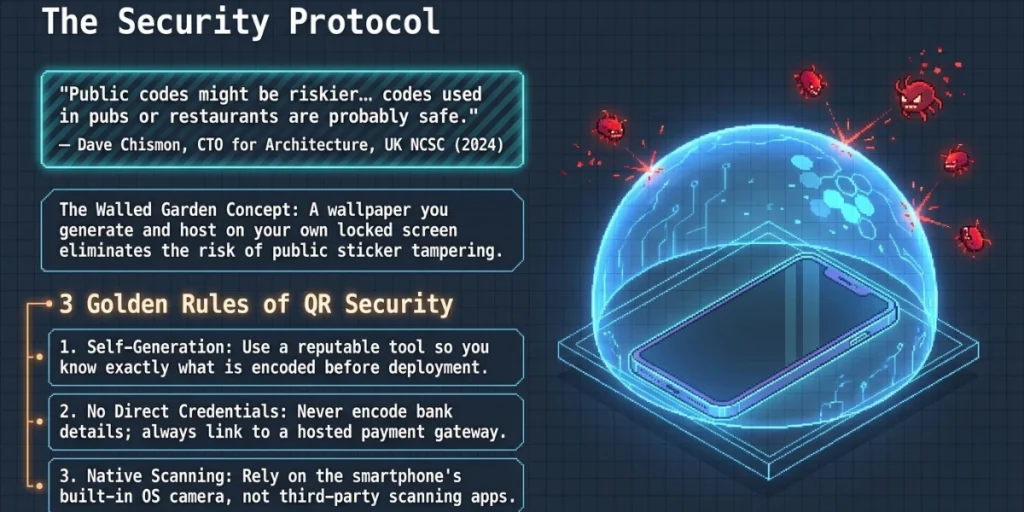
Generally, yes. It is often safer than the QR Codes you meet elsewhere, because you control what it points to and where it shows up. A sticker QR Code on a wall is not the same. A stranger could swap it out or paste a fake one over it.
The UK’s National Cyber Security Centre put real QR risk in plain terms. Dave Chismon, its CTO for Architecture, wrote this in a 2024 post:
“The QR Codes used in pubs or restaurants are probably safe for you to scan.”
He drew a clear line, though. Scanning codes in open public spaces, like stations and car parks, “might be riskier,” since anyone can place one there without oversight. A wallpaper you made yourself sits closer to the first case than the second. Nobody can swap it out from under you.
The bigger risk the NCSC flags is not wallpapers at all. It is “quishing” — QR Codes sent inside phishing emails. Most email security tools don’t scan images for malicious links the way they scan text. A bad code can slip through. A code you made yourself, on a screen only you control, does not carry that risk.
Three habits keep a wallpaper code safe:
- Generate it yourself, with a reputable tool. You know exactly what is encoded before it ever reaches a screen.
- Never encode payment credentials or account numbers directly. Link to a hosted payment page instead, the way a merchant would.
- Use your phone’s built-in camera to scan, not a third-party scanner app. That is the NCSC’s own advice for QR scanning in general.
I. Mistakes to avoid with a QR Code wallpaper
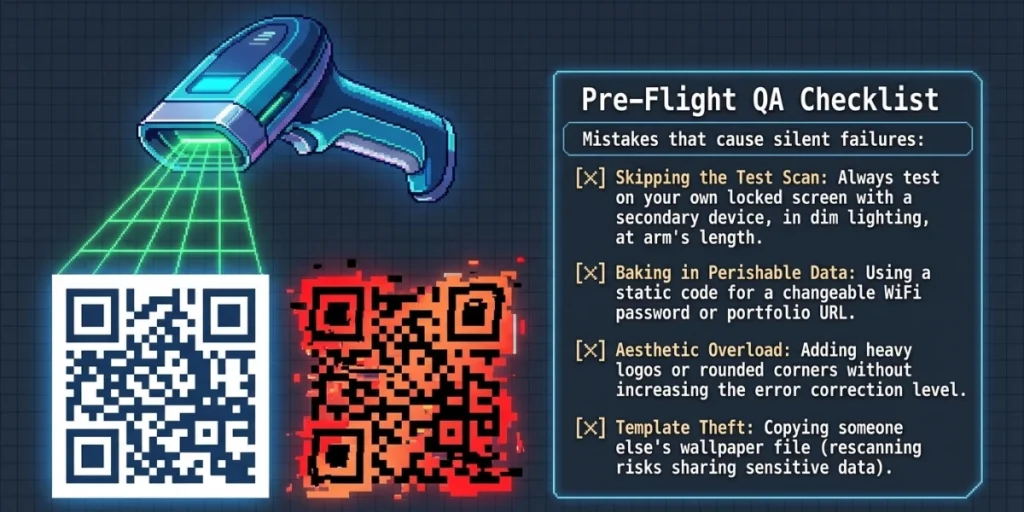
Most failed wallpaper codes trace back to one of six habits. Every one is easy to prevent.
- Skipping the test scan. Always scan your own locked screen with a second phone before you rely on the wallpaper for guests or a team.
- Using a static code for something that will change. A password or job title update should never require redesigning the wallpaper.
- Placing the code over a busy photo. Contrast breaks first, and it breaks silently. The code just stops scanning.
- No caption. A bare square gets ignored. “Scan to connect” gets used.
- Ignoring scan data. A scan-tracking dashboard shows whether the wallpaper actually gets used. That matters most when the same wallpaper goes to a whole team or a whole café shift.
- Copying someone else’s exact wallpaper file. A QR Code image can be rescanned and shared like any picture. If your code carries something sensitive, make your own instead of reusing a template someone else posted.
My Bottom Line
A QR Code wallpaper earns its place when it replaces a question you answer often: the WiFi password, your number, your portfolio link. Pick the link type that matches the job. Make it dynamic if anything behind it might change. Keep the design high-contrast with a caption. Test the scan before you hand your screen to a stranger.
On the tool itself, stay picky rather than loyal to whatever app you download first. Look for a generator that offers dynamic codes across WiFi, vCard, and URL types. It should give clean vector downloads to add into a design, plus scan tracking so you know the wallpaper is actually working.
That is the exact list behind Scanova’s QR Code generator. Build the code free, download it wallpaper-ready, and edit the destination anytime your WiFi, your job, or your links change.
Frequently Asked Questions
1. Does a QR Code wallpaper work on both iPhone and Android?
Yes. Any phone camera made in roughly the last decade scans QR Codes on its own, with no app needed. The only difference is where you assign the wallpaper: Settings > Wallpaper on iPhone, or Settings > Wallpaper & style on most Android phones.
2. Is a QR Code wallpaper safe?
Generally, yes. You control what the code links to and where it appears, which is a lower risk than a public sticker code anyone could tamper with. Avoid encoding payment details directly. Generate the code with a reputable tool, and scan with your phone’s built-in camera rather than a third-party app.
3. Can I change the link after I’ve already set the wallpaper?
Only if you used a dynamic QR Code. A dynamic code’s destination can be updated anytime from a dashboard, and the same wallpaper image keeps working. A static code cannot be edited. A changed password or link means redesigning the wallpaper from scratch.
4. Do I need an app to make a QR Code wallpaper?
No app is required to scan one. You do not need a dedicated app to make one either. A free QR Code generator plus any photo editor — Canva, Photoshop, or your phone’s built-in editor — is enough to add a code onto a background image.
5. Can someone screenshot my QR Code wallpaper and reuse it?
Yes. A QR Code is just an image, so it can be rescanned or copied like any picture on a screen. Never encode sensitive data, such as passwords to secure systems or payment credentials, directly. Link to a page that requires its own login instead.
6. Will a QR Code wallpaper slow down my phone or drain the battery?
No. A wallpaper is a static image, like any other. The QR Code inside it does nothing until a camera scans it. It has no more effect on battery life or performance than a photo wallpaper would.