How to Make a QR Code for Waze Location: A Complete Guide

In a nutshell (TL;DR): A Waze QR Code sends people straight to your spot on the map. You can make one in two ways. The quick way is to copy a Waze share link. The flexible way is to build a Waze deep link yourself. Once you have a link, you paste it into a QR Code, customize it, test the scan, and share it. A dynamic code goes further, since it lets you edit the location later and track every scan.
Here is a number worth knowing. The number of US smartphone users who scan QR Codes increases every year, according to Statista. Many of those scans help someone find a place, and getting there is where Waze steps in. Waze is the second-most-downloaded navigation app in the US, right after Google Maps, according to Statista.
So a Waze QR Code is a simple bridge between your sign and your door. Someone scans your code, and Waze opens with your spot pinned and ready to go. There is no typing and no wrong turns. In this guide, I will show you both ways to make one.
I will also compare Waze with other mapping apps and share tips to keep your code working in the long run. This guide is for anyone who wants people to reach a spot fast, whether you run a shop, plan events, or manage many stores.
A. What is a Waze QR Code?
A Waze QR Code is a type of location QR Code that contains a Waze link. When someone scans the code, Waze opens with directions to one place, and the app can start the drive with a single tap.
Here is why it works. A QR Code stores a web link, and in this case, that link points to Waze. A phone reads the code with its camera, and then Waze takes over.
A shared link works fine in a text or an email. On print, though, a raw link is a problem, since no one wants to type a long web address from a poster. A QR Code closes that gap by putting a tap-to-scan link on paper, signs, and packaging. That is why a code beats a plain link for anything a person sees out in the real world.
This removes many small pains. People no longer type a long address by hand, so typos never send them the wrong way. A scan also helps when a spot is tricky to find, like a back gate or a large parking lot. In each case, you hand over the exact location instead of a rough description.
You can place a Waze QR Code almost anywhere your audience will look. Think flyers, window signs, business cards, and event invites. One scan, and your guest is on the way.
“People don’t want to scan one QR Code for directions, another for hours, and a third for contact details. A single QR Code that takes them to everything they need reduces friction, improves the customer experience, and makes it more likely they’ll visit the right location. For businesses with multiple branches, it also ensures customers always see the most relevant information.”
— Siddharth Pangtey, Product Manager at Scanova
B. What are the two ways to make a Waze QR Code?
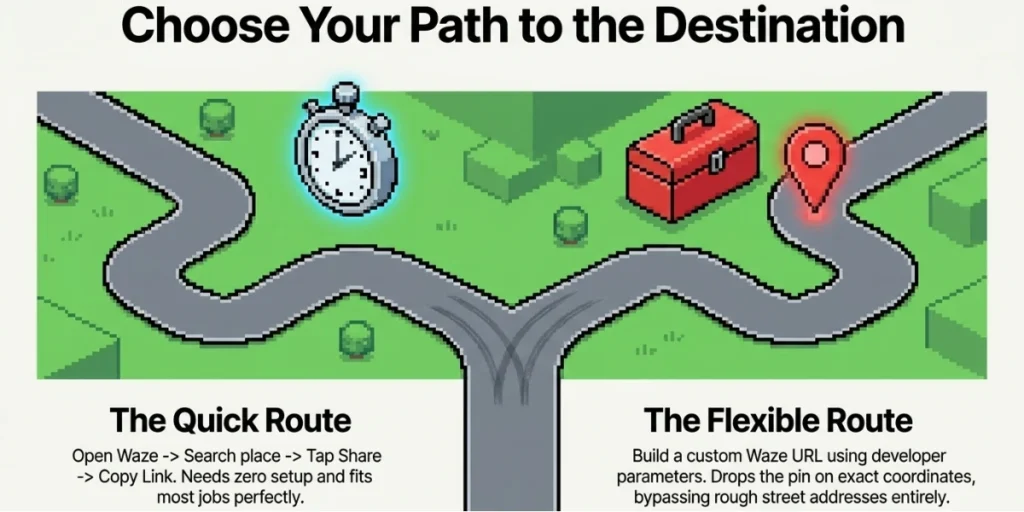
There are two ways to get the link you need, and both work well. You just pick the one that fits your case.
The first option is the share link, which is the fastest. Open Waze on your phone or desktop, find your place, and tap the Share button. Then copy the link that Waze gives you. This route needs no setup, so it suits most people and most jobs.
The second way is a deep link, which is a link you build yourself for more control. Google’s Waze developer docs explain the exact format, and it is easier than it looks. The base of every deep link is https://waze.com/ul, and you add small parts to point to a spot.
Here are the ones you will use most:
- Coordinates: https://waze.com/ul?ll=40.75889,-73.98513&navigate=yes
- Search term: https://waze.com/ul?q=Central Park (spaces get encoded automatically)
- Zoom level: add &zoom=17 so the map opens close to your pin
- Saved place: the docs also support favorites like home and work
The coordinate link is the most accurate because it drops the pin at a single point rather than leaving it as a guess. Use it when the spot has no clear name, like a field entrance or a loading bay. The search link is handy when you know the name but not the exact map point.
One detail matters here. Google’s documentation notes that this base link opens the Waze app when it is installed, and it opens a Waze web page when the app is missing. So a well-built link works on nearly any phone. If you run ads or track campaigns, you can also add a utm_source value to help Waze tie traffic back to your integration.
If you prefer a desktop workflow, open the Waze Live Map in a browser. Search your place, tap Share, and copy the driving directions link. It is a clean way to grab a link without your phone.
C. How do you make a Waze QR Code step by step?
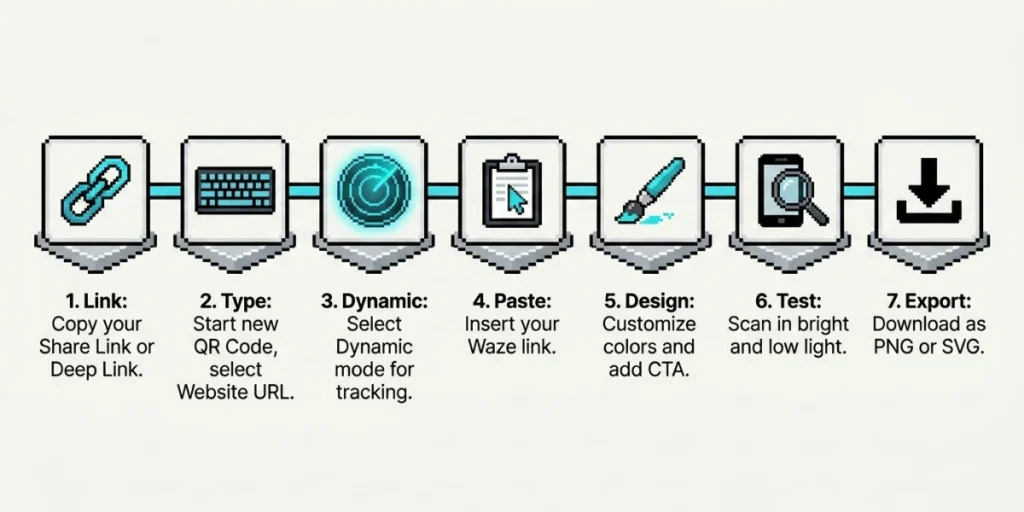
Once you have a link, you turn it into a QR Code. Here is how we do it at Scanova, and the steps stay quick and clear.
Step 1: Get your Waze link. Open Waze and find your place, or set up your route. Tap the share button, then copy the link. If you made a deep link earlier, use that one instead. Paste the link into a notes app for a moment so you do not lose it.
Step 2: Log in and start a new QR Code. Go to Scanova and log in. If you are new, start a free trial, and you do not need a card to begin. In the left sidebar, click Create QR Code. You will see a list of QR Code types, so pick the Website URL QR Code type. This type works for any web link, including a Waze link.
Step 3: Paste your Waze link. Find the link field on the page, then paste your Waze link into it. Check the link once for typos or extra spaces. When it looks right, click Continue.
Step 4: Name your QR Code. Give the code a clear name, like “Store Waze Directions.” A clear name helps you find it later in your dashboard. You can add tags to group your code, but they are optional. Then move to the next step.
Step 5: Pick Dynamic. Choose the Dynamic option, which is set as the default. A dynamic code lets you change the Waze link later without making a new code. It also tracks scans, so you can see how many people used it and where they were. A static code cannot do either, so we suggest Dynamic for most jobs.
Step 6: Customize the code to fit your brand. Open our Design Studio to style it. Add your logo in the center so people trust the scan. Set your brand colors for the pattern and the corners. Pick a frame, then add a short line like “Scan for Directions.” Keep a strong contrast between the code and the background so it stays easy to scan.
Step 7: Test the code before you use it. Scan it with your own phone first. Try it in bright and low light, and up close and from a few steps back. Make sure Waze opens the right spot every time. If a scan fails, increase the contrast or enlarge the code, then test again.
Step 8: Download the code and share it. Click Download once the code looks right. Save it as a PNG for screens, like emails and social posts. Save it as an SVG for print, like flyers and signs, since it stays sharp at any size. Then add the code wherever your customers will see it.
D. Should you use a static or dynamic Waze QR Code?
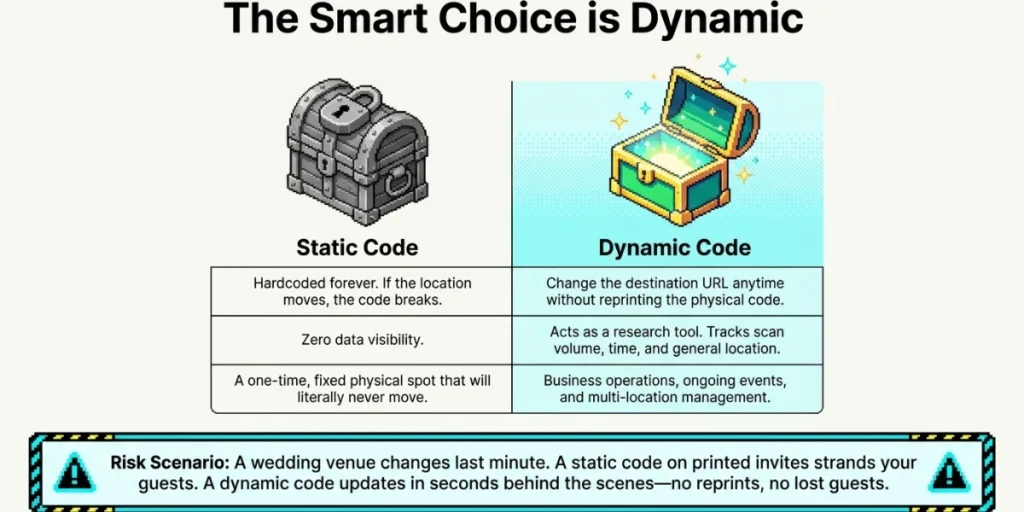
This choice matters more than it looks, so let me keep it simple.
A static code holds the link permanently, and you cannot change it once it is created. If the place moves, the code gets stuck, and you have to make a brand-new one. Static codes also give you no scan data.
A dynamic code works more intelligently. The printed code stays the same, but the link behind it can change at any time. So you can update the Waze spot in seconds, and you never reprint a thing.
Dynamic codes also track scans, which turns your code into a small research tool. You can see how many people scanned it, along with when and where they did. That tells you which sign or flyer actually earns its place.
Here is a real case that shows the risk. Say you print a wedding invite with a static code, only for the venue to change at the last minute. Every printed code now sends guests to the wrong address. A dynamic code would let you fix the link quickly, without reprinting and without confusing guests.
A quick rule of thumb helps here:
- Choose static for a one-time, fixed spot that will never move.
- Choose dynamic when the location might change, or when you want to scan data.
For most business use, Dynamic is the safer pick, since it gives you room to edit and learn. At Scanova, our dynamic codes are built to edit and track from one place.
E. How is a Waze QR Code different from a Google Maps or Apple Maps QR Code?
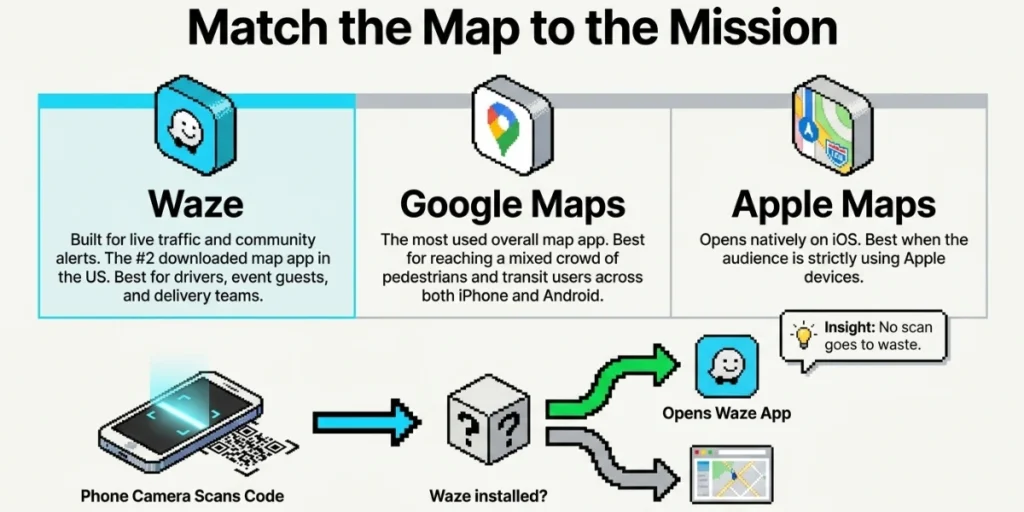
All three do the same basic job, since they open a map at your pin. The difference is which app opens and which drivers you serve best.
Waze is built around live traffic and community alerts, so it shines for people who are already on the road. A Waze code is a smart choice for audiences who drive frequently, such as event guests or delivery teams.
Google Maps, on the other hand, is the most widely used map app and opens easily on both iPhone and Android. If your crowd is mixed across many phones, a Google Maps link tends to reach the most people.
Apple Maps opens natively on iPhones, making it a strong fit for most of your audience who use Apple devices.
You do not have to pick just one. Many teams print a Waze code for drivers and a Google Maps code for everyone else. The key is to match the app to your audience, not to guess.
If you want to compare all three side by side, see our guide to making an address QR Code for Google, Waze, and Apple Maps.
F. What if someone does not have the Waze app?
This is a fair worry, since not everyone uses Waze. The good news is that a Waze link has a built-in backup.
If the person has Waze, the app opens right away. If they do not, the link opens a Waze web page instead. They can still see the spot on a map and get directions in the browser. So no scan goes to waste.
Still, you can make things even easier for people. Add a short label near the code, and write the place name or the full address in plain text. Then anyone can find you, even without a scan or an app.
You can also match the link to your crowd, as I noted above. When your people drive a lot, Waze is a strong fit.
When your group is spread across many apps, a Google Maps link may reach more of them. There is no wrong choice here, since you simply pick the link that suits your audience.
G. Where can you use a Waze QR Code?
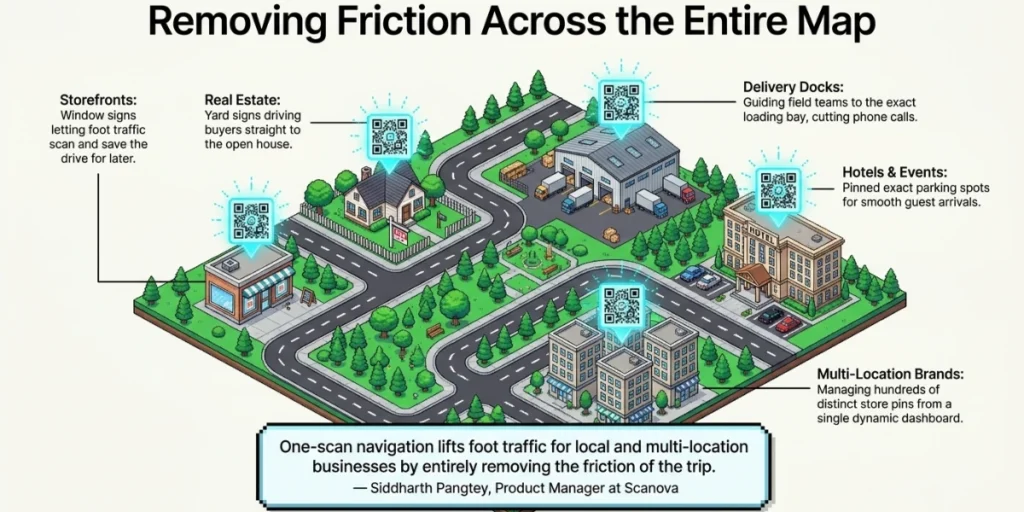
The uses are wide, and here are the ones I see work best in the real world.
Storefronts: Put a code on your window or door sign, so people walking by can scan and save the drive for later.
Events and weddings: Add a code to the invite, and pin the exact parking spot instead of just the venue. Guests will thank you for that small touch.
Delivery and field work: Guide drivers to the correct gate or loading dock, reducing phone calls and delays on busy days.
Real estate: Place a code on yard signs and flyers so buyers can drive straight to the open house with a single scan.
Multi-location brands: Run many codes from one dashboard, where each store gets its own pin, and you manage them all in one place.
Hotels and venues: Add a code at the front desk or on booking emails, so guests can drive in from the airport without a single wrong turn.
Print ads: Codes work on flyers, cards, brochures, and billboards, and a driver can scan and go.
Each case shares one goal. You remove friction from the trip, so people reach you fast and with less effort on their side.
H. How do you keep your Waze QR Code scannable?
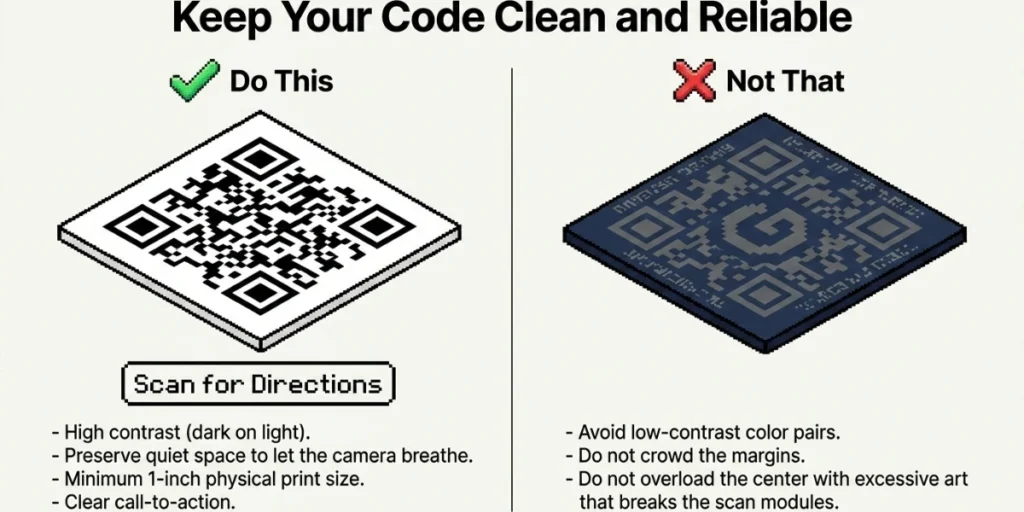
A code only helps if it scans well, and a few simple habits keep it clean and reliable.
Keep a strong contrast, because a dark code on a light background scans best. Avoid low-contrast color pairs, as they confuse the camera.
Leave a quiet space around the code and avoid crowding it with text or art. The code needs room to breathe so the scan reads clean.
Mind the size, and do not shrink it too far on print. A rough rule is one inch or larger for close scans, and you should go bigger for signs read from a distance.
Test before you print. Scan the final file on multiple phones and verify that the link opens to the correct spot each time.
Do not overload the design. A logo is fine and even helps your brand, but too much art can break the scan.
Add a call to action, since a short line like “Scan for Directions” tells people what to do. Clear prompts lift your scan rate.
Check it after launch too, and make sure the code still works over time. With a dynamic code, you can fix any issue fast and without a reprint.
I. FAQs: How to make a QR Code for Waze location
1. How do I make a QR Code for a Waze location?
Copy your Waze share link, or build a Waze deep link. Paste it into a QR Code maker, customize the design, test the scan, and download the file. That is the whole process, from start to finish.
2. Can I track how many people scan a Waze QR Code?
Yes, but only with a dynamic code. A dynamic code sits behind a redirect link, so that link can count scans, along with the time and place. A static code cannot track anything at all.
3. What is the difference between a static and dynamic Waze QR Code?
A static code cannot change once you make it, while a dynamic code can. You can edit the Waze spot later and see scan data, which makes dynamic the better pick for business use.
4. Does Waze have a location-sharing feature?
Yes. Waze lets you share any place as a link, which you can send by text or email. You can also turn the link into a QR Code for printing.
5. Will a Waze QR Code work without the Waze app?
Yes. If the app is missing, the link opens a Waze web page, where the person can still see the spot and get directions in a browser.
6. Can I make a Waze QR Code for free?
You can create basic code for free with many tools. To edit the link or track scans, though, you need a dynamic code, which usually sits on a paid plan.